
Fix “This Device Is Already Set Up in Another Organization” Message
Are you trying to connect your Windows 11 or Windows 10 computer to your work or school account, but keep getting the error “This device is already set up in another organization”? This message can appear in the Microsoft Company Portal app or while enrolling a computer in Microsoft Intune.
It can be frustrating, especially when you are setting up a new work computer, reinstalling Windows, or trying to access company resources using your personal device.
Generally, this error means Windows or Microsoft Intune detects that your device is already associated with another organization’s device management environment.
This association might come from an old work or school account, a previous Intune enrollment, or an existing device registration that has not been properly removed.
In this guide, we’ll walk through several practical solutions, starting with simple account checks and moving toward more advanced enrollment fixes.
Fix “This Device Is Already Set Up in Another Organization” in Company Portal or During Intune Enrollment
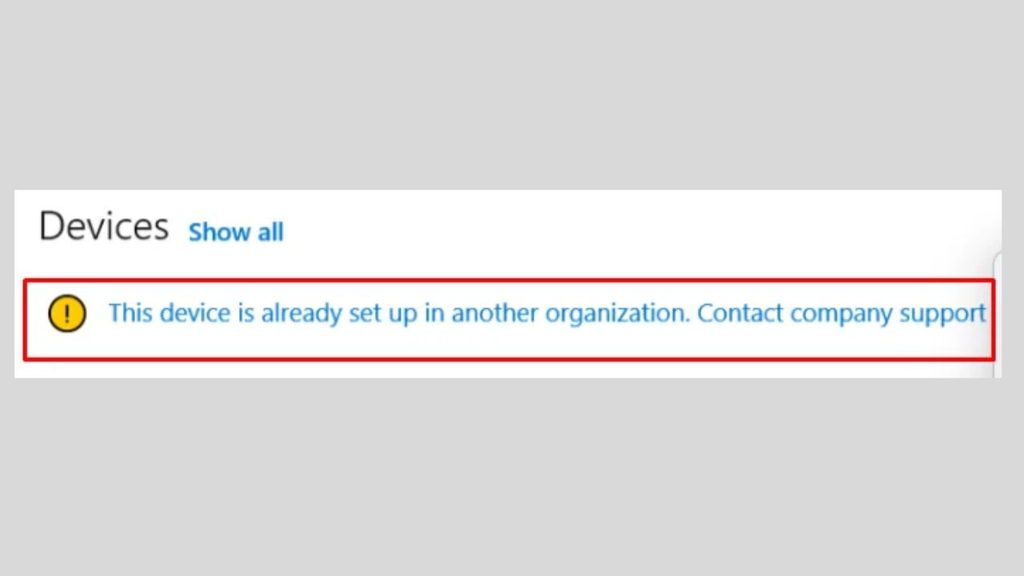
The “This device is already set up in another organization” error usually occurs when Windows detects an existing Microsoft Entra ID registration or Microsoft Intune management enrollment associated with another organization.
To fix it, check your existing work or school connections, remove outdated enrollment information with your IT administrator’s approval, clear stale device registrations from the organization’s management portal, and try enrolling again through Company Portal.
1: Restart Your Computer and Check Your Internet Connection
Before changing any Windows settings, start with a simple restart. Sometimes, a previous enrollment attempt gets interrupted, leaving Windows with an incomplete connection.
Restarting your computer can help Windows refresh its account and device management services.
Open the Start menu, select the Power icon, and click Restart.
Once Windows starts again, connect to a stable internet connection. If you’re using Wi-Fi, make sure it isn’t disconnecting frequently.
Now, open the Company Portal app and try signing in with your work or school account again.
If the same error appears, continue to the next solution.
2: Disconnect an Old Work or School Account
One of the most common reasons for this problem is an existing work or school account connected to Windows.
For example, you might have previously used your computer with another employer, school, or Microsoft 365 organization. Even if you no longer use that account, its connection may still be registered in Windows.
Here’s how to check:
- Press Windows + I to open Settings.
- Select Accounts from the left panel.
- Click Access work or school.
- Look for any old work or school accounts connected to your computer.
- Select an outdated account and click Disconnect if you are authorized to remove it.
- Follow the on-screen instructions to complete the process.
Restart your computer after disconnecting the old account.
Important: Don’t disconnect an account that belongs to your current employer without checking with IT. Removing a managed connection can affect access to company applications, email, VPN, and organizational resources.
3: Sign In Using the Previously Connected Windows Account
Sometimes, another Windows user has already connected the computer to an organization.
This can happen when a family member, previous employee, or another person used the same computer for work.
Microsoft documents enrollment errors that occur when another user has already enrolled the device or joined it to Microsoft Entra ID.
To check this possibility, sign out of your current Windows account.
On the sign-in screen, select the Windows account previously used to connect the device to the organization.
After signing in, navigate to Settings > Accounts > Access work or school.
If you find an outdated organizational connection, contact the relevant administrator before disconnecting it.
Once the previous connection has been properly removed, sign out and return to your own Windows account.
Try enrolling the device again.
4: Ask Your IT Administrator to Remove the Old Device Registration
If the previous solutions don’t work, the problem might not be stored entirely on your computer.
Your device could still have an active or outdated registration in the previous organization’s Microsoft Entra admin center or Microsoft Intune admin center.
This is particularly common when a computer was previously used by another organization or transferred between employees.
Ask the previous organization’s IT administrator to check the device registration.
They can investigate the following locations:
Microsoft Entra admin center: The administrator should check the device identity under the device management section and determine whether an old registration needs to be removed.
Microsoft Intune admin center: The administrator can check the device under Devices > All devices and review its management status.
If the computer is no longer supposed to belong to that organization, the administrator can follow the appropriate deregistration and unenrollment process.
After the old registration has been properly cleared, restart your computer and attempt enrollment again.
Note: Don’t delete device records yourself if you don’t administer the previous organization. Removing the wrong record can affect an active company device. The administrator should also check whether Windows Autopilot still associates the hardware with the previous organization.
5: Check for Old Intune Enrollment Certificates
Windows can retain certificates from an earlier device management enrollment.
These certificates help establish trust between your computer and the organization’s management service. If an old enrollment certificate remains, it can sometimes interfere with a new enrollment.
You can check the certificates using the Microsoft Management Console (MMC).
- Press Windows + R to open the Run dialog box.
- Type mmc and press Enter.
- Select File and click Add/Remove Snap-in.
- Select Certificates and click Add.
- Choose Computer account.
- Select Next, choose Local computer, and click Finish.
- Click OK to return to the console.
- Expand Certificates (Local Computer).
- Open Personal > Certificates.
Look for certificates associated with an old Intune or organizational enrollment.
If you identify an outdated enrollment certificate, don’t delete it immediately. Ask your IT administrator to confirm that it belongs to the previous enrollment and is safe to remove.
Removing an active certificate can break an existing management connection.
6: Review Old Enrollment Information in Windows Registry
Another possible cause is leftover enrollment information in the Windows Registry.
The Registry stores important Windows configuration details, including information associated with device management.
However, editing the Registry incorrectly can cause Windows problems. This solution is best handled by an experienced administrator.
If your IT administrator confirms that stale enrollment records need cleanup, follow their instructions.
To open Registry Editor, press Windows + R, type regedit, and press Enter.
Navigate to the following location:
HKEY_LOCAL_MACHINE\SOFTWARE\Microsoft\Enrollments
Before making changes, create a Registry backup by selecting File > Export.
Your administrator can inspect the enrollment entries and identify which ones belong to the previous organization.
Do not delete the entire Enrollments key or randomly remove GUID entries. Some entries are required for Windows management, and the correct cleanup depends on the enrollment state.
After the approved cleanup, restart Windows and try enrolling again.
7: Reinstall the Microsoft Company Portal App
If the device’s organizational registration is correct but Company Portal continues displaying the error, the application itself might have outdated or corrupted data.
Reinstalling the app can help resolve application-related problems.
- Open Settings using Windows + I.
- Select Apps > Installed apps.
- Find Company Portal in the application list.
- Click the three-dot menu next to it.
- Select Uninstall.
- Restart your computer.
- Open the Microsoft Store.
- Search for Company Portal.
- Install the application again.
- Open Company Portal and sign in using your current work or school account.
Try enrolling your computer again.
Remember that reinstalling Company Portal does not automatically remove an existing Intune enrollment or Microsoft Entra registration. Those records must be handled separately.
8: Check Intune Enrollment Restrictions and Device Limits
If you’re an IT administrator, check whether your organization’s enrollment policies are preventing the device from registering.
Microsoft Intune supports enrollment restrictions that control which devices users can enroll.
Open the Microsoft Intune admin center and review the relevant settings.
Check the Device platform restrictions to confirm that Windows enrollment is allowed for the affected user and device ownership type.
Also, review the user’s device enrollment limit. If the user has already reached the maximum number of permitted devices, a new enrollment may fail.
You can check this under the user’s device information in the Intune admin center.
Remove genuinely unused device records or adjust the applicable enrollment limit if organizational policy allows it.
Also verify that the user has the appropriate Intune license and enrollment permissions.
These checks are particularly useful when several employees experience similar enrollment problems.
9: Contact the Previous Organization or Device Seller
If you purchased a second-hand computer, inherited an old company laptop, or received a refurbished device, it might still be associated with its previous organization.
In this situation, removing a Windows account or reinstalling Company Portal might not solve the problem.
The device may still be registered with the previous organization’s Microsoft Entra ID or Windows Autopilot deployment service.
Contact the previous owner, seller, or organization’s IT department and request that they properly release the device from their management environment.
If the seller cannot provide this assistance, consider requesting a refund or replacement.
A Windows factory reset is not guaranteed to fix this problem, because organizational hardware registration can survive a local reset.
FAQs
1. Why does Company Portal say my device is already set up in another organization?
This message usually means your computer has an existing organizational registration or device management enrollment. It might be connected to an old employer, school, or Microsoft Intune environment.
2. Can I fix this error without reinstalling Windows?
Yes. In many cases, you can resolve the issue by removing outdated work or school connections, cleaning up old enrollment records with administrator assistance, and enrolling the device again.
3. Will disconnecting a work or school account delete my personal files?
Normally, disconnecting an organizational account doesn’t erase your personal documents, pictures, or other locally stored files. However, it can remove access to work applications, company data, and organizational resources.
Always back up important files before making significant enrollment changes.
4. Does resetting Windows remove the previous organization’s Intune enrollment?
Not necessarily. A Windows reset can remove local settings and applications, but it doesn’t automatically release a device from Microsoft Entra ID or Windows Autopilot.
The previous organization may need to remove its registration.
5. Why does the error appear even on a brand-new computer?
A supposedly new computer may have been previously registered, returned, refurbished, or incorrectly associated with an organization’s Autopilot deployment.
Contact the seller or manufacturer and ask them to investigate the device’s organizational registration.
6. Can I enroll the same Windows computer in two organizations?
Windows has restrictions on organizational device joining and management. A device generally can’t be joined to multiple Microsoft Entra tenants simultaneously. Existing management connections may also prevent a new enrollment.
Summary
The “This device is already set up in another organization” error usually indicates that Windows or Microsoft Intune has detected an existing organizational device registration or management connection.
Start by checking your work or school accounts and removing outdated connections only when authorized. If that doesn’t work, ask your IT administrator to investigate old Intune enrollment certificates, Microsoft Entra registrations, and Windows Autopilot associations.
You can also reinstall Company Portal and review enrollment restrictions and device limits.