
Fix “We can’t create your account” on Microsoft
The “We can’t create your account” message can appear when Microsoft’s security systems detect unusual activity during the account creation process. It does not automatically mean that you have violated a rule or that your computer is compromised.
Start by stopping repeated attempts, then wait before trying again. Disconnect any VPN or proxy, test a different trusted internet connection, clear browser data, and try another browser or private browsing window.
You can also check your Windows date and time and temporarily disable browser extensions.
Let’s learn everything in detail!
What does “We can’t create your account” mean on Microsoft?
When Microsoft displays “We can’t create your account”, it means the account creation request has been temporarily blocked or cannot be completed because Microsoft’s security systems have detected activity that appears unusual.
The full message may say:
“We’re having trouble creating your Microsoft account due to some unusual activity we’ve detected. Learn more”
Microsoft uses automated security measures to protect its services from spam, automated account creation, abuse, and suspicious activity. A legitimate user can sometimes trigger these protections as well. For example, repeatedly attempting to create accounts, using a VPN or proxy, encountering an issue with browser cookies, or having a network connection associated with unusual traffic can contribute to the problem.
The important thing to understand is that this message does not necessarily indicate that your computer or Microsoft account is compromised.
It can simply mean that Microsoft’s automated security system is not currently accepting the account creation request.
Fix “We can’t create your account” on Microsoft
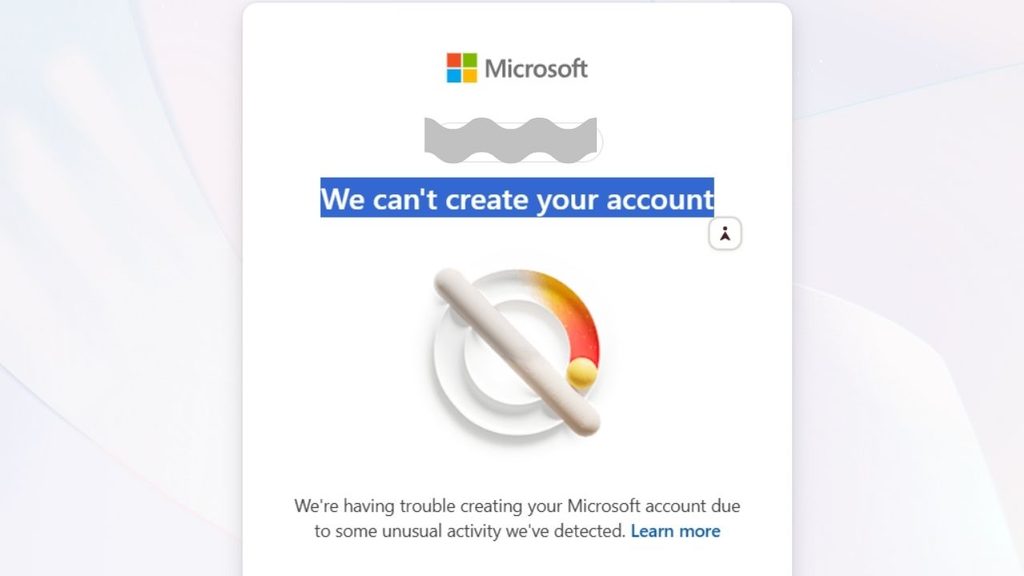
If Microsoft says “We can’t create your account” because it detected unusual activity, try creating the account again after some time, turn off any VPN or proxy, use a different network, clear browser cookies and cache, try another browser or private window, and avoid repeatedly submitting account creation requests. If Microsoft continues blocking the request, use Microsoft’s official account support options.
The following steps explain these solutions step by step, starting with the simplest ones.
Step 1: Wait Before Trying to Create the Account Again
The first thing you should do is stop attempting to create the account repeatedly. If Microsoft’s security system has temporarily restricted your requests, repeatedly submitting the same form may not solve the problem.
Close the Microsoft account creation page and wait for some time before trying again. If you have already attempted account creation many times within a short period, giving the system time to clear the temporary restriction can be particularly useful.
When you try again, complete the process normally instead of submitting the form several times. Enter your information carefully and allow each page to load completely before moving to the next one.
Step 2: Turn Off Your VPN
If you are using a VPN, disconnect it temporarily and try creating the Microsoft account again.
A VPN can make your internet connection appear to originate from a different location. Microsoft may also see many users connecting through the same VPN server. As a result, a perfectly legitimate account creation attempt can sometimes trigger additional security checks.
Open your VPN application and disconnect from the VPN server. Then close your browser completely, reopen it, and visit the Microsoft account creation page again.
If you are not using a VPN, move on to the next step.
Step 3: Disable a Proxy Connection
A proxy server can also affect how Microsoft sees your internet connection. If a proxy is configured on your computer or network, temporarily disabling it can help determine whether it is contributing to the problem.
In Windows, open Settings and go to Network & internet. Select Proxy and check whether a proxy has been manually configured.
If you recognize a proxy that you intentionally use for work or another purpose, do not change it without understanding the consequences. If you are simply testing your home computer and do not need the proxy, temporarily disable the manual proxy setting and try the Microsoft account creation process again.
Step 4: Try a Different Internet Connection
Your current network connection could be contributing to the unusual activity warning.
For example, if you are connected to a shared public, office, school, or other heavily used network, Microsoft’s systems may see multiple account creation requests coming from the same internet address.
Try switching to another trusted connection. If you are currently using Wi-Fi, you can temporarily connect your computer to a mobile hotspot and try again.
After switching networks, reopen the browser and start the account creation process again. Avoid repeatedly switching between networks and submitting many requests because the goal is to make a normal, consistent attempt.
Step 5: Clear Your Browser Cookies and Cache
Old or corrupted browser data can sometimes interfere with Microsoft account pages.
If you are using Chrome, open the browser settings and find the option for clearing browsing data. Select cached files and cookies, then clear the relevant data.
You can also use a private browsing window for a quick test. In Chrome, press Ctrl + Shift + N to open an Incognito window. Then open Microsoft’s account creation page and try again.
Using a private window is useful because it starts a separate browsing session without relying on your existing cookies and much of your stored browser data.
Step 6: Try Another Web Browser
If the problem continues, try creating the Microsoft account using a different browser.
For example, if you are currently using Chrome, try Microsoft Edge. If you are using Edge, try Chrome or another supported browser.
This helps determine whether the problem is specific to your current browser profile. If the account creation page works normally in another browser, your original browser may have an extension, cookie, cached file, or configuration that is interfering with the process.
Step 7: Temporarily Disable Browser Extensions
Some browser extensions can interfere with websites, particularly extensions that modify privacy settings, block scripts, change network behavior, or filter website content.
Open your browser’s extensions page and temporarily disable extensions that could affect Microsoft’s website. You do not necessarily need to uninstall them.
After disabling the extensions, reload the Microsoft account creation page and try again.
If the account can be created afterward, enable your extensions one at a time to identify which one was causing the conflict.
Step 8: Check Your Computer’s Date and Time
An incorrect date, time, or time zone can cause problems with secure websites and authentication systems.
In Windows 11, open Settings, select Time & language, and then choose Date & time.
Make sure Set time automatically is enabled. Also check that your time zone is correct for your location.
Once the settings are corrected, restart your browser and try creating the Microsoft account again.
Step 9: Avoid Using Automated or Repeated Account Creation Attempts
Microsoft’s security systems are designed to identify patterns associated with automated or abusive account creation.
If you are creating an account manually, enter the information yourself and avoid repeatedly refreshing the page, repeatedly requesting verification codes, or submitting the form again and again.
If an attempt fails, take a moment to determine what went wrong before trying again. Repeated attempts in a short period can make troubleshooting more difficult if the service is already temporarily restricting the request.
Step 10: Try Again From a Different Device
If the problem continues on your computer, try the Microsoft account creation process from another trusted device.
For example, you can use a smartphone or another computer and connect through a normal internet connection.
This test can help determine whether the issue is specific to your original device, browser, or network. If the same unusual activity message appears on multiple devices and networks, the problem is more likely to be related to Microsoft’s account creation or security systems rather than your particular Windows installation.
Step 11: Check Microsoft’s Account Help Options
If none of the previous steps work, use Microsoft’s official support and account help resources.
When contacting Microsoft or using its troubleshooting options, explain that you are trying to create a new account and are receiving the “We’re having trouble creating your Microsoft account due to some unusual activity we’ve detected” message.
Avoid creating numerous additional accounts simply to test whether the restriction disappears. Instead, follow Microsoft’s account recovery or support instructions and allow the service to determine what additional verification may be required.
FAQs
Why does Microsoft say it detected unusual activity?
Microsoft can display this message when its automated security systems identify activity that appears unusual during account creation. The detection can be related to the network, browser session, repeated requests, or other security signals.
Does the message mean my computer has a virus?
Not necessarily. The message primarily indicates that Microsoft has detected unusual activity associated with the account creation request. It does not by itself prove that your computer contains malware.
If you have other signs of malware, such as unexpected applications, browser redirects, or unusual system behavior, you should investigate those symptoms separately.
Can a VPN cause “We can’t create your account”?
A VPN can contribute to the problem because it changes the apparent network location and may route many users through the same server. Disconnecting the VPN and trying again from your normal connection can help determine whether it is involved.
How long should I wait before trying again?
There is no universal waiting period that guarantees the restriction will disappear. If you have made several unsuccessful attempts, stop trying repeatedly and wait before making another normal attempt.
Should I keep refreshing the Microsoft account page?
No. Repeatedly refreshing and resubmitting the account creation form is not recommended. Close the page, wait, and try again later using a clean browser session.
Can I create a Microsoft account using another browser?
Yes. Trying another browser is a useful troubleshooting step. It can help determine whether cookies, extensions, cached data, or browser settings are contributing to the problem.
What if the error appears on every device?
If the same message appears across different devices and trusted networks, the issue may not be specific to your computer. In that situation, Microsoft’s account support resources are the appropriate next step.