
Fix the ‘Windows is Not Activated’ Issue
Seeing the “Windows is Not Activated” message on your computer can be frustrating, especially when you notice a watermark on your desktop or certain personalization settings become unavailable. Fortunately, this problem is usually easy to fix once you identify what caused it.
A Windows activation issue can happen after reinstalling Windows, replacing computer hardware, entering the wrong product key, upgrading your operating system, or experiencing temporary activation server problems.
This guide explains what the activation message means and walks you through several methods to activate Windows successfully.
Important: If you have installed a pirated version of Windows, you will not be able to remove the ‘Windows is Not Activated’ issue easily!
Windows is Not Activated Meaning
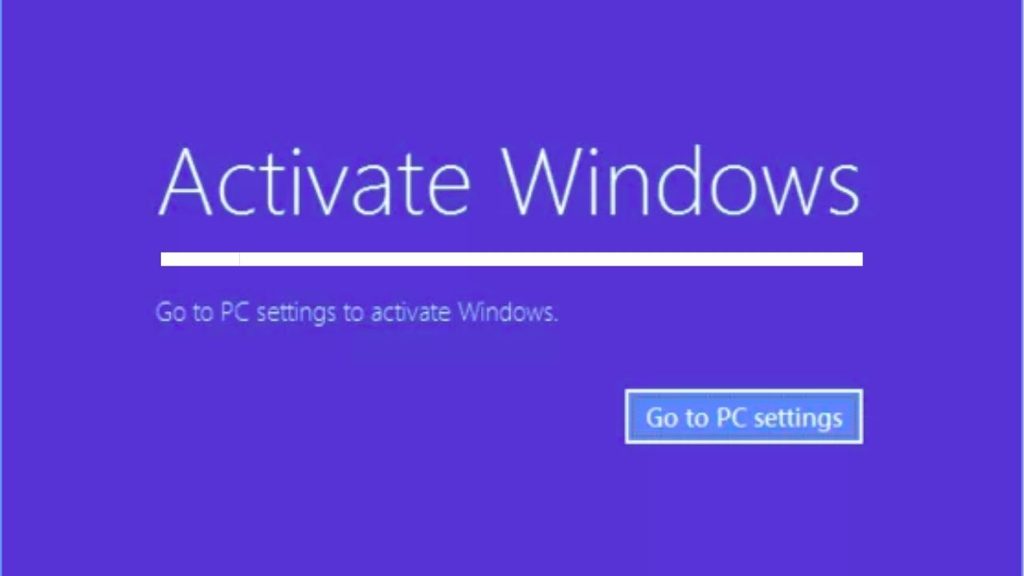
The “Windows is Not Activated” message means that your copy of Windows has not been successfully verified by Microsoft’s activation servers. Every genuine Windows installation requires a valid digital license or product key to confirm that the operating system is properly licensed.
When Windows is not activated, you may notice several limitations. A watermark saying Activate Windows may appear in the bottom right corner of your desktop. Some personalization settings, such as changing wallpapers, themes, and colors, may be unavailable. You may also receive frequent reminders asking you to activate Windows.
In many cases, Windows continues to work normally even if it is not activated. However, activating Windows unlocks all features and confirms that you are using a genuine licensed copy.
Fix the “Windows is Not Activated” Issue Easily
There are several ways to resolve this problem. Start with the simplest solutions before moving on to the more advanced ones.
1: Check Your Windows Activation Status
Before making any changes, confirm the current activation status of your computer. This helps you understand whether Windows has never been activated or if it simply lost activation.
- Open Settings by pressing Windows + I.
- Select System.
- Scroll down and click Activation.
Here you will see the activation status of your PC. Windows may display messages such as Windows is activated, Windows is not activated, or Activation required. It may also provide an error code that explains why activation failed.
Reading this information first helps you choose the correct solution instead of guessing what went wrong.
2: Restart Your Computer
Although it sounds simple, restarting your computer can sometimes resolve temporary activation problems.
- Save your work and close all open applications.
- Click the Start button.
- Select the Power icon.
- Choose Restart.
After Windows starts again, return to the Activation page and check whether the message has disappeared. Sometimes Windows reconnects to Microsoft’s activation servers after a restart and activates automatically.
3: Connect to the Internet
Windows activation requires an active internet connection when using a digital license.
Open your web browser and visit any website to confirm your internet connection is working.
If you are using Wi-Fi, make sure it is connected properly.
If your connection is unstable, restart your modem or router and reconnect your PC.
Once connected, open Settings > System > Activation and wait a few minutes. Windows may activate automatically once it successfully contacts the activation servers.
4: Run the Windows Activation Troubleshooter
Windows includes a built-in Activation Troubleshooter that can automatically detect and repair common activation problems.
- Press Windows + I to open Settings.
- Select System.
- Open Activation.
- If Windows is not activated, click Troubleshoot.
Allow the troubleshooter to scan your computer. It will look for licensing issues, digital license problems, and account related activation errors.
If Windows finds a solution, follow the instructions displayed on the screen. In many situations, the troubleshooter completes the activation process automatically.
5: Sign In with the Correct Microsoft Account
Many computers use a digital license linked to a Microsoft account instead of a traditional product key.
- Open Settings.
- Go to Accounts.
- Verify that you are signed in with the Microsoft account used when Windows was originally activated.
If you are signed into the wrong account, switch to the correct one and restart your computer.
Return to the Activation page to check whether Windows activates automatically.
This method is especially useful after reinstalling Windows or replacing a storage drive.
6: Enter a Valid Windows Product Key
If you own a genuine Windows product key, you can activate Windows manually.
- Open Settings.
- Go to System.
- Select Activation.
- Click Change Product Key.
- Carefully enter your 25-character product key.
- Select Next and then click Activate.
Double-check every character before submitting the key because even one incorrect letter or number will cause activation to fail.
7: Make Sure You Installed the Correct Windows Edition
A product key only works with the matching Windows edition.
For example, a Windows 11 Home product key cannot activate Windows 11 Pro.
- Open Settings.
- Select System.
- Click Activation.
- Check the installed edition of Windows.
If your product key belongs to another edition, you will need to install the matching version or use the correct product key for your current edition.
This is one of the most common reasons for activation errors after reinstalling Windows.
8: Use the Activation After Hardware Change Option
Replacing important hardware, such as the motherboard, may cause Windows to lose activation.
- Open Settings.
- Go to System.
- Select Activation.
- Click Troubleshoot.
- Choose I changed hardware on this device recently if the option appears.
- Sign in with the Microsoft account linked to your digital license.
- Select your current device from the list.
- Choose Activate.
If your license is eligible, Windows will restore activation without requiring another product key.
9: Check the Date and Time Settings
Incorrect system time can sometimes interfere with Windows activation.
- Open Settings.
- Select Time & Language.
- Click Date & Time.
- Enable Set time automatically.
- Enable Set time zone automatically if available.
- Restart your computer after correcting the settings.
Accurate date and time information helps Windows communicate correctly with Microsoft’s activation servers.
10: Install Pending Windows Updates
Outdated system files can occasionally affect activation services.
- Open Settings.
- Select Windows Update.
- Click Check for updates.
- Download and install every available update.
- Restart your computer after installation finishes.
After Windows loads again, return to the Activation page and verify whether the issue has been resolved.
11: Verify That Your Windows License Is Genuine
If your product key came from an unauthorized seller, Windows may refuse to activate.
Make sure your Windows license was purchased from Microsoft or an authorized retailer.
Avoid using free activation tools, unofficial activation software, or shared product keys because they often cause activation failures and may expose your computer to security risks.
Using a genuine license is the safest and most reliable solution.
12: Contact Microsoft Support
If none of the previous methods work, contacting Microsoft Support is the next step.
Before reaching out, note the activation error code shown in the Activation settings page.
Explain what happened before the activation issue started. For example, mention whether you upgraded Windows, reinstalled the operating system, or replaced hardware.
The support representative can verify your license and guide you through any additional activation steps if needed.
FAQs
Why does Windows suddenly say it is not activated?
This usually happens after reinstalling Windows, changing major hardware, entering an incorrect product key, or experiencing a temporary activation server issue.
Can I use Windows without activating it?
Yes. Windows will continue to function, but certain personalization features will be restricted, and an Activate Windows watermark may remain on your desktop.
Will reinstalling Windows fix activation problems?
Not always. If your computer has a digital license, reinstalling Windows usually activates automatically after you sign in with the correct Microsoft account. If the issue is related to your license, reinstalling alone may not solve it.
How do I know if my Windows license is genuine?
If Windows activates successfully through Microsoft’s activation service and was purchased from Microsoft or an authorized retailer, your license is generally genuine.
Can changing computer hardware affect Windows activation?
Yes. Replacing major components, especially the motherboard, can cause Windows to lose activation because the digital license is linked to your device’s hardware.
Do I need a product key if I already have a digital license?
Usually not. If your digital license is linked to your Microsoft account, Windows should activate automatically after you sign in.
Summary
The “Windows is Not Activated” message is usually caused by licensing issues, hardware changes, incorrect Windows editions, or temporary communication problems with Microsoft’s activation servers.
Fortunately, most users can resolve the issue by checking their activation status, connecting to the internet, running the Activation Troubleshooter, signing in with the correct Microsoft account, entering a valid product key, or restoring activation after a hardware change.
By following the methods in this guide one by one, even beginners can identify the cause of the activation problem and restore full access to all Windows features without reinstalling the operating system.