
Fix Windows Update Error 0x800f0993
Sometimes Windows Update runs into an unexpected problem and stops installing the latest updates.
One such issue is Windows Update error 0x800f0993. You may encounter this error when downloading or installing a cumulative update, security update, or other Windows update. The installation might fail repeatedly, even after restarting your computer and trying again.
This problem can be frustrating, especially when Windows keeps displaying the same error code without explaining what went wrong.
The issue may be related to corrupted update files, damaged Windows components, incomplete downloads, or an update-specific installation problem.
In this guide, I’ll walk you through several practical ways to fix Windows Update error 0x800f0993 in Windows 11 and compatible Windows 10 installations.
Fix Windows Update Error 0x800f0993
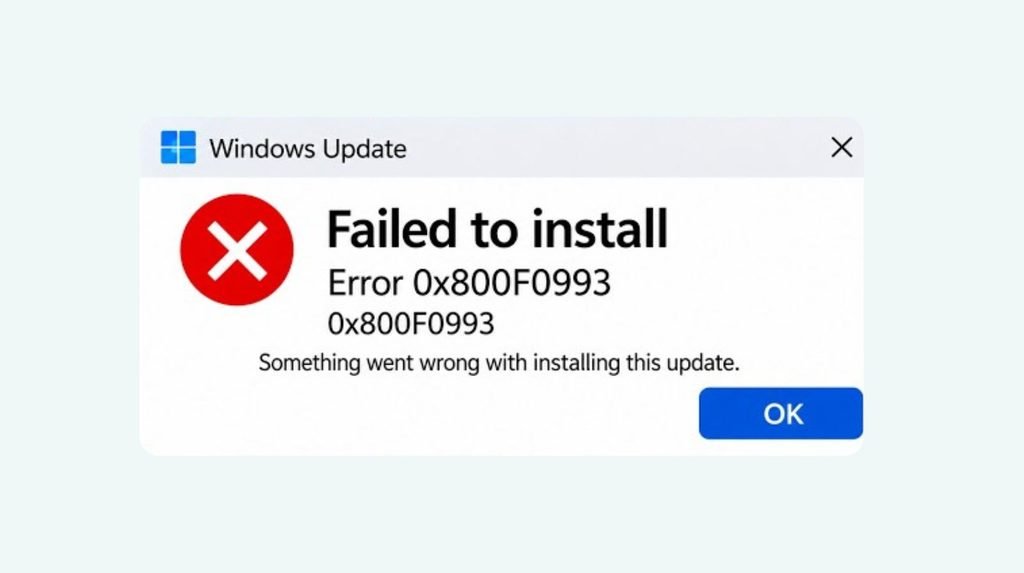
Windows Update error 0x800f0993 generally appears when Windows fails to complete an update installation. Microsoft does not currently list this particular code among its commonly documented Windows Update errors, so the exact cause can vary depending on the affected update and Windows version.
You can troubleshoot the issue by running the Windows Update troubleshooter, checking your internet connection, repairing corrupted system files, resetting Windows Update components, and manually installing the problematic update.
Let’s go through these solutions one at a time.
1: Restart Your Computer and Check Your Internet Connection
Before trying advanced troubleshooting methods, start with something simple. A temporary Windows service problem, interrupted download, or unstable internet connection can sometimes prevent an update from installing correctly.
Restarting your computer can refresh Windows services and clear temporary issues that might be interfering with the update process.
Here’s what you need to do:
- Click the Start button on your Windows taskbar.
- Select the Power option.
- Click Restart and wait for your computer to boot again.
- Once Windows starts, open your preferred web browser.
- Visit a few websites to confirm that your internet connection is working properly.
If you’re using Wi-Fi, try restarting your router. You can also switch to an Ethernet connection if one is available.
Additionally, temporarily disconnect any VPN connection because certain network configurations can interfere with update downloads.
After completing these checks, open Settings > Windows Update and select Check for updates.
If error 0x800f0993 appears again, move to the next solution.
2: Run the Windows Update Troubleshooter
Windows includes a troubleshooting utility that can automatically detect and resolve common Windows Update problems.
It checks relevant update services and settings and attempts to fix issues that prevent Windows from downloading or installing updates.
Follow these instructions:
- Press Windows + I to open the Settings application.
- Select System from the left sidebar.
- Scroll down and click Troubleshoot.
- Select Other troubleshooters.
- Find Windows Update in the list.
- Click the Run button next to it.
- Follow the instructions displayed on your screen.
Windows 11 users may also run the automated Windows Update troubleshooter through the Get Help application.
Once the troubleshooting process finishes, restart your computer.
Now, navigate to Settings > Windows Update and click Check for updates.
Check whether Windows can install the pending update without displaying the error.
3: Repair Corrupted Windows System Files Using SFC
Sometimes, Windows Update cannot complete an installation because important system files are damaged or missing.
Fortunately, Windows provides a System File Checker utility, commonly known as SFC, that scans protected system files and attempts to repair corrupted versions.
You can run it through Command Prompt.
Here’s how:
- Click the Start button and type Command Prompt.
- Right-click the search result.
- Select Run as administrator.
- When the User Account Control prompt appears, click Yes.
- Type the following command:
sfc /scannow - Press Enter to start the scan.
Allow the process to finish. It may take several minutes, depending on your computer’s condition.
If Windows finds corrupted files, it will attempt to repair them automatically.
After the scan completes, restart your computer and try installing the Windows update again.
4: Run the DISM Command to Repair Windows Images
If the SFC scan doesn’t resolve the issue, try the Deployment Image Servicing and Management tool, also known as DISM.
DISM checks and repairs the Windows component store, which provides the files needed for system maintenance and repairs.
Follow these steps:
- Open the Start menu.
- Search for Command Prompt.
- Select Run as administrator.
- Type the following command:
DISM /Online /Cleanup-Image /RestoreHealth - Press Enter.
Windows will begin checking the component store and repairing any detected problems. Keep your computer connected to the internet because DISM may need to download replacement files from Windows Update.
Don’t close the Command Prompt window while the process is running.
Once it reaches 100%, restart your PC.
For better results, run the SFC command again after DISM finishes. Then check Windows Update to see whether error 0x800f0993 has disappeared.
5: Reset Windows Update Components
Another effective solution is resetting Windows Update components.
Windows stores downloaded update files and related information in specific folders. If these files become corrupted or incomplete, the update installation may repeatedly fail.
Resetting these components allows Windows to create fresh update folders.
Here’s how to do it:
- Open Command Prompt as administrator.
- Enter the following commands individually, pressing Enter after each one:
net stop bits
net stop wuauserv
net stop cryptsvc - Next, rename the Windows Update download folder:
ren %systemroot%\SoftwareDistribution SoftwareDistribution.old - Rename the Catroot2 folder:
ren %systemroot%\System32\catroot2 catroot2.old - Restart the required services by entering these commands:
net start bits
net start wuauserv
net start cryptsvc - Close Command Prompt and restart your computer.
After restarting, open Settings > Windows Update and select Check for updates.
Windows will create fresh update folders and download the necessary files again.
If a folder cannot be renamed, make sure the related services have stopped successfully before continuing.
6: Install the Problematic Update Manually
If Windows Update continues displaying error 0x800f0993, try installing the affected update manually.
Microsoft provides an online repository called the Microsoft Update Catalog, where you can download official update packages.
First, identify the update that failed to install.
- Open Settings.
- Select Windows Update.
- Click Update history.
- Find the failed update and note its KB number.
- Visit the official Microsoft Update Catalog website.
- Enter the KB number in the search box.
- Press Enter to view the available update packages.
- Select the package that matches your Windows version, architecture, and system requirements.
- Click Download.
- Open the downloaded MSU file and follow the installation instructions.
Make sure you download the correct package for your computer. Installing an incompatible update can cause additional problems.
If the update requires a prerequisite servicing stack or another update, install the required package first.
Restart your computer after installation and check the update history.
7: Check Your Available Storage Space
Insufficient storage can prevent Windows from downloading and installing updates successfully.
Even when the update starts downloading, Windows may need additional temporary space to unpack files and complete the installation.
To check your available storage:
- Press Windows + I to open Settings.
- Select System.
- Click Storage.
- Check the available space on your Windows drive, usually C:.
- If storage is running low, open Temporary files.
- Review the available cleanup options.
- Select unnecessary temporary files and click Remove files.
Be careful when selecting files for deletion. Don’t select Downloads or other personal folders unless you’ve checked their contents.
After freeing up some space, restart your computer and try Windows Update again.
8: Use Windows Update’s Repair Reinstall Option
If none of the previous solutions work, consider reinstalling your current Windows version using Windows Update’s repair option.
On supported Windows 11 installations, this option reinstalls the current version of Windows while attempting to preserve your personal files, applications, and settings.
To access it:
- Open Settings.
- Select System.
- Click Recovery.
- Find Fix problems using Windows Update.
- Click Reinstall now if the option is available.
- Follow the instructions displayed on your screen.
Keep your computer connected to power and the internet throughout the process.
Before proceeding, back up important personal files. If this option isn’t available, you can consider an in-place repair installation using official Windows installation media.
FAQs
1. What causes Windows Update error 0x800f0993?
The exact cause depends on the affected update and Windows installation. Possible contributing factors include corrupted update files, damaged Windows components, incomplete downloads, and update-specific installation problems.
2. Can I fix error 0x800f0993 without reinstalling Windows?
Yes. In many cases, you can resolve the problem by running the Windows Update troubleshooter, repairing system files, resetting update components, or manually installing the affected update.
3. Does resetting Windows Update components delete personal files?
No. Resetting the Windows Update cache does not normally delete your personal documents, photos, videos, or installed applications. However, it removes or renames temporary update data, which Windows can download again.
4. Is it safe to install Windows updates manually?
Yes, provided you download the update directly from the official Microsoft Update Catalog and select the correct package for your Windows version and system architecture.
5. What should I do if error 0x800f0993 keeps appearing?
If the error continues after trying these methods, check the failed update’s KB number and review its installation requirements. You may need a prerequisite update or a Windows repair installation to resolve the underlying problem.
Summary
Windows Update error 0x800f0993 can interrupt important updates and prevent your computer from receiving the latest improvements.
However, you don’t necessarily need to reinstall Windows to fix it. Start by restarting your PC, checking your internet connection, and running the Windows Update troubleshooter.
If those basic solutions don’t work, try repairing system files with SFC and DISM, resetting Windows Update components, and manually installing the problematic update through the Microsoft Update Catalog.
As a final option, consider using the Windows 11 repair reinstall feature.
Hopefully, one of these methods will help you resolve error 0x800f0993 and get Windows Update working normally again.