
Fix Your Wired Headphones When Only One Works
Wired headphones are usually simple to use. You plug them into your computer, phone, tablet, or another audio device, start playing a song or video, and both earbuds should produce sound. However, it can be frustrating when only one side of your wired headphones works while the other side remains completely silent.
This problem does not always mean that your headphones are damaged. A loose connection, incorrect audio balance, a dirty headphone jack, damaged wiring, outdated audio drivers, or even an issue with the media device can cause one-sided audio. In some cases, the problem can be fixed within a few minutes without replacing the headphones.
The important thing is to identify where the problem is coming from before buying a new pair. The following steps will help you troubleshoot your wired headphones from the simplest solutions to more advanced fixes.
Fix Your Wired Headphones When Only One Works
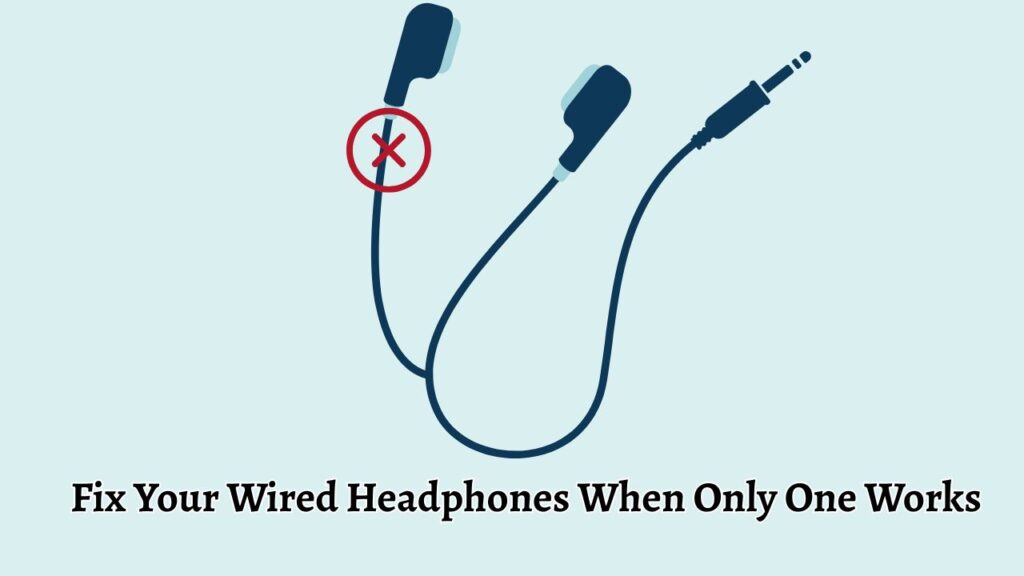
If only one side of your wired headphones works, start by checking the physical connection and testing the headphones with another device. Then check the audio balance settings, inspect the headphone plug and cable, clean the audio port carefully, and troubleshoot your device’s sound settings or drivers.
The most common cause is an incomplete connection between the headphone plug and audio jack. However, if the same side remains silent on multiple devices, the headphones themselves may have a damaged cable, connector, or internal speaker.
Let’s explore the steps in detail.
Step 1: Disconnect and Reconnect the Headphones
The first thing you should do is disconnect the headphones from your device and connect them again. This simple step can fix a connection problem caused by a partially inserted plug.
Remove the headphone connector completely from the audio port. Wait a few seconds and then insert it again. Push the connector firmly into the jack, but do not force it. The plug should sit securely without feeling unusually loose.
If your headphones have a 3.5 mm audio connector, make sure the entire metal portion that normally enters the device is properly inserted. A partially connected plug can sometimes allow sound to reach only one earbud.
After reconnecting the headphones, play a song or video and check both sides. If both earbuds work again, the issue was probably caused by a loose connection.
Step 2: Test the Headphones With Another Device
Testing the headphones with another device is one of the easiest ways to determine whether the problem is with the headphones or your computer or phone.
For example, if you normally use the headphones with a Windows PC, connect them to another compatible computer, phone, tablet, or audio device. Play something with stereo sound and listen to both earbuds.
If both sides work on another device, your headphones are probably fine. The problem is more likely related to the original device’s audio settings, headphone port, driver, or software.
If the same side remains silent on every device, the headphones themselves are more likely to be responsible. This can indicate a damaged wire, connector, speaker, or internal connection.
This test is especially useful because it prevents you from changing unnecessary Windows or phone settings when the actual problem is physical.
Step 3: Check the Left and Right Audio Balance
Your device may be sending most or all of the audio to one side. This can make it appear as though one earbud has stopped working.
On a Windows computer, open Settings and select System, followed by Sound. Select the headphones from your available output devices and look for the volume or channel controls. Depending on your Windows version and audio hardware, you may find separate Left and Right channel levels.
Make sure the left and right channels have similar volume levels. If one channel is set to zero or significantly lower than the other, adjust it so both channels have an appropriate level.
You should also check whether an accessibility feature such as Mono audio is affecting playback. Mono audio combines channels rather than preserving normal stereo separation, so checking the relevant accessibility settings can help rule out a software configuration problem.
After making changes, play audio again and test both sides.
Step 4: Check Whether the Problem Happens With Every App
Sometimes the headphones are not actually the problem. A particular application, game, browser tab, or media file may have an audio issue.
Try playing audio from several different sources. For example, play a video in your web browser, listen to a local music file, and play a system sound.
If only one application produces one-sided audio, the problem may be related to that application’s audio settings. Check its volume controls, audio output settings, and channel configuration.
If every application has the same problem, continue with the next steps because the issue is likely related to the device’s audio configuration or hardware.
Step 5: Inspect the Headphone Plug and Cable
Carefully examine the headphone connector and cable for visible damage. Look closely at the metal plug and the area where the cable connects to it.
The cable can become damaged from repeated bending, pulling, twisting, or wrapping too tightly. A broken internal wire may still allow one earbud to work while disconnecting the other channel.
Pay particular attention to places where the cable frequently bends. This includes the area immediately next to the 3.5 mm plug, the cable splitter, and the connection points near the earbuds.
Do not pull the cable to test it aggressively. If gently moving the cable causes the silent earbud to briefly produce sound, that can be a strong indication of an internal cable problem.
In that situation, software troubleshooting is unlikely to provide a permanent solution.
Step 6: Clean the Headphone Plug and Audio Port
Dust, lint, or other debris inside the audio connection can prevent the plug from making proper electrical contact.
First, unplug the headphones. Inspect the metal connector for dirt or residue. If necessary, wipe the connector gently with a clean, dry, lint-free cloth.
You can also inspect the device’s headphone jack using a flashlight. If you see visible debris, clean it carefully using a method appropriate for the device. Avoid pushing objects deep into the port because you could damage the contacts.
Do not pour liquid into the headphone jack or use excessive moisture. The goal is to remove loose debris without damaging the port.
After cleaning, reconnect the headphones and test both channels.
Step 7: Check the Audio Output Device
If you are using a Windows PC, make sure the correct audio output device is selected.
Open Settings, select System, and then choose Sound. Under the output section, select your wired headphones if they are listed as a separate device.
A computer may have multiple audio outputs, including speakers, monitors, USB audio devices, Bluetooth devices, and wired headphones. Selecting the wrong output can cause confusing audio behavior.
If your headphones appear correctly but one channel is still silent, continue troubleshooting.
Step 8: Update or Reinstall the Audio Driver
A problem with the Windows audio driver can sometimes affect headphone playback.
Right-click the Start button and open Device Manager. Expand Sound, video and game controllers and look for your audio device.
Right-click the relevant audio device and select the option to update its driver. Follow the instructions displayed by Windows.
If updating the driver does not help, you can also restart the computer and check whether Windows automatically restores the audio device correctly.
Driver problems are less common than physical connection issues, but they are worth checking if the headphones work correctly with another device.
Step 9: Turn Off Audio Enhancements
Some Windows audio enhancements can interfere with normal playback.
Open your headphone sound settings and look for options related to Audio enhancements or additional sound effects. Temporarily disable these features and test the headphones again.
If the second earbud starts working after disabling an enhancement, one of the audio processing features may have been interfering with stereo playback.
You can later enable individual enhancements one at a time to determine which setting caused the problem.
Step 10: Check the Headphones for Physical Failure
If you have completed the previous steps and the same earbud remains silent on multiple devices, the headphones may have a hardware failure.
The internal speaker inside the silent earbud could be damaged. The cable could also have a broken internal conductor, or the connector could have developed a fault.
If the headphones are still covered by a warranty, contact the manufacturer or retailer before attempting to repair them yourself. Opening the headphones can cause additional damage and may affect warranty coverage.
For inexpensive wired headphones, replacement may be more practical than repairing an internal cable or speaker.
FAQs
Why does only one side of my wired headphones work?
The most common causes include a loose headphone connection, incorrect audio balance, debris in the audio jack, damaged wiring, or a faulty earbud. Testing the headphones with another device can help identify the cause.
How do I know if my headphones are broken?
Connect the headphones to another compatible device. If the same earbud remains silent on multiple devices, the headphones are likely experiencing a hardware problem.
Can a dirty headphone jack cause one earbud to stop working?
Yes. Dust or debris can interfere with the electrical contacts inside the audio jack. Carefully cleaning the connector and port may restore proper stereo sound.
Why does my headphone work when I move the cable?
If moving or bending the cable temporarily restores sound, the internal wiring may be damaged. This is usually a sign of a physical cable fault rather than a Windows or software problem.
Why does one headphone work on my phone but not my computer?
If both earbuds work on your phone but only one works on your computer, the headphones are probably functioning correctly. Check the computer’s audio balance, output device, audio enhancements, headphone jack, and audio driver.
Can Windows audio settings make one earbud silent?
Yes. Incorrect left and right channel balance or certain audio processing settings can cause one side to become extremely quiet or silent.
Should I replace my headphones if only one side works?
Not immediately. First test them with another device and check the connection, balance, audio settings, and cable. If the same side fails everywhere, replacement may be the best option if the headphones have a hardware fault.
Summary
When only one side of your wired headphones works, do not assume that the headphones are automatically broken. Start by disconnecting and reconnecting the plug, then test the headphones with another device. This quickly helps determine whether the problem is caused by the headphones or the original device.
Next, check the left and right audio balance, test different applications, inspect the cable and connector, and carefully clean the headphone plug and audio port. On a Windows PC, also verify the selected output device, update the audio driver, and temporarily disable audio enhancements.
If the same earbud remains silent on several devices and cable movement affects the sound, the headphones probably have a physical hardware problem.
In that situation, warranty replacement or purchasing a new pair may be the most practical solution.