
Fixing “Class Not Registered” Error on Windows 11 [10 Ways]
Seeing the “Class Not Registered” error on your Windows 11 PC can appear while opening apps, photos, browsers, or system tools. Many users encounter this issue without understanding what caused it or how to solve it properly. In some cases, the error may prevent applications from launching, while in others it can affect features like the Start menu, File Explorer, or default apps.
Most of the time, the error happens because certain Windows files, app registrations, or system components become corrupted or unresponsive.
In this detailed guide, I will explain everything you need to know about the “Class Not Registered” error in Windows 11 and how to fix it safely.
What is the “Class Not Registered” Error? Why Does It Appear?
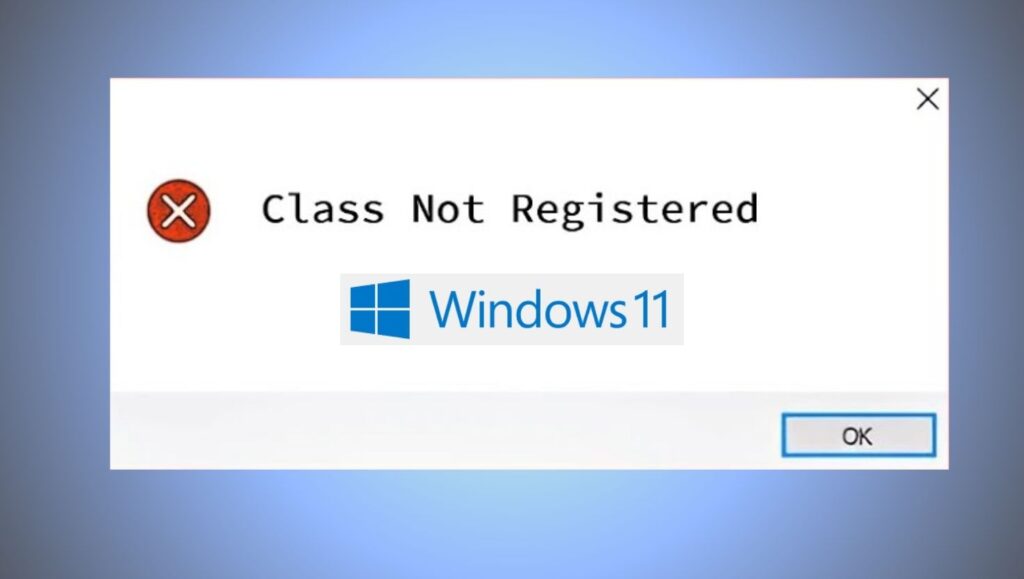
The “Class Not Registered” error is a Windows system issue that appears when an application or system process cannot access a required software component. In technical terms, Windows cannot locate or properly communicate with a registered COM class or DLL file that an app depends on.
You may notice messages such as:
“Class Not Registered”
or
“Explorer.exe Class Not Registered”
or
“Class not registered while opening JPG files.”
This error can appear in many different situations, including:
- Opening images, videos, or PDFs
- Launching Microsoft Edge or File Explorer
- Using the Start menu
- Accessing Windows apps
- Running third-party applications
- Using Cortana or Windows Search
Several reasons can trigger this issue, including:
- Corrupted system files
- Missing DLL registrations
- Broken Windows apps
- Faulty updates
- Incorrect default app settings
- Damaged user profiles
- Explorer.exe problems
- Incomplete software installations
Fixing “Class Not Registered” Error on Windows 11
- Restart Windows Explorer from Task Manager
- Re-register important DLL files
- Set default apps correctly
- Run SFC and DISM scans
- Restart Internet Explorer ETW Collector Service
- Re-register Windows apps using PowerShell
- Create a new Windows user account
- Install pending Windows updates
- Perform System Restore if needed
Let’s explore these steps in detail!
Step 1: Restart Windows Explorer
One of the easiest and most effective solutions is restarting Windows Explorer. Since Explorer controls many Windows interface elements, restarting it can instantly fix temporary glitches causing the error.
- Press Ctrl + Shift + Esc together to open Task Manager.
- If Task Manager opens in compact mode, click “More details” at the bottom.
- Under the “Processes” tab, locate “Windows Explorer”.
- Right-click on it and select “Restart”.
- Your taskbar and desktop may briefly disappear for a few seconds. This is normal.
- Once Explorer restarts, try reopening the app or feature that was showing the error.
If the issue was caused by a temporary Explorer malfunction, the problem may disappear immediately.
Step 2: Re-register DLL Files
Windows applications rely on DLL files to function properly. If these files become unregistered or corrupted, Windows may display the “Class Not Registered” error.
To fix this, you can manually re-register important DLL files.
- Click the Start menu and type “Command Prompt”.
- Select “Run as administrator”.
- In the Command Prompt window, type the following command:
regsvr32 ExplorerFrame.dll
- Press Enter.
- If successful, you should see a confirmation message.
- Now restart your PC and check whether the issue is resolved.
- You can also re-register additional DLL files if needed:
regsvr32 actxprxy.dll
regsvr32 ole32.dll
regsvr32 shell32.dll
These commands help restore broken Windows component registrations.
Be careful while using the Command Prompt and only enter trusted commands.
Step 3: Change Default Apps
Sometimes the error appears because Windows default applications are configured incorrectly. This is common with image viewers, web browsers, or media players.
To reset default apps in Windows 11:
- Open Settings using Windows + I.
- Click “Apps” from the left panel.
- Select “Default apps”.
- Scroll down and click “Reset” under “Reset all default apps”.
- Windows will restore Microsoft’s recommended default applications.
- After resetting, restart your computer.
- Now try opening the affected file or app again.
If the error appeared while opening photos, PDFs, or browsers, this method often resolves the issue quickly.
Step 4: Run SFC Scan to Repair System Files
Corrupted system files are one of the biggest reasons behind the “Class Not Registered” error. Windows includes a built-in tool called System File Checker or SFC that can automatically scan and repair damaged files.
- Open Command Prompt as Administrator.
- Type the following command:
sfc /scannow
- Press Enter.
- The scan may take several minutes, depending on your system speed.
- During the process, Windows checks protected system files and replaces corrupted versions with healthy copies.
- Do not close the window until verification reaches 100%.
- Once completed, restart your PC.
- After rebooting, check whether the error still appears.
This method is highly recommended because it repairs core Windows components safely.
Step 5: Use DISM Tool to Repair Windows Image
If the SFC scan cannot fully repair your system files, the next step is using the DISM tool.
DISM stands for Deployment Image Servicing and Management. It repairs the Windows system image itself.
- Open Command Prompt as Administrator.
- Run the following commands one at a time:
DISM /Online /Cleanup-Image /CheckHealth
DISM /Online /Cleanup-Image /ScanHealth
DISM /Online /Cleanup-Image /RestoreHealth
- Press Enter after each command.
- The final command may take some time to finish.
- Once completed, restart your computer.
- DISM repairs deeper Windows corruption that SFC alone cannot fix.
Many users successfully eliminate persistent “Class Not Registered” errors using this method.
Step 6: Restart Internet Explorer ETW Collector Service
Although Internet Explorer is no longer actively used, some Windows components still depend on related services. If the Internet Explorer ETW Collector Service stops working properly, it can trigger registration-related errors.
- Press Windows + R to open the Run dialog box.
- Type:
services.msc
- Press Enter.
- In the Services window, locate:
“Internet Explorer ETW Collector Service”
- Right-click it and select “Start” if the service is stopped.
- If it is already running, choose “Restart”.
- Now close the Services window and restart your PC.
This fix is especially useful when the error appears with browsers or system applications.
Step 7: Re-register Windows Apps Using PowerShell
Corrupted Windows Store apps can also trigger the “Class Not Registered” message. Re-registering all apps through PowerShell can repair broken app configurations.
- Right-click the Start button.
- Select “Windows Terminal (Admin)” or “PowerShell (Admin)”.
- Copy and paste the following command:
Get-AppXPackage | Foreach {Add-AppxPackage -DisableDevelopmentMode -Register “$($_.InstallLocation)\AppXManifest.xml”}
- Press Enter.
- The process may take several minutes.
- You might see some red warning messages during execution. In most cases, these warnings are harmless.
- Once the process finishes, restart your PC.
- Now test the affected app again.
This method can restore broken Microsoft apps and remove registration-related issues.
Step 8: Create a New User Account
Sometimes the issue is tied to a corrupted Windows user profile rather than the operating system itself.
Creating a new account helps determine whether your current profile is damaged.
- Open Settings.
- Go to “Accounts”.
- Select “Family & other users”.
- Click “Add account”.
- Choose “I don’t have this person’s sign-in information”.
- Then select “Add a user without a Microsoft account”.
- Create a new username and password.
- After creating the account, sign out of your current profile and log into the new one.
- Check whether the error still appears.
If the problem disappears, your original user profile is likely corrupted.
You can then transfer your important files to the new account.
Step 9: Install Pending Windows Updates
Outdated system files and bugs can sometimes trigger registration errors. Microsoft regularly releases fixes through Windows Update.
- Open Settings.
- Go to “Windows Update”.
- Click “Check for updates”.
- Download and install all available updates.
- After installation, restart your computer.
Keeping Windows updated improves system stability and fixes compatibility issues that may cause the error.
Step 10: Perform System Restore
If the error started recently after installing software, drivers, or updates, performing a System Restore can help.
System Restore returns Windows to an earlier working state without deleting personal files.
Type “Create a restore point” in Windows Search.
Open it and click “System Restore”.
Select a restore point created before the issue began.
Follow the on-screen instructions to complete the process.
Your PC will restart automatically.
After restoration, check whether the error has been fixed.
This method is particularly effective when the issue appears suddenly after system changes.
Important Tips
Before making major system changes, always create a backup of important files.
- Keep Windows Defender or another trusted antivirus program enabled because malware can damage system registrations.
- Avoid downloading unknown registry cleaners from suspicious websites. Many such tools cause more harm than good.
- Always install applications from trusted sources to reduce the risk of corrupted software components.
- Restart your computer after applying each troubleshooting method. Some fixes only work after a reboot.
- If the error appears only with one specific app, consider uninstalling and reinstalling that application.
- Use “Run as administrator” when performing advanced repairs in Command Prompt or PowerShell.
Regularly updating drivers can also improve Windows stability and reduce system-related errors.
FAQs
Is the “Class Not Registered” error dangerous?
The error itself is not dangerous, but it indicates that Windows cannot properly access certain components. Ignoring it may lead to app crashes or system instability.
Can corrupted system files cause this error?
Yes. Damaged or missing system files are one of the most common causes of the “Class Not Registered” error in Windows 11.
Will reinstalling Windows fix the problem?
Yes, reinstalling Windows usually fixes the issue completely. However, it should only be used as a last resort after trying all other troubleshooting methods.
Why does the error appear when opening photos?
This usually happens because the default Photos app or related file associations become corrupted.
Is PowerShell safe for fixing this error?
Yes, PowerShell is safe when using trusted commands. It is widely used to repair Windows apps and system registrations.
Can third-party software trigger this issue?
Yes. Incompatible or poorly installed software can damage registry entries and trigger the error.
Does Windows Update help solve the issue?
Yes. Microsoft often releases bug fixes and stability improvements through Windows Update that may resolve the error.