
Gemini Error Code 1099: Complete Step-by-Step Guide
Seeing Gemini Error Code 1099 can be frustrating, especially when you are trying to chat with Gemini, generate content, or complete an important task. The error may appear unexpectedly due to temporary server issues, network problems, account authentication failures, outdated app versions, corrupted browser data, or device-related conflicts. Fortunately, in most cases, the issue can be resolved without advanced technical knowledge.
Let’s learn the solutions in detail! Whether you are using Gemini on a Windows PC, Mac, Android phone, iPhone, or through a web browser, these solutions can help restore normal functionality.
Gemini Error Code 1099 [Fix]
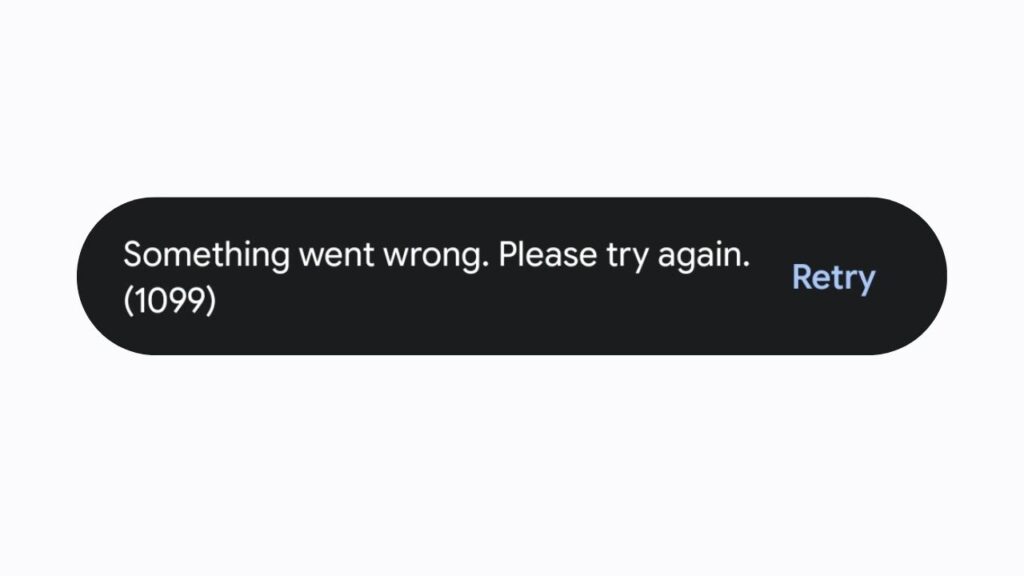
Gemini Error Code 1099 usually indicates that the application cannot complete a request because of a connection problem, authentication issue, corrupted browser data, outdated software, or a temporary service interruption.
To fix the problem, verify your internet connection, refresh your login session, clear browser cache, update the Gemini app or browser, disable conflicting extensions or VPN services, and restart your device.
If the error continues, check whether Gemini services are experiencing an outage or contact Google Support.
Let’s explore the fixes in detail!
1: Check Your Internet Connection
The first thing you should verify is your internet connection. Gemini depends entirely on an active and stable internet connection to communicate with Google’s servers. Even if websites appear to load normally, an unstable connection can interrupt requests and trigger Error Code 1099.
Start by opening a few different websites to make sure your internet is working correctly. If pages load slowly or fail to open, restart your Wi-Fi router or modem by turning it off for about 30 seconds before powering it back on. If you are using mobile data, switch to Wi-Fi, or if you are already on Wi-Fi, try using your mobile hotspot temporarily. This simple test helps determine whether your primary network is causing the issue.
If you are connected to a public Wi-Fi network, such as one in a coffee shop, airport, or hotel, remember that these networks often have restrictions that can interfere with certain online services. Connecting to a different network is often enough to eliminate the problem.
After confirming that your internet connection is stable, reopen Gemini and check whether Error Code 1099 has disappeared.
2: Refresh Your Gemini Login Session
Sometimes the error is caused by an expired or corrupted Google Account authentication session. Gemini requires a valid login session to verify your identity and provide access to AI features.
Begin by signing out of your Google account. Once you have logged out, close the browser or the Gemini application completely. Wait for a minute before signing back in with the same Google account. This process creates a fresh authentication session and often resolves account-related errors.
If you have multiple Google accounts signed in simultaneously, make sure you are using the account that has access to Gemini. Multiple active sessions can occasionally create authentication conflicts.
If you are using Gemini in a browser, opening an Incognito or Private Browsing window is another useful test. Since private browsing starts with a clean session, it helps identify whether the problem is related to your existing browser profile.
Once you successfully sign back in, try using Gemini again to see if the error has been resolved.
3: Clear Browser Cache and Cookies
If you mainly use Gemini through a web browser, corrupted cache files or outdated cookies may prevent the service from working properly. Browsers store temporary data to speed up websites, but over time this stored information can become outdated or corrupted.
Open your browser’s settings and locate the Clear Browsing Data option. Select cached images, files, and cookies. Although clearing cookies may sign you out of websites, it often resolves authentication and loading issues.
After clearing the browsing data, completely close your browser before reopening it. Then visit the Gemini website again and sign back into your Google account.
If the error disappears after clearing your browser data, the problem was most likely caused by corrupted cached files rather than Gemini itself.
4: Update Your Browser or the Gemini App
Running an outdated version of your browser or the Gemini application may lead to compatibility problems with Google’s latest services.
If you use Gemini in Google Chrome, Microsoft Edge, Mozilla Firefox, or Safari, check whether an update is available. Browser updates frequently include important security improvements, performance enhancements, and compatibility fixes.
If you use the Gemini mobile application, open your device’s app store and install any available updates. Developers regularly release bug fixes that address known issues, including login and connectivity errors.
After installing updates, restart your browser or mobile device before launching Gemini again. This ensures all updated components are loaded correctly.
5: Disable VPN, Proxy, or Browser Extensions
Certain VPN services, proxy servers, and browser extensions can interfere with Gemini’s communication with Google’s servers.
If you are using a VPN, temporarily disconnect it and try accessing Gemini again. Some VPN servers may trigger security checks or create routing problems that result in Error Code 1099.
Similarly, browser extensions related to ad blocking, privacy protection, script blocking, or security filtering can occasionally prevent Gemini from functioning correctly.
Disable your extensions one at a time and test Gemini after each change. If the error disappears after disabling a specific extension, you have likely identified the source of the conflict.
You can also create a new browser profile with default settings and test Gemini there. A clean profile removes extension conflicts and corrupted settings from the equation.
6: Restart Your Device
Although restarting a device seems simple, it can resolve many temporary software issues.
Over time, background processes, temporary memory files, or networking services may stop functioning correctly. Restarting your computer, smartphone, or tablet refreshes these components and removes temporary glitches.
Save your work, restart the device normally, reconnect to the internet, and then open Gemini again.
Many users find that a fresh restart resolves unexpected application behavior without requiring additional troubleshooting.
7: Check Whether Gemini Services Are Temporarily Unavailable
Not every error originates from your device. Occasionally, Google’s servers experience temporary maintenance, outages, or unusually high traffic.
If many users encounter the same problem simultaneously, you may simply need to wait until the service is restored.
Search online for recent reports of Gemini service interruptions or check Google’s official status updates if available. You can also see whether other Google AI services are functioning normally.
If a server-side issue is responsible, there is nothing you need to change on your device. Simply wait for Google to resolve the issue before trying again.
8: Contact Google Support if the Error Continues
If you have completed every troubleshooting step and Gemini Error Code 1099 still appears, it may indicate a more specific account or service issue.
Before contacting support, note exactly when the error appears. Record whether it happens immediately after signing in, while generating responses, or during another specific action. Also note the device, browser, operating system, and app version you are using.
Providing these details allows the support team to diagnose the issue much faster.
Google Support may also suggest additional account-specific troubleshooting steps that are not applicable to every user.
FAQs
What is Gemini Error Code 1099?
Gemini Error Code 1099 is generally associated with connection, authentication, browser, or service-related issues that prevent Gemini from completing your request successfully.
Can a slow internet connection cause Error Code 1099?
Yes. An unstable or interrupted internet connection is one of the most common reasons for this error.
Will clearing browser cache delete my files?
No. Clearing your browser cache only removes temporary website data. Your personal documents and files remain unaffected.
Does updating the browser help fix the error?
Yes. Installing the latest browser version ensures compatibility with Gemini and may eliminate bugs that trigger Error Code 1099.
Can browser extensions cause Gemini Error Code 1099?
Yes. Privacy, ad-blocking, VPN, or security extensions can sometimes interfere with Gemini’s normal operation.
Should I reinstall the Gemini app?
If updating the app does not help, uninstalling and reinstalling it can remove corrupted installation files and restore normal functionality.
What if none of the fixes work?
If the issue persists after completing every step, the problem may be related to your Google account or a temporary server issue. Contacting Google Support is the recommended next step.