
Google Play Store Error DF-DFERH-01
The Google Play Store error DF-DFERH-01 can appear when you try to download, install, or update an app on an Android phone or tablet. The message may say “Error while retrieving information from server”, followed by the code DF-DFERH-01.
Let’s learn its causes and easy-to-do solutions!
Why Does the Google Play Store Error DF-DFERH-01 Occur?
The DF-DFERH-01 error is commonly associated with a problem retrieving information between your Android device and Google Play services. It can happen while installing a new app, updating an existing app, or sometimes while simply browsing the Play Store.
A weak internet connection can prevent the Play Store from communicating correctly with Google’s servers. A temporary Play Store problem can also cause the error. In other situations, corrupted cache or stored app data can interfere with normal Play Store operations. Google also recommends checking Google Play Services if clearing Play Store data does not resolve the issue.
Incorrect date, time, or time zone settings can also interfere with secure connections and account synchronization. Other reported causes include disabled Google system services, account synchronization problems, VPN-related connection issues, and outdated Play Store components.
Google Play Store Error DF-DFERH-01
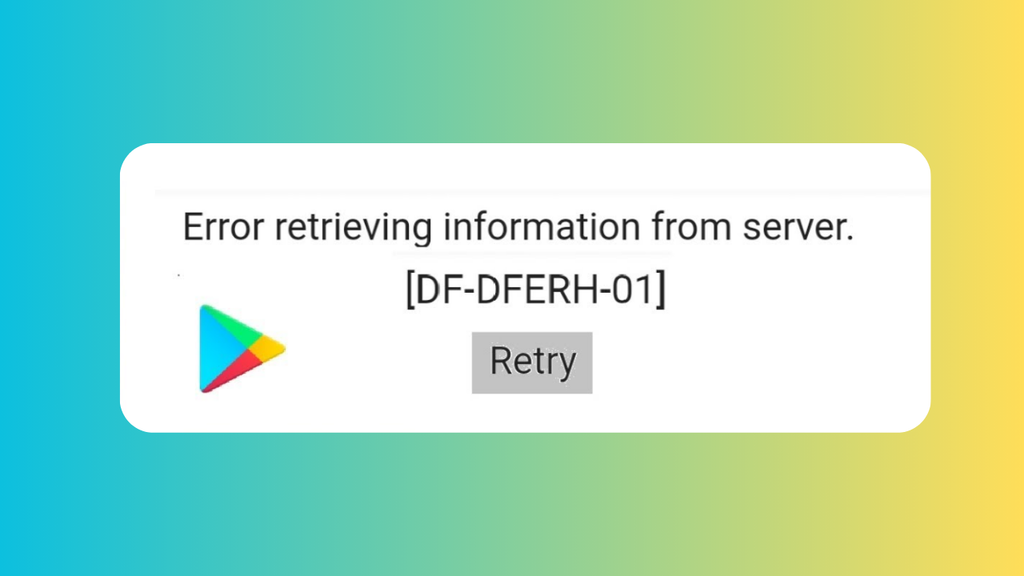
The Google Play Store DF-DFERH-01 error usually appears when Google Play cannot retrieve information from its servers. To fix it, check your internet connection, restart your Android device, enable automatic date and time, clear the Play Store cache and data, update the Play Store, clear the Google Play Services cache if necessary, and finally remove and re-add your Google account.
Follow the steps below in order. After completing each step, open the Play Store and try downloading or updating the app again.
Step 1: Check Your Internet Connection
The first thing to check is your internet connection. The Play Store needs a stable connection to communicate with Google’s servers, and a weak or interrupted connection can trigger DF-DFERH-01. Google specifically recommends checking your Wi-Fi or mobile data connection when Play Store downloads fail.
If you are connected to Wi-Fi, look at the Wi-Fi symbol at the top of your screen and make sure the connection is active. Open Chrome and visit a familiar website to confirm that the internet is actually working.
If the website does not load, turn Wi-Fi off and back on. You can also temporarily switch to mobile data and try opening the Play Store again.
If you are already using mobile data, make sure mobile data is enabled and that your signal is strong enough. If possible, try connecting to a different Wi-Fi network. This helps determine whether the problem is with your phone or with the network you are currently using.
Step 2: Restart Your Android Device
A simple restart can clear temporary system problems and reconnect Android’s background services.
Press and hold your phone’s Power button until the power menu appears. Depending on your phone manufacturer, you may see options such as Restart, Reboot, or Power off.
Tap Restart and wait for the phone to completely shut down and start again. Once you see the home screen, wait another few seconds before opening Google Play Store.
Now try downloading or updating the app that previously displayed the DF-DFERH-01 error. Google also recommends restarting the device after clearing Play Store data when download problems continue.
Step 3: Turn On Automatic Date and Time
Your Android phone’s date and time should normally be set automatically. Incorrect time information can interfere with communication between your device, your Google account, and online services.
Open Settings on your phone. Look for System, General management, or a similar option, depending on your Android version.
Open Date & time and look for Automatic date & time or Set time automatically. Turn this option on.
Also enable Automatic time zone if your phone provides that option.
The exact names can differ between Samsung Galaxy, Google Pixel, OnePlus, Xiaomi, Motorola, and other Android phones. Once automatic time is enabled, restart the Play Store and try again.
Step 4: Clear Google Play Store Cache
If the internet connection and time settings are correct, the next step is to clear the Google Play Store cache.
Cache files are temporary files that help an app load information faster. Sometimes these files can become corrupted or cause an app to behave incorrectly.
Open Settings and tap Apps. Find Google Play Store in the list. On some phones, you may need to tap See all apps first.
Tap Google Play Store, then select Storage & cache or Storage.
Tap Clear cache.
Do not worry if nothing obvious happens after pressing the button. Clearing the cache simply removes temporary files. Google identifies clearing the Play Store cache as one of the most common troubleshooting steps for problems downloading apps.
Now open the Play Store again and try the download.
Step 5: Clear Google Play Store Data
If clearing the cache did not work, you can clear the Play Store’s stored data.
Return to Settings > Apps > Google Play Store > Storage & cache. Tap Clear storage, Clear data, or a similarly named option.
Your phone may display a warning explaining that app data will be deleted. Confirm the action.
Clearing Play Store data can reset some Play Store settings, including certain preferences such as parental controls and password protection. You may need to configure those settings again when you open the Play Store.
After clearing the data, open Google Play Store again. It may take a little longer than usual to load because the app is rebuilding its local information.
Try downloading the app again.
Step 6: Clear Google Play Services Cache
Google Play Services is different from the Google Play Store. It provides important background services that allow many Android apps and Google features to communicate and work correctly.
If the Play Store still displays DF-DFERH-01, clearing its cache can be worth trying.
Open Settings, tap Apps, and select Google Play Services. If you cannot immediately find it, tap See all apps and search for it.
Tap Storage & cache, then select Clear cache.
Google advises trying other troubleshooting steps before clearing all Google Play Services data because stored information associated with Google services can be affected.
For that reason, start with Clear cache rather than Clear storage.
Restart your phone and check the Play Store again.
Step 7: Check That Google Services Are Enabled
Some Android devices allow system apps and services to be disabled. If an important Google service has been disabled, the Play Store may not work correctly.
Open Settings > Apps and search for Google Play Services. Make sure it is enabled.
On some devices, Google Services Framework may also appear among system applications. If you previously disabled Google system services, check whether they are still disabled.
A recent Google Play Community report described a DF-DFERH-01 case that was resolved after Google Services Framework was re-enabled, although this is not a universal solution.
Do not disable Google system services simply to troubleshoot this error. If you are unsure about a system component, leave it enabled.
Step 8: Update the Google Play Store
An outdated Play Store component can sometimes contribute to problems.
Open Google Play Store and tap your profile picture in the upper-right corner.
Tap Settings, then About.
Look for Play Store version and tap Update Play Store if an update is available. Google’s current Play Store troubleshooting instructions provide this method for checking and installing Play Store updates.
After the update finishes, close the Play Store completely and open it again. Try the download once more.
Step 9: Check Your Google Account
If the error continues, there may be a synchronization problem involving your Google account.
Open Settings and find Accounts, Passwords & accounts, or Accounts and backup, depending on your phone.
Select your Google account and look for an option related to Account sync. Make sure synchronization is enabled and allow the phone a little time to synchronize.
You can also open Gmail or another Google application to confirm that your account is working normally.
Do not remove your Google account immediately. Account removal is a more advanced troubleshooting step, and you should make sure you know your Google account email address and password before attempting it.
Step 10: Remove and Add Your Google Account Again
If all the previous methods fail, removing and re-adding the Google account can refresh the account connection on the device.
Before doing this, make sure you know your Google account password and have access to any required verification method. Google warns that removing an account can remove some associated information from the device, so important information should be backed up first.
Open Settings, go to your account section, select your Google account, and choose Remove account.
Restart your phone.
Return to the account settings and select Add account, followed by Google. Sign in using your Google account credentials.
Once the account has been added, open the Google Play Store and try the download again.
Step 11: Check Whether the Problem Is Temporary
If DF-DFERH-01 suddenly appeared after your Play Store had been working normally, the problem may not necessarily be caused by your phone.
The error can occur when the Play Store temporarily has difficulty retrieving information from Google’s servers. In that situation, changing settings repeatedly may not help. Trying the download again after some time can resolve a temporary server or connection problem.
If the error occurs on multiple devices using the same Google account or network, that can also be a useful clue that the problem is not limited to one Android device.
Step 12: Contact Google Play Support
If none of the previous solutions work, use Google Play Help for further assistance rather than immediately performing a factory reset.
Google recommends more advanced troubleshooting, including device reset, only after other Play Store troubleshooting methods have been attempted.
Before contacting support, note the exact error message, the Android version, your phone model, and whether the problem affects one app or every app. This information can make troubleshooting easier.
FAQs
What does Google Play Store error DF-DFERH-01 mean?
DF-DFERH-01 generally indicates that the Google Play Store is having trouble retrieving information from its servers. It can be related to connectivity, Play Store data, Google Play Services, account synchronization, or other device configuration issues.
Is DF-DFERH-01 a virus?
No. DF-DFERH-01 is an error code, not an indication that your phone has a virus. It is associated with problems involving Google Play and retrieving information.
Will clearing Play Store cache delete my apps?
No. Clearing the cache removes temporary files and does not normally uninstall your applications. Clearing Play Store data is different because it resets some of the Play Store’s stored settings.
Should I clear Google Play Services data?
You should generally try simpler solutions first. Google specifically cautions that clearing Google Play Services storage or data can remove certain information saved on the device and may require you to authenticate some Google-related services again.
Why does DF-DFERH-01 appear when I download an app?
The Play Store needs to retrieve information from Google’s servers before completing an app download or update. If that communication fails because of a connection problem, corrupted local data, an account synchronization issue, or another service problem, the error may appear.
Do I need to factory reset my phone?
Usually, no. A factory reset should not be your first solution. Work through the connection, restart, date and time, Play Store cache and data, Google Play Services, update, and account troubleshooting steps first. Google lists device reset as a later option when other Play Store troubleshooting does not resolve the problem.