
How to Cast to Fire Stick: Complete Guide for Every Device
Want to watch videos from your phone, share vacation photos on a big screen, or display your computer screen on your TV? Your Amazon Fire TV Stick, commonly called FireStick, can help you do that, provided your device and the content you’re sharing support the connection method.
However, casting to a FireStick can be confusing because casting and screen mirroring are not the same thing. Casting lets you send supported content from an app to your TV, while screen mirroring displays your phone or computer screen on the television.
The steps also vary depending on whether you’re using an Android phone, iPhone, Windows PC, Mac, or tablet. Some devices support direct connections, while others require a compatible app or a different method.
In this guide, you’ll learn how to cast to FireStick from different devices and troubleshoot common connection problems.
How to Cast to FireStick? (Device-Wise Complete Guide)
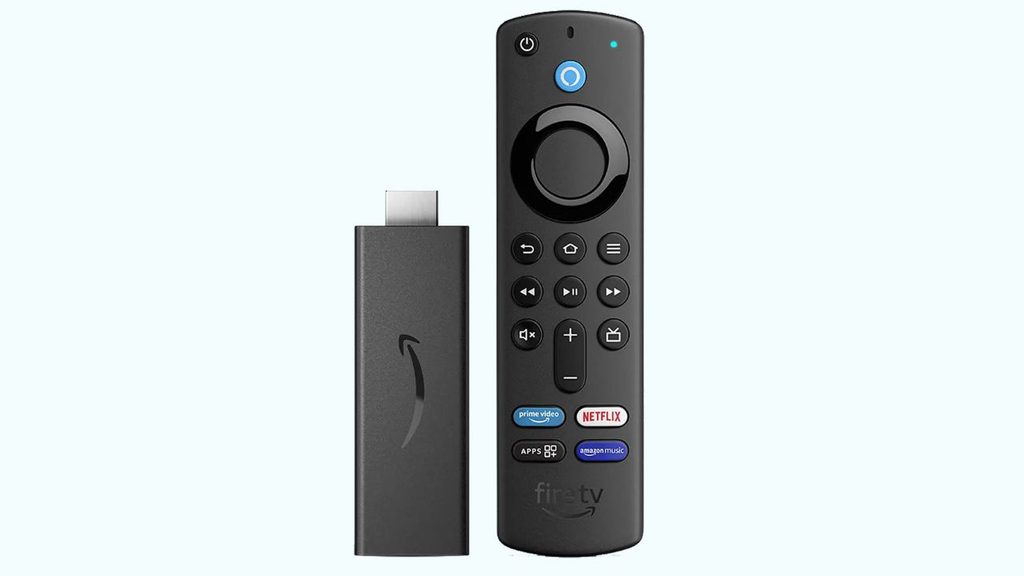
To cast to a FireStick, connect your device and FireStick to the same Wi-Fi network, open a compatible app, tap its Cast icon, and select your Fire TV device. For full-screen mirroring, use a supported wireless display feature instead. The available options depend on your device, FireStick model, and app.
Before getting started, turn on your TV, switch to the HDMI input connected to your FireStick, and make sure the FireStick is connected to Wi-Fi.
Prepare Your FireStick for Casting
First, make sure your FireStick is properly set up and connected to your television.
Turn on your TV and select the correct HDMI input using your TV remote. Once the Fire TV home screen appears, use your FireStick remote to open Settings > Network and confirm that the device is connected to your Wi-Fi network.
Next, check for software updates. Open Settings > My Fire TV > About > Check for Updates. The exact menu wording can vary by FireStick model and software version. Install any available updates and restart the device if necessary.
For app-based casting, many compatible Fire TV devices running Fire OS 7 or later support casting from supported mobile apps. Full-screen mirroring has separate compatibility requirements, so don’t assume every FireStick supports every casting method.
Connect Your Phone and FireStick to the Same Wi-Fi
Your phone and FireStick generally need to be connected to the same local Wi-Fi network for app-based casting to work.
On your Android phone or iPhone, open Settings > Wi-Fi and check the network name. Then compare it with the network shown under your FireStick’s Settings > Network menu.
If the devices are connected to different networks, connect them to the same one. For example, your phone might be using your router’s guest network while your FireStick is connected to the main network.
If your router has separate 2.4 GHz and 5 GHz network names, try connecting both devices to the same network name. Some routers also have client isolation settings that prevent connected devices from communicating with each other.
Once both devices are connected, you’re ready to try casting from your phone or computer.
Cast to FireStick From an Android Phone
Android phones offer several ways to share content with a FireStick, but the right method depends on whether you want to cast a video or mirror your entire screen.
For supported apps, open the app on your Android phone, find the Cast icon, and tap it. Select your FireStick from the list of available devices. Once connected, play the video on your phone, and it should appear on your TV.
For example, Amazon Prime Video supports casting to compatible Fire TV devices. Sign in to the Prime Video mobile app with the same Amazon account used on your Fire TV, then select the Cast icon and your device.
If you want to mirror your entire Android screen, check whether your phone supports Miracast and whether your FireStick supports display mirroring. On compatible Fire TV models, press and hold the Home button on the FireStick remote and select Mirroring if that option appears. Alternatively, check Settings > Display & Sounds > Enable Display Mirroring.
On your Android phone, open the screen-sharing feature. Depending on the manufacturer, it may be called Smart View, Screen Cast, Wireless Display, or Screen Mirroring. Select your FireStick if it appears.
Not every Android phone supports Miracast, and some newer phones use Google Cast instead. If your FireStick doesn’t appear, check compatibility before installing a third-party mirroring app.
Cast to FireStick From an iPhone
Casting from an iPhone works differently because FireStick devices do not natively support iPhone screen mirroring through AirPlay. However, you can still cast content from compatible apps that support Fire TV.
Start by connecting your iPhone and FireStick to the same Wi-Fi network. Open a compatible app, such as Prime Video, and sign in if required.
Find the Cast icon near the video player or in the app’s playback controls. Tap it and select your FireStick from the list of available devices. If you’re using Prime Video, make sure the mobile app and Fire TV use the same Amazon account.
Once connected, start playing your video. You can usually control playback from your iPhone or the Fire TV remote.
If you want to mirror your entire iPhone screen, the standard Screen Mirroring feature in iOS won’t connect directly to a FireStick. You can look for a reputable AirPlay receiver app in the Fire TV app store, but compatibility and performance vary. Some apps require payment, and protected video content may not mirror properly.
Cast to FireStick From a Windows 11 or Windows 10 PC
Want to view your desktop, presentation, or browser on your TV? You may be able to mirror your Windows computer using Miracast, provided your PC and FireStick support the feature.
First, check whether your FireStick supports screen mirroring. Press and hold the Home button on the remote and look for Mirroring. If the option appears, select it to put your FireStick into mirroring mode.
On your Windows PC, press Windows + K to open the Cast panel. Windows will search for available wireless displays.
If your FireStick appears in the list, select it and follow any on-screen instructions. Your desktop should appear on the television after the connection is established.
If your FireStick doesn’t appear, your PC might not support Miracast, or your FireStick model may not support this type of mirroring. You can check your PC’s wireless display compatibility and graphics drivers.
For Windows 11, you can also open Settings > System > Display > Multiple displays to review available display options. In Windows 10, open Settings > System > Display.
Remember that Windows + K does not work with every FireStick. If direct mirroring isn’t supported, consider using a compatible casting app or connecting your computer to the TV with an HDMI cable.
Cast to FireStick From a Mac
Mac computers use Apple’s AirPlay technology for wireless screen sharing, but FireStick devices do not natively act as AirPlay receivers.
If you want to play a video on your FireStick, start by opening a compatible streaming app or website. If the service provides a supported Fire TV app, installing and using that app directly on your FireStick may be the easiest option.
If you need to mirror your Mac desktop, check the Amazon Appstore on your FireStick for a reputable third-party receiver app that explicitly supports macOS and your version of Fire TV. Follow the app’s setup instructions on both devices.
Be aware that third-party apps may have limitations, and some protected streaming content won’t display correctly. Don’t assume the standard macOS Screen Mirroring menu will list your FireStick.
For a reliable connection without wireless compatibility issues, connect your Mac to your television using an appropriate HDMI cable or adapter.
Cast to FireStick From an iPad or Android Tablet
You can also share videos, photos, and other content from a tablet, depending on the apps and hardware involved.
For an Android tablet, follow the same process used for Android phones. Connect both devices to the same Wi-Fi network, open a compatible app, tap the Cast icon, and choose your FireStick.
If you want to mirror the tablet’s entire display, check whether it supports Miracast and whether your FireStick supports display mirroring.
For an iPad, open a compatible streaming app and look for its Cast option. Select your FireStick if it appears. App-based casting may work even though native AirPlay screen mirroring isn’t supported directly by FireStick.
If you’re sharing photos or documents, check whether the Fire TV has a compatible application for accessing that content. You may find it easier to install a supported app on the FireStick rather than mirror the entire tablet screen.
FireStick Casting Not Working
If your FireStick doesn’t appear in the casting list or the connection keeps dropping, start with the basics.
Confirm that both devices are connected to the same Wi-Fi network. Restart your phone or computer and your FireStick. To restart FireStick, open Settings > My Fire TV > Restart, or use the restart option available on your model.
Next, check for software updates on both devices. Update the streaming app you’re using and try again.
If you’re casting from an app, clear its cache if the problem continues. On FireStick, open Settings > Applications > Manage Installed Applications, select the affected app, and choose Clear cache. Avoid selecting Clear data unless you’re prepared to sign in again or reset the app’s settings.
Move your devices closer to the router if the connection is weak. If you use a guest network or a router with device isolation enabled, check whether it prevents devices from communicating with one another.
If only one streaming app fails, the issue may be related to that app’s compatibility rather than your FireStick. Check the app’s support information before resetting the entire device.
FAQs
1. Can I cast to FireStick without Wi-Fi?
Most wireless casting methods require a Wi-Fi network or another supported network connection. A direct HDMI connection from your computer to the TV is an alternative when wireless casting isn’t available.
2. Why can’t I see my FireStick in the Cast list?
Your devices may be connected to different networks, the app may not support Fire TV, or the FireStick may not support the casting method you’re trying to use. Restart both devices and check compatibility.
3. Can I cast YouTube to FireStick?
If the YouTube app on your phone offers a compatible Cast option for your Fire TV, you can use it. Otherwise, open the YouTube app directly on your FireStick and sign in if needed.
4. Can I mirror my iPhone screen to FireStick?
Not directly through Apple’s standard AirPlay screen mirroring feature. Some third-party receiver apps offer alternative methods, but results vary and protected content may not work.
5. Does casting drain my phone’s battery?
It can, especially when your phone is mirroring its entire screen. App-based casting may use less battery because the FireStick can handle playback independently, depending on the app and casting method.
Summary
Casting to FireStick lets you enjoy compatible videos and other content on your TV instead of a small screen. The easiest approach is to connect your phone and FireStick to the same Wi-Fi network, open a supported app, and select the Cast icon.
For Android phones and Windows PCs, full-screen mirroring may also be possible if both devices support the required wireless display technology. iPhones, iPads, and Macs have different compatibility requirements, so app-based casting or a third-party receiver may be necessary.
If casting doesn’t work, check your Wi-Fi connection, restart your devices, update the relevant apps, and confirm that your FireStick supports the method you’re using.