
How to Change Fn Keys Settings in Windows 11?
The Fn (Function) key is one of the most useful keys on a laptop keyboard. It lets you control features like screen brightness, volume, keyboard backlight, airplane mode, and media playback without opening Windows Settings. However, many users find it confusing because the function keys sometimes perform multimedia actions instead of the traditional F1 to F12 commands.
For example, pressing F5 may lower your keyboard brightness instead of refreshing a webpage, or pressing F2 may adjust the speaker volume instead of renaming a file. Fortunately, Windows 11-compatible laptops usually allow you to change this behavior.
In this guide, you’ll learn several methods to change the Fn key settings in Windows 11.
Usages of the Fn Key in Windows 11
The Fn key acts as a modifier key that works together with the F1 through F12 keys. Instead of using these keys only for traditional Windows shortcuts, manufacturers assign additional hardware functions to them.
Depending on your laptop brand and model, the Fn key can help you:
- Adjust screen brightness by increasing or decreasing the display brightness.
- Control system volume, including muting, raising, or lowering the sound.
- Play, pause, skip, or rewind media without opening your music or video application.
- Turn Wi-Fi or Airplane Mode on or off on supported laptops.
- Enable or disable the touchpad, making it easier when using an external mouse.
- Control keyboard backlighting by adjusting brightness levels or turning the lights off.
- Activate Sleep Mode or lock the computer using a dedicated shortcut.
- Launch manufacturer-specific features, such as performance modes, cooling profiles, or privacy settings.
Many laptops also allow users to switch between Function Key Mode and Action Key Mode, which changes whether pressing F1 through F12 performs standard Windows commands or multimedia controls by default.
How to Change Fn Keys Settings in Windows 11?
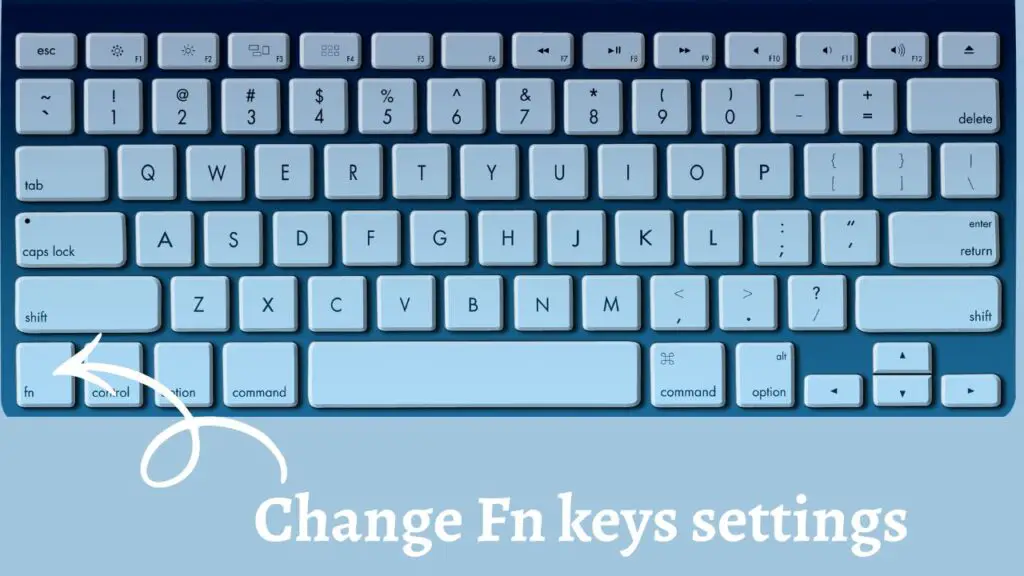
There are several ways to change how the Fn keys work. The correct method depends on your laptop manufacturer because Windows 11 does not include a built-in option that works for every PC.
The most common methods include changing the setting from your computer’s BIOS or UEFI firmware, using the Fn Lock shortcut, or modifying the setting through your manufacturer’s software utility.
If one method isn’t available, simply move on to the next one.
Step 1: Check Whether Your Keyboard Supports Fn Lock
Before changing any system settings, determine whether your laptop includes an Fn Lock feature. Many modern keyboards allow you to switch between multimedia keys and traditional function keys instantly.
Look closely at your keyboard. If the Esc key has a small Fn Lock icon or a padlock symbol with “Fn,” your keyboard likely supports this feature.
To enable or disable Fn Lock, press and hold the Fn key, then press the Esc key once. On some laptops, the shortcut may instead be Fn + Caps Lock or another key, depending on the manufacturer.
After enabling Fn Lock, test the keyboard by pressing F1, F2, or F5. If the keys now perform their traditional Windows functions instead of adjusting hardware settings, the change was successful.
This is the easiest solution because it doesn’t require restarting your computer or changing any firmware settings.
Step 2: Change Function Key Behavior from BIOS or UEFI
If your laptop doesn’t support Fn Lock, the next method is to change the setting in the BIOS or UEFI firmware.
First, save your work and restart your computer.
While the laptop is turning on, repeatedly press the key that opens the BIOS. Depending on your computer, this may be F2, Delete, F10, Esc, or another key shown briefly on the startup screen.
Once inside the BIOS, use the keyboard to navigate through the menus. Look for settings named Function Key Behavior, Action Keys Mode, Hotkey Mode, Function Key Priority, or something similar.
When you find the option, change it so the keyboard uses the standard F1 to F12 keys by default instead of multimedia controls.
Save your changes and exit the BIOS. Your computer will restart automatically with the new keyboard behavior.
Not: Since BIOS menus vary by manufacturer, don’t worry if the wording looks slightly different.
Step 3: Use Your Laptop Manufacturer’s Utility
Many laptop manufacturers provide software that lets you customize keyboard behavior without entering the BIOS.
Open the Start menu and search for your manufacturer’s management application. Depending on your device, you may find utilities such as Lenovo Vantage, MyASUS, Dell Optimizer, HP Support Assistant, or similar software.
Launch the application and browse through the available settings. Look for categories such as Keyboard, Input Devices, Device Settings, or Hardware Settings.
If the application provides a Function Key Behavior or Hotkey Mode option, switch it to your preferred mode and save the changes.
Step 4: Update Keyboard Drivers and BIOS
Sometimes the Fn key settings may not appear because your laptop is using outdated firmware or drivers.
Open Device Manager by right-clicking the Start button and selecting it from the menu.
Expand the Keyboards section and confirm that your keyboard is working correctly. If Windows reports any issues, update the driver.
Next, visit your laptop manufacturer’s support website and download the latest BIOS, chipset, and keyboard-related drivers for your exact model.
Install the available updates carefully, following the manufacturer’s instructions.
Step 5: Test the New Function Key Settings
After making changes, verify that everything works as expected.
Open an application that commonly uses function keys, such as File Explorer, a web browser, or Microsoft Office.
Press keys like F2, F5, F11, and F12 without holding the Fn key.
If they perform their traditional Windows functions, your settings have been changed successfully.
If they still activate brightness, volume, or media controls, repeat the earlier steps and check whether your laptop offers another keyboard mode or requires saving the BIOS settings again.
Testing the keyboard immediately helps confirm that the new configuration has been applied correctly before you continue using your computer.
FAQs
Can I change the Fn key settings directly in Windows 11 Settings?
No. Windows 11 does not include a universal option for changing the Fn key behavior. Most laptops require you to use the BIOS, UEFI, Fn Lock shortcut, or the manufacturer’s utility.
Why doesn’t my laptop have an Fn Lock shortcut?
Not every keyboard includes an Fn Lock feature. Entry-level or older laptops often require changing the settings from the BIOS instead.
Will changing Fn key settings affect Windows performance?
No. Changing the Function Key Mode only changes how the F1 through F12 keys behave. It has no impact on your computer’s speed or overall performance.
Can I switch back to multimedia keys later?
Yes. You can reverse the change at any time using the same BIOS setting, Fn Lock shortcut, or manufacturer software.
Why are my Fn keys not working at all?
The problem may be caused by outdated keyboard drivers, missing manufacturer software, disabled hotkeys, or an outdated BIOS. Updating these components often resolves the issue.