
How to Change Taskbar Size on Windows 11
Changing the taskbar size on Windows 11 is a simple way to customize your desktop experience. Although Windows doesn’t provide a direct option in the Settings app, you can quickly adjust the taskbar by creating or modifying the TaskbarSi Registry value.
Whether you want a smaller taskbar for extra screen space or a larger taskbar for improved visibility, the process only takes a few minutes. After editing the Registry and restarting Windows Explorer, your new taskbar size will be applied immediately.
If you ever change your mind, you can easily restore the default appearance by setting TaskbarSi back to 1 or removing the Registry value altogether.
In this guide, you’ll learn how to change the taskbar size on Windows 11 using the Registry Editor.
How to Change Taskbar Size on Windows 11
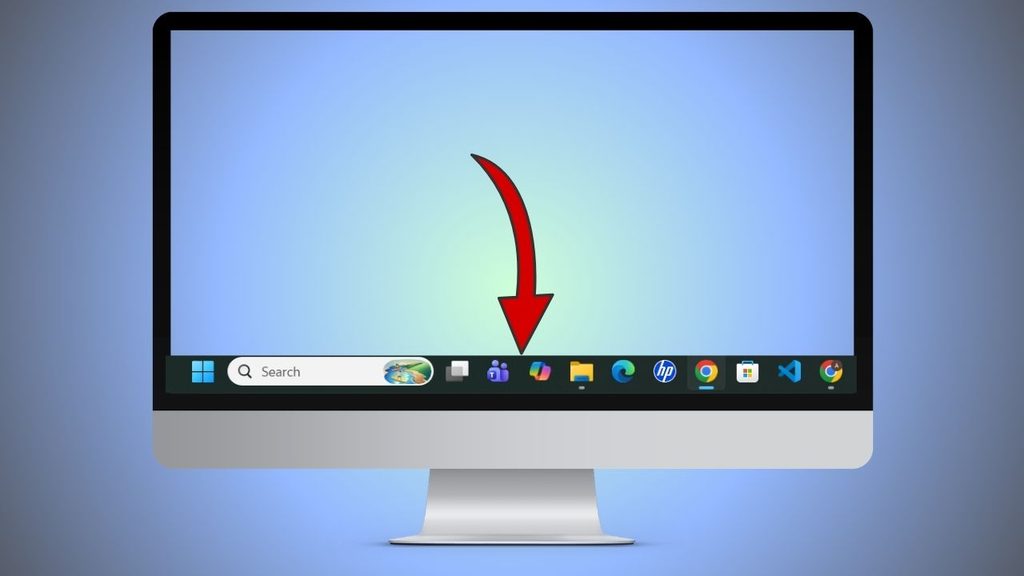
Windows 11 lets you switch between small, medium, and large taskbar sizes by editing a Registry value called TaskbarSi. The process only takes a few minutes, and once you restart Windows Explorer or your PC, the new size will be applied immediately.
Follow the steps below carefully.
Step 1: Open the Registry Editor
The first step is to open the Registry Editor, which stores many of Windows’ advanced settings.
Press Windows + R on your keyboard to open the Run dialog box. If you’ve never used the Run window before, don’t worry. It is simply a small box that allows you to launch Windows tools quickly.
Type regedit into the text field and press Enter.
If you see the User Account Control window asking whether you want to allow this app to make changes to your device, click Yes.
The Registry Editor window will now open. On the left side, you’ll see folders that contain different Windows settings. While it may look complicated at first, you’ll only need to navigate to one specific location.
Step 2: Navigate to the Advanced Registry Key
Now you need to open the folder that controls several Windows Explorer settings, including the taskbar size.
In the left pane of the Registry Editor, browse to the following location:
HKEY_CURRENT_USER\Software\Microsoft\Windows\CurrentVersion\Explorer\Advanced
You can expand each folder one by one until you reach the Advanced folder.
Another easier option is to copy the entire path, paste it into the Registry Editor address bar at the top, and press Enter.
Once you’re inside the Advanced folder, you’ll see many Registry values on the right side of the window.
This is the location where you’ll create or modify the value that controls the taskbar size.
Step 3: Create the TaskbarSi Value
Some Windows installations already contain the required Registry value, while others do not.
Look through the list on the right side and check whether you can find a value named TaskbarSi.
If it already exists, you can move to the next step.
If it doesn’t exist, right-click an empty area on the right side of the window.
Choose New, then select DWORD (32-bit) Value.
A new Registry value will appear.
Type TaskbarSi exactly as shown and press Enter.
Make sure the spelling is correct because Windows only recognizes this exact name.
Creating the correct Registry value is the key to allowing Windows to use a different taskbar size.
Step 4: Choose the Taskbar Size
Now it’s time to decide how large or small you want the taskbar to appear.
Double-click the TaskbarSi value.
A small window called Edit DWORD (32-bit) Value will appear.
You’ll see a field called Value data.
Enter one of the following numbers depending on the size you want:
- 0 creates a small taskbar.
- 1 creates the default medium taskbar.
- 2 creates a large taskbar.
Leave the Base option set to Hexadecimal, which is the default setting.
Click OK after entering your preferred value. Choosing the right size depends on your personal preference.
A small taskbar provides more workspace, especially on laptops with limited screen space.
The default size offers the standard Windows 11 experience.
A large taskbar makes icons easier to see and click, which can be helpful for users with high-resolution displays or visual accessibility needs.
Step 5: Restart Windows Explorer
The Registry change won’t appear immediately until Windows Explorer reloads.
Press Ctrl + Shift + Esc to open Task Manager.
If Task Manager opens in the simplified view, click More details. Scroll through the list until you find Windows Explorer.
Click Windows Explorer once to select it. Now click Restart in the upper right corner.
Your desktop may briefly disappear for a few seconds before returning. This is completely normal.
Once Windows Explorer reloads, the taskbar should display the new size you selected.
If you don’t notice any changes, restart your computer instead.
Step 6: Verify the New Taskbar Size
After Windows Explorer restarts, take a moment to examine the taskbar.
Notice whether the Start button, taskbar icons, and system tray appear smaller or larger.
Open a few applications to make sure everything looks normal.
If the taskbar isn’t the size you expected, simply repeat the previous step and enter a different TaskbarSi value.
You can switch between the three available sizes as many times as you’d like.
The process is completely reversible.
Restore the Default Taskbar Size
If you decide that the resized taskbar isn’t right for you, restoring the original appearance is easy.
Return to the TaskbarSi Registry value.
Double-click it and change the Value data back to 1.
Click OK.
Restart Windows Explorer or restart your computer.
The taskbar will return to its standard Windows 11 size.
You can also delete the TaskbarSi value entirely, and Windows will automatically use the default taskbar size after restarting Explorer.
FAQs
Can I change the taskbar size from Windows Settings?
No. Windows 11 Settings does not currently include an option for resizing the taskbar. The Registry method is the most common way to adjust it.
Will changing the Registry damage my computer?
No, as long as you only modify the TaskbarSi value described in this guide. Avoid changing unrelated Registry settings.
Which TaskbarSi value creates a small taskbar?
Set TaskbarSi to 0 for a small taskbar, 1 for the default size, and 2 for a large taskbar.
Why didn’t my taskbar change after editing the Registry?
You’ll usually need to restart Windows Explorer or restart your computer before the new size becomes visible.
Can I return to the original taskbar size?
Yes. Change the TaskbarSi value back to 1, or delete the Registry value entirely, then restart Windows Explorer.
Does this work on all Windows 11 versions?
The Registry method works on many Windows 11 versions. However, Microsoft occasionally changes how Windows behaves through feature updates, so results may vary on newer releases.
Will changing the taskbar size affect my files or apps?
No. This adjustment only changes the appearance of the taskbar. Your files, applications, and personal settings remain unchanged.