
How to Check Battery Level in Apple Pencil?
If you rely on an Apple Pencil for note-taking, sketching, or precise editing, keeping an eye on its battery level is essential. Unlike traditional styluses, the Apple Pencil doesn’t have a visible battery indicator or LED. Everything is handled through your iPad, which can feel a bit hidden if you’re new to the ecosystem.
Checking your Apple Pencil battery is quick once you know where to look. Whether you’re using the 1st generation or 2nd generation Apple Pencil, there are multiple ways to monitor its charge so you’re never caught off guard during an important task.
Let me explain every reliable method.
Quick Way
To check the battery level of your Apple Pencil, connect it to your iPad and view the battery percentage using the Batteries widget, the Bluetooth settings, or by simply attaching the Pencil magnetically if you’re using the 2nd generation model. The battery status appears instantly on the screen when properly paired.
How to Check Battery Level in Apple Pencil?
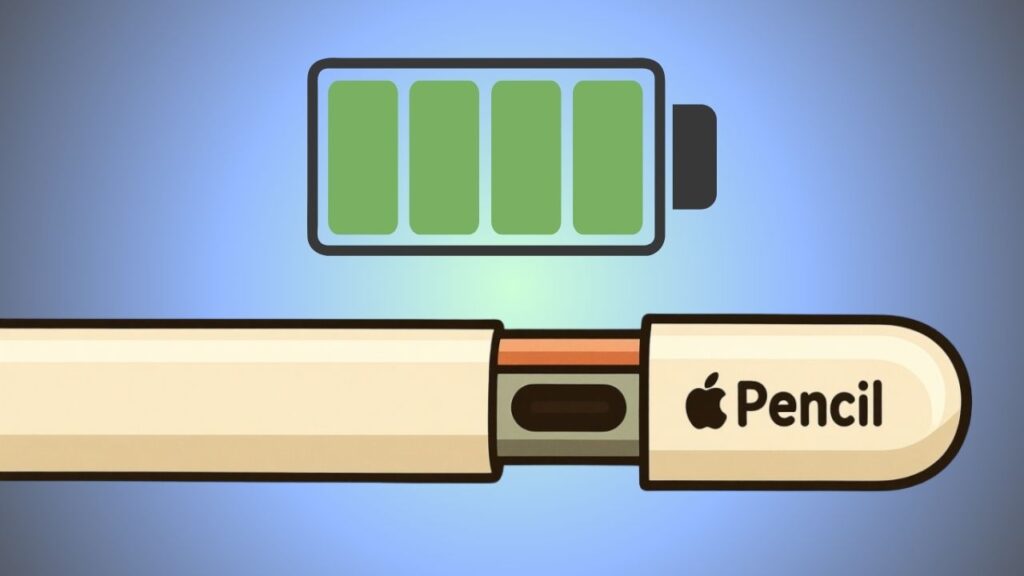
Checking the Apple Pencil battery depends on the generation you’re using and how you prefer interacting with your iPad. Apple has integrated the battery display into iPadOS, which means you won’t find any physical indicator on the Pencil itself.
The battery percentage shows up in real time when the Pencil is connected via Bluetooth, and it updates automatically as you use or charge it.
For most users, the Batteries widget is the fastest and most convenient way to monitor charge levels. However, other methods can be even quicker in certain situations, especially with the newer Apple Pencil design.
Below is a step-by-step breakdown of all the reliable ways to check your Apple Pencil battery level.
Step 1: Pair Your Apple Pencil with Your iPad
Before you can check the battery, your Apple Pencil must be properly connected to your iPad. This might sound obvious, but it’s the foundation for everything else.
For the Apple Pencil 1st generation, you need to plug it directly into your iPad’s Lightning port or use the adapter that came in the box. Once connected, a pairing prompt will appear on your screen. Tap “Pair,” and the Pencil will be linked to your device.
For the Apple Pencil 2nd generation, the process is even smoother. Simply attach the Pencil to the magnetic strip on the side of your iPad. The pairing happens automatically, and you’ll see a small pop-up confirming the connection.
If your Apple Pencil isn’t paired, the battery level won’t show up anywhere. So if you don’t see any battery information later, this is the first thing to double-check.
Also, make sure Bluetooth is enabled on your iPad. Without it, the Pencil cannot communicate with the device, which means no battery data.
Step 2: Use the Batteries Widget on iPad
The Batteries widget is the most reliable and widely used method to check your Apple Pencil battery level. It gives you a glance at all connected devices, including your Pencil.
Start by swiping right from the Home Screen or Lock Screen to open the Today View. Scroll down and tap “Edit” if you don’t see the Batteries widget already added. From the widget list, locate Batteries and tap the plus icon to include it. Once added, tap “Done” to save your layout.
Now, whenever your Apple Pencil is connected, its battery percentage will appear in the widget alongside your iPad’s battery level. This is especially useful if you want a persistent view without having to open settings or reconnect the Pencil repeatedly.
The widget updates in real time, so as you use the Pencil or charge it, the percentage adjusts automatically. For power users, this is the most efficient way to stay informed without interrupting your workflow.
One thing to note is that the Apple Pencil must be actively connected or recently used for it to appear in the widget. If it doesn’t show up, try attaching it again or using it briefly.
Step 3: Check Battery by Attaching Apple Pencil 2nd Generation
If you’re using the Apple Pencil 2nd generation, this is by far the fastest method. Simply attach the Pencil to the magnetic charging strip on the side of your iPad.
As soon as it snaps into place, a small battery pop-up appears on the screen showing the current charge level. This notification is clean, instant, and doesn’t require navigating through menus or widgets.
This method works even if your iPad is locked, making it incredibly convenient. You can just tap the screen or wake the device, attach the Pencil, and instantly see the battery percentage.
It also doubles as a charging indicator. If the battery is low, you’ll see it begin to charge immediately once attached. This makes it easy to top up the Pencil in short bursts throughout the day without thinking about it too much.
For anyone using the second-generation model, this is the go-to method for quick checks.
Step 4: Check Battery in Bluetooth Settings
Another reliable method is through the Bluetooth settings on your iPad. This is slightly more technical but still straightforward.
Open the Settings app and tap on Bluetooth. Make sure Bluetooth is turned on. In the list of connected devices, you’ll see your Apple Pencil listed. Right next to its name, the battery percentage will be displayed.
This method is useful if you’re troubleshooting connection issues or want to confirm that your Apple Pencil is properly paired. It also helps when the Batteries widget isn’t showing the device for some reason.
However, compared to other methods, this one takes a few extra steps, so it’s not the fastest option for everyday use. Still, it’s a solid backup when you need more detailed device information.
Step 5: Check Battery While Charging Apple Pencil 1st Generation
For the Apple Pencil 1st generation, checking the battery often happens while charging. When you plug the Pencil into your iPad’s Lightning port, a small pop-up appears showing the current battery level.
This is similar to how the second-generation Pencil displays its status when attached magnetically. The difference is that the first-generation model requires a physical connection rather than a magnetic one.
If you’re using the Lightning adapter and cable instead, you won’t always see the popup. In that case, you’ll need to rely on the Batteries widget or Bluetooth settings to check the charge level.
Because of this limitation, many users prefer keeping the Batteries widget enabled when using the first-generation Apple Pencil.
FAQs
Why is my Apple Pencil battery not showing?
If your Apple Pencil battery isn’t showing, it’s usually because the device isn’t connected. Make sure Bluetooth is turned on and the Pencil is paired with your iPad. Reattaching or plugging it in often resolves the issue instantly.
Does Apple Pencil have a battery indicator light?
No, the Apple Pencil does not include any physical battery indicator like an LED. All battery information is displayed on your iPad through software.
How often should I charge my Apple Pencil?
You should charge your Apple Pencil whenever the battery drops below around 20 percent. For most users, charging once every few days is enough, depending on usage.
Can I check the Apple Pencil battery on iPhone?
No, the Apple Pencil is designed to work only with compatible iPads. You cannot check its battery level using an iPhone.
Is it safe to leave the Apple Pencil attached all the time?
Yes, especially for the second-generation model. The iPad manages power efficiently, so keeping it attached won’t harm the battery.
Thank you Liam.
I have not used my Apple Pencil gen 1 for more than 3 years. When I try to connect it with the iPad 10.5”, it briefly shows that the battery is low at 3%. Then this message disappears. Apparently the Apple Pencil battery is not functioning correctly and is not being charged. Can it be rescued?