
How to Check Login History on Windows 11 or 10
Have you ever wondered who logged into your Windows computer, when someone accessed it, or whether another person used your PC while you were away? Checking your Windows login history can help you answer these questions.
Whether you want to monitor your computer’s activity, investigate an unexpected login, or simply keep track of when you accessed your system, Windows provides a few useful tools to check this information.
You can also use Command Prompt, PowerShell, and Windows security policies to investigate login activity. However, the information available depends on your Windows edition, audit settings, and how long Windows has retained its event logs.
In this guide, I’ll walk you through several easy methods to check login history on Windows.
How to Check Login History on Windows
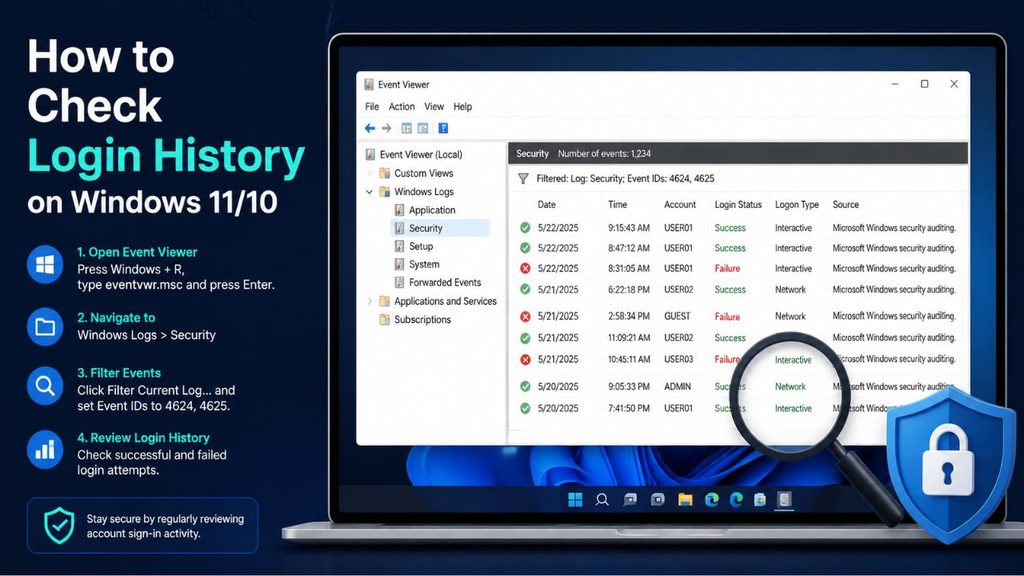
To check login history on Windows 11 or Windows 10, open the Event Viewer, expand Windows Logs, and select Security. Look for Event ID 4624 to identify successful logins and Event ID 4625 to identify failed login attempts. Double-click an event to view its date, time, account name, and login details.
Windows also provides Command Prompt and PowerShell commands that can help you review recent login activity.
Let’s look at each method in detail.
Method 1: Check Windows Login History Using Event Viewer
Event Viewer is one of the easiest ways to check login history on a Windows computer. It keeps records of different system activities, including user sign-ins, sign-outs, failed login attempts, and security-related events.
You can use this method on Windows 11 and Windows 10.
Step 1: Open Event Viewer
First, you need to open the Event Viewer application.
Press Windows + R on your keyboard to open the Run dialog box. Type eventvwr.msc in the available field and press Enter.
Alternatively, click the Start button, type Event Viewer in the search box, and select the application from the search results.
Once opened, you’ll see a window containing different folders and system information.
Step 2: Open Windows Security Logs
Now, look at the left-hand navigation panel inside Event Viewer.
Expand the Windows Logs folder by clicking the small arrow beside it. You’ll find several options, including Application, Security, Setup, System, and Forwarded Events.
Select Security.
Windows will display a list of security-related events recorded on your computer.
These records include successful sign-ins, failed sign-in attempts, account changes, and other security activities.
Step 3: Find Successful Login Events
To identify successful login attempts, look for Event ID 4624.
This event is generated whenever Windows successfully creates a logon session. However, keep in mind that not every 4624 event represents someone physically sitting in front of your computer. Some events are generated by background services, scheduled tasks, and network connections.
Check the Event ID column to locate 4624 entries.
If there are hundreds or thousands of records, finding individual events manually can take time. You can use the filtering option to make the process easier.
Step 4: Filter Login Events
Right-click the Security folder and select Filter Current Log. A new window will appear with several filtering options.
Find the field labeled Includes/Excludes Event IDs and enter: 4624
Click OK to apply the filter.
Event Viewer will now display successful logon events instead of showing every security record.
You can also enter multiple Event IDs separated by commas if you want to investigate different types of security activity.
Step 5: Check the Login Details
Double-click any Event ID 4624 entry to open its properties. Select the General tab to view a summary of the event.
Pay attention to the following information:
- Date and Time: Shows when the login event occurred.
- Account Name: Identifies the user account associated with the event.
- Logon Type: Indicates how the login session was created.
- Workstation Name: May identify the computer involved in the login.
- Source Network Address: May show the IP address associated with a network-based login.
You can also select the Details tab to see additional technical information.
For investigating suspicious activity, pay particular attention to the account name, logon type, and network address.
Method 2: Check Failed Login Attempts on Windows
Sometimes, you may want to know whether someone tried to access your computer using an incorrect password.
Windows records these attempts when the appropriate security auditing is enabled.
Step 1: Open Event Viewer
Press Windows + R, type eventvwr.msc, and press Enter.
Step 2: Navigate to Security Logs
Expand Windows Logs and select Security.
Step 3: Filter Failed Login Events
Right-click Security and choose Filter Current Log.
Enter the following Event ID: 4625
Click OK.
You’ll now see failed login attempts recorded by Windows.
Step 4: Investigate the Failed Attempts
Double-click an event to examine its details.
Check the Account Name, Failure Reason, Logon Type, and Source Network Address fields.
For example, repeated failed attempts against your account could indicate someone is entering the wrong password.
However, they can also result from an outdated password saved in a Windows service, application, or network connection.
Don’t automatically assume that every failed attempt represents an unauthorized person.
Method 3: Check Login History Using Command Prompt
If you prefer using commands instead of navigating through Windows settings, Command Prompt offers another way to check account information and login-related details.
However, Command Prompt does not provide the same complete historical login information as Event Viewer.
Step 1: Open Command Prompt
Click Start and type Command Prompt.
Select the application from the search results.
For commands that require elevated permissions, right-click it and select Run as administrator.
Step 2: Check the Current User
Type the following command:
whoami
Press Enter.
Windows will display the username of the account currently signed in to your computer.
Step 3: Check Current Login Sessions
Now enter:
query user
Press Enter.
This command displays information about active user sessions, including usernames, session names, session IDs, and session status.
Remember that this command shows current sessions rather than a complete historical record of previous logins.
If you want to investigate older login attempts, Event Viewer is a better option.
Method 4: Check Login History Using PowerShell
PowerShell is another useful Windows utility that allows you to retrieve login events directly from security logs.
You can use it to find successful and unsuccessful login attempts without manually opening Event Viewer.
Step 1: Open Windows PowerShell
Click Start, search for PowerShell, and select Run as administrator.
Step 2: Find Recent Successful Login Events
Copy and paste the following command:
Get-WinEvent -FilterHashtable @{LogName=’Security’; Id=4624} -MaxEvents 20 | Select-Object TimeCreated, Id, Message | Format-List
Press Enter.
PowerShell will retrieve the 20 most recent successful logon events available in the Security log.
Step 3: Check Failed Login Attempts
To find failed login attempts, use this command:
Get-WinEvent -FilterHashtable @{LogName=’Security’; Id=4625} -MaxEvents 20 | Select-Object TimeCreated, Id, Message | Format-List
This command displays up to 20 recent failed logon events.
You can examine the event messages to identify the associated account, time, and other available information.
If PowerShell displays an access-denied message, make sure you’re running it as an administrator and have permission to read the Security log.
Method 5: Check Login History Through Windows Security Auditing
What if you open Event Viewer but cannot find any previous login records?
One possible reason is that Windows isn’t configured to audit the required login activities.
You can check the relevant auditing settings through Local Security Policy on supported Windows editions.
Step 1: Open Local Security Policy
Press Windows + R, type secpol.msc, and press Enter.
Step 2: Navigate to Audit Policies
Expand Local Policies and select Audit Policy.
Step 3: Find Audit Logon Events
Double-click Audit logon events.
Select Success and Failure, then click Apply and OK.
Step 4: Enable Account Logon Auditing if Required
You can also check the relevant Audit account logon events policy.
Enable Success and Failure if you want Windows to record applicable account authentication events.
Keep in mind that these policies serve different purposes. Logon auditing records session creation on the computer, while account logon auditing records authentication activity, depending on the account type and environment.
If you’re using Windows Home and cannot open Local Security Policy, you can manage applicable auditing settings through administrative command-line tools instead.
Also, changing these settings will not recreate login records from before auditing was enabled.
FAQs
1. Can I see who logged into my Windows computer?
Yes. You can use Event Viewer to check successful login events. Open Windows Logs, select Security, and filter for Event ID 4624. Check the account name and other available details to identify the associated user.
2. How do I check the last login time in Windows 11?
Open Event Viewer, navigate to Windows Logs, and select Security. Filter for Event ID 4624 and examine the most recent relevant interactive login event. You can check its timestamp to determine when the account was last logged in.
3. What is Event ID 4624 in Windows?
Event ID 4624 represents a successful logon event. It records information about a newly created logon session, including the account name, logon type, and other available details.
4. What does Event ID 4625 mean?
Event ID 4625 indicates a failed logon attempt. It can help you investigate incorrect passwords, unsuccessful authentication requests, and potentially suspicious login activity.
5. Can I check Windows login history for the last 30 days?
Yes, provided the relevant auditing was enabled and the Security event log still contains records from the last 30 days. You can filter events by their date and time in Event Viewer. If older records have been overwritten or cleared, they may no longer be available.
6. Does Windows record login history automatically?
Windows can record login events through its security auditing system. However, the available information depends on the enabled audit policies, account type, Windows configuration, and event log retention settings.