
How to Connect a Zebra Wireless Printer to Windows 11 or 10?
Zebra wireless printers are widely used for printing labels, barcodes, shipping tags, and receipts in businesses like retail, logistics, and healthcare. If you have recently purchased one or are trying to set it up with your Windows PC, the process might feel a bit technical at first. The good news is that connecting a Zebra wireless printer to Windows 11 or Windows 10 is straightforward once you understand the steps.
In this guide, you will learn multiple methods to connect your printer, install drivers, and troubleshoot common issues so you can start printing without hassle.
How to Connect a Zebra Wireless Printer to Windows 11 or 10?
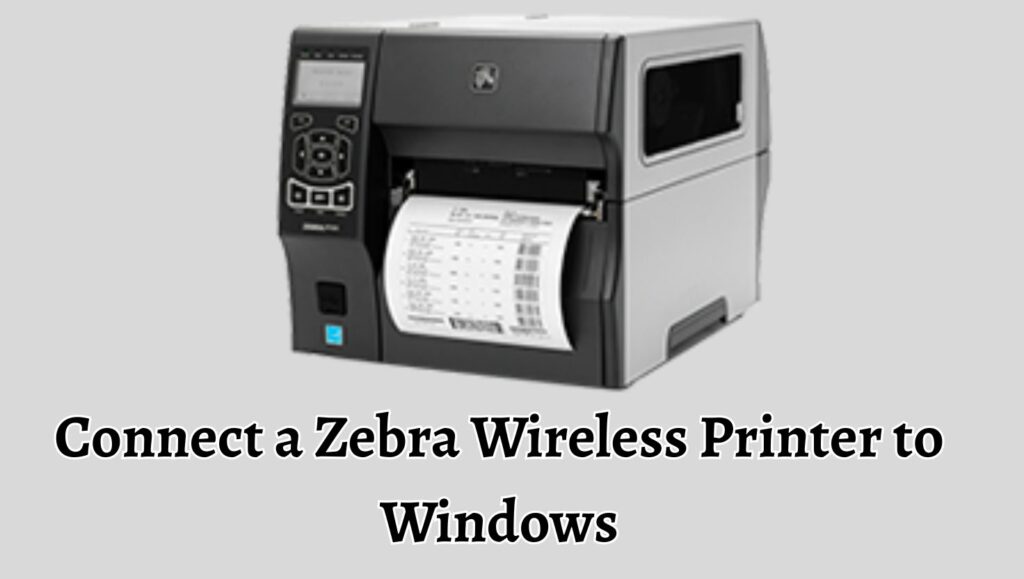
To connect a Zebra wireless printer to Windows 11 or 10, first connect the printer to the same WiFi network as your PC. Then download and install the correct Zebra printer driver. After that, go to Windows Settings, add a printer, and select your Zebra printer from the list or add it manually using its IP address. Once installed, set it as the default and test print to confirm the connection.
Method 1: Connect the Zebra Wireless Printer via WiFi Network
Step 1: Prepare Your Zebra Printer for Wireless Setup
Before connecting your printer to your Windows PC, you need to ensure the printer is properly powered on and ready. Turn on the printer and check that it is in wireless mode. Most Zebra printers have a small display or LED indicators that show network status. If your printer has not been configured before, it may not yet be connected to any WiFi network.
Refer to your printer’s control panel to access wireless settings. Some models allow you to configure WiFi directly on the device, while others may require a temporary USB connection for setup. Make sure you note your WiFi network name and password, as you will need them in the next step.
Step 2: Connect the Printer to Your WiFi Network
Using the printer’s menu or setup utility, connect it to the same WiFi network that your Windows computer is using. This is important because both devices must be on the same network to communicate.
If your Zebra printer supports it, you can use a configuration utility such as Zebra Setup Utilities to simplify the process. Once connected, the printer will receive an IP address, which is essential for identifying it on the network. You can usually print a configuration label from the printer to see this IP address.
Step 3: Install Zebra Printer Drivers on Windows
Now move to your Windows 11 or 10 computer. Open your browser and download the latest Zebra printer drivers that match your printer model. Installing the correct driver ensures that Windows can communicate properly with the printer.
Run the installer and follow the on-screen instructions. During installation, you may be asked to choose a connection type. Select the network connection if prompted. Once the installation is complete, your system will be ready to detect the printer.
Step 4: Add the Zebra Printer in Windows Settings
Open Settings on your PC, then navigate to Devices or Bluetooth and Devices, and click on Printers and Scanners. Click on Add a printer or scanner. Windows will begin searching for available printers on your network.
If your Zebra printer appears in the list, select it and click Add device. Windows will automatically install and configure it.
Step 5: Manually Add the Printer Using IP Address
If your printer does not show up automatically, you can add it manually. Click on the printer that I want isn’t listed, then select the option to add a printer using a TCP or IP address.
Enter the IP address you noted earlier and follow the prompts. Choose the installed Zebra driver when asked. This method is reliable and works even when automatic detection fails.
Method 2: Connect Zebra Printer Using Zebra Setup Utilities
Step 1: Download Zebra Setup Utilities
Zebra provides a dedicated tool called Zebra Setup Utilities that simplifies printer configuration. Download and install this software on your Windows PC.
Step 2: Connect Printer Temporarily via USB
For initial setup, connect your Zebra printer to your computer using a USB cable. This allows the software to detect the printer easily and configure wireless settings without complications.
Step 3: Configure Wireless Settings Using the Utility
Open Zebra Setup Utilities and select your printer from the list. Choose the option to configure wireless settings. Enter your WiFi network details and apply the settings.
Once completed, disconnect the USB cable. Your printer should now be connected to the wireless network.
Step 4: Add Printer to Windows
After wireless configuration, go back to Windows printer settings and add the printer as explained earlier. Since the printer is now on the network, it should be detected automatically or via IP address.
Method 3: Connect the Zebra Printer via Bluetooth
Step 1: Enable Bluetooth on Windows
If your Zebra printer supports Bluetooth, you can connect it without WiFi. Go to Settings, then Bluetooth and Devices, and turn Bluetooth on.
Step 2: Pair the Zebra Printer
Put your printer into pairing mode. This usually involves pressing a button or selecting an option from the printer menu. On your computer, click Add device and select Bluetooth.
Choose your Zebra printer from the list and complete the pairing process.
Step 3: Install Driver and Configure Printing
Once paired, install the correct Zebra driver if not already installed. Then add the printer in Windows settings. You may need to select the Bluetooth port during setup.
Method 4: Connect Using Ethernet, Then Switch to Wireless
Step 1: Connect the Printer via Ethernet Cable
If the wireless setup is not working, you can connect your Zebra printer to your router using an Ethernet cable. This ensures a stable initial connection.
Step 2: Find the Printer’s IP Address
Print a configuration label to identify the IP address assigned by your network. This will help you locate the printer on your PC.
Step 3: Add Printer to Windows
Use the IP address method in Windows settings to add the printer. Once added, you can configure wireless settings through the printer interface or Zebra utilities and disconnect the Ethernet cable later.
Can I Print Labels Using a Zebra Wireless Printer?
Yes, Zebra wireless printers are specifically designed for label printing. They support various label formats, including barcode labels, shipping labels, inventory tags, and more. Once connected to your Windows PC, you can print labels using applications like word processors, inventory software, or dedicated label design tools.
To get the best results, make sure you install the correct driver and use compatible label formats. Zebra printers often work with specialized software that allows you to design and print labels with precision.
FAQs
Why is my Zebra printer not showing up on Windows?
This usually happens when the printer and PC are not on the same network or the driver is not installed. Check your WiFi connection and try adding the printer manually using its IP address.
Do I need special software to use a Zebra printer?
While basic printing can work with standard drivers, using Zebra-specific software improves functionality and allows advanced label design.
Can I connect multiple Zebra printers to one PC?
Yes, you can add multiple printers as long as each has a unique IP address or connection method.
Is Bluetooth or WiFi better for Zebra printers?
WiFi is generally better for stable and long-range connections, while Bluetooth is suitable for short-range or mobile setups.
How do I test if my printer is working?
Go to printer settings in Windows, select your Zebra printer, and choose Print a test page. This confirms that the setup is correct.