
How to Download Files Directly to a Flash Drive
Knowing how to download files directly to a flash drive can save time and help keep your computer organized. Instead of downloading files to your computer first and then copying them to a USB flash drive, you can save them directly to the drive in just a few clicks. This method works for documents, photos, videos, music, software installers, and many other file types.
Whether you are using Windows 11, Windows 10, or another modern operating system, the process is simple once you know where to change the download location.
Let’s learn every step in detail.
How to Download Files Directly to a Flash Drive
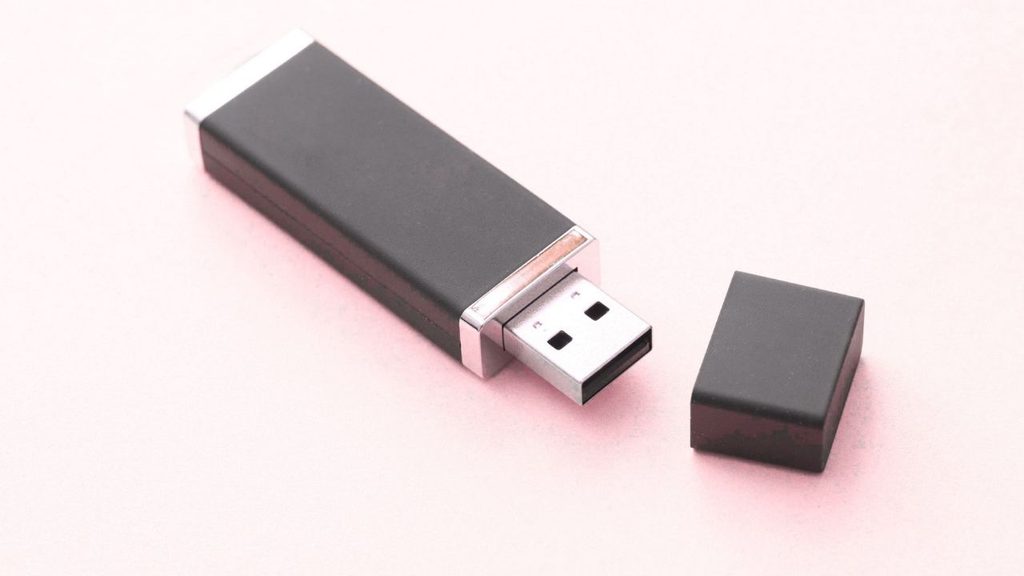
Before you begin, make sure your USB flash drive has enough free storage space for the files you plan to download. It is also a good idea to keep the drive connected until the download is finished.
Step 1: Connect Your Flash Drive to Your Computer
The first step is to insert your USB flash drive into an available USB port on your computer. Most computers automatically recognize the drive within a few seconds. You may hear a notification sound or see a message saying that the device is ready to use.
Open File Explorer by pressing Windows + E if you want to confirm that the drive is connected correctly. Look under This PC to find your flash drive. It will usually have a drive letter such as D:, E:, or F: along with the name of the manufacturer or the custom name you gave it.
If you do not see the drive, unplug it and reconnect it. You can also try another USB port if necessary. Make sure the flash drive is working properly before moving to the next step.
Step 2: Open the Website or App You Want to Download From
Next, launch the browser or application that contains the file you want to download. This could be Google Chrome, Microsoft Edge, Mozilla Firefox, or another web browser. It could also be an email application, a cloud storage service, or a file sharing platform.
Navigate to the page where the file is located. Verify that you are downloading the correct file before clicking the download button. Reading the file name and checking the file size can help prevent downloading the wrong item.
If the website requires you to sign in, complete the login process first. Once you have access to the download link, you are ready to choose where the file will be saved.
Step 3: Start the Download
Click the Download button or link for the file you want to save. Depending on your browser settings, one of two things will happen.
Some browsers automatically save downloads to the default Downloads folder. Others display a Save As window that allows you to choose a destination before the download begins.
If the Save As window appears, you can immediately select your flash drive as the download location. If your browser starts downloading automatically without asking, you may need to change the browser’s download settings so it asks where to save each file.
Step 4: Choose Your Flash Drive as the Save Location
When the Save As window opens, look at the left side of the window and locate your USB flash drive. Click the drive to open it.
If you have created folders on the flash drive, open the appropriate folder so your files stay organized. For example, you may have separate folders for documents, photos, videos, or software.
After selecting the correct location, click Save. The download will now begin, and the file will be written directly to your flash drive instead of your computer’s internal storage.
This method eliminates the need to copy or move the file later, saving both time and storage space.
Step 5: Wait for the Download to Finish
Allow the download to complete without removing the flash drive. Depending on the file size and your internet connection, the process may take anywhere from a few seconds to several minutes.
Many browsers display a progress indicator showing how much of the file has been downloaded. Wait until you see a message indicating that the download is complete.
Disconnecting the flash drive too early can result in an incomplete or corrupted file that may not open correctly later.
Step 6: Verify That the File Was Saved Successfully
After the download finishes, open File Explorer and navigate to your flash drive.
Locate the downloaded file and check that it appears in the correct folder. You can also compare the file size with the information shown on the download page if available.
For documents, pictures, music, or videos, open the file to confirm it works properly. Taking a few seconds to verify the download now can prevent problems later when you need the file.
Step 7: Safely Remove the Flash Drive
Once you have confirmed that everything downloaded correctly, close any files that are open from the flash drive.
Click the Safely Remove Hardware and Eject Media icon in the Windows taskbar. Select your USB flash drive and wait until Windows tells you it is safe to remove the device.
Removing the flash drive safely helps prevent file corruption and protects your stored data. After receiving the notification, unplug the drive from your computer.
FAQs
Can I download files directly to any flash drive?
Yes. As long as the flash drive is connected, recognized by your computer, and has enough free storage space, you can save files directly to it.
Why does my browser not ask where to save files?
Many browsers are configured to save files automatically to the Downloads folder. You can enable the Ask where to save each file before downloading option in your browser settings if you want to choose your flash drive each time.
What happens if I remove the flash drive during a download?
Removing the drive before the download is complete can interrupt the transfer and may leave you with an incomplete or corrupted file. Always wait until the download finishes before disconnecting the drive.
Can I download large files directly to a flash drive?
Yes. However, make sure the flash drive has enough available storage and uses a file system that supports large files. For very large files, a drive formatted with exFAT is often the best choice.
Is it safe to store downloaded files on a flash drive?
Yes. A quality flash drive is a convenient storage device for documents, photos, videos, and backups. For important files, it is still recommended to keep an additional backup on another storage device or cloud service.