
How Do I Find the Graphics Card Location in My Computer or Laptop?
Whether you want to upgrade your PC, clean dust from your system, troubleshoot display issues, or simply learn more about your hardware, knowing the location of your graphics card is an important skill. Many people know that their computer has a graphics card, but they are unsure where it is physically installed or how to identify it.
The answer depends on whether you are using a desktop computer or a laptop. In most desktop PCs, the graphics card is a separate component that is easy to locate after opening the side panel. On laptops, however, the graphics hardware is usually built into the motherboard, making it much harder to access or replace.
Fortunately, you do not always need to open your computer to find out which graphics card you have. Windows includes several tools that display your GPU information, while a quick physical inspection can help you identify exactly where it is installed inside your computer.
In this guide, you will learn how to find the graphics card location in your computer or laptop, how to identify different types of graphics cards, and what to do if you cannot locate one.
How Do I Find the Graphics Card Location in My Computer or Laptop?
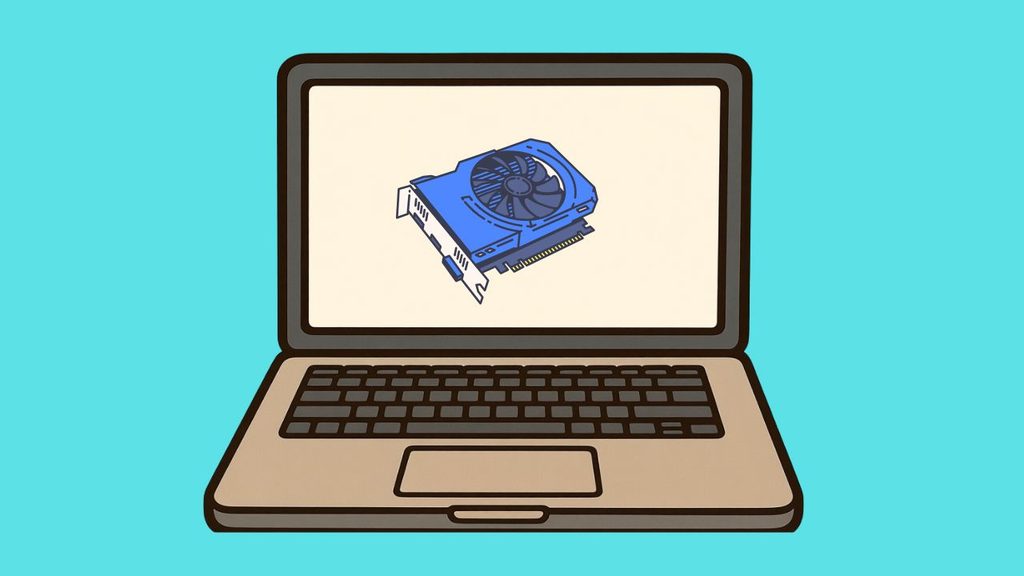
Before opening your computer, it is helpful to understand that there are two different ways to find a graphics card. The first is by checking its physical location inside the computer. The second is by checking the graphics hardware through Windows.
If you only want to know which graphics card your computer uses, Windows can provide the information in just a few clicks. If you want to upgrade, replace, or clean your graphics card, then you will need to locate it physically.
Method 1: Find the Graphics Card Using Device Manager
The easiest way to identify your graphics hardware is through Device Manager.
Step 1: Open Device Manager
Press Windows + X on your keyboard.
Click Device Manager from the menu that appears.
This utility displays every major hardware component installed in your computer.
Step 2: Expand Display Adapters
Scroll through the list until you find Display adapters.
Click the small arrow beside it.
You will now see the name of your graphics hardware.
If your PC has only one graphics processor, only one device will appear. Some computers show two entries because they include both an integrated graphics processor and a dedicated graphics card.
Step 3: Identify Your Graphics Card
Read the name displayed under Display adapters.
For example, you may see:
NVIDIA GeForce RTX 4060
AMD Radeon RX 7700 XT
Intel Arc A770
Intel UHD Graphics
This confirms which graphics hardware your computer is currently using.
Method 2: Find the Graphics Card Using Task Manager
Windows Task Manager also displays GPU information.
Step 1: Open Task Manager
Press Ctrl + Shift + Esc.
The Task Manager window will open.
Step 2: Select the Performance Tab
Click the Performance tab.
On the left side, scroll until you see GPU 0, GPU 1, or multiple GPU entries.
Step 3: View Graphics Details
Select the GPU.
Windows displays the graphics card model, GPU utilization, driver version, and available memory.
This method is especially useful for confirming which graphics processor is actively being used.
Method 3: Find the Graphics Card Using DirectX Diagnostic Tool
Windows includes another helpful utility called the DirectX Diagnostic Tool.
Step 1: Open the Run Window
Press Windows + R.
Type dxdiag.
Press Enter.
Step 2: Open the Display Tab
Wait a few seconds while Windows gathers hardware information.
Select the Display tab.
Step 3: Check Graphics Information
Here you can see details such as:
Graphics card name
Manufacturer
Display memory
Driver version
This method is commonly used when troubleshooting graphics-related issues.
Method 4: Find the Physical Graphics Card in a Desktop Computer
If you want to locate the graphics card inside your desktop PC, follow these steps carefully.
Step 1: Shut Down the Computer
Turn off your computer completely.
Disconnect the power cable.
If your system has been running for a long time, allow it to cool before opening the case.
Step 2: Remove the Side Panel
Most desktop computers have two screws holding the side panel in place.
Remove the screws.
Slide the panel backward and lift it away.
You now have access to the internal components.
Step 3: Locate the Motherboard
The motherboard is the largest circuit board inside your computer.
Most internal components connect directly to it.
Finding the motherboard makes locating the graphics card much easier.
Step 4: Find the Graphics Card
The graphics card is usually the largest expansion card attached to the motherboard.
It sits horizontally inside a long PCI Express x16 slot.
Most modern graphics cards have one or more cooling fans and a large heatsink covering most of the card.
It is typically installed closest to the processor.
Step 5: Identify the Display Ports
Look at the back of your computer.
The graphics card connects directly to the monitor through ports such as:
HDMI
DisplayPort
DVI
If your monitor cable connects to these ports located lower on the back of the computer, it is connected directly to the graphics card.
Method 5: Find the Graphics Hardware in a Laptop
Finding the graphics hardware inside a laptop is different because laptops have a much more compact design.
Step 1: Determine Whether Your Laptop Has Dedicated Graphics
Open Device Manager.
Expand Display adapters.
If you see both Intel UHD Graphics and an NVIDIA or AMD graphics processor, your laptop includes dedicated graphics.
Step 2: Understand the Physical Location
In most laptops, the graphics chip is attached directly to the motherboard.
Unlike desktop graphics cards, it is usually not installed as a removable card.
Instead, it sits underneath the laptop’s cooling system near the processor.
Step 3: Avoid Opening the Laptop Unless Necessary
Opening a laptop requires removing multiple screws and internal components.
Unless you plan to repair or clean the laptop, checking the graphics hardware through Windows is usually the safer and easier option.
How to Tell If You Have Integrated or Dedicated Graphics
Many users wonder why they cannot find a large graphics card inside their computer.
The reason is that some computers rely entirely on integrated graphics.
Integrated graphics are built directly into the processor or motherboard. They do not have a separate graphics card inside the computer.
Dedicated graphics use a separate GPU with its own memory and cooling system. These provide significantly better gaming, video editing, and 3D rendering performance.
Knowing which type your computer uses helps you understand what you should expect to find when opening the case.
Common Mistakes When Looking for a Graphics Card
One common mistake is confusing the graphics card with other expansion cards such as Wi-Fi adapters or sound cards.
Another mistake is plugging the monitor into the motherboard instead of the dedicated graphics card. If your computer has a dedicated GPU, connecting the monitor to the graphics card provides the best performance.
Some users also assume every laptop has a removable graphics card. In reality, most modern laptops have graphics hardware permanently attached to the motherboard.
FAQs
How can I check what graphics card I have without opening my computer?
You can open Device Manager, Task Manager, or run dxdiag to view the installed graphics hardware without removing the computer case.
Where is the graphics card located inside a desktop PC?
The graphics card is normally installed in the PCI Express x16 slot on the motherboard. It is usually the largest expansion card inside the computer and is positioned close to the processor.
Why can’t I find a graphics card inside my laptop?
Most laptops use graphics hardware that is integrated into the motherboard or processor. This means there is no removable graphics card like you would find in a desktop computer.
Can I remove my graphics card?
Yes, most desktop graphics cards can be removed and replaced. However, the graphics hardware in most laptops cannot be upgraded because it is permanently attached to the motherboard.
How do I know if my PC has dedicated graphics?
Open Device Manager and expand Display adapters. If you see a model from NVIDIA, AMD, or Intel Arc alongside integrated graphics, your computer has a dedicated graphics processor.
Is it safe to open my desktop computer?
Yes, provided the computer is completely powered off, unplugged, and handled carefully. Touch a metal part of the case before touching internal components to reduce the risk of static electricity.
Summary
Finding the graphics card location in your computer or laptop is easier once you understand how different systems are designed. If you simply want to identify your GPU, Windows provides quick access through Device Manager, Task Manager, and the DirectX Diagnostic Tool. These tools let you view your graphics hardware without opening the computer.
If you need to locate the graphics card physically, desktop computers make the process straightforward because the GPU is typically installed in the PCI Express x16 slot on the motherboard.
Laptops, on the other hand, usually have graphics hardware integrated into the motherboard, making it far less accessible.