
How to Open Windows Mobility Center in Windows 11/10?
The Windows Mobility Center, an overlooked feature in Microsoft Windows, provides quick access to essential laptop and tablet settings in a single panel. There are several ways to open the Windows Mobility Center in Windows 11 and Windows 10. The most common method is using the Windows key + X shortcut and selecting Mobility Center from the Quick Link menu. You can also open it using the Run dialog, Control Panel, or Windows Search.
For users who access it frequently, creating a desktop shortcut can make the process faster. Desktop users who cannot find the feature may need to enable it manually through advanced system settings.
By learning these methods, you can access the Mobility Center quickly and manage your system settings more efficiently.
So let’s learn each method in detail!
How to Open Windows Mobility Center in Windows 11/10?
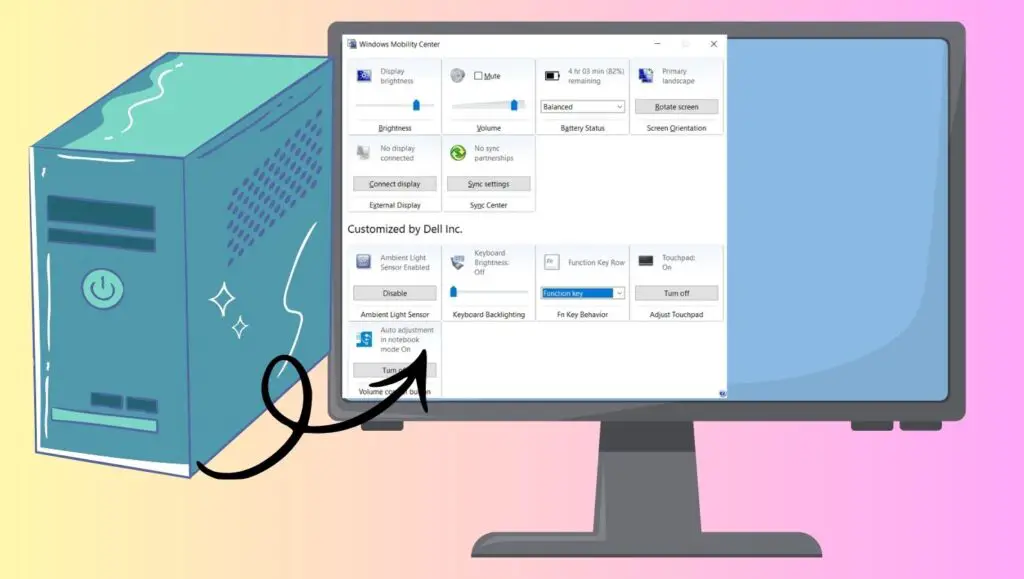
To open the Windows Mobility Center in Windows 11 or Windows 10, press the Windows key + X, then select Mobility Center from the menu. You can also open it using the Run dialog by typing mblctr and pressing Enter, or access it through the Control Panel. This feature provides quick access to brightness, volume, battery, and other settings for portable devices.
Below are the most effective methods to open the Windows Mobility Center in Windows 11 and Windows 10.
1: Mobility Center Keyboard Shortcut
The fastest way to access the Windows Mobility Center is by using a simple keyboard shortcut. This method works on both Windows 11 and Windows 10 and requires only a few seconds.
Press the Windows key and X together on your keyboard. This combination opens the Quick Link menu, which contains several important system tools. Once the menu appears, look for the option labeled Mobility Center. Click on it to open the panel.
After clicking, the Windows Mobility Center window will appear on your screen. You can now adjust settings like brightness, volume, battery saver, display mode, and presentation settings directly from this window.
This method is widely used because it is quick and does not require navigating through multiple system menus. If the option does not appear in the Quick Link menu, try one of the alternative methods described below.
2: Use the Run Command
The Run dialog box is another effective way to open system tools in Windows. It allows you to launch built-in utilities by typing specific commands.
Press the Windows key and R together to open the Run dialog box. A small window will appear on your screen. In the text field, type mblctr and press Enter or click the OK button.
As soon as you press Enter, the Windows Mobility Center should open instantly. This method works on both Windows 10 and Windows 11 and is useful if you prefer using commands instead of menus.
Using the Run dialog is also helpful when certain menu options are hidden or unavailable. It provides direct access to system utilities without extra navigation.
3: Access Windows Mobility Center Through the Control Panel
Another reliable method to open the Windows Mobility Center is through the Control Panel. Although the Control Panel is gradually being replaced by the Settings app, it still contains many useful tools.
Click on the Start menu and type Control Panel in the search bar. Select the Control Panel from the search results to open it. Once the Control Panel window appears, set the view option to Large icons or Small icons. This makes it easier to locate all available features.
Look for the option named Windows Mobility Center and click on it. The Mobility Centre window will open, allowing you to adjust various portable device settings.
This method is particularly useful if you prefer navigating through traditional Windows settings instead of using shortcuts or commands.
4: Open Windows Mobility Center Using Windows Search
Windows Search is one of the simplest ways to find and open built-in tools. It allows you to locate applications and settings quickly by typing their names.
Click on the Start button or press the Windows key on your keyboard. In the search bar, type Windows Mobility Center. As you type, Windows will display matching results.
When you see Windows Mobility Center in the search results, click on it to open the tool. The panel will appear on your screen, giving you access to system controls such as battery status, screen brightness, and volume control.
This method is especially helpful for beginners who are not familiar with keyboard shortcuts or system commands.
Make a Desktop Shortcut for Windows Mobility Center
If you frequently use the Windows Mobility Center, creating a desktop shortcut can save time. This allows you to open the tool instantly with a single click.
Right-click on an empty area of your desktop and select the option to create a new shortcut. In the location field, type mblctr.exe and click Next. Give the shortcut a name such as Windows Mobility Center and click Finish.
A new shortcut icon will appear on your desktop. Double-click this icon whenever you want to open the Mobility Center quickly.
This method is ideal for users who regularly adjust brightness, battery settings, or presentation mode and want quick access without using menus or search.
Enable Windows Mobility Center on Desktop Computers
On some desktop computers, the Windows Mobility Center may not be available by default. This is because the feature is primarily designed for laptops. However, it can be enabled manually.
To enable it, press the Windows key and type Registry Editor, then open it. Navigate to the system settings related to mobility features and create or modify the required registry values. Once enabled, restart your computer and try opening the Mobility Center using the methods mentioned earlier.
Editing the registry should be done carefully because incorrect changes can affect system performance. It is recommended only for advanced users.
Faqs
What is the Windows Mobility Center used for?
The Windows Mobility Center is used to manage essential laptop and portable device settings from one location. It allows users to adjust brightness, volume, battery mode, and external display settings quickly.
Does Windows 11 have Windows Mobility Center?
Yes, Windows 11 includes the Windows Mobility Center. However, it is mainly available on laptops and tablets. Desktop users may need to enable it manually.
Why can I not find Windows Mobility Center on my PC?
If you cannot find it, you might be using a desktop computer where the feature is disabled by default. You can try using the Run command or enabling it through system settings.
Is Windows Mobility Center available on all laptops?
Most laptops with Windows 10 and Windows 11 include the Mobility Center by default. However, some custom system configurations may hide or disable it.
Can I open Windows Mobility Center with a shortcut?
Yes, press Windows key + X and select Mobility Center from the menu. You can also use the Run command by typing mblctr.