
How to Pair OnePlus Buds to a PC or Laptop [Guide]
Want to listen to music, watch movies, attend online meetings, or make calls on your computer using your OnePlus Buds? The good news is that you can connect most OnePlus Buds wireless earbuds to a Windows 11 or Windows 10 PC or laptop through Bluetooth.
You don’t need a special cable or paid software. As long as your computer supports Bluetooth, you can pair your earbuds in just a few minutes.
The process is similar to connecting wireless headphones, although you may need to press the pairing button on the charging case before Windows can find them.
In this guide, you’ll learn how to pair OnePlus Buds with a PC or laptop, connect them to Windows 11 and Windows 10.
How to Pair OnePlus Buds to a PC or Laptop
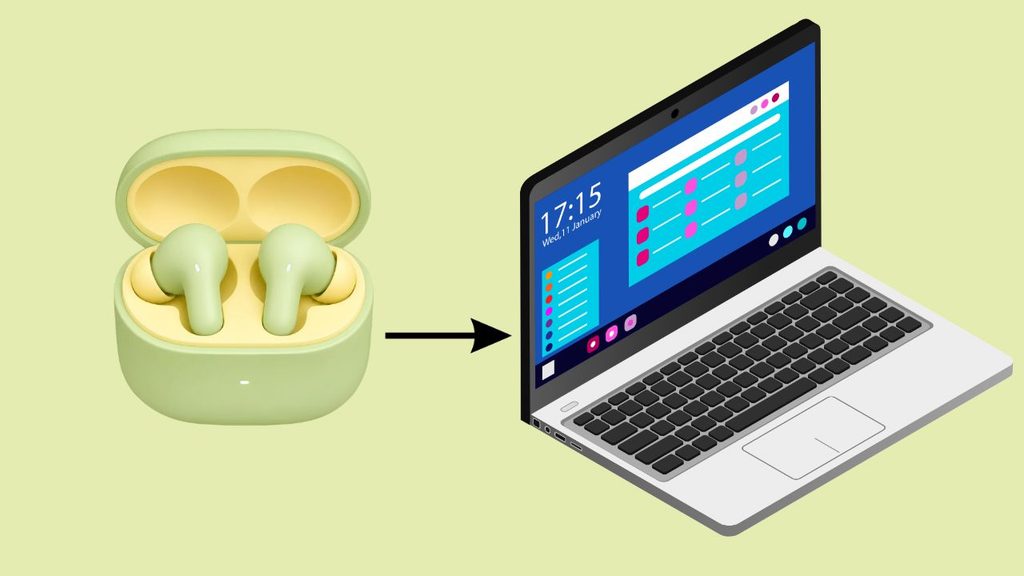
To pair OnePlus Buds with a Windows PC or laptop, turn on Bluetooth, place the earbuds in pairing mode, open Windows Bluetooth settings, and select your OnePlus Buds from the available devices. Once connected, choose the earbuds as your audio output device.
The exact pairing method depends on your OnePlus Buds model. Many models use a button on the charging case to enter pairing mode, while some newer models may use a different procedure.
If your earbuds have a dedicated setup button, consult the model’s instructions to confirm how to activate pairing mode.
Step 1: Check Your PC’s Bluetooth Support
Before pairing your earbuds, make sure your computer has Bluetooth. Most modern laptops include it, but some desktop PCs don’t have a Bluetooth adapter.
On Windows 11, press Windows + I to open Settings. Select Bluetooth & devices from the left sidebar.
On Windows 10, open Settings > Devices > Bluetooth & other devices.
If you see a Bluetooth switch, your computer has a Bluetooth adapter that Windows recognizes. Make sure Bluetooth is turned on.
If you don’t see a Bluetooth option, open Device Manager by right-clicking the Start button and selecting it from the menu. Look for a Bluetooth category.
If Bluetooth is missing, your computer might not have a Bluetooth adapter, or its driver might not be installed correctly.
You can check your computer manufacturer’s specifications or use a compatible USB Bluetooth adapter if your PC doesn’t support Bluetooth.
2: Charge Your OnePlus Buds
Your earbuds need enough battery power to enter pairing mode and maintain a stable connection.
Place both earbuds in their charging case and check the case’s battery indicator, if available. If the battery is low, connect the case to its charging cable and let it charge.
Once the earbuds have enough power, keep them close to your computer. This makes it easier for Windows to discover them and reduces the chance of a weak Bluetooth connection.
If your OnePlus Buds are already connected to your phone, temporarily turn off Bluetooth on that phone.
Some models automatically reconnect to the last device they used, which can interfere with pairing them to your PC.
You don’t necessarily need to reset the earbuds just because they’re connected to another device.
Start by disconnecting them and entering pairing mode.
3: Put OnePlus Buds Into Pairing Mode
This is an important step because Windows can only find your earbuds when they’re discoverable.
For many OnePlus Buds models, place both earbuds inside the charging case and leave the lid open. Press and hold the setup button on the charging case until the indicator starts blinking, often white.
On models covered by OnePlus’s standard pairing instructions, holding the button for about two seconds activates pairing mode.
Keep the charging case open while you pair the earbuds.
Some OnePlus Buds models use different controls or pairing procedures. If your case doesn’t have a setup button, check the user manual for your specific model rather than pressing random buttons or performing a factory reset.
Once the indicator shows that the earbuds are ready to pair, move to your computer and keep the earbuds nearby.
4: Pair OnePlus Buds With Windows 11
If your PC runs Windows 11, follow these steps to add your earbuds.
Press Windows + I to open Settings. Select Bluetooth & devices and make sure the Bluetooth switch is turned on.
Click Add device near the top of the page. A small window will appear with different device types.
Select Bluetooth. Windows will begin searching for nearby discoverable devices.
Wait for your OnePlus Buds to appear in the list. Their name may look like OnePlus Buds, OnePlus Buds Pro, or the name of your particular model.
Click the matching device name and follow any on-screen instructions. Wait until Windows reports that the earbuds are connected.
You can now close Settings and test the connection by playing a song or video.
If your earbuds don’t appear, make sure they’re in pairing mode and that Bluetooth is enabled.
You can also turn Bluetooth off and back on before searching again.
5: Pair OnePlus Buds With Windows 10
The process is almost the same on Windows 10, although the Settings menu looks a little different.
Press Windows + I to open Settings. Select Devices, then click Bluetooth & other devices.
Turn on Bluetooth if it’s disabled. Next, click Add Bluetooth or other device.
In the window that appears, choose Bluetooth. Windows will scan for nearby Bluetooth devices.
When your OnePlus Buds appear, click their name to begin pairing. Follow any additional instructions displayed on the screen and wait for Windows to confirm the connection.
Once pairing is complete, click Done if that option appears.
Your earbuds should now be available as a Bluetooth audio device.
You can disconnect or reconnect them later through Windows Bluetooth settings without repeating the entire setup process, provided the pairing information remains saved.
Step 6: Set OnePlus Buds as Your Audio Output Device
Sometimes Windows connects your earbuds successfully but continues playing sound through the laptop speakers. This usually means the wrong audio output device is selected.
On Windows 11, click the speaker icon on the taskbar. Open the audio output selector and choose your OnePlus Buds from the available devices.
You can also open Settings > System > Sound and select your earbuds under the output devices.
On Windows 10, right-click the speaker icon on the taskbar and select Open Sound settings. Under Choose your output device, select your OnePlus Buds.
Now play a song, video, or other audio to check whether the sound comes through the earbuds.
If you want to use the earbuds for online meetings, check the input settings in your meeting app and select the OnePlus Buds microphone if it is available.
Depending on the model and Windows Bluetooth support, audio quality may change when the microphone is active.
Fix OnePlus Buds That Don’t Appear in Bluetooth Settings
If your OnePlus Buds don’t show up in the available devices list, don’t worry. A few simple checks can often resolve the problem.
First, make sure the earbuds are charged and in pairing mode. Keep the charging case open if your model requires it, and hold the case’s setup button for the time specified in the manual.
Next, disconnect the earbuds from any phone, tablet, or other computer they may already be connected to. Turn Bluetooth off and back on in Windows, then select Add device and search again.
If the earbuds were previously paired with your PC, open Bluetooth settings and check whether they are already listed. If the saved connection is broken, select the device and choose Remove device. Put the earbuds back into pairing mode and add them again.
You should also check whether your PC can detect other Bluetooth devices. If it cannot find any, the problem may be related to the computer’s Bluetooth adapter or driver rather than the earbuds.
Update the Bluetooth Driver if Pairing Still Fails
An outdated or malfunctioning Bluetooth driver can prevent Windows from discovering or connecting to wireless earbuds.
Right-click the Start button and open Device Manager. Expand the Bluetooth category and locate your computer’s Bluetooth adapter.
Right-click the adapter and select Update driver. Choose Search automatically for drivers and follow any instructions provided by Windows.
If Windows doesn’t find a suitable update, check the official support website for your laptop or Bluetooth adapter manufacturer. Download and install a compatible driver for your Windows version.
Restart your PC if requested, then put your OnePlus Buds back into pairing mode and try connecting again.
Avoid downloading drivers from unfamiliar websites. If Bluetooth still doesn’t work, use the Windows Bluetooth troubleshooter or the Get Help app to check for common connection problems.
Can OnePlus Buds TWS Be Paired With a Laptop?
Yes, OnePlus Buds TWS earbuds can be paired with a Windows laptop or desktop PC that supports Bluetooth. OnePlus confirms that its Buds can connect to Bluetooth-enabled PCs, where they work as regular wireless earphones. <Cite refs={[“turn754748search0”]}/>
You can use them to listen to music, watch videos, attend online meetings, and make calls in supported applications. You don’t need a OnePlus laptop or phone to complete the pairing process.
However, some phone-specific features may not be available on Windows. Features such as quick pairing, advanced audio controls, or model-specific customization may depend on the earbuds, companion software, and connected device.
Also, Bluetooth audio can introduce noticeable latency in some games. If you play fast-paced games where synchronized audio matters, a wired headset or a gaming headset with a dedicated low-latency connection may be a better choice.
FAQs
1. Why won’t my OnePlus Buds connect to my laptop?
The earbuds may not be in pairing mode, their battery may be low, or they may already be connected to another device. Put them in pairing mode, disconnect other devices, and try searching again in Windows Bluetooth settings.
2. Can I connect OnePlus Buds to a PC without Bluetooth?
Not directly through a wireless Bluetooth connection. If your computer doesn’t have Bluetooth, you can add a compatible USB Bluetooth adapter and pair the earbuds through it.
3. Do I need to install OnePlus software to pair the earbuds?
No. Basic Bluetooth pairing and audio playback generally work through Windows settings without a dedicated OnePlus app. Some advanced features may require compatible software or a supported OnePlus device.
4. Why are my OnePlus Buds connected but there’s no sound?
Windows may still be using your speakers or another audio device. Open Sound settings and select your OnePlus Buds as the output device. Also check the volume and the audio output settings in the app you’re using.
5. Can I connect OnePlus Buds to my phone and laptop at the same time?
It depends on your specific earbuds model and whether it supports dual-device connection or multipoint. If it doesn’t, you may need to disconnect from one device before connecting to the other.