
How to Pair Sony WF-1000XM5 to a PC or Laptop [Guide]
Want to connect your Sony WF-1000XM5 wireless earbuds to your Windows PC or laptop? Whether you want to listen to music, watch movies, attend online meetings, or make video calls, you can connect these earbuds using Bluetooth.
To connect the Sony WF-1000XM5 wireless earbuds, you don’t need a special app or paid software to pair your Sony WF-1000XM5 with Windows 11 or Windows 10. Your computer just needs compatible Bluetooth hardware and the appropriate drivers.
In this guide, you’ll learn how to put your Sony earbuds into pairing mode, connect them to your computer, select them as your audio output device, and troubleshoot common Bluetooth connection problems.
Let’s start the guide!
How to Pair Sony WF-1000XM5 to PC or Laptop
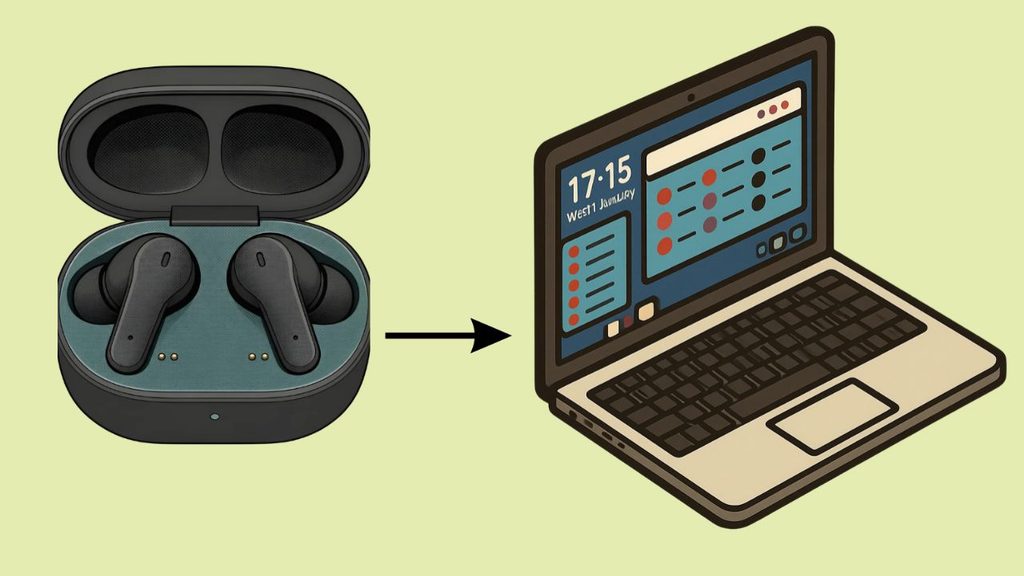
You can pair the Sony WF-1000XM5 with a Windows 11 or Windows 10 PC through Bluetooth. First, put the earbuds into pairing mode. Then open your computer’s Bluetooth settings, select WF-1000XM5, and complete the connection. Once paired, select the earbuds as your audio output device.
Before you begin, make sure your earbuds have enough battery and keep them close to your computer, ideally within about three feet.
If you’ve already connected the earbuds to your phone, temporarily disconnect them from that device if they keep connecting to it automatically.
Step 1: Put Your Sony WF-1000XM5 Into Pairing Mode
The first step is to make your earbuds discoverable so your PC or laptop can find them.
If you’re pairing the WF-1000XM5 for the first time, open the charging case and remove both earbuds. They should turn on and enter pairing mode automatically if they don’t already have pairing information from an earlier setup.
If you’ve paired them with another device before, place both earbuds in the charging case and leave the lid open. Press and hold the pairing button on the back of the charging case for at least five seconds.
The blue indicator should flash in a repeating double pattern, indicating that pairing mode is active.
When you put the earbuds in your ears, you should hear the voice guidance announce “Pairing.”
Keep the earbuds in pairing mode while you move to the next step. Pairing mode normally times out after about five minutes, so complete the connection promptly.
Step 2: Turn On Bluetooth in Windows 11
If your computer runs Windows 11, you’ll need to enable Bluetooth before searching for the earbuds.
Press Windows + I to open Settings. Select Bluetooth & devices from the left sidebar.
Find the Bluetooth switch near the top of the page and turn it on. If Bluetooth is already enabled, leave it on.
Next, click Add device. A small window will appear with different device types. Select Bluetooth so Windows can search for nearby wireless headphones and other Bluetooth devices.
Keep the earbuds close to your computer while Windows searches. If your earbuds are in pairing mode, their name should appear in the list.
If Bluetooth is missing entirely from Settings, your computer may have a disabled Bluetooth adapter, a driver problem, or no built-in Bluetooth hardware.
You can troubleshoot that later in this guide.
Step 3: Turn On Bluetooth in Windows 10
If you’re using Windows 10, the process is similar, although the Settings layout is different.
Press Windows + I to open Settings. Select Devices, then click Bluetooth & other devices in the left sidebar.
Turn on the Bluetooth switch if it is disabled.
Click Add Bluetooth or other device near the top of the page. In the window that appears, select Bluetooth.
Windows will search for nearby Bluetooth devices. Make sure your Sony WF-1000XM5 is still in pairing mode and close enough to your computer to be detected.
When WF-1000XM5 appears in the list, you’re ready to complete the pairing process.
Step 4: Select Sony WF-1000XM5 From the Bluetooth Device List
Once Windows finds your earbuds, look for WF-1000XM5 in the list of available Bluetooth devices.
Click the device name to begin pairing. Wait while Windows establishes the connection. If the pairing process succeeds, Windows will display a confirmation message or show that the device is connected.
You generally won’t need to enter a PIN. If Windows specifically requests a passkey, Sony’s instructions specify 0000 for this headset.
If the earbuds don’t appear, don’t keep clicking the search button repeatedly. Check that pairing mode is active, then try searching again. If pairing mode has timed out, repeat Step 1.
Once the connection is complete, you can use the earbuds for audio playback. However, you may still need to select them as your preferred sound device.
Set Sony WF-1000XM5 as the Default Audio Output
Your earbuds might connect successfully without automatically becoming the default audio device. If your computer continues playing sound through its speakers, change the output setting manually.
In Windows 11, right-click the speaker icon on the taskbar and select Sound settings. Under the Output section, choose WF-1000XM5 if it appears in the device list.
In Windows 10, right-click the speaker icon and select Open Sound settings. Under Choose your output device, select the Sony earbuds.
Play a song or video to check whether the sound comes through your earbuds. You can also adjust the volume using Windows or the app you’re using.
If the earbuds don’t appear in the output list, open the additional sound settings and check whether the device is disconnected or disabled.
You may need to connect it manually before it becomes available.
Configure the Microphone for Calls and Meetings
If you plan to use your Sony WF-1000XM5 for Zoom meetings, Microsoft Teams calls, or other voice chats, make sure Windows recognizes its microphone.
In Windows 11, open Settings > System > Sound. Under Input, select WF-1000XM5 if it’s available.
In Windows 10, open Settings > System > Sound and look under Choose your input device.
You can speak into the earbuds and check whether the input level responds. If it doesn’t, confirm that microphone access is enabled and that the application you’re using has permission to access the microphone.
You should also open the audio settings inside your meeting app and select the Sony earbuds as the microphone device.
Keep in mind that Bluetooth headsets can use different audio modes for music and calls. When the microphone is active, sound quality may differ from what you hear during music playback.
This is normal for many Bluetooth headsets.
Connect the Earbuds Automatically Next Time
Once you’ve paired your Sony WF-1000XM5 with your PC or laptop, you generally won’t need to repeat the entire pairing process.
When you want to use them again, wake your computer, make sure Bluetooth is enabled, and remove the earbuds from their charging case.
The earbuds may automatically reconnect to the last device they used. If they don’t connect to your computer, open Windows Bluetooth settings and select the Sony earbuds to connect manually.
One thing to watch out for is your phone. If your earbuds reconnect to your phone instead of your computer, temporarily disconnect them from the phone and try again.
The WF-1000XM5 supports multipoint connections, but the devices and connection settings can affect how audio is routed.
If sound keeps coming from the wrong device, check which devices are currently connected.
Fix Sony WF-1000XM5 Not Pairing With a PC or Laptop
Make Sure Your Computer Supports Bluetooth
If Windows can’t find your earbuds, check whether your PC has Bluetooth hardware.
Press Windows + X and select Device Manager. Look for a Bluetooth category in the device list.
If Bluetooth appears, expand it and check whether the adapter is enabled and working correctly. If you see a warning symbol, the driver may need attention.
If Bluetooth doesn’t appear, check Device Manager for unknown devices and consult your computer manufacturer’s documentation. Some desktop PCs don’t include Bluetooth hardware.
If your computer doesn’t support Bluetooth, you can use a compatible USB Bluetooth adapter.
Install any required drivers according to the adapter manufacturer’s instructions, enable Bluetooth, and try pairing again.
Remove the Existing Pairing and Try Again
Sometimes Windows saves pairing information that no longer works correctly. Removing the old connection and pairing the earbuds again can resolve the problem.
In Windows 11, open Settings > Bluetooth & devices > Devices. Find WF-1000XM5, click the three-dot menu next to it, and select Remove device.
In Windows 10, open Settings > Devices > Bluetooth & other devices. Select WF-1000XM5 and click Remove device.
Next, put the earbuds back into pairing mode by following Step 1. Open the Bluetooth settings on your computer and add the earbuds again.
Wait for Windows to confirm the connection, then select the earbuds as your audio output device.
You shouldn’t need to reset the earbuds to factory settings for a routine reconnection. Try removing and re-pairing them first.
Fix Connected but No Sound Issues
If Windows says your Sony earbuds are connected, but you can’t hear anything, the selected audio output may be incorrect.
Open Sound settings and verify that WF-1000XM5 is selected as the output device. Increase the volume and check that the app you’re using isn’t muted.
You can also disconnect and reconnect the earbuds. If another phone or computer is connected to them, check whether that device is playing the audio instead.
If the problem continues, restart your PC and check for Bluetooth driver updates through your computer manufacturer’s website.
For persistent connection problems, consult Sony’s official WF-1000XM5 troubleshooting guide. Avoid downloading unofficial driver packages or resetting the earbuds before trying these simpler fixes.
FAQs
1. Can I connect Sony WF-1000XM5 to a Windows 11 laptop?
Yes. Turn on Bluetooth, put the earbuds in pairing mode, and select WF-1000XM5 under Settings > Bluetooth & devices > Add device > Bluetooth.
2. Do I need to install Sony software to pair the earbuds?
No. Windows Bluetooth settings are enough for basic pairing, audio playback, and microphone use. Sony’s software may provide additional customization features, but it isn’t required for the initial connection.
3. Why doesn’t WF-1000XM5 appear in my Bluetooth list?
The earbuds may not be in pairing mode, may have connected to another device, or may be too far from your computer. Put them into pairing mode again and search for nearby devices.
4. Can I use Sony WF-1000XM5 for Zoom and Microsoft Teams?
Yes. After pairing, select the earbuds as both the audio output and microphone device in your meeting app. You may need to change these settings separately in Windows.
5. Can I connect the earbuds to my PC and phone?
Yes. The WF-1000XM5 supports multipoint connections, allowing it to connect to two devices simultaneously under supported configurations. However, audio routing depends on the connected devices and settings.
Summary
Pairing your Sony WF-1000XM5 with a PC or laptop is straightforward. Put the earbuds into pairing mode, enable Bluetooth in Windows 11 or Windows 10, and select WF-1000XM5 from the available devices.
Once connected, select the earbuds as your default audio output and configure the microphone if you plan to use them for calls.
If pairing fails, check your Bluetooth adapter, disconnect other devices temporarily, remove the old pairing, and try again.
With these steps, you should be able to use your Sony earbuds for music, videos, and online meetings without much trouble.