
How to Pin Emoji to the Taskbar in Windows 11?
With the latest updates in Windows 11, Microsoft has made it easier to access emojis directly from the taskbar settings without relying on scripts or manual shortcuts. This new approach simplifies the process, especially for beginners who prefer using built-in options instead of creating custom workarounds.
The updated Emoji and More feature allows you to control how and when the emoji panel appears while typing. By adjusting a simple setting inside the system, you can make emoji access feel more natural and integrated into your workflow.
In this guide, you will learn how to enable and manage emoji access from the taskbar using the latest Windows 11 settings.
How to Pin Emoji to the Taskbar in Windows 11?
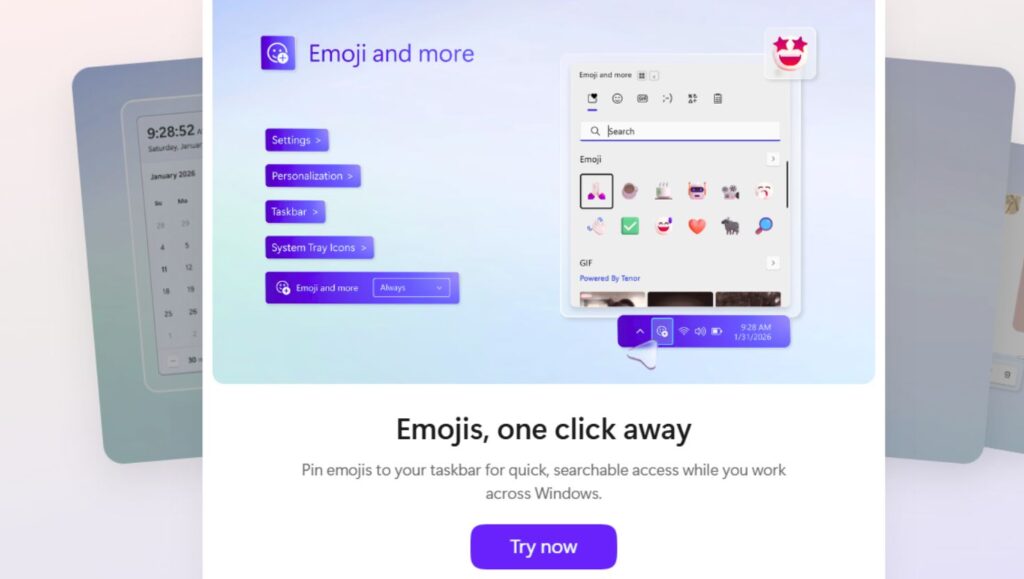
To pin emoji access in Windows 11, press Windows + I to open Settings, go to Personalization, select Taskbar, then click Emoji and More, and choose between Never, While Typing, or Always based on your preference.
Below are the detailed steps to configure this feature correctly.
Step 1: Open the Settings App
To begin, you need to access the main settings panel of your system.
Press the Windows key + I on your keyboard at the same time. This shortcut instantly opens the Settings app, which is the central place for customizing your Windows experience.
If you are not comfortable using keyboard shortcuts, you can also click the Start menu and select Settings from the list of options.
Once the Settings window opens, you will see multiple categories such as System, Bluetooth, Network, and Personalization. This is where all customization begins.
Step 2: Navigate to Personalization Settings
After opening Settings, the next step is to locate the personalization options.
Look at the left side panel and click on Personalization. This section controls how your Windows interface looks and behaves, including themes, colors, lock screen, and taskbar settings.
When you click on Personalization, the right side of the window will update with several options. These include Background, Colors, Themes, and Taskbar.
You will be working inside this section to adjust emoji-related behavior.
Step 3: Open Taskbar Settings
Inside the Personalization menu, find and click on Taskbar.
This section allows you to customize everything related to your taskbar, such as icons, alignment, system tray behavior, and input features.
Scroll through the available options until you find settings related to input or typing features. In the latest update, Microsoft has added a dedicated option called Emoji and More, which controls how emojis appear during typing.
Clicking on the Taskbar ensures you are in the right place to manage this feature.
Step 4: Access Emoji and More Settings
Once you are inside the Taskbar settings, look for the option labeled Emoji and More.
Click on this option to expand it. You will now see different choices that determine how the emoji panel behaves when you are typing.
This feature is designed to integrate emojis more naturally into your workflow instead of requiring manual shortcuts every time.
It acts as a smart control panel for emoji suggestions and accessibility.
Step 5: Choose Your Preferred Emoji Behavior
Now comes the most important part: selecting how you want emojis to appear.
You will see three options: Never, While Typing, and Always.
If you select Never, the emoji suggestions and panel will not appear automatically. You will still need to use the manual shortcut if you want to insert emojis.
If you choose While Typing, Windows will intelligently suggest emojis as you type certain words. For example, typing a word like smile may trigger emoji suggestions.
If you select Always, the emoji access becomes more visible and readily available, making it easier to insert emojis without extra effort.
Choose the option that best fits your usage style. Beginners usually prefer While Typing or always for convenience.
Step 6: Apply and Start Using Emoji from the Taskbar
Once you select your preferred option, the setting is applied automatically. There is no need to click a save button.
You can now close the Settings window and start using your system normally.
Open any app where you can type, such as a browser, chat app, or document editor. Depending on the option you selected, emojis will now appear or be suggested based on your typing behavior.
This makes accessing emojis faster and more intuitive compared to older methods.
FAQs
Does this method actually pin emoji to the taskbar?
Not exactly. It does not create a clickable emoji icon on the taskbar, but it enables emoji access directly through taskbar-related input behavior, making it feel integrated.
Which option should I choose for the best experience?
Most users prefer While Typing because it provides helpful suggestions without being intrusive. If you want constant access, choose Always.
Can I still use the keyboard shortcut for emojis?
Yes, the Windows key + period shortcut will continue to work regardless of the selected option.
Why do I not see the Emoji and More option?
This feature is only available in the latest Windows 11 updates. Make sure your system is fully updated.
Is this better than creating a shortcut?
For most users, yes. This method is simpler, safer, and does not require scripts or manual setup.