
How to Test if All Keyboard Keys Are Working
A keyboard may look perfectly normal while one or more keys are no longer registering correctly. A single faulty key can make typing passwords, writing documents, playing games, or using keyboard shortcuts frustrating. The good news is that you do not need special technical knowledge to check whether every key on your keyboard is working.
You can test a keyboard using a simple online keyboard tester, a text editor such as Notepad, Windows’ On-Screen Keyboard, and a few built-in Windows features. These methods can help you identify keys that do not respond, keys that register inconsistently, and keys that appear to be stuck.
Let’s learn all the methods in detail!
How to Test if All Keyboard Keys Are Working
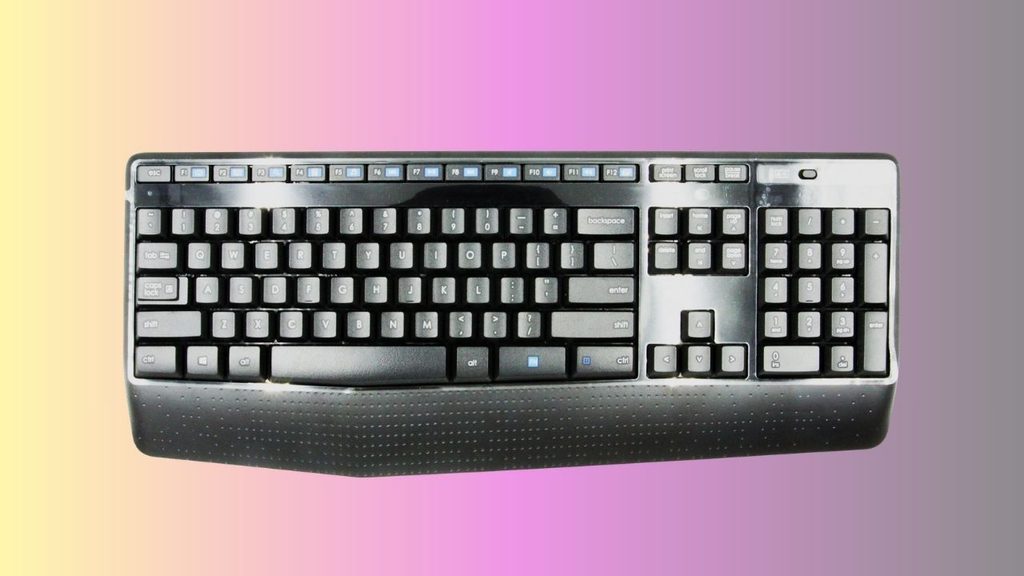
To test if all keyboard keys are working, open a keyboard tester website and press every key on your physical keyboard one at a time. A working key should be detected or highlighted on the tester. You can also open Notepad and test letters, numbers, symbols, and special keys manually. If a key does not respond, reconnect the keyboard, restart Windows, check for dirt or physical damage, and test the keyboard on another computer to determine whether the problem is with the keyboard or Windows.
The following steps provide a more thorough way to check your keyboard.
1: Disconnect and Reconnect the Keyboard
Before testing individual keys, make sure the keyboard is properly connected. If you are using a USB keyboard, unplug its USB cable from the computer and wait a few seconds. Then connect it to another USB port if one is available.
If you are using a wireless keyboard, check that it is switched on and that its wireless receiver or Bluetooth connection is working. Replace the batteries if the keyboard uses replaceable batteries.
Laptop users do not need to disconnect anything. Simply make sure the laptop is connected to power if the battery is low and restart Windows before beginning the test.
A loose connection can make several keys appear to be faulty when the keyboard itself is actually working correctly.
2: Open Notepad to Test Basic Keys
The easiest way to begin testing is with Notepad. Press the Windows key, type Notepad, and open the application.
Start pressing the letter keys individually. For example, press A, B, C, and continue through the alphabet. Each pressed key should produce its corresponding character.
Next, test the number keys along the top of the keyboard. Press 1, 2, 3, and the remaining number keys. Also test the symbol keys by holding Shift while pressing keys such as 1, 2, and 3.
If a particular letter or number does not appear, press it several times. If the same key repeatedly fails while nearby keys work normally, make a note of it.
3: Test the Modifier and Special Keys
Some keyboard keys do not produce visible characters in Notepad. This includes keys such as Ctrl, Alt, Shift, Windows, Esc, Tab, and Caps Lock.
You can test these keys using their normal functions. For example, type some text in Notepad and press Ctrl + A. If all text becomes selected, the Ctrl key is working.
Press Ctrl + C to copy the selected text and Ctrl + V to paste it. You can also press Shift while typing a letter to check whether uppercase letters appear.
Press Caps Lock and look for the keyboard’s Caps Lock indicator if your keyboard has one. Then type a few letters. They should appear in uppercase when Caps Lock is enabled.
These simple combinations are useful because special keys often cannot be tested simply by looking for a character.
4: Test the Enter, Backspace, Spacebar, and Tab Keys
Now test the larger keys that you use frequently.
Type a sentence in Notepad and press the Spacebar between words. If spaces are inserted correctly, the Spacebar is responding.
Press Backspace to remove characters. Press Enter to create a new line. Press Tab to insert a tab space.
Pay particular attention to the Spacebar, because it is one of the most frequently used keyboard keys. If you have to press it unusually hard or repeatedly for it to register, the key may have a mechanical or dirt-related problem.
5: Use an Online Keyboard Tester
An online keyboard tester is one of the easiest ways to check almost every key on a keyboard.
Open your web browser and search for a reputable keyboard testing website. Once the tester is open, click inside the testing area if required and start pressing keys on your physical keyboard.
Press every key individually, including the function keys, number row, alphabet keys, punctuation keys, arrow keys, navigation keys, and modifier keys.
A functioning keyboard tester normally shows which key has been detected. Some testers highlight a virtual key when you press the corresponding physical key.
If you press a key several times and the tester never detects it, that key deserves further investigation.
Keep in mind that online testers can behave differently depending on the browser and operating system. Therefore, if one website does not recognize a special key, that does not automatically mean the physical key is defective.
6: Test the Function Keys
The keys labeled F1 through F12 can be slightly different from ordinary letter keys.
Press each function key individually. On many computers, these keys perform functions such as opening Help, refreshing a page, changing volume, adjusting screen brightness, or controlling media.
On laptops, you may need to press Fn together with an F-key. For example, pressing Fn + F5 might perform a hardware-specific function instead of simply sending F5.
If the function keys do not behave as expected, check whether your laptop has an Fn Lock feature. The behavior can also depend on your computer’s manufacturer and keyboard settings.
7: Test the Arrow and Navigation Keys
Next, check the Arrow keys, including Up, Down, Left, and Right.
Open Notepad and type a sentence. Press the arrow keys to move the text cursor through the sentence. If the cursor moves in the expected direction, those keys are responding.
You can also test Home, End, Page Up, Page Down, Insert, and Delete where those keys are available on your keyboard.
Pressing Delete should remove the character in front of the cursor, while Backspace normally removes the character behind it.
8: Test the Numeric Keypad
If your keyboard has a separate numeric keypad, test those keys individually.
First, press Num Lock. Then type several numbers using the keypad. The numbers should appear in Notepad.
Press Num Lock again and test the keypad’s navigation behavior. Depending on your keyboard, the keys may perform different functions when Num Lock is disabled.
If only the numeric keypad is malfunctioning while the rest of the keyboard works, check the Num Lock setting before assuming that the hardware is defective.
9: Check the Keyboard With Windows On-Screen Keyboard
Windows includes an On-Screen Keyboard that can help you compare physical keyboard input with a virtual keyboard.
Press Windows + Ctrl + O to open the On-Screen Keyboard. You can also search for On-Screen Keyboard from the Windows Start menu.
Press keys on your physical keyboard and observe the virtual keyboard where applicable. This can provide another way to determine whether Windows is receiving keyboard input.
The On-Screen Keyboard is particularly useful when you suspect that a physical key is not being detected.
10: Test the Keyboard on Another Computer
If one or more keys appear to be faulty, connect the keyboard to another computer if possible.
You do not need to install special software. Open Notepad on the second computer and repeat the test.
If the same physical key fails on another computer, the problem is more likely related to the keyboard hardware.
If the key works normally on another computer, the problem may be related to Windows, keyboard drivers, software, or settings on the original computer.
This is one of the most useful tests because it helps separate a hardware problem from a Windows problem.
What to Do if Any Key Is Pressed but Not Visible?
If you press a key but nothing appears on the screen, first determine whether that key is supposed to produce a visible character. Keys such as Ctrl, Alt, Shift, Esc, and the Windows key normally do not display a character in Notepad.
For a letter, number, or punctuation key, press it several times in Notepad. If nothing appears, restart the computer and test it again.
Next, check the key for dust, crumbs, or debris. Turn off the computer or disconnect the keyboard before cleaning it. Use gentle cleaning methods and avoid pouring liquid directly onto the keyboard.
If you are using a USB keyboard, try a different USB port. For a wireless keyboard, check its battery and reconnect it to the computer.
You should also test the keyboard on another computer. If the same key remains unresponsive there, the keyboard may have a physical hardware fault. If the key works elsewhere, investigate Windows settings, drivers, or software on the original computer.
If a key works only when you press it very hard, works intermittently, or produces repeated characters without being pressed repeatedly, it could have a mechanical or electrical problem.
FAQs
How can I quickly test all keyboard keys?
The quickest method is to use an online keyboard tester. Press each key on your physical keyboard and check whether the corresponding virtual key is detected. For a more reliable diagnosis, also test the keyboard in Notepad and on another computer.
How do I know if a keyboard key is broken?
If one key consistently fails while other keys work, test it in Notepad, an online keyboard tester, and on another computer. If it fails in all three situations, the physical key or keyboard hardware may be faulty.
Can I test a keyboard without installing software?
Yes. You can use Notepad, Windows’ On-Screen Keyboard, and an online keyboard tester without installing dedicated keyboard-testing software.
Why are some keyboard keys not showing anything in Notepad?
Not every keyboard key produces visible text. Keys such as Ctrl, Alt, Shift, Windows, and Esc perform commands rather than inserting characters. Test these keys by using keyboard shortcuts or observing their expected behavior.
How do I test the Fn key?
The Fn key is commonly used with other keys on laptops. Try combinations such as Fn with an F-key that controls brightness, volume, or another laptop feature. The exact behavior depends on the laptop manufacturer and model.
Why does my keyboard work on another computer?
If the keyboard works correctly on another computer, the physical keyboard may be fine. The original computer could have a Windows setting, driver, software conflict, USB problem, or other configuration issue affecting keyboard input.
Should I replace my keyboard if one key does not work?
Not necessarily. First, clean the area around the key, reconnect the keyboard, restart Windows, and test it on another computer. If the same key continues to fail, especially if the keyboard has physical damage, replacement may be appropriate.
Summary
Testing every keyboard key does not require advanced technical knowledge. Start with Notepad to check letters, numbers, symbols, and frequently used keys. Then use an online keyboard tester to check a wider range of keys, including function and navigation keys. Windows’ On-Screen Keyboard provides another useful way to investigate keyboard input.
If a key appears to be faulty, reconnect the keyboard, check for debris, restart Windows, and test the keyboard on another computer.
If the same key fails everywhere, the problem is likely related to the physical keyboard rather than Windows.