
How to Connect Apple Mini Wireless Keyboard
If you have recently purchased or found an Apple Mini Wireless Keyboard, you may be wondering how to turn it on and connect it to your computer. Apple has released several compact wireless keyboards over the years, including the Apple Wireless Keyboard and the Magic Keyboard, and the exact power method can vary depending on the model.
For a very new user, the important thing to know is that most Apple wireless keyboards do not have a traditional power button that you press and hold like a phone or Bluetooth speaker. Depending on the model, you may need to slide a power switch to the on position, or newer Magic Keyboard models may use a small switch on the back or edge of the keyboard.
Once the keyboard is turned on, it normally connects to your Mac through Bluetooth. If you are using Windows 11 or Windows 10, you can also pair a compatible Apple wireless keyboard through Bluetooth.
How to Turn On & Connect Apple Mini Wireless Keyboard
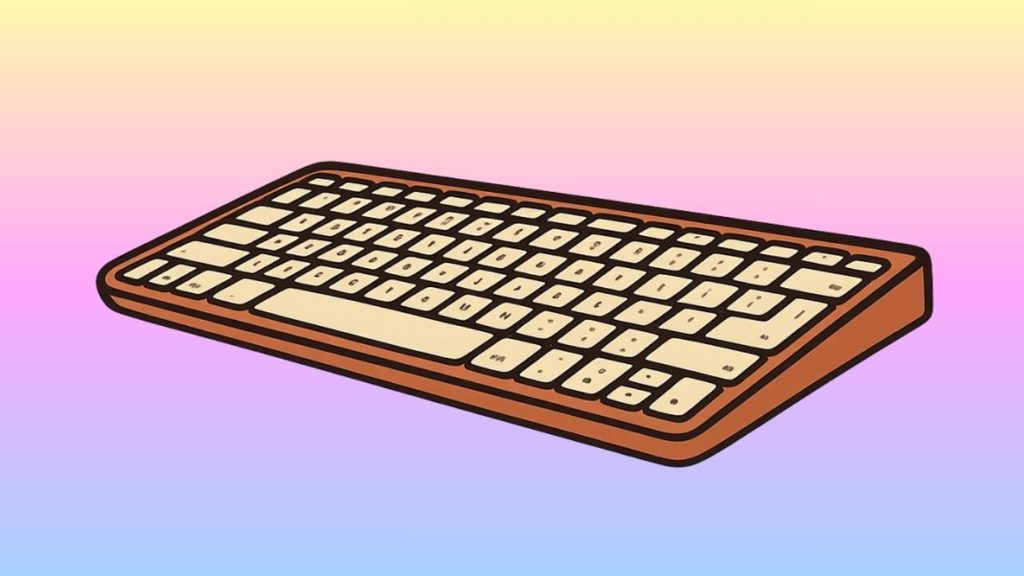
To turn on an Apple Mini Wireless Keyboard, first check the side or rear edge of the keyboard for a power switch. Slide the switch to the on position. If the keyboard uses a rechargeable battery, connect it to a power source with its charging cable and allow it to charge. Then turn on Bluetooth on your Mac or Windows PC and select the keyboard from the available Bluetooth devices. If your keyboard does not have a visible power switch, connect it with its charging cable and check whether it powers on or becomes available for pairing.
The following steps explain the process in detail.
Step 1: Identify Your Apple Wireless Keyboard
Before trying to turn on the keyboard, take a moment to identify which Apple keyboard model you have. This is important because Apple has used different designs over the years.
Place the keyboard on a flat surface and look carefully at its edges and underside. Older Apple Wireless Keyboard models generally use removable batteries and have a small power button or switch. Newer Magic Keyboard models typically have a rechargeable battery and a small power switch.
Do not worry if you cannot immediately find the switch. It can be quite small and may be located along the back edge of the keyboard.
If the keyboard is very thin and has a Lightning or USB-C charging port, it is likely a rechargeable Magic Keyboard model. If you see a battery compartment underneath the keyboard, you probably have an older battery-powered Apple wireless keyboard.
Step 2: Check the Keyboard’s Battery
Before troubleshooting the power switch, make sure the keyboard has enough power.
If your Apple keyboard uses AA batteries, turn the keyboard over and locate the battery compartment. Open the compartment and check whether the batteries are installed correctly. If the batteries are old, replace them with fresh batteries.
Make sure the positive and negative ends are positioned according to the markings inside the battery compartment. A keyboard with incorrectly installed batteries may appear completely dead even though the batteries themselves are new.
If you have a rechargeable Magic Keyboard, connect the appropriate charging cable to the keyboard. Leave it connected for a while before attempting to pair it. A completely depleted battery may need some charging time before the keyboard responds.
Step 3: Locate the Power Switch
Now look for the power switch.
On many Apple wireless keyboards, the switch is located along the rear or side edge. It may be a small sliding switch that can be moved between two positions.
Look closely for a small green indicator or another visual indication that the keyboard is switched on. On certain Apple keyboard models, seeing green beside the switch indicates that the keyboard is powered on.
If you have difficulty seeing the switch, use a bright light and inspect the keyboard’s edges carefully. The switch is intentionally small because Apple designed these keyboards to have a minimal appearance.
Step 4: Turn the Keyboard On
Once you locate the power switch, move it to the on position.
Do not repeatedly press the switch or force it if it does not move. A sliding power switch normally requires only a small amount of movement.
After switching it on, wait several seconds. The keyboard may take a short moment to become available for Bluetooth pairing.
If your keyboard has an indicator light, look for any sign that it has powered up. Keep in mind that not every Apple wireless keyboard provides an obvious light when it is turned on.
Step 5: Turn On Bluetooth on Your Mac
After turning on the keyboard, you need to make sure Bluetooth is enabled on the computer.
On a Mac, open System Settings and select Bluetooth. Make sure Bluetooth is turned on.
Your Apple keyboard should eventually appear in the list of nearby Bluetooth devices. Depending on the keyboard and macOS version, it may appear under a name such as Magic Keyboard or Apple Wireless Keyboard.
If you see the keyboard in the list, select it and follow any instructions shown on the screen.
For a first-time connection, your Mac may ask you to enter a code using the keyboard. Simply type the requested numbers on the Apple keyboard and press Return.
Step 6: Pair the Keyboard With Windows 11
You can also use a compatible Apple wireless keyboard with a Windows 11 PC.
Open Settings on your Windows computer and select Bluetooth & devices. Make sure Bluetooth is turned on.
Select Add device, choose Bluetooth, and wait while Windows searches for nearby devices.
Turn on the Apple keyboard if you have not already done so. When its name appears in the Bluetooth device list, select it.
Windows may display a pairing code. If it does, type the code using the Apple keyboard and press Enter.
Once Windows confirms that the keyboard is connected, you can begin typing.
Step 7: Pair the Keyboard With Windows 10
If you are using Windows 10, the Bluetooth menus are slightly different.
Open Settings, select Devices, and then choose Bluetooth & other devices. Make sure Bluetooth is enabled.
Select Add Bluetooth or other device, choose Bluetooth, and wait for Windows to search for nearby devices.
When your Apple keyboard appears, select it and complete the pairing instructions shown on the screen.
After pairing, Windows should remember the keyboard. You normally will not need to repeat the entire setup every time you use the computer.
Step 8: Check Whether the Keyboard Is Working
After connecting the keyboard, open a simple text field. On Windows, you can open Notepad. On a Mac, you can open a text editor or another application where you can type.
Press several keys and check whether the characters appear on the screen.
If the keyboard works, the setup is complete.
If it does not type even though Windows or macOS says it is connected, turn the keyboard off and back on. You can also disconnect it from Bluetooth and pair it again.
Step 9: Keep the Keyboard Charged
If you have a rechargeable Apple keyboard, keeping its battery charged can prevent many apparent power problems.
When the battery becomes very low, the keyboard may stop responding or disappear from the Bluetooth device list. Connect the keyboard to its charging cable and give it some time to charge.
You can often continue using a rechargeable Magic Keyboard while it is connected to a compatible computer or power source.
For older keyboards that use replaceable batteries, keep a fresh pair of compatible batteries available.
Faqs
Does the Apple Mini Wireless Keyboard have a power button?
Many Apple wireless keyboard models have a small power switch rather than a conventional push button. Its location depends on the specific model. Check the keyboard’s rear or side edge carefully.
How do I know if my Apple wireless keyboard is turned on?
On models with a physical power switch, look for the switch’s on position or a visible green indicator. You can also check whether the keyboard appears in your computer’s Bluetooth settings.
Why won’t my Apple wireless keyboard turn on?
The most common reason is a dead or incorrectly installed battery. Older models require AA batteries, while rechargeable Magic Keyboard models need to be charged. Check the battery or connect the keyboard to its charging cable before trying again.
Why is my Apple keyboard not showing in Bluetooth?
First, make sure the keyboard is powered on and has sufficient battery power. Turn Bluetooth off and back on on your computer, then search for nearby devices again. If the keyboard was previously paired with another device, disconnecting it from that device may also help.
Can I use an Apple wireless keyboard with Windows?
Yes. Many Apple wireless keyboards can be connected to Windows 11 and Windows 10 computers using Bluetooth. However, some Apple-specific keys and shortcuts may work differently because Windows uses different keyboard mappings.
Do I need to install a driver for an Apple wireless keyboard?
In most cases, Windows or macOS can recognize the keyboard automatically after Bluetooth pairing. Basic typing generally does not require you to manually install a driver.
What should I do if the keyboard is connected but does not type?
Start by turning the keyboard off and on. Then check its battery level and Bluetooth connection. If the problem continues, remove the keyboard from your computer’s Bluetooth device list and pair it again.
Can I charge an Apple Magic Keyboard while using it?
For rechargeable models that support wired operation, you can generally connect the keyboard to power using its charging cable. This can also be useful when the battery is too low for reliable wireless use.
Summary
Turning on an Apple Mini Wireless Keyboard is usually straightforward once you know where the power switch is located. Start by identifying your keyboard model and checking whether it uses replaceable batteries or a rechargeable battery. Next, locate the small power switch and move it to the on position.
After the keyboard is powered on, enable Bluetooth on your Mac or Windows computer and select the keyboard from the available devices. Complete the pairing process, test a few keys, and you should be ready to use the keyboard.
If the keyboard does not appear, do not immediately assume that it is defective. Check the battery, confirm that the power switch is on, move the keyboard closer to the computer, and try pairing it again.
These simple checks solve many common connection problems for first-time users.