
HP Recovery Is Not Responding: Stuck in Recovery Mode (How to Fix It)
Is your HP laptop stuck in Recovery Mode, or does HP Recovery Manager stop responding when you try to repair or restore Windows? This problem can be frustrating, especially when your computer keeps restarting, displays a recovery screen, or gets stuck on a message such as Please Wait.
Several things can cause this issue, including corrupted Windows system files, damaged recovery partitions, interrupted Windows updates, faulty storage devices, or problems with the boot configuration.
In this guide, I’ll walk you through the steps in simple language, starting with basic troubleshooting and moving toward more advanced recovery options.
HP Recovery Is Not Responding: Stuck in Recovery Mode
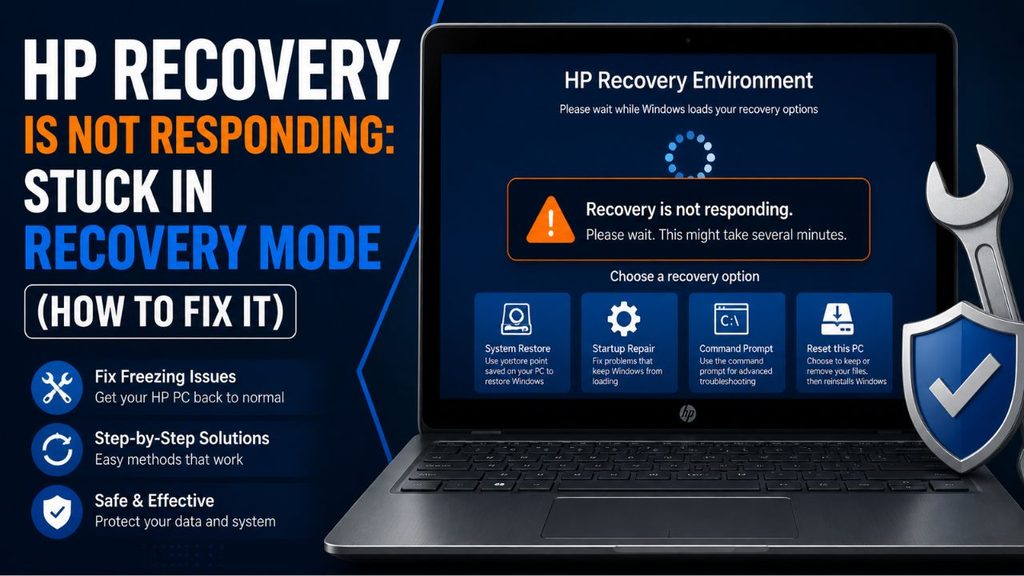
When an HP computer gets stuck in Recovery Mode, it usually means that Windows or HP Recovery Manager cannot complete the recovery process.
You might experience a frozen recovery screen, an endless loading animation, repeated restarts, or a computer that automatically returns to the recovery environment.
Before trying the solutions, remember that System Recovery and Factory Reset can erase your personal files, installed applications, and settings. Avoid selecting these options until you’ve considered your backup options.
To fix an HP laptop stuck in Recovery Mode, perform a hard reset, disconnect unnecessary external devices, and restart the computer. If the problem continues, run HP hardware diagnostics, use Windows Startup Repair, uninstall problematic updates, or try System Restore. If none of these methods work, use a Windows recovery USB or HP recovery media to repair the operating system.
Let’s go through each method in detail.
1: Perform a Hard Reset on Your HP Laptop
A hard reset is one of the easiest ways to resolve an HP laptop that freezes during startup or gets stuck in Recovery Mode.
Sometimes, temporary hardware or power-related issues prevent the computer from responding properly. A hard reset clears temporary power conditions without intentionally deleting your personal files.
Here’s how to perform it.
First, press and hold the Power button until your HP laptop completely shuts down.
Next, disconnect the AC power adapter and remove any connected USB drives, external hard drives, printers, docking stations, and other accessories.
If your laptop has a removable battery, remove it carefully. Skip this part if the battery is built into your laptop.
Now, press and hold the Power button for approximately 15 seconds. This helps discharge residual electrical power.
Reconnect the battery if you removed it, plug in the charger, and turn on your laptop.
Check whether Windows starts normally.
If your HP laptop still returns to the recovery screen, move to the next method.
2: Disconnect All External Devices
Connected accessories can sometimes interfere with the startup process. For example, your computer might attempt to boot from an external USB drive instead of its internal SSD.
To rule out this possibility, disconnect everything except the essential power connection.
Remove USB flash drives, memory cards, external storage devices, printers, and other accessories.
Once everything is disconnected, restart your HP laptop.
If Windows starts normally, reconnect your devices one at a time. This will help you identify whether a particular accessory is causing the problem.
If the recovery screen still appears, continue troubleshooting.
3: Run HP Hardware Diagnostics
A failing hard drive, SSD, or memory module can prevent Windows Recovery from completing successfully.
HP provides a hardware diagnostic utility that lets you check important computer components.
To access it, turn off your HP laptop completely.
Press the Power button and immediately start pressing the Esc key repeatedly until the Startup Menu appears.
From the menu, press F2 to open HP PC Hardware Diagnostics.
Now, select System Tests or the available hardware testing option.
Run the Memory Test and Storage Test to check whether your RAM and internal storage are working correctly.
Wait until the tests finish.
If you receive a failure ID, write it down. It can help HP support identify the faulty component.
If the storage test fails, avoid repeatedly attempting Windows recovery because the drive might be damaged. Consider professional data recovery if important files are not backed up.
4: Run Windows Startup Repair
If your hardware tests pass, the next step is to repair Windows startup problems.
Windows includes a recovery utility called Startup Repair, which can identify and fix certain issues preventing the operating system from loading.
Restart your HP laptop and repeatedly press F11 as soon as the HP logo appears.
If the Windows Recovery Environment opens, select Troubleshoot.
Next, select Advanced options and click Startup Repair.
Choose your Windows account if requested and enter your password.
Windows will start checking for startup problems and attempt to repair them automatically.
Allow the process to finish without turning off your laptop.
If Startup Repair successfully fixes the issue, restart your computer and check whether Windows loads normally.
5: Uninstall the Latest Windows Update
Sometimes, a recently installed Windows update can cause startup problems.
If your HP laptop started entering Recovery Mode immediately after an update, uninstalling that update might help.
- Open the Windows Recovery Environment by pressing F11 repeatedly during startup.
- Select Troubleshoot, followed by Advanced options.
- Now, choose Uninstall Updates.
- You should see two options: Uninstall latest quality update and Uninstall latest feature update.
- Start with the latest quality update if the problem began after a regular monthly update.
- Follow the instructions displayed on your screen.
- Once the process finishes, restart your HP laptop.
Remember that removing an update does not guarantee a fix, particularly if the underlying problem is related to damaged system files or hardware.
6: Use System Restore
If Startup Repair and update removal don’t work, try System Restore.
This feature allows Windows to return important system settings, drivers, and configuration files to an earlier working state.
It is particularly useful if your computer started experiencing recovery problems after installing new software or drivers.
From the Windows Recovery Environment, navigate to Troubleshoot > Advanced options > System Restore.
Select your Windows account and enter your password if requested. A window will appear showing the available restore points.
Choose a restore point created before the recovery problem started. Click Next and follow the on-screen instructions.
Wait for Windows to complete the restoration process.
System Restore generally does not remove personal documents, but it can uninstall applications and drivers installed after the selected restore point.
7: Try Safe Mode
Safe Mode starts Windows with a limited set of drivers and services.
If your computer can start in Safe Mode, you may be able to remove problematic applications, drivers, or software updates.
- Open Troubleshoot > Advanced options > Startup Settings in Windows Recovery.
- Select Restart.
- After the computer restarts, a list of startup options should appear.
- Press 4 or F4 to enable Safe Mode.
If Windows opens successfully, uninstall recently installed drivers or applications that might have caused the problem.
You can also check Windows Update for problematic updates.
Restart your laptop normally after making the changes.
If Safe Mode is unavailable or Windows cannot load, proceed to the next method.
8: Use a Windows Recovery USB
If HP Recovery Manager is frozen or the recovery partition is damaged, a Windows recovery USB can provide another way to access repair tools.
You’ll need another working computer and a USB flash drive with at least 8 GB of storage for standard Windows installation media.
Visit Microsoft’s official Windows download website and create installation media using its Media Creation Tool.
Connect the USB drive to your HP laptop.
Turn on the laptop and repeatedly press Esc to open the Startup Menu. Press F9 to access Boot Device Options.
Select your USB drive and press Enter. When Windows Setup appears, select your language and keyboard preferences.
Instead of selecting Install Windows, choose Repair your computer. Navigate to Troubleshoot > Advanced options.
You can now try Startup Repair or other available recovery tools.
This method is particularly useful when the original HP recovery environment is no longer working.
9: Reset Your HP Laptop as a Last Resort
If none of the previous methods work, resetting Windows may be necessary.
However, this should be your last option because some reset choices can erase your personal data.
Open Windows Recovery Environment and select Troubleshoot > Reset this PC.
You may see two options: Keep my files and Remove everything.
Keep my files reinstalls Windows while attempting to preserve your personal files. However, installed applications and many settings will be removed.
Remove everything deletes your personal files, applications, and settings. Choose the option that suits your situation and follow the instructions.
Keep your laptop connected to its charger throughout the process.
If the reset process also freezes, stop repeating it and consider using HP recovery media or contacting HP support.
FAQs
1. Why is my HP laptop stuck in Recovery Mode?
Your HP laptop might be stuck in Recovery Mode because of corrupted Windows files, damaged recovery partitions, interrupted updates, incorrect boot settings, or failing storage hardware.
2. How do I force my HP laptop out of Recovery Mode?
Turn off your laptop by holding the Power button. Disconnect external accessories and perform a hard reset. Reconnect the charger and restart the computer. If it keeps returning to Recovery Mode, use Windows Startup Repair.
3. Will HP Recovery Manager delete my files?
Not necessarily. The effect depends on the recovery option you select. However, a factory reset or System Recovery can erase personal files, installed applications, and settings. Always back up important data whenever possible.
4. Why does HP Recovery Manager keep saying Please Wait?
This can happen when the recovery environment is unable to load properly, the recovery partition is damaged, or the storage device has problems. Run HP hardware diagnostics and try Windows recovery tools.
5. Can I exit HP Recovery Manager without resetting my laptop?
Yes. If the computer provides an Exit, Restart, or Shut Down option, you can use it to leave the recovery environment. If Windows continues opening Recovery Mode, troubleshoot the startup problem instead of repeatedly forcing a factory reset.
Summary
An HP laptop stuck in Recovery Mode can be caused by several software and hardware problems. Fortunately, you have multiple ways to troubleshoot the issue without immediately reinstalling Windows.
Start with a hard reset and disconnect unnecessary external devices. Then run HP hardware diagnostics, try Startup Repair, uninstall problematic updates, and use System Restore.
If these methods don’t help, a Windows recovery USB can provide another way to repair the operating system.
Remember: Avoid performing a factory reset until you’ve considered your backup options. If your SSD or hard drive is failing, protecting your personal files should be your first priority.