
Disable “Let’s finish setting up your device” in Windows 11
Windows 11 regularly displays different notifications and prompts to encourage users to complete setup tasks, connect Microsoft services, or enable additional features. One of the most common prompts is the “Let’s finish setting up your device” message. Many users find this notification unnecessary because it keeps appearing after updates, restarts, or monthly system checks.
If you already use your PC the way you want, these reminders can become distracting and interrupt your workflow. Fortunately, Windows 11 allows you to disable these prompts through the Settings app.
Let’s know about the “Let’s finish setting up your device” notification, why it keeps returning, and the exact steps to permanently disable or re-enable it in Windows 11.
What is “Let’s finish setting up your device” in Windows 11? Why does it appear every month, usually?
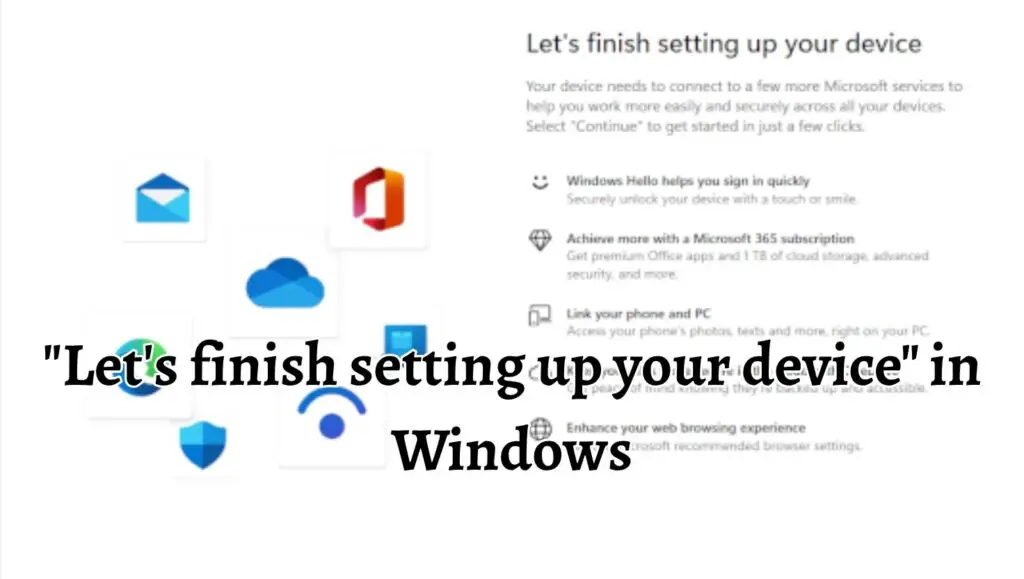
The “Let’s finish setting up your device” message is a built-in Windows 11 notification designed to encourage users to complete optional setup tasks. Microsoft uses this feature to promote services and improve account integration within Windows.
When the notification appears, Windows may suggest actions such as:
- Signing in with a Microsoft account
- Setting up Microsoft 365
- Enabling OneDrive backup
- Using Windows Hello
- Linking your phone to your PC
- Setting Microsoft Edge as the default browser
- Activating device synchronization features
This notification commonly appears after:
- Installing Windows updates
- Restarting your computer after major updates
- Creating a new user account
- Resetting Windows settings
- Skipping certain setup options during installation
Many users notice that the prompt returns every few weeks or every month. This happens because Windows periodically checks whether recommended setup features are enabled. If some suggested features remain incomplete, the operating system may display the reminder again.
Disabling “Let’s finish setting up your device” in Windows 11/10
To disable, let’s finish setting up your device in Windows 11:
- Open the Settings app in Windows 11
- Click System from the left panel
- Select Notifications
- Scroll down and click Additional settings
- Uncheck Suggest ways to get the most out of Windows and finish setting up this device
- Restart your computer to apply the changes fully
Now, let’s learn in detail!
Step 1: Open the Windows 11 Settings App
The first step is accessing the Windows Settings panel, where notification preferences are stored. If you are new to Windows 11, do not worry, because this process is very simple.
To begin, click the Start Menu button located at the bottom left corner of your screen. The Start button usually displays the Windows logo.
Once the Start Menu opens, click Settings. You can also use a faster method by pressing Windows + I on your keyboard. This keyboard shortcut instantly opens the Settings application.
Inside the Settings window, you will see multiple categories on the left side of the screen, such as System, Bluetooth & devices, Network & internet, and more.
The Settings app is the main control center for Windows 11. From here, you can customize notifications, privacy settings, personalization features, updates, and system behavior.
If the Settings app opens in a smaller window, you may maximize it for easier navigation.
Step 2: Navigate to the Notifications Section
After opening the Settings app, select System from the left sidebar if it is not already selected automatically.
Under the System section, look for Notifications and click it. This page controls how Windows displays alerts, pop-ups, reminders, and app notifications.
The Notifications page contains several important options related to system messages. Here, you can enable or disable alerts from apps, change notification sounds, and customize how Windows communicates with you.
Scroll slowly through the page because some advanced options are located near the bottom section.
Many users accidentally overlook the correct option because Microsoft places it under an expandable menu called Additional settings.
Once you find it, click the small drop-down arrow beside Additional settings to expand the hidden options.
You will now see several checkboxes related to Windows suggestions and startup experiences.
Step 3: Disable the “Let’s finish setting up your device” Option
Inside the Additional settings section, locate the checkbox labeled:
“Suggest ways to get the most out of Windows and finish setting up this device.”
This option directly controls the recurring “Let’s finish setting up your device” prompt.
Simply click the checkbox to remove the checkmark. Once unchecked, Windows should stop displaying these setup reminders.
You may also notice other related options nearby, including:
“Show me the Windows welcome experience after updates and when signed in to show what’s new and suggested.”
“Get tips and suggestions when using Windows.”
Although optional, disabling these additional suggestions can further reduce unnecessary Windows notifications and promotional prompts.
After unchecking the main option, close the Settings app.
The change usually applies immediately, but restarting your computer ensures that all notification services refresh properly.
Step 4: Restart Your Windows 11 PC
While restarting is not always mandatory, it is strongly recommended. A reboot allows Windows to reload notification preferences and clear previously scheduled reminder prompts.
To restart your PC, click the Start Menu, select the Power button, and choose Restart.
Wait for Windows 11 to restart completely.
After signing back in, continue using your computer normally. In most cases, the “Let’s finish setting up your device” notification will no longer appear.
If the message still appears occasionally, it may be triggered by a recent Windows update resetting some notification preferences. Simply revisit the notification settings and confirm the checkbox remains disabled.
Option 2: Use Registry Editor for Advanced Permanent Disabling
Some advanced users prefer disabling Windows setup suggestions through the Registry Editor for stronger control. This method is optional and mainly useful if Windows continues restoring the notification after updates.
Before editing the Windows Registry, understand that incorrect changes can affect system stability. Beginners should follow instructions carefully.
Press Windows + R on your keyboard to open the Run dialog box.
Type:
“regedit”
Then press Enter.
If the User Account Control prompt appears, click Yes.
Inside Registry Editor, navigate to the following path:
“HKEY_CURRENT_USER\Software\Microsoft\Windows\CurrentVersion\UserProfileEngagement”
Look for a value named:
“ScoobeSystemSettingEnabled”
Double-click the value and change its data to:
“0”
Click OK and close Registry Editor.
Restart your computer afterward.
This registry change disables the feature responsible for showing setup completion suggestions in many Windows 11 versions.
Disable Related Notification Recommendations
Windows 11 includes several recommendation systems that may indirectly trigger setup reminders. Disabling them can create a cleaner and quieter experience.
Return to:
Settings > System > Notifications > Additional settings
Now disable the following options if they are enabled:
“Show me the Windows welcome experience after updates.”
“Get tips and suggestions when using Windows.”
These settings are connected to Microsoft’s recommendation engine inside Windows 11.
Turning them off helps reduce:
- Promotional notifications
- Set up reminders
- Feature advertisements
- Microsoft service suggestions
- Welcome back screens after updates
Many users report a noticeable reduction in interruptions after disabling all related recommendation settings together.
Why does Microsoft show this notification?
Microsoft includes the “Let’s finish setting up your device” prompt to encourage users to adopt more Windows ecosystem services. The company promotes features that improve synchronization, cloud storage, and account integration.
Some examples include:
- OneDrive file backup
- Microsoft 365 subscriptions
- Windows Hello security
- Device syncing across PCs
- Browser synchronization with Microsoft Edge
From Microsoft’s perspective, these features improve usability and security. However, many users prefer a cleaner desktop experience without recurring reminders.
The notification itself is not harmful, dangerous, or related to malware. It is simply a built-in Windows recommendation system.
Can Disabling the Notification Cause Problems?
No, disabling the notification does not damage Windows 11 or reduce core system functionality.
Your PC will continue receiving:
- Security updates
- Driver updates
- System patches
- App notifications
- Windows features
The only difference is that Windows will stop reminding you to complete optional setup tasks.
You can still manually enable Microsoft services anytime later if needed.
Enabling “Let’s finish setting up your device” in Windows 11
If you later decide you want Windows to display setup suggestions again, you can easily re-enable the feature.
- Open the Settings app using Windows + I.
- Navigate to:
- System > Notifications > Additional settings
- Check the box labeled:
“Suggest ways to get the most out of Windows and finish setting up this device.”
- You may also re-enable related recommendation options if desired.
- Restart your PC afterward to restore all notification behavior fully.
Once enabled, Windows may again display reminders about account setup, cloud backup, and recommended features.
Important Tips
Keep Windows Updated
Even if you disable setup reminders, always keep Windows 11 updated. Security updates protect your device from vulnerabilities and improve overall system stability.
Be Careful When Editing the Registry
Registry changes should only be performed carefully. Always follow instructions exactly and avoid modifying unknown registry values.
Windows Updates May Reset Settings
Major Windows feature updates occasionally restore certain notification preferences. If the reminder returns, revisit the notification settings and disable the option again.
Use a Local Account if Preferred
Users who sign in with a local account instead of a Microsoft account may experience fewer Microsoft service recommendations.
Disable Unnecessary Notifications
You can further reduce distractions by customizing app notifications inside the Windows Notifications settings page.
FAQs
Is the “Let’s finish setting up your device” notification a virus?
No, this notification is an official Windows 11 feature created by Microsoft. It is not malware or a security threat.
Why does the notification keep coming back?
The reminder often returns after Windows updates or when certain Microsoft services remain unconfigured.
Can I permanently disable the notification?
Yes, disabling the notification settings and optionally applying the Registry Editor method can stop the prompt permanently in most cases.
Does disabling this feature affect Windows updates?
No, your PC will still receive normal Windows updates and security patches.
Is a Microsoft account required for Windows 11?
No, although Microsoft encourages it, many Windows 11 versions still allow local accounts with limited cloud integration.
Will disabling suggestions improve performance?
The performance impact is usually very small, but reducing background recommendation services may slightly reduce interruptions and background activity.
Can I re-enable the notification later?
Yes, you can turn the feature back on anytime through the Notifications settings page.