
Microsoft Surface Pen Tips: How to Use, Change, and Customize Them
The Microsoft Surface Pen is a handy accessory that makes working on a Surface device feel more natural. Whether you’re taking notes, drawing, editing documents, or navigating Windows, the Surface Pen gives you more control than a regular mouse or touchpad.
However, getting the most out of your Surface Pen isn’t just about picking it up and writing. Understanding its pen tips, pressure sensitivity, shortcut buttons, and customization options can make a big difference in your everyday experience.
In this guide, we’ll explain how Microsoft Surface Pen tips work, how to choose the right replacement tip, and how to change and customize your pen settings.
Let’s start!
Microsoft Surface Pen Tips [Complete Guide]
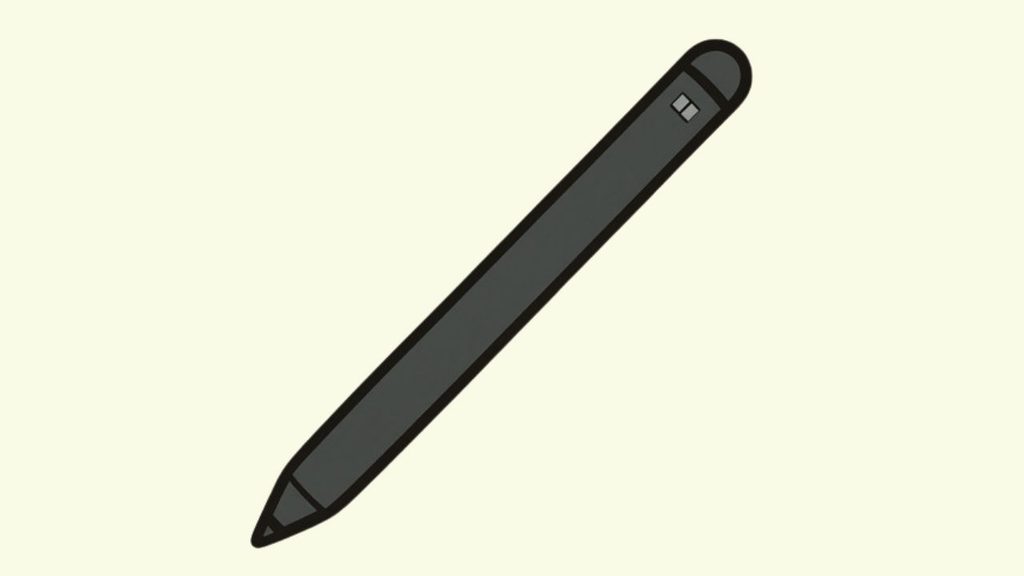
Microsoft Surface Pen tips are interchangeable nibs that determine how your Surface Pen feels when writing, drawing, or sketching on a compatible Surface touchscreen. Depending on your pen model, you can replace a worn or damaged tip with a compatible replacement. You can also customize Windows pen settings to adjust how you use the pen for writing, drawing, and navigation.
To get started, identify your Surface Pen model, check its tip compatibility, choose a suitable replacement, and install it carefully.
Let’s walk through everything step by step.
Step 1: Identify Your Microsoft Surface Pen Model
Before purchasing replacement tips, you need to identify which Surface Pen you own. This is important because not every Surface Pen uses the same replacement tips.
Microsoft has released several pen models, including the original Surface Pen with a clip, Surface Pen without a clip, Surface Pen with a single button on the flat edge, and Surface Slim Pen.
Take a close look at your pen. Check whether it has a clip, a flat edge with a button, or a slim, rechargeable design. You can also compare its appearance with the models shown on Microsoft’s official Surface Pen compatibility and features page.
Once you’ve identified your model, check which replacement tips are supported. Microsoft specifically lists replaceable tips for the Surface Pen without a clip, Surface Pen with a single button on the flat edge, and Surface Slim Pen. Older models may not support the same replacement process.
Step 2: Understand the Different Surface Pen Tips
Choosing the right pen tip can change how your Surface Pen feels when writing or drawing. Some tips offer a smoother experience, while others provide more resistance against the screen.
For compatible Surface Pen tip kits, Microsoft offers three different options: 2H, HB, and B.
2H Tip: This is a harder tip that generally provides a firmer, more precise writing feel. It’s worth considering if you prefer a fine, controlled writing experience.
HB Tip: This is the medium option and offers a balanced feel. If you’re using a Surface Pen for everyday writing, note-taking, and basic drawing, this is a good starting point.
B Tip: This is a softer option that provides a different writing feel. It may suit users who prefer a smoother, more pencil-like drawing experience.
Keep in mind that these options are available in specific Surface Pen replacement kits. Don’t assume that every tip kit works with every Surface Pen model. Check the product’s compatibility information before purchasing.
Step 3: Purchase the Correct Replacement Surface Pen Tips
After identifying your pen model and preferred tip style, it’s time to purchase replacement tips.
The safest option is to check the Microsoft Store or Microsoft’s official accessory listings. Search for your exact Surface Pen model and look for a compatible replacement tip kit.
You can also purchase replacement tips from trusted online retailers. However, check the product description carefully before placing an order. Some third-party replacement tips may be designed for different Surface Pen generations.
If you’re using a Surface Slim Pen 2, pay particular attention to the replacement instructions. Its tip is removable, but Microsoft recommends removing it only when replacement is necessary. Repeated removal and reinsertion can damage internal components.
Step 4: Remove the Old Surface Pen Tip
If your existing pen tip is worn out, damaged, or no longer providing a comfortable writing experience, you can replace it with a compatible one.
Start by placing your Surface Pen on a clean, flat surface. Make sure you have the correct replacement tip ready before removing the existing one.
For supported models, use a pair of tweezers or another suitable gripping tool to carefully hold the old tip. Gently pull it straight out of the pen until the entire tip comes free.
Avoid twisting, bending, or applying unnecessary force. The goal is to remove the tip without damaging the small internal components that hold it in place.
If the tip doesn’t come out easily, stop and check the instructions for your particular pen model. Don’t try to force it out using sharp household objects.
Step 5: Install the New Surface Pen Tip
Now that you’ve removed the old tip, you can install the replacement.
Take the new tip and identify its narrow end. Carefully insert the thinnest part of the replacement tip into the opening at the front of your Surface Pen.
Push it gently until it locks into place. Make sure the tip is properly seated and doesn’t look loose or uneven.
Once installed, hold your pen normally and test it on your Surface touchscreen. Open an app such as Microsoft OneNote and try writing a few words.
If the pen writes smoothly and responds correctly, the replacement process is complete.
One important thing to remember: don’t repeatedly remove and reinstall the tip just to test it. This is particularly important with the Surface Slim Pen 2, where excessive removal and reinsertion can cause damage.
Step 6: Customize Your Surface Pen Settings in Windows
Replacing your pen tip isn’t the only way to improve your writing experience. Windows also provides settings that let you customize how your Surface Pen works.
To access these options, open Settings on your Surface device by pressing Windows + I.
Navigate to Bluetooth & devices, then select Pen & Windows Ink. Depending on your Windows version and connected hardware, some options may appear differently.
From here, explore the available pen settings. You can adjust supported pen behaviors, customize shortcut button actions, and change how Windows responds to pen input.
For example, you may be able to assign an action to a single-click, double-click, or press-and-hold of the pen’s top button. Available options depend on your pen model.
Take a few minutes to explore these settings. Customizing the shortcut button can make everyday tasks like opening OneNote, launching an application, or accessing a supported Windows feature much easier.
Step 7: Test Your Surface Pen for Writing and Drawing
After replacing the tip and adjusting the settings, it’s time to test everything.
Open Microsoft OneNote, Microsoft Whiteboard, or another compatible drawing application. Start by writing a few sentences on the screen.
Pay attention to how the pen responds when you apply light and firm pressure. If your device supports pressure sensitivity, you should notice changes in the thickness of your strokes in compatible applications.
Next, try drawing a few lines and shapes. Check whether the pen moves smoothly and whether the tip feels comfortable against the display.
If you’re using the pen for artwork, experiment with different strokes and angles. Some compatible Surface devices and applications also support tilt functionality, which can provide a more natural shading experience.
If the writing looks jagged or inaccurate, try another application to determine whether the problem is related to the software or the pen itself.
Step 8: Keep Your Surface Pen Tips in Good Condition
Taking care of your Surface Pen tips can help you avoid unnecessary replacements.
Always store your pen somewhere safe when you’re not using it. Avoid dropping it or allowing the tip to hit hard surfaces.
Keep the touchscreen clean because dust and debris can affect the writing experience. Use a soft, microfiber cloth to clean the display when necessary.
You should also avoid pressing too hard while writing or drawing. A gentle grip and comfortable writing pressure are usually enough for everyday tasks.
Finally, replace the tip when you notice visible damage, excessive wear, or inconsistent writing performance. You don’t need to replace it on a fixed schedule if it’s still working properly.
FAQs
1. Can I replace the tip on my Microsoft Surface Pen?
Yes, you can replace the tip on supported Surface Pen models. Microsoft supports tip replacement for the Surface Pen without a clip, Surface Pen with a single button on the flat edge, and Surface Slim Pen. However, older models may not support replaceable tips.
2. How do I know when my Surface Pen tip needs replacing?
You should consider replacing the tip if it looks visibly worn, becomes damaged, feels rough against the touchscreen, or produces inconsistent writing. If your pen suddenly stops writing, check its battery, connection, and software before assuming the tip is the problem.
3. Are Surface Pen tips universal?
No. Surface Pen replacement tips are not universal. Different Surface Pen generations use different tip designs. Always check your pen model and the replacement kit’s compatibility before purchasing.
4. What is the best Surface Pen tip for writing?
The HB tip is a good starting point for everyday writing because it offers a balanced feel. However, your preferred option depends on whether you like a firmer or softer writing experience.
5. Can I use a Surface Pen on a regular laptop?
Not every laptop supports Surface Pen input. Your laptop needs a compatible touchscreen and pen-input technology. Even if a device supports touch, that doesn’t automatically mean it supports Surface Pen functionality.
6. Why is my Surface Pen not writing after replacing the tip?
First, check whether the replacement tip is properly installed. Make sure it is compatible with your pen model and securely locked into place. Next, check the pen’s battery or charge level, restart your Surface, and test the pen in another application.
If the problem continues, check Microsoft’s Surface Pen troubleshooting guide.
7. Does replacing the Surface Pen tip improve writing accuracy?
It can help if your existing tip is worn or damaged. A fresh, compatible tip can restore a more consistent writing feel. However, writing accuracy also depends on your Surface device, application, screen condition, and pen compatibility.
Summary
Microsoft Surface Pen tips play an important role in your digital writing and drawing experience. Choosing the correct replacement tip can make writing more comfortable and help maintain consistent performance.
Before purchasing a replacement, identify your Surface Pen model and check compatibility. Follow the correct removal and installation instructions, customize your Windows pen settings, and test the pen using a compatible application.
With proper care and the right replacement tip, you can continue using your Surface Pen for taking notes, drawing, editing documents, and everyday productivity.
For additional information, visit the official Microsoft Surface Pen support page