
Fix Missing ‘Sound, Video and Game Controllers’ in Windows 11/10
Have you opened Device Manager in Windows and noticed that the Sound, video and game controllers section is missing, showing an error, or not displaying your audio device? This can be frustrating, especially when your speakers, headphones, microphone, or other audio devices stop working.
The problem can occur in both Windows 11 and Windows 10. Common causes include missing or outdated audio drivers, corrupted driver installations, disabled audio devices, Windows updates, and hardware detection problems.
Sometimes, the section is visible, but your Realtek Audio, High Definition Audio, or other sound device is missing. In other cases, you might see a yellow warning icon next to an audio device.
Don’t worry. You can try several troubleshooting methods to restore the missing section and get your audio devices working again.
Let’s try them one by one!
Fix “Sound, Video and Game Controllers” in Windows 11/10
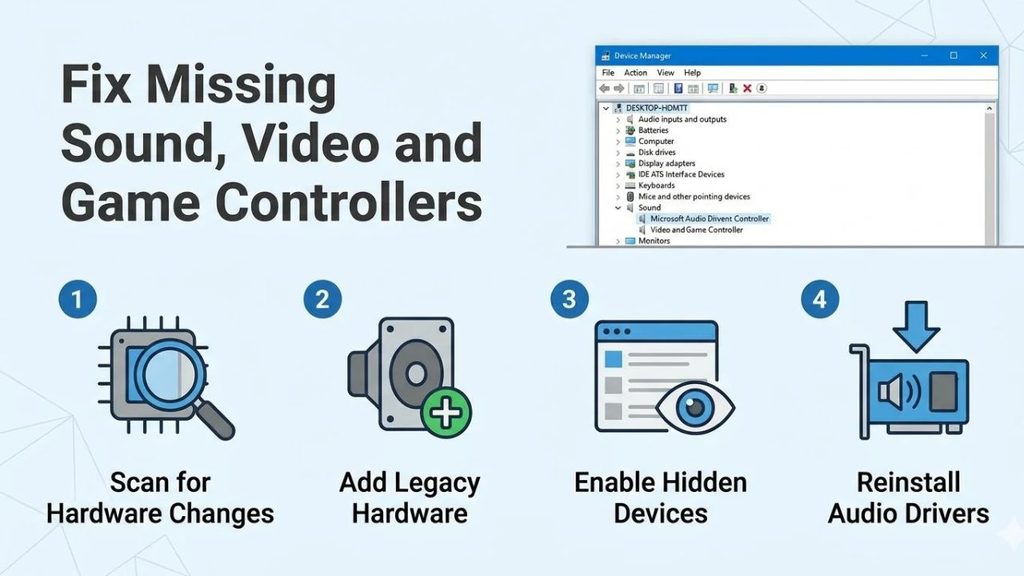
The Sound, video and game controllers section in Device Manager displays the audio hardware and related devices installed on your computer. It may include Realtek Audio, High Definition Audio Device, USB audio devices, and other sound controllers.
If this section is missing or not working correctly, Windows may have trouble detecting your audio hardware or loading its driver.
To fix the problem, check hidden devices, scan for hardware changes, update or reinstall audio drivers, restart Windows audio services, and install the correct driver from your computer manufacturer’s website.
Follow the methods below in order and check whether the section reappears after each major fix.
1: Restart Your Computer
Before making changes to Device Manager, restart your computer. Sometimes Windows fails to load an audio device correctly because of a temporary driver or hardware detection issue.
Click the Start button, select Power, and choose Restart.
Wait for Windows to shut down and load again. Once you’re back on the desktop, press Windows + X and select Device Manager.
Look for the Sound, video and game controllers section. If it’s visible, expand it and check whether your audio device appears.
If the section is still missing, don’t worry. Continue with the next method.
2: Show Hidden Devices in Device Manager
One of the first things you should check is whether Windows has hidden your audio device. Device Manager sometimes displays only currently detected devices, so a disconnected or previously installed audio device may not appear in the normal view.
Press Windows + X and open Device Manager.
At the top of the window, select View and click Show hidden devices.
Now check the device list again. Look for Sound, video and game controllers and expand it if available.
You may see a faded audio device, which usually indicates that Windows has a record of the device, but it isn’t currently active or detected.
If you find your audio device, right-click it and check whether the Enable device option is available. If it is, select it.
Restart your computer and check whether the device is working.
3: Scan for Hardware Changes
If the audio controller is missing, Windows might not have detected the hardware correctly. The Scan for hardware changes option asks Windows to check connected hardware and identify devices that aren’t currently listed.
Open Device Manager using the Windows search box.
Select Action from the top menu and click Scan for hardware changes.
Wait a few moments while Windows checks your computer. If it detects an audio device, it may automatically add the missing entry to Device Manager.
Check whether the Sound, video and game controllers section has returned.
If nothing changes, restart your computer and repeat the scan once. If the section remains missing, move to the next method.
4: Update Your Audio Driver
An outdated, incompatible, or corrupted audio driver can prevent Windows from recognizing your sound hardware correctly.
If your audio device appears under another category or has a warning icon, you can try updating its driver.
Open Device Manager and locate the audio device. Right-click it and select Update driver.
Choose Search automatically for drivers. Windows will search for a suitable driver and install it if one is available.
If Windows reports that the best driver is already installed, don’t assume that your driver is the latest version. A newer version may be available from your computer manufacturer’s website.
Restart your PC after installing a driver and check Device Manager again.
You can also check Settings > Windows Update > Advanced options > Optional updates in Windows 11. In Windows 10, open Settings > Update & Security > Windows Update > View optional updates, if available. Look for compatible audio driver updates.
5: Reinstall the Audio Driver
If updating the driver doesn’t solve the problem, reinstalling it may help. This is especially useful when the existing driver installation is damaged or incomplete.
Open Device Manager and expand Sound, video and game controllers, if the section is available.
Right-click your audio device, such as Realtek Audio or High Definition Audio Device, and select Uninstall device.
Read the confirmation window carefully. If Windows offers an option to remove the driver package, avoid selecting it unless you already have the correct replacement driver downloaded.
Click Uninstall and restart your computer.
After restarting, Windows may automatically detect the audio hardware and reinstall its driver. Open Device Manager and check whether the missing section has returned.
If Windows doesn’t reinstall the driver, download the correct audio driver from your computer manufacturer’s official support website and install it manually.
6: Download the Audio Driver From the Manufacturer
Sometimes Windows cannot find the correct audio driver automatically. In that case, downloading the driver directly from your computer manufacturer’s website is a better option.
First, identify your computer model. Press Windows + R, type msinfo32, and press Enter.
The System Information window will open. Look for System Manufacturer and System Model. Write down these details.
Visit the official support website of your computer manufacturer, such as Dell, HP, Lenovo, ASUS, or Acer.
Find your computer model and open its driver download section. Select your installed Windows version and look for the Audio or Sound driver.
Download the appropriate package and follow the installation instructions. Restart your computer when the installation finishes.
Open Device Manager and check whether Sound, video and game controllers is visible again.
Avoid downloading audio drivers from unofficial websites because an incorrect driver can cause additional problems.
7: Restart Windows Audio Services
Windows uses background services to manage sound playback and audio devices. If these services aren’t running correctly, you may experience audio problems even when the driver is installed.
Press Windows + R to open the Run dialog box. Type services.msc and press Enter.
Find Windows Audio in the Services window. Right-click it and select Restart.
Next, find Windows Audio Endpoint Builder. Right-click it and select Restart as well.
If Windows asks you to restart a related service, allow it.
Close the Services window and restart your computer. Open Device Manager and check whether your audio device is working correctly.
8: Run the Windows Audio Troubleshooter
Windows includes audio troubleshooting tools that can identify common problems with sound devices, drivers, and playback settings.
In Windows 11, open Settings > System > Troubleshoot > Other troubleshooters. Find Audio and select Run, or open the Get Help app and run the audio troubleshooter.
In Windows 10, open Settings > Update & Security > Troubleshoot > Additional troubleshooters. Select Playing Audio and click Run the troubleshooter.
Follow the instructions displayed on your screen. Windows may detect a problem and recommend a fix.
Apply the suggested changes and restart your computer if necessary.
After the troubleshooting process finishes, open Device Manager again and check the audio device.
9: Repair Corrupted Windows System Files
Damaged Windows system files can sometimes interfere with hardware detection and driver installation. You can use the System File Checker and DISM tools to check and repair Windows components.
Open the Start menu and search for Command Prompt. Right-click it and select Run as administrator.
Enter the following command:
sfc /scannow
Press Enter and wait until the scan reaches 100%. Windows will report whether it found and repaired corrupted files.
Next, run this command:
DISM /Online /Cleanup-Image /RestoreHealth
Press Enter and allow the operation to finish. Keep your internet connection active because DISM may need to download repair files.
Once both operations are complete, restart your computer.
Open Device Manager and check whether the Sound, video and game controllers section has reappeared.
10: Check BIOS/UEFI Audio Settings
If none of the previous methods work, your computer’s onboard audio hardware may be disabled in BIOS or UEFI settings.
Restart your computer and press the appropriate BIOS setup key during startup. Common keys include F2, Delete, F10, or Esc, depending on your computer manufacturer.
Once inside BIOS/UEFI, look for an option related to Onboard Audio, HD Audio Controller, or Integrated Audio. The exact name and location vary between manufacturers.
If the audio controller is disabled, enable it. Save your changes and exit BIOS/UEFI.
Windows should restart normally. Open Device Manager and check whether the audio hardware is detected.
Be careful not to change unrelated BIOS settings. If you cannot find the audio option, consult your computer manufacturer’s documentation instead of changing unfamiliar settings.
FAQs
1. Why is Sound, video and game controllers missing in Device Manager?
The section may disappear because of missing or corrupted audio drivers, disabled audio hardware, incomplete Windows updates, or hardware detection problems.
2. How do I restore Sound, video and game controllers in Windows 11?
Open Device Manager, select View > Show hidden devices, and then choose Action > Scan for hardware changes. If the section remains missing, install the correct audio driver from your computer manufacturer’s website.
3. Can I reinstall Sound, video and game controllers?
You cannot reinstall the entire Device Manager category directly. Instead, uninstall the affected audio device or driver and restart your computer. Windows may automatically detect the hardware and reinstall the appropriate driver.
4. Why does Realtek Audio disappear from Device Manager?
Realtek Audio may disappear because of an incompatible driver, a failed update, disabled onboard audio, or a hardware detection issue. Reinstalling the correct Realtek driver from your PC manufacturer’s support website may resolve the problem.
5. Does Windows automatically reinstall audio drivers?
In many cases, yes. When you uninstall an audio device and restart your computer, Windows attempts to detect the hardware and reinstall an appropriate driver. However, you may need to download the manufacturer’s driver manually.
Summary
The missing Sound, video and game controllers section in Windows 11 or Windows 10 is usually related to an audio driver, hardware detection, or Windows configuration problem.
Start by restarting your computer, showing hidden devices, and scanning for hardware changes. If that doesn’t help, update or reinstall your audio driver, restart Windows audio services, and run the audio troubleshooter.
For persistent problems, download the correct driver from your computer manufacturer’s website, repair Windows system files, and check whether onboard audio is enabled in BIOS/UEFI.
Following these steps should help you identify the cause and restore your missing audio device in Device Manager.