
Numpad Not Working With NumLock On [Fixed]
Is your keyboard’s numeric keypad not working even though NumLock is turned on?
Normally, turning on NumLock enables the numeric keys on the right side of a full-size keyboard. However, sometimes these keys stop responding, move the mouse pointer instead of entering numbers, or behave differently than expected.
In this guide, we’ll walk through several ways to fix a numpad that isn’t working with NumLock on in Windows 11 and Windows 10.
Numpad Not Working With NumLock On
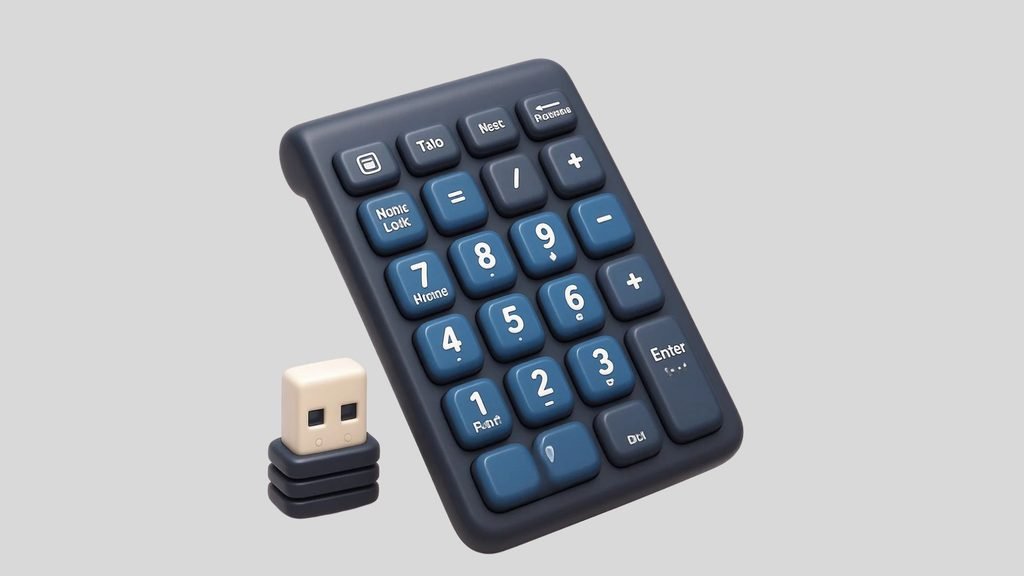
Before trying advanced troubleshooting methods, it’s important to understand why this issue happens.
When NumLock is enabled, the numeric keypad should allow you to enter numbers using the keys on the right side of your keyboard. If it doesn’t, Windows may be interpreting those keystrokes differently, or your keyboard may not be communicating properly with the computer.
For example, if pressing the number pad keys moves your mouse pointer instead of typing numbers, Mouse Keys is probably responsible. Similarly, if nothing happens when you press the keys, you may be dealing with a keyboard driver issue or a hardware connection problem.
Let’s try the following fixes one at a time.
Step 1: Turn Off Mouse Keys in Windows
One of the most common reasons a numeric keypad stops entering numbers is that Mouse Keys is enabled in Windows.
Mouse Keys is an accessibility feature that lets you control the mouse pointer using the numeric keypad. When this feature is active, pressing the number pad keys may move the pointer instead of typing numbers.
Here’s how to turn it off.
First, press Windows + I on your keyboard to open Settings. If you’re using Windows 11, select Accessibility from the left sidebar. Windows 10 users should select Ease of Access.
Next, scroll down and select Mouse. Look for the Mouse Keys option and check whether it’s enabled.
If the toggle is turned on, switch it off.
Now, return to your desktop and press the NumLock key to make sure it’s enabled. Open Notepad and try typing numbers using your numeric keypad.
If the keys work normally, Mouse Keys was causing the problem.
Step 2: Check Whether NumLock Is Actually Enabled
This might sound obvious, but it’s worth checking whether NumLock is actually enabled. Some keyboards have a small indicator light that shows the current NumLock status.
Press the NumLock key once and check whether its indicator light turns on. On certain laptops, you may need to press Fn + NumLock because the NumLock function shares a key with another feature.
If your keyboard doesn’t have a NumLock indicator, open Notepad and try typing numbers using the number pad.
If the keys move the cursor or perform navigation functions instead of entering numbers, NumLock may still be disabled.
Also, remember that some compact keyboards use a secondary numeric keypad layout. In these cases, you may need to hold the Fn key to activate the number pad.
Step 3: Restart Your Computer
Sometimes, a temporary Windows glitch can prevent the keyboard from responding correctly. Restarting your computer can refresh the operating system and reload the keyboard-related services and drivers.
To do this, save your work and close any open applications.
Click the Start button, select the Power icon, and choose Restart.
Wait for Windows to shut down and boot back up. Once you’re back on the desktop, turn on NumLock and test the numeric keypad.
If you’re using an external keyboard, you can also disconnect it before restarting and reconnect it after Windows loads.
This is a simple fix, but it can resolve temporary keyboard input problems without requiring any complicated changes.
Step 4: Disconnect and Reconnect Your Keyboard
If you’re using an external USB keyboard, the problem may be related to its connection.
A loose USB connection, an unresponsive USB port, or a temporary communication issue can prevent certain keyboard keys from working.
Start by unplugging your keyboard from the computer. Wait around 10 to 15 seconds, then connect it again.
If the numpad still doesn’t work, try plugging the keyboard into another USB port. If you’re using a desktop computer, try a port directly on the back of the PC rather than a USB hub.
For wireless keyboards, check the battery level and make sure the USB receiver is properly connected. If your keyboard uses Bluetooth, disconnect and reconnect it through Windows Bluetooth settings.
Once connected, enable NumLock and test the keys again.
Step 5: Test the Numpad in Another Application
Before making changes to Windows, check whether the issue is limited to a particular application.
For example, your numeric keypad might not work in Excel or a browser, even though it works perfectly fine in Notepad.
Press Windows + R, type notepad, and press Enter to open Notepad.
Now, enable NumLock and try entering numbers using the numeric keypad.
If the numbers appear correctly, your keyboard is probably working. The problem may be related to the application you’re using.
In that case, close and reopen the affected application. You can also check whether any application-specific keyboard shortcuts or input settings are interfering with the numpad.
However, if the keys don’t work in Notepad either, continue with the next troubleshooting method.
Step 6: Update Your Keyboard Driver
An outdated or corrupted keyboard driver can sometimes cause keyboard input problems. Updating it may help Windows communicate properly with your keyboard.
To update the driver, right-click the Start button and select Device Manager.
Find the Keyboards section and double-click it to expand the list of installed keyboard devices.
Right-click your keyboard device and select Update driver.
Next, choose Search automatically for drivers. Windows will check whether a compatible driver is available and install it if one is found.
After the process finishes, restart your computer and test the numeric keypad again.
If Windows reports that the best driver is already installed, don’t worry. You can move on to the next method.
Step 7: Reinstall the Keyboard Driver
If updating the driver doesn’t help, reinstalling it may resolve a corrupted driver installation.
Open Device Manager again by right-clicking the Start button.
Expand the Keyboards section, right-click your keyboard device, and select Uninstall device.
If Windows asks you to confirm, select Uninstall. Don’t select an option to delete driver software unless you have a specific reason to do so.
Now, restart your computer.
Windows will generally detect the keyboard and reinstall an appropriate driver automatically during startup.
Once the keyboard is detected, press NumLock and check whether the number pad works.
If you’re using a laptop, Windows may list multiple keyboard devices. Avoid uninstalling unrelated devices, and make sure you have another way to control your PC if the keyboard temporarily stops responding.
Step 8: Check for Windows Updates
Sometimes, keyboard problems are related to Windows bugs or compatibility issues. Installing available updates can help resolve these problems.
Press Windows + I to open Settings.
In Windows 11, select Windows Update from the left sidebar. In Windows 10, open Update & Security and select Windows Update.
Click Check for updates and allow Windows to search for available updates.
If updates are available, download and install them. Restart your computer if Windows asks you to do so.
After restarting, test your numeric keypad again.
You can also check the Optional Updates section for compatible driver updates, but only install drivers that are appropriate for your computer.
Step 9: Check Your BIOS or UEFI Settings
If your numpad still doesn’t work, check whether your computer’s BIOS or UEFI has a NumLock-related setting.
Restart your computer and press the appropriate BIOS setup key during startup. Depending on your manufacturer, this could be F2, F10, F12, or Delete.
Once you’re inside BIOS or UEFI, look for an option such as NumLock State, Boot Up NumLock Status, or a similar keyboard setting.
If available, make sure NumLock is enabled.
The exact menu location varies between computer manufacturers, and some systems don’t provide this option.
Be careful not to change unrelated BIOS settings. Save your changes only if you modified the correct setting, then exit.
If you’re not comfortable working with BIOS, you can skip this step.
Step 10: Test Your Keyboard on Another Computer
If none of the previous methods work, it’s time to check whether the problem is related to the keyboard itself.
Disconnect your external keyboard and connect it to another computer. Make sure NumLock is enabled, then test the numeric keypad.
If the numpad works on the second computer, the issue is likely related to your original Windows installation, drivers, or system settings.
However, if the same keys fail on another computer, your keyboard may have a hardware problem.
You can also connect a different keyboard to your original computer. If its numeric keypad works normally, your original keyboard may need repair or replacement.
For laptop users, an external USB keyboard is a useful way to determine whether the built-in numeric keypad is experiencing a hardware issue.
FAQs
1. Why is my numpad not working even when NumLock is on?
This can happen because of enabled Mouse Keys, incorrect keyboard settings, outdated drivers, or hardware problems. Start by disabling Mouse Keys and reconnecting your keyboard.
2. How do I unlock my numeric keypad in Windows 11?
Press the NumLock key on your keyboard. If your laptop uses a secondary numeric keypad, try pressing Fn + NumLock. You can also check whether Mouse Keys is enabled in Accessibility settings.
3. Why does my numpad move the mouse instead of typing numbers?
This usually happens when Mouse Keys is enabled. Windows uses the numeric keypad to control the mouse pointer when this accessibility feature is active. Disable Mouse Keys under Settings > Accessibility > Mouse.
4. How do I enable NumLock permanently in Windows 11?
Some computers offer a NumLock startup setting in BIOS or UEFI. Look for an option named Boot Up NumLock Status or NumLock State and enable it. Not every computer provides this setting.
5. Why is my laptop’s numeric keypad not working?
Some laptops require you to press the Fn + NumLock combination to activate the numeric keypad. Also, check your keyboard layout and Mouse Keys settings. If the problem continues, test an external keyboard.
6. Can a keyboard driver cause the numpad to stop working?
Yes. A corrupted, outdated, or incompatible keyboard driver can cause input problems. Try updating or reinstalling the keyboard driver through Device Manager.
7. How do I know if my numeric keypad is damaged?
Connect your keyboard to another computer and test the number pad. If the same keys don’t respond there either, you may have a hardware issue. If they work normally, investigate your original computer’s Windows settings and drivers.