
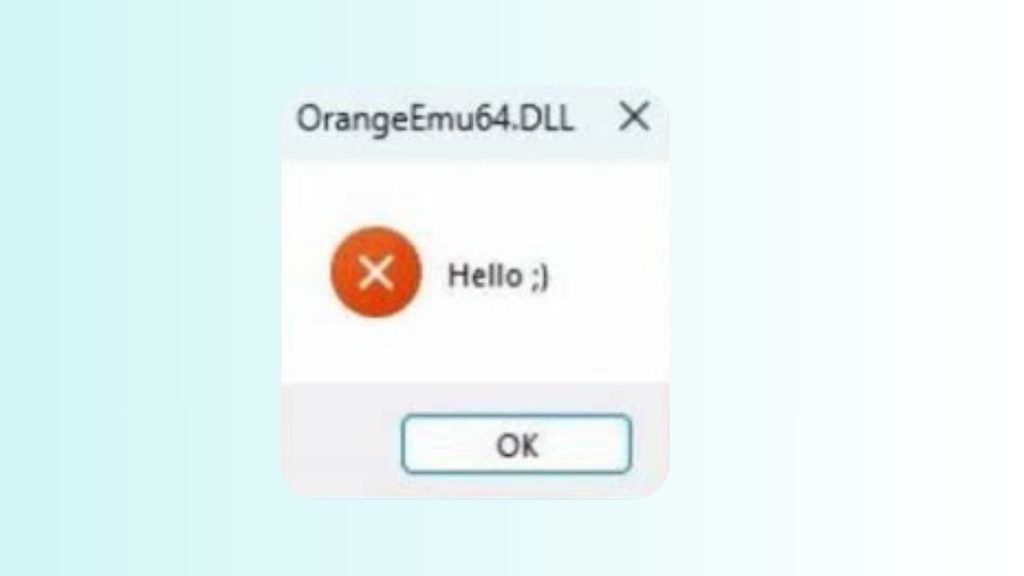
Orangeemu.DLL hello :) Error [Fix]
Seeing the “orangeemu.dll hello :)” error can be confusing, especially when you are simply trying to launch a game or application. The message usually points to a problem with the orangeemu.dll file, which may be missing, damaged, incorrectly modified, blocked by security software, or incompatible with the version of the game you are trying to run.
The orangeemu.dll hello 🙂 error is commonly associated with games that use an emulator or modified game files. In some cases, the error appears after reinstalling a game, replacing files, updating Windows, restoring quarantined files, or installing an unofficial modification.
Let’s learn resolving this error!
Orangeemu.DLL hello 🙂 Error [Fix]
Before making changes, do not download a random orangeemu.dll file from an unknown DLL website. A DLL downloaded from an untrusted source can be outdated, modified, or contain unwanted software.
It is safer to repair the game installation or restore the required file through the legitimate source you originally installed the game from.
1: Restart Your Computer
Start with the simplest solution. The orangeemu.dll hello 🙂 error can occasionally appear because another process has locked a game file or because Windows has not properly completed an installation or update.
Save your work and close the affected game and other open programs. Select Start, choose the Power button, and click Restart.
After Windows starts again, wait a few moments for background applications to finish loading. Then launch the game normally.
If the game starts without the error, you do not need to make any additional changes. If the same message appears again, continue with the next step.
2: Check Whether Your Antivirus Quarantined orangeemu.dll
Security software can sometimes quarantine a DLL that belongs to a game, particularly when the file is associated with modified or unofficial game components. If the file suddenly disappeared after an antivirus scan, this is worth checking.
Open Windows Security by selecting Start and searching for Windows Security. Open it and select Virus & threat protection.
Look for Protection history and open it. Windows will show recent detections and actions taken by Microsoft Defender.
If you see an entry associated with the affected game’s folder or orangeemu.dll, read the detection information carefully. Do not restore the file simply because doing so fixes the game. First make sure the game and its files came from a legitimate and trusted source.
If you installed the game through an official store or launcher and a legitimate game file was incorrectly quarantined, reinstalling or repairing the game through that launcher is generally safer than manually downloading a replacement DLL.
3: Verify the Game Files
One of the most effective solutions is to use your game platform’s file verification or repair feature. This checks the installed files and replaces missing or damaged files with legitimate copies.
If your game is installed through a launcher that provides a Verify, Repair, or Verify integrity of game files option, open that launcher first.
Locate the affected game in your library and open its settings or properties. Look for an option related to installed files, local files, verification, or repair.
Start the verification process and allow it to finish. Depending on the size of the game and the speed of your storage drive, this can take several minutes.
Once the process completes, restart the launcher and try opening the game again.
This method is preferable to manually replacing orangeemu.dll because the launcher can obtain the correct file for your specific version of the game.
4: Update the Game and Its Launcher
An outdated game can sometimes conflict with newer versions of Windows, supporting software, or other game components.
Open the launcher you normally use and check whether an update is available for the affected game. Install any official update offered by the publisher or platform.
Also check whether the launcher itself has an update available. Restart the launcher after updating it and then try the game again.
If the error appeared immediately after a game update, the problem may instead be related to an incomplete or corrupted update. In that situation, verifying the game files again can be particularly useful.
5: Run the Game From Its Official Launcher
If you normally create a desktop shortcut or manually open the game’s executable, try launching the game directly through its official launcher.
A shortcut can sometimes point to an outdated executable or an incorrect installation directory. Launching from the official application allows the platform to apply its normal startup checks and authentication process.
Open your game launcher, find the affected title, and select Play or Launch from there.
If the game works from the launcher but not from your desktop shortcut, delete the old shortcut and create a new one from the current installation.
6: Check the Game Installation Folder
If you are comfortable looking through Windows folders, check whether the game’s installation directory still exists and appears intact.
Right-click the game’s shortcut and choose Open file location, if that option is available. Alternatively, use your game launcher to find the installation directory.
Look for obvious signs of an incomplete installation, such as missing folders or files. Do not randomly delete, rename, or replace DLL files just to make the error disappear.
If orangeemu.dll is missing, the safest approach is to return to the launcher and use its repair or verification function rather than downloading the DLL from a third-party website.
7: Reinstall the Affected Game
If file verification does not resolve the problem, a clean reinstall may be necessary.
First, make sure you know where your saved games are stored. Some games save progress online, while others store save files locally. If your game has locally stored saves, back them up before uninstalling.
Uninstall the affected game using its official launcher or Windows’ Installed apps section. Restart Windows after the uninstall completes.
Then install the game again from the official source you originally used. Allow the installation to finish completely before launching it.
Do not copy an old orangeemu.dll file from another installation into the newly installed game. DLL files can depend on particular game versions, so manually mixing files can create additional errors.
8: Install Pending Windows Updates
Windows compatibility problems can sometimes contribute to application startup failures.
Open Settings by pressing Windows + I. Select Windows Update and click Check for updates.
If Windows finds available updates, install them and restart your computer when requested.
After restarting, try launching the game again.
This step is especially useful if the problem started after a major Windows update or after you restored your system from an older backup.
9: Repair Microsoft Visual C++ Redistributable Packages
Some games depend on Microsoft Visual C++ Redistributable packages. If these supporting components are damaged or missing, a game may fail during startup.
Open Settings, select Apps, and then open Installed apps. Search for Microsoft Visual C++ Redistributable.
If the relevant package provides a Modify option, select it and choose Repair when available. Follow the instructions displayed by Windows.
Restart your computer after completing the repair and test the game again.
Avoid downloading individual DLL files to replace Windows or runtime components. Repairing the official runtime package is a safer approach.
10: Check for Conflicting Mods or Modified Files
If you recently installed a mod, unofficial patch, emulator component, graphics modification, or other third-party game modification, it may be responsible for the error.
Think about when the problem started. If the game worked correctly before you installed a particular modification, temporarily remove or disable that modification according to its official instructions.
Then use the game’s file verification feature to restore the original files.
This is particularly important if the error appeared after changing files inside the game’s installation folder. Mixing files from different game versions can result in DLL errors that are difficult to diagnose.
11: Contact the Game Developer or Store Support
If none of the previous methods work, the problem may be specific to the game’s current release or your particular installation.
Visit the game’s official support page and search for the exact error message, including “orangeemu.dll hello :)”.
When contacting support, provide the game’s name and version, your Windows version, when the problem started, and the troubleshooting steps you have already tried.
Avoid sending or installing replacement DLL files recommended by random forum users unless you can verify that they come from a trustworthy official source.
Faqs
What is the orangeemu.dll hello 🙂 error?
The orangeemu.dll hello 🙂 error indicates that Windows or the affected application is encountering a problem involving the orangeemu.dll component during startup. The underlying cause can vary, including a missing file, corrupted installation, incompatible modification, or security software action.
Is orangeemu.dll a Windows system file?
No. orangeemu.dll is not a standard Windows system DLL. It is associated with specific third-party software or game installations. Therefore, you should not copy it into Windows’ System32 or SysWOW64 folders to try to fix the problem.
Should I download orangeemu.dll from a DLL website?
It is generally better not to download individual DLL files from random DLL download websites. You may receive the wrong version, and the file could be modified or unsafe. Repairing or reinstalling the affected application is a much safer approach.
Why did orangeemu.dll suddenly disappear?
A DLL can disappear because of an incomplete installation, corrupted game files, an update problem, accidental deletion, or security software quarantining the file. Checking the application’s protection history and then repairing the official installation can help identify the cause.
Can reinstalling the game fix the error?
Yes. If the error is caused by corrupted or missing game files, reinstalling the game from its official source can restore the required components. Before uninstalling, make sure important locally stored save files are backed up.
Can Windows Defender cause this error?
Security software can sometimes block or quarantine files that it considers suspicious. If you believe this happened, check Windows Security > Virus & threat protection > Protection history. Do not restore a detected file unless you are confident that the original software is legitimate and the detection was incorrect.