
RCA Universal Remote Code List [Guide]
Have you ever tried to program an RCA universal remote to control your TV, DVD player, cable box, or streaming device, only to discover that you cannot find the correct code? You are not alone. Setting up a universal remote can be confusing, especially when different brands and models use different codes.
Programming an RCA universal remote is usually straightforward once you have the correct code and follow the right steps. These remotes are designed to control compatible devices from multiple manufacturers, helping you reduce the number of remotes on your coffee table.
However, there is one important thing to understand: RCA universal remote codes are not the same for every device or remote model. A code that works with one Samsung TV might not work with another model. Similarly, some RCA remotes use three-digit codes, while others require four-digit or five-digit codes.
In this guide, you will find a category-wise RCA universal remote code list, instructions for programming your remote, troubleshooting tips, and guidance on finding an official code list.
RCA Universal Remote Code List
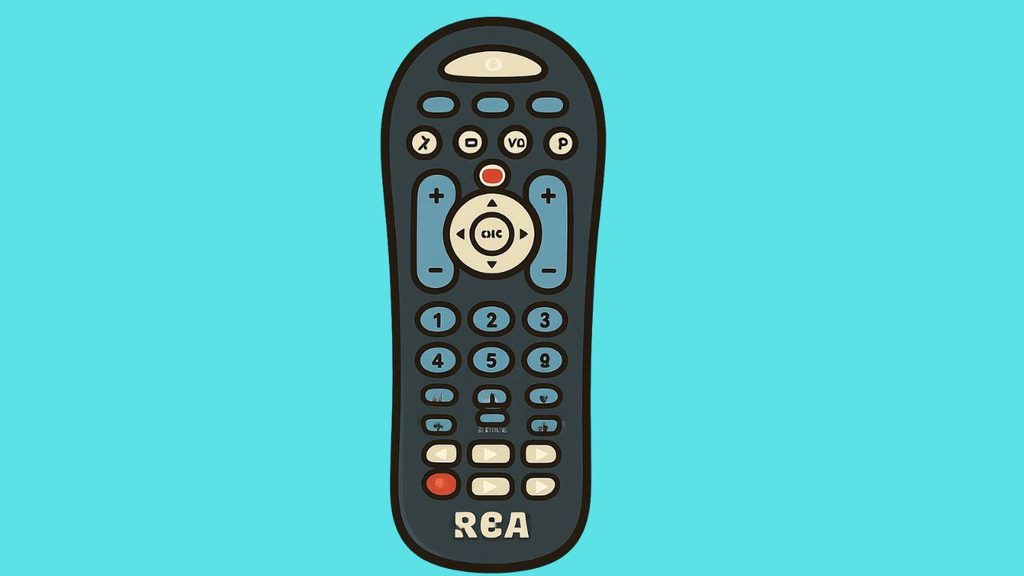
RCA universal remote codes vary according to the remote model, the device type, and the manufacturer. The tables below provide common code examples to help you get started. Treat these codes as starting points, not a guarantee of compatibility. Always verify the codes against the code list supplied for your specific remote.
1. RCA Universal Remote Codes for Popular TV Brands
The following table lists commonly published codes for popular television brands. The correct code depends on your remote’s revision and code format. The examples below are drawn from general code references and should be verified against your model’s code list.
| TV Brand | Common Code Examples |
| Samsung | 10178, 10702, 11060, 12051 |
| LG | 10178, 11447, 11265, 10856 |
| Sony | 10000, 10810, 11685, 11300 |
| Vizio | 11758, 11756, 10864, 10885 |
| TCL | 12434, 13183, 14398, 11756 |
| Hisense | 11314, 12098, 12355, 12183 |
| Philips | 11454, 10054, 10037, 10690 |
| Panasonic | 10250, 11480, 10051, 11271 |
| Sharp | 10093, 11602, 10818, 12360 |
| Insignia | 12049, 11423, 11564, 11780 |
| Toshiba | 10156, 11524, 11656, 11935 |
| RCA | 11547, 12049, 12187, 12434 |
| Element | 11864, 12183, 13559, 11687 |
| Sanyo | 10154, 10159, 10088, 10484 |
| JVC | 10053, 10731, 11253, 11601 |
Note: These are example codes from general reference lists, not a verified set for every RCA remote revision. Some entries may not apply to your particular remote. Check your remote’s exact code list before programming it.
2. RCA Universal Remote Codes for DVD and Blu-ray Players
If you want to control a DVD or Blu-ray player, you need to program the remote using the appropriate device button and a compatible code. A TV code will not necessarily work with a DVD player from the same manufacturer.
| Device Brand | Example Code References |
| Samsung DVD/Blu-ray | 20199, 20490, 20573 |
| Sony DVD/Blu-ray | 20032, 20533, 21033 |
| LG DVD/Blu-ray | 20591, 20869, 20741 |
| Panasonic DVD/Blu-ray | 20490, 21762, 21490 |
| Philips DVD/Blu-ray | 20503, 20646, 20854 |
| Toshiba DVD | 20006, 20503, 20695 |
| RCA DVD | Check the code list for your remote revision |
| JVC DVD | Check the code list for your remote revision |
These are general universal-remote code examples and are not guaranteed to be valid for an RCA remote. Use the model-specific RCA documentation to confirm the correct entries.
3. RCA Universal Remote Codes for Cable Boxes and Audio Devices
RCA universal remotes may also support compatible cable boxes, satellite receivers, audio receivers, and other equipment. Compatibility depends on the remote’s supported device types and the equipment you want to control.
| Device Category | What to Check |
| Cable box | Your cable provider and receiver model |
| Satellite receiver | Receiver manufacturer and model |
| Soundbar | Audio brand and supported infrared commands |
| Audio receiver | Manufacturer and exact model |
| Streaming device | Whether the device supports infrared remote control |
| VCR | VCR brand and compatible code list |
For these categories, it is better to use the official code finder instead of entering a random code. Some streaming devices, including many streaming sticks, use radio-frequency or Bluetooth remotes rather than infrared. An infrared-only universal remote cannot directly control a device that does not support compatible infrared commands.
Find the Correct Code for Your RCA Remote
Before trying more codes, identify the model and revision of your remote.
Step 1: Turn the remote over and open the battery compartment.
Step 2: Look for the model number and revision number on the label. Depending on your remote, the revision may look like R271U1, R341U1, or another identifier.
Step 3: Visit the RCA Accessories Remote Code Finder. Select your remote revision, device type, and device brand.
Step 4: Write down the codes provided for your exact remote version.
Step 5: Test the codes one at a time, following the programming instructions for your model.
This step matters because different RCA remote revisions can use different code formats and assignments. A five-digit code list intended for one revision may not work on a remote that requires four-digit codes.
Program Your RCA Universal Remote
Once you have a compatible code, follow the instructions for your remote model. The exact button sequence may vary, but many RCA remotes support manual code entry.
Step 1: Turn on the television or other device you want to control.
Step 2: Point the RCA remote toward the device.
Step 3: Press and hold the Setup button until the indicator light stays on, if your remote has this button and uses this programming method.
Step 4: Press the appropriate device button, such as TV, DVD, or CBL, if your model requires it.
Step 5: Enter the correct code from your remote’s code list. Make sure you enter the required number of digits.
Step 6: Watch the indicator light for confirmation, then test the Power, Volume, Mute, and Input buttons.
If the device does not respond, repeat the process with the next compatible code. If your remote uses a different setup procedure, follow the manual for that model instead.
Step 6: Use Automatic Code Search if the Codes Do Not Work
If none of the listed codes work, your RCA remote may offer an automatic code search feature.
Turn on the device you want to control. Press and hold Setup until the indicator stays on, then select the device button if required. Follow your remote’s manual to begin searching through the available codes.
Some models use repeated presses of the Power button to move through codes. When the device responds or turns off, follow the instructions to save the code. Test the main buttons before finishing.
Do not assume that every RCA remote uses the same search procedure. The correct sequence depends on the model and revision.
FAQs
1. What is the most common RCA universal remote code?
There is no single code that works for every TV or RCA remote. The correct code depends on the television brand, device model, and remote revision.
2. Why is my RCA universal remote code not working?
You may be using a code for the wrong remote revision, entering the wrong number of digits, or selecting the wrong device button. Try another code from the matching code list and check the batteries.
3. How do I find my RCA remote model number?
Open the battery compartment and check the label. The model and revision information can help you locate the correct programming instructions and code list.
4. Can an RCA universal remote control a Roku device?
It depends on the Roku device and the remote. Some Roku TVs and infrared-compatible players can work with compatible universal remotes. Many Roku streaming sticks use wireless remotes and cannot be controlled directly by an infrared-only RCA remote.
5. Can one RCA remote control multiple devices?
Yes, compatible RCA universal remotes can control multiple devices, depending on the model. You usually program each device separately using its corresponding device button.
Summary
An RCA universal remote code list makes it easier to connect a compatible remote to your TV, DVD player, cable box, or audio equipment. However, the correct codes vary by device brand and remote revision, so a code that works for one setup may fail on another.
Start by identifying your remote’s model and revision, then consult the matching code list. Enter the code carefully, test the main buttons, and use automatic code search if your remote supports it.
If you need a printable reference, look for the matching PDF through RCA’s official support resources.
Using the correct model-specific documentation is the most reliable way to program your remote without wasting time trying incompatible codes.