
Remove Chrome Popup Permanently Asking to Make Chrome Your Default Browser
If you use Google Chrome regularly, you have probably seen a pop-up asking, “Set Chrome as your default browser?” While this prompt is helpful for users who want Chrome to handle all web links, it can quickly become annoying if you prefer another browser such as Microsoft Edge, Firefox, or Brave.
The pop-up usually appears because Chrome detects that it is not your default browser. Every time the browser starts, it checks your default app settings. If Chrome finds another browser assigned as the default, it reminds you to switch.
In this guide, I have explained the easiest and safest ways to remove the Chrome pop-up that permanently asking to make Chrome your default browser.
Remove Chrome Popup Permanently Asking to Make Chrome Your Default Browser
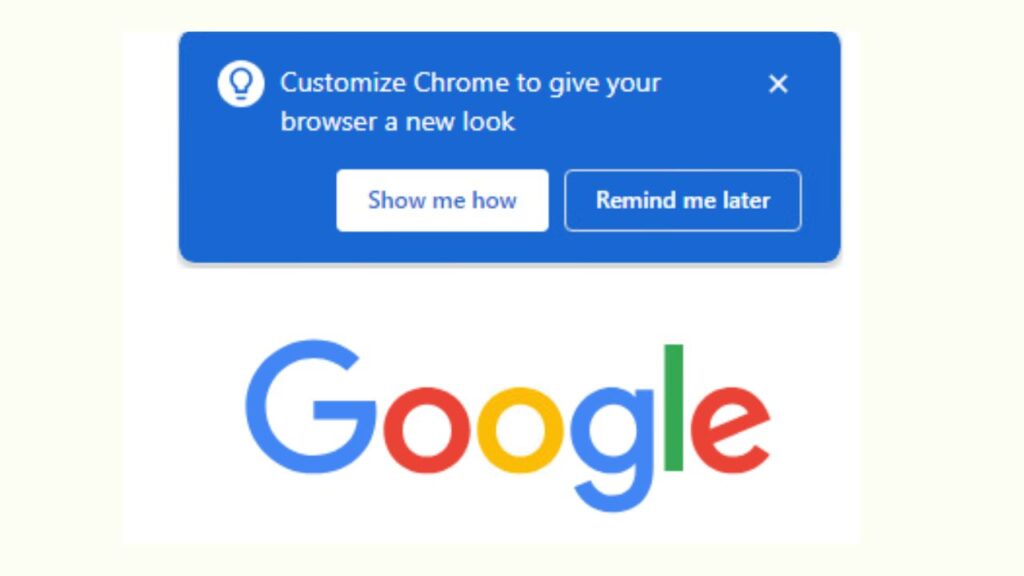
The “Make Chrome your default browser” pop-up is not an error. Instead, it is a reminder built into Chrome. The browser checks your default application settings each time it launches. If another browser is set as the default, Chrome displays the prompt so you can switch with a single click.
The simplest way to stop the pop-up is to disable Chrome’s default browser check. If that does not work, checking your Windows default browser settings or updating Chrome can also resolve the issue. In rare cases, a corrupted browser profile or conflicting startup settings may cause the reminder to continue appearing.
Follow the methods below in order. Most users will solve the problem after completing the first method.
1: Turn Off Chrome’s Default Browser Check
The easiest way to stop the pop-up is by disabling Chrome’s ability to check whether it is your default browser.
Open Google Chrome on your computer. Look at the upper right corner of the browser window and click the three vertical dots. From the menu that appears, select Settings.
On the left side of the Settings page, click Default browser. Chrome will display information about your current default browser.
Look for the option labeled Show notification when Chrome is not your default browser. If this option is enabled, turn the switch off.
Once you disable this setting, close Chrome completely. Open it again to check whether the popup appears. In most cases, this simple change permanently removes the notification while allowing you to continue using your preferred default browser.
2: Confirm Your Default Browser in Windows
If the popup continues appearing, Windows may not have saved your preferred browser correctly. Confirming your default browser often fixes the issue.
Press Windows + I on your keyboard to open the Settings app. In the left panel, select Apps, and then click Default apps.
Scroll through the list or use the search box to find the browser you want to use as your default. Select it to open its settings page.
If you want another browser, such as Microsoft Edge or Firefox, to remain your default, click the Set default button. If you actually want Chrome as your default browser, you can also choose Set default here. Once Windows saves the setting, Chrome will no longer need to ask you every time it starts.
After making your selection, restart your computer and launch Chrome again to verify that the reminder no longer appears.
3: Update Google Chrome
An outdated version of Chrome can occasionally cause notification problems or repeat prompts that should no longer appear.
Open Chrome and click the three dots in the upper right corner. Move your cursor over Help, then select About Google Chrome.
Chrome will automatically check for available updates. If an update is found, allow it to download and install completely. Depending on the size of the update, this process may take a few minutes.
When prompted, click Relaunch. Chrome will restart with the latest version installed.
Using the newest version ensures that browser bugs and notification issues are resolved with Google’s latest improvements.
4: Reset Chrome Settings
If the pop-up keeps returning, one of Chrome’s settings may have become corrupted. Resetting the browser restores important settings without deleting your bookmarks or saved passwords.
Open Settings in Chrome and scroll down until you find Reset settings.
Select Restore settings to their original defaults. A confirmation window will appear explaining what will be reset.
Read the information carefully, then click Reset settings.
After the reset finishes, close Chrome and reopen it. Since unnecessary settings and temporary configuration issues are removed, many recurring browser notifications disappear after this process.
5: Disable Chrome From Opening Automatically at Startup
Sometimes the popup appears because Chrome launches automatically when Windows starts.
Open Task Manager by pressing Ctrl + Shift + Esc. Click the Startup apps section in the left pane.
Find Google Chrome in the list of startup applications. If its status shows Enabled, select it and click Disable.
Restart your computer.
Now Chrome will only open when you launch it manually, reducing the chances of seeing repeated prompts during every system startup.
6: Create a New Chrome Profile
If only one Chrome profile experiences the issue, creating a fresh profile may solve it.
Open Chrome and click your profile picture in the upper right corner.
Select Add to create a new Chrome profile.
Follow the setup instructions and open Chrome using the new profile. Before signing into your Google account, check whether the pop-up appears.
If the new profile works normally, the original profile may have damaged settings causing the repeated notification.
You can gradually move your bookmarks and preferences to the new profile if necessary.
7: Reinstall Google Chrome
If none of the previous methods work, reinstalling Chrome can remove corrupted program files responsible for persistent popups.
Open Settings, select Apps, and then choose Installed apps.
Find Google Chrome, select it, and choose Uninstall.
Restart your computer after the removal process completes.
Download the latest version of Chrome from the official Google website and install it again.
Once installation finishes, sign back into your Google account if you use Chrome Sync. Your bookmarks, passwords, and browsing history will automatically return if synchronization was previously enabled.
A clean installation often resolves problems that cannot be fixed through normal settings.
FAQs
Why does Chrome keep asking to become my default browser?
Chrome checks whether it is your default browser each time it starts. If another browser is set as the default, Chrome displays a reminder asking if you would like to switch.
Can I stop the pop-up without making Chrome my default browser?
Yes. You can disable the Show notification when Chrome is not your default browser option in Chrome’s settings, allowing you to continue using another browser without seeing the reminder.
Will disabling the notification affect Chrome’s performance?
No. Disabling the notification only stops the reminder from appearing. It does not affect browsing speed, security, or browser features.
Why does the popup return after I disable it?
This can happen if Chrome settings become corrupted, the browser is outdated, or Windows default app settings are not configured correctly. Updating Chrome or resetting its settings usually fixes the problem.
Is reinstalling Chrome safe?
Yes. Reinstalling Chrome is safe. If Chrome Sync is enabled, your bookmarks, saved passwords, browsing history, and other synced data will be restored after you sign in again.