
Repair Windows 11 Without Losing Programs
Windows 11 offers several repair options that can help you fix system problems without removing your installed applications. You can use Windows Update to reinstall the current version of Windows, run system repair commands, restore your PC to an earlier working state, or perform an in-place repair installation.
However, not every repair method preserves everything. Choosing the wrong reset or installation option could remove your programs, so it’s important to understand what each method does before proceeding.
In this guide, we’ll walk through the safest ways to repair Windows 11 without losing programs.
Repair Windows 11 Without Losing Programs
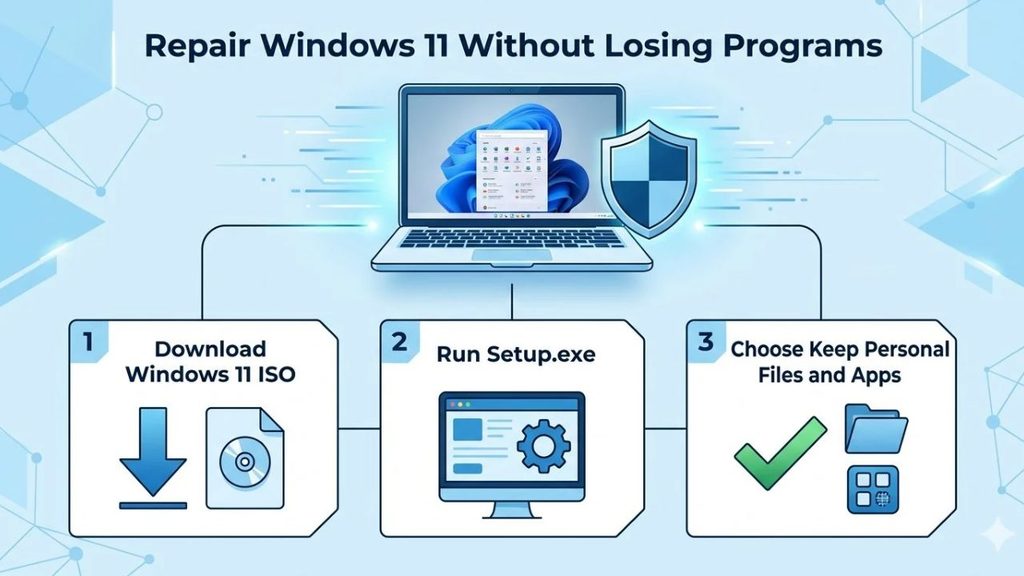
The easiest way to repair Windows 11 without losing installed programs is to use the Fix problems using Windows Update option, when available. It reinstalls the current Windows version while preserving personal files, installed applications, and settings. If that option isn’t available or doesn’t fix the problem, you can try DISM, SFC, System Restore, or an in-place repair installation.
Before starting, back up important files and make sure you have access to your Windows account.
Even repair methods designed to preserve data can fail if the installation is interrupted or the wrong option is selected.
1: Back Up Your Important Files and Check Windows Version
Before repairing Windows, take a few minutes to protect your important data. Although the methods below are designed to preserve your programs and files, unexpected interruptions can still cause problems.
Open Settings > System > About and check your Windows edition and version. You can also press Windows + R, type winver, and press Enter.
Note your Windows version and build number. This information will help you choose compatible installation media if you need an in-place repair.
Next, copy important documents, photos, videos, and other personal files to an external drive or cloud storage. If you use specialized applications, make sure you have their installation files, product keys, and account credentials.
If BitLocker or Device Encryption is enabled, save your recovery key somewhere safe.
Once your backup is ready, continue with the repair methods.
2: Use Fix Problems Using Windows Update
Note: Recommended first method
Windows 11 includes a recovery option called Fix problems using Windows Update. It downloads and reinstalls the current Windows version while keeping your installed applications, personal files, and settings.
This is one of the easiest ways to repair Windows without reinstalling your programs.
Press Windows + I to open Settings. Navigate to System > Recovery.
Find the Fix problems using Windows Update section and click Reinstall now.
A confirmation window will appear. Review the restart option and select OK to begin the process.
Windows will download a repair version of the current operating system and reinstall the necessary components. Keep your computer connected to the internet and a reliable power source throughout the process.
Your computer may restart several times. Don’t turn it off while Windows is working.
After the repair finishes, sign in normally and check whether the original problem has disappeared. Your installed programs, files, and settings should remain in place.
What if this option is missing? It may be unavailable on certain managed devices or Windows installations.
In that case, move to the next method.
3: Repair Windows System Files Using SFC
Sometimes Windows becomes unstable because important system files are damaged or missing. You can use System File Checker (SFC) to scan and repair these files.
Right-click the Start button and select Terminal (Admin) or Command Prompt (Admin).
If Windows asks for permission, click Yes.
Enter the following command:
sfc /scannow
Press Enter and wait until the scan reaches 100%.
Windows will check protected system files and attempt to repair any corrupted files it finds.
You may receive a message stating that Windows Resource Protection found no integrity violations. This means the scan didn’t detect damaged protected system files.
If it reports that corrupted files were found and repaired, restart your computer.
If SFC cannot repair some files, continue with DISM.
4: Use DISM to Repair the Windows Image
Deployment Image Servicing and Management (DISM) is another Windows repair tool. It checks the Windows component store and can repair the system image that SFC relies on.
Open Windows Terminal as administrator again.
Run the following command:
DISM /Online /Cleanup-Image /CheckHealth
This performs a quick check for previously detected component-store corruption.
Next, run:
DISM /Online /Cleanup-Image /ScanHealth
This performs a more detailed scan and may take several minutes.
Finally, enter:
DISM /Online /Cleanup-Image /RestoreHealth
Press Enter and allow Windows to complete the repair. Keep your internet connection active because DISM may use Windows Update as a repair source.
After the operation finishes, run the SFC command again:
sfc /scannow
Restart your PC when both tools have finished.
These commands repair Windows components without intentionally removing your installed applications or personal files.
5: Use System Restore to Undo Recent Changes
If Windows started malfunctioning after installing an application, driver, or update, System Restore may help.
This feature takes Windows back to an earlier restore point, reversing certain system changes without deleting your personal documents.
Press Windows + R, type rstrui.exe, and press Enter.
The System Restore window will open. Select Next to view available restore points.
Choose a restore point created before the problem started. If you want to see which applications or drivers may be affected, select Scan for affected programs.
Review the results carefully. Recently installed applications and drivers may be removed, while programs installed before the selected restore point may remain.
Select the restore point and click Next > Finish to begin.
Windows will restart and attempt to restore the previous system configuration.
Remember that System Restore does not guarantee that every application will remain unchanged.
It can remove programs installed after the selected restore point, so review the affected-program list before proceeding.
6: Repair Windows 11 Using Installation Media
If the previous methods don’t solve the problem, you can perform an in-place repair installation using official Windows 11 installation media.
This method reinstalls Windows over the existing installation while offering an option to preserve your personal files and installed applications.
First, visit Microsoft’s official Windows 11 download page:
https://www.microsoft.com/software-download/windows11
Download the Windows 11 ISO file or use the Media Creation Tool to prepare the installation files.
If you download an ISO, right-click it and select Mount. Open the mounted drive and locate setup.exe.
Double-click setup.exe to launch Windows Setup.
Follow the installation instructions until you reach the Ready to install screen.
Before continuing, select Change what to keep if that option appears.
Choose Keep personal files and apps.
This is the most important selection in this process. It tells Windows Setup to preserve your installed programs, personal files, and supported settings.
Review the final installation summary. If it says that your personal files and apps will be kept, select Install.
Windows will begin reinstalling the operating system. Your computer may restart several times, so allow the process to finish.
Once Windows loads, check your applications, drivers, and settings.
Important: Start setup.exe from inside your existing Windows desktop. Booting directly from the USB drive and performing a clean installation can erase your installed programs and files.
Also, if the option to keep personal files and apps isn’t available, stop and check your installation media, language, and Windows edition before proceeding.
7: Uninstall a Problematic Windows Update
Sometimes Windows starts crashing, freezing, or displaying errors immediately after installing a particular update.
Instead of repairing the entire operating system, you can try removing that update.
Open Settings > Windows Update > Update history.
Scroll down to the Uninstall updates section and open it.
Find the recently installed update that may have caused the problem. Click Uninstall next to it, if available.
Follow the instructions and restart your computer.
This method removes the selected update without intentionally deleting your installed programs or personal files.
However, Windows may offer the update again later, so investigate the underlying issue before reinstalling it.
8: Verify That Your Programs and Windows Files Are Working
After completing a repair, don’t assume everything is working perfectly. Spend a few minutes checking your system.
Open the Start menu and search for some of your frequently used applications. Launch programs such as Microsoft Office, Chrome, Adobe applications, or other software you rely on.
Check whether your desktop shortcuts, documents, and personal folders are still available.
Open Settings > Windows Update and check for pending updates. Install any appropriate updates and restart your PC if required.
You can also open Task Manager by pressing Ctrl + Shift + Esc to check whether your computer is running normally.
If an application no longer opens, it may need an individual repair or update.
A Windows repair installation is designed to preserve programs, but it cannot guarantee that every third-party application will work perfectly afterward.
FAQs
1. Can I repair Windows 11 without reinstalling my programs?
Yes. The Fix problems using the Windows Update option and an in-place repair installation can reinstall Windows while preserving installed applications, personal files, and supported settings.
2. Will Reset This PC keep my installed programs?
No. Even if you choose Keep my files, Windows removes installed desktop applications and resets many settings. You’ll need to reinstall your programs afterward.
Microsoft Support
3. How long does a Windows 11 repair installation take?
It depends on your computer’s hardware, internet speed, Windows version, and the amount of data involved. It can take anywhere from several minutes to more than an hour. Allow additional time for downloading and restarting.
4. Will repairing Windows 11 delete my personal files?
The recommended repair methods are designed to preserve personal files. However, no repair process is completely risk-free. Always create a backup before starting.
5. Can I repair Windows 11 without a USB drive?
Yes. You can use Fix problems using Windows Update, SFC, DISM, and System Restore without creating a bootable USB drive.
6. What happens if Windows 11 repair fails?
If the repair fails, note the error code and check your available storage, internet connection, and installation compatibility. You can also try another supported repair method. Avoid selecting Reset This PC or performing a clean installation if preserving installed programs is essential.
Summary
Repairing Windows 11 doesn’t always mean starting from scratch or reinstalling all your applications. Microsoft provides several recovery options that can help you fix system problems while keeping your existing software.
Start with Fix problems using Windows Update, then try SFC and DISM if necessary. If the problem continues, consider System Restore or an in-place repair installation using official Windows 11 installation media.
Most importantly, select Keep personal files and apps whenever Windows Setup offers that option.
Back up your important data before making major system changes, and avoid choosing a clean installation if you want to keep your installed programs.