
Resetting a Spectrum Cable Box [Guide]
Is your Spectrum cable box freezing, showing a black screen, displaying missing channels, or refusing to respond to your remote?
Fortunately, resetting your Spectrum cable box can often fix common issues without requiring a technician to visit your home. A simple restart can clear temporary glitches, refresh the receiver’s connection, and help restore normal TV service.
However, there’s a difference between restarting, refreshing, and factory resetting a cable box. Each option works differently, and choosing the wrong one could affect your saved preferences or DVR recordings.
In this guide, we’ll explain what happens when you reset a Spectrum receiver and walk you through several ways to restart or refresh it safely.
How Does Resetting a Spectrum Cable Box Affect Saved Settings and Recordings?
The impact depends on the type of reset you perform.
A simple restart involves disconnecting the cable box from its power source and reconnecting it after a short wait. This generally doesn’t erase your saved DVR recordings, scheduled recordings, or account settings. It simply reboots the receiver.
A remote refresh sends a signal to your Spectrum receiver to help resolve service-related problems. Spectrum states that refreshing the receiver can fix issues such as missing channels, guide problems, and poor picture quality without affecting recordings or service.
A factory reset, on the other hand, is different. Depending on the receiver model and reset option, it may erase locally stored preferences or configuration data. You shouldn’t assume that it will preserve everything.
If you have a DVR, remember that recordings are generally stored on the receiver’s hard drive. A normal reboot is not the same as formatting or resetting that storage. However, equipment failure can still put recordings at risk.
My recommendation: Start with a regular restart or Spectrum’s remote refresh option before considering any factory reset.
Resetting a Spectrum Cable Box [Complete Guide]
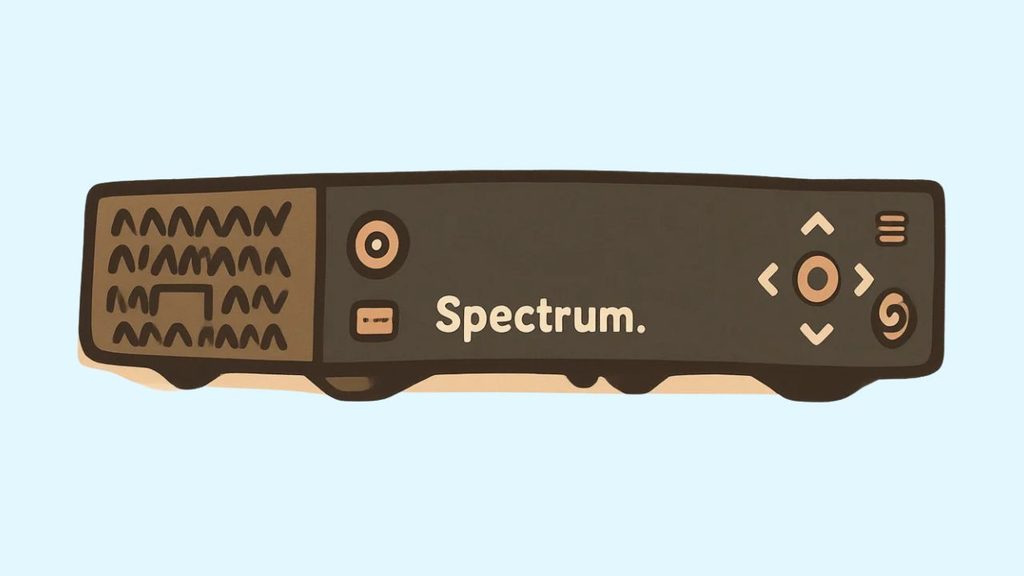
The easiest way to reset a Spectrum cable box is to unplug its power cord, wait at least 60 seconds, and plug it back in. You can also refresh or restart supported receivers through your Spectrum account.
Before proceeding, make sure you know which device you’re resetting. If you have a separate modem, router, and cable receiver, you only need to restart the cable receiver when the problem is limited to your TV service.
1: Identify Your Spectrum Cable Box
Before resetting anything, identify your Spectrum receiver. This is important because Spectrum provides different receiver models, and their menus and troubleshooting options may vary.
Look near your TV for a small rectangular device connected to the television through an HDMI cable. This is usually your Spectrum cable box or receiver.
Check its front or back panel for the manufacturer and model number. Depending on your equipment, you may find a Spectrum, Arris, Motorola, Cisco, or another supported receiver.
Also, identify the power cable. It usually connects the receiver to a wall outlet or power strip.
If you have a separate modem and router nearby, don’t confuse them with the cable box. The modem and router handle your internet connection, while the cable receiver handles traditional cable TV service.
Once you’ve identified the correct device, move to the next step.
2: Check the Cable Connections
Sometimes your Spectrum cable box doesn’t need a reset at all. A loose connection can cause a black screen, missing channels, or intermittent picture problems.
First, check the coaxial cable running from the wall outlet to the back of your receiver. Make sure it’s securely connected at both ends.
Next, inspect the HDMI cable connecting your receiver to your television. Unplugging and reconnecting it can help resolve an unstable video connection.
Make sure the power cable is also firmly connected. If you’re using a power strip, check that its switch is turned on.
Finally, use your TV remote to select the correct HDMI input. For example, if your cable box is connected to HDMI 1, your television should be set to HDMI 1.
After checking these connections, turn on your TV and receiver. If the problem remains, continue to the next step.
3: Restart Your Spectrum Cable Box by Unplugging It
This is the simplest and one of the most useful troubleshooting methods. A power cycle clears temporary receiver issues and allows the device to reconnect to Spectrum’s service.
First, locate the power cord connected to your Spectrum cable box.
Unplug the power cord from the electrical outlet. If the power cable is removable from the receiver, you can disconnect it there instead.
Wait for at least 60 seconds. Don’t rush this step because the receiver needs time to shut down completely.
After waiting, reconnect the power cable and turn on the receiver if it doesn’t start automatically.
You may see startup messages, a blank screen, or loading indicators while the receiver initializes. This is normal.
Allow several minutes for the box to complete its startup process. Spectrum notes that receiver boot-up can take several minutes.
Once the guide appears, change a few channels to check whether your TV service is working normally.
If the receiver still freezes or displays an error, try the next method.
4: Restart Your Cable Box Through the My Spectrum App
You can also troubleshoot supported Spectrum TV equipment through your Spectrum account. This method is useful if you don’t want to disconnect the power cable manually.
Open the My Spectrum app on your smartphone and sign in using your Spectrum account credentials.
Navigate to the section for your services and select TV or your TV equipment, depending on the app version.
Look for your cable receiver in the equipment list. Select the option indicating that you’re experiencing an issue, if available.
If Spectrum provides a Reset or restart option for your receiver, follow the on-screen instructions.
Wait for the process to finish. Your receiver may temporarily lose its connection while Spectrum sends the restart or troubleshooting command.
Once the box comes back online, check whether the channel guide and TV picture are working correctly.
Keep in mind that not every receiver supports remote restarting through the app. If you don’t see the option, use the manual restart method instead.
5: Refresh Your Spectrum Cable Box Through the Spectrum Website
If a regular restart doesn’t fix the problem, try refreshing your receiver through Spectrum’s website.
Open a browser on your computer or smartphone and visit Spectrum.net.
Sign in using your Spectrum username and password. Navigate to your account’s TV equipment or troubleshooting section.
Select your Spectrum receiver and look for the available Refresh or troubleshooting option.
Follow the instructions to send a refresh signal to your equipment. Depending on your account interface, the exact menu names may differ.
Wait for the refresh process to complete. Your receiver may temporarily restart or lose its connection while the process runs.
Afterward, check your TV channels, picture quality, and interactive guide.
A receiver refresh is particularly useful when you’re experiencing missing channels, guide problems, or no picture.
6: Reset Data Through the Spectrum Guide
If your Spectrum receiver uses the newer Spectrum Guide, you may have access to a Reset Data option. This can help when the guide is slow, unresponsive, or experiencing temporary software problems.
Turn on your TV and Spectrum receiver. Press the Menu button on your Spectrum remote.
Use the arrow buttons to navigate to Settings & Support, then press OK.
Next, scroll down to Account Overview and press OK. Navigate to Equipment Info and open Application Info.
Look for the RESET DATA option. Highlight it and press OK to confirm.
Your Spectrum Guide may restart while the receiver clears its stored application data and reloads the system information.
Wait for the process to finish before using your remote again. Once the guide loads, check whether the original problem has been resolved.
Important: Reset Data is not the same as a full factory reset. The option is available on supported Spectrum Guide receivers, and the menu may look different on older models.
Check Whether Your Spectrum Cable Box Has an Outage or Service Issue
Sometimes the problem isn’t with your cable box. Spectrum may be experiencing a service interruption or maintenance in your area.
Before trying another reset, check whether there’s an outage affecting your TV service.
Open the My Spectrum app and sign in to your account. Look for the service status or outage information section.
You can also visit Spectrum’s support website and check the current status of your services.
If an outage is reported, wait until Spectrum restores service. Restarting your receiver repeatedly won’t necessarily fix an issue caused by an interruption in your provider’s network.
Once service is restored, unplug your Spectrum receiver for 60 seconds and reconnect it. Allow it to finish booting before checking your channels again.
Troubleshoot DVR Recording and Playback Problems
If you have a Spectrum DVR receiver, you might experience problems such as recordings not playing, freezing during playback, or scheduled shows not recording.
Start by restarting your receiver using the 60-second power cycle method.
After the receiver restarts, press the DVR or List button on your remote, depending on your model, to access your recordings.
Try playing a previously recorded program. If playback works, the issue may have been a temporary receiver problem.
If you’re having trouble recording new programs, check whether your DVR has enough available storage. Also, make sure you’re not trying to record On Demand programming, which may not be eligible for DVR recording.
For a series recording problem, check whether the recording is configured to capture only new episodes. If your guide supports it, consider changing the recording preferences.
Avoid selecting unfamiliar storage or erase options while troubleshooting. You don’t want to accidentally delete recordings you’ve saved.
Contact Spectrum Support if the Problem Continues
If you’ve tried restarting and refreshing your receiver but the problem remains, contact Spectrum Support.
You may have a damaged cable box, a signal problem, an account-related issue, or a hardware fault that requires professional attention.
Visit the official Spectrum Receiver Support page to find information about your equipment and its model-specific manual.
You can also contact Spectrum through the My Spectrum app or its official support channels.
Before contacting support, note the receiver’s model number and any error message displayed on your TV. Explain which troubleshooting methods you’ve already tried.
If Spectrum determines that your receiver is defective, the company can guide you through the available repair or replacement options.
FAQs
1. How long does it take to reset a Spectrum cable box?
A manual power cycle requires at least 60 seconds of unplugged time. After reconnecting the power, allow several additional minutes for the receiver to restart and load the channel guide.
2. Will resetting my Spectrum cable box delete my DVR recordings?
A normal restart or receiver refresh generally does not delete your saved DVR recordings. However, a factory reset, storage operation, or equipment replacement may have different consequences. Check with Spectrum before performing any operation that could erase stored data.
3. Why is my Spectrum cable box stuck on the loading screen?
This can happen because of a temporary software issue, an interrupted startup, a signal problem, or an equipment fault. Try unplugging the receiver for 60 seconds and reconnecting it. If it remains stuck, contact Spectrum Support.
4. How often should I reset my Spectrum cable box?
You don’t need to reset your receiver regularly if it’s working correctly. Restart it when you experience problems such as freezing, missing channels, or guide errors. Repeated resets aren’t a substitute for fixing an underlying equipment or signal issue.
5. What is the difference between restarting and factory resetting a Spectrum cable box?
Restarting temporarily turns the receiver off and back on to clear minor glitches. Factory resetting can restore certain settings to their original state and may erase locally stored information, depending on the model. Always try a regular restart first.
6. Why does my Spectrum cable box show a black screen after resetting?
Check whether your TV is using the correct HDMI input. Inspect the HDMI and coaxial connections, and make sure the receiver has finished booting. If the black screen continues, try another supported HDMI port or contact Spectrum.