
Samsung TV Not Turning On [Fix It]
Is your Samsung TV not turning on even after pressing the power button? Does the screen stay black, or does the standby light blink without showing a picture? Don’t worry. These problems can happen for several reasons, and you may be able to fix them at home without calling a technician.
A Samsung TV that won’t turn on might have a power supply issue, a faulty remote, a loose cable, a software glitch, or a problem with an external device. Sometimes, the TV is actually on, but the screen isn’t displaying anything.
In this guide, you’ll learn how to diagnose the issue and get your Samsung TV working again, even if you’re not familiar with TV repairs.
Samsung TV Not Turning On: Complete Guide to Fix It
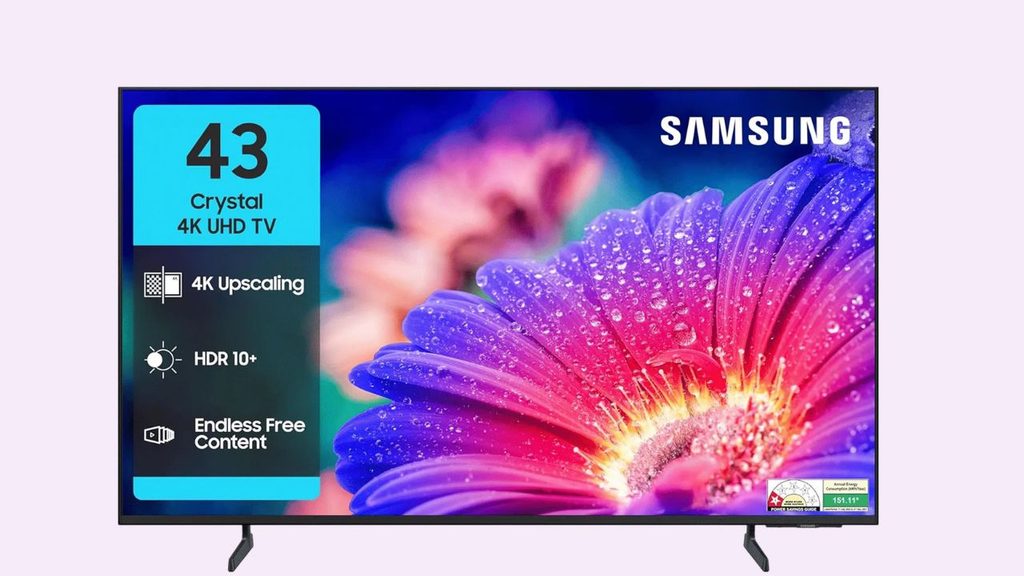
If your Samsung TV won’t turn on, check the power outlet, inspect the power cable, perform a power reset, test the remote, and disconnect external devices. If the standby light blinks or the TV produces sound without showing a picture, use those symptoms to narrow down the cause.
Start with the simplest solutions and work through the steps below in order. Avoid opening the television, as its internal components can retain dangerous electrical charges even after it has been unplugged.
Step 1: Check Whether Your Samsung TV Is Receiving Power
The first thing to check is whether your TV is getting electricity. A loose plug, switched-off power outlet, or faulty extension cord can prevent the television from turning on.
Unplug the TV’s power cable from the wall outlet and inspect the plug and cable for visible damage. If you notice fraying, exposed wires, burning marks, or a melted plug, stop using it and arrange a safe replacement.
If the cable looks fine, plug the TV directly into a known-working wall outlet. Temporarily bypass any power strip, surge protector, or extension cord to rule out a problem with those accessories.
You can test the outlet by connecting another working device, such as a lamp. If that device also fails to work, check the outlet or circuit breaker.
Once you’ve confirmed that the outlet works, reconnect your TV and try turning it on. If nothing happens, continue to the next step.
Step 2: Perform a Power Reset on Your Samsung TV
A temporary electrical or software glitch can sometimes prevent a Samsung TV from starting normally. Performing a power reset can help clear that temporary state.
First, unplug the television from the wall outlet. Leave it unplugged for about 60 seconds. While the TV is disconnected from power, press and hold the physical power button on the TV for approximately 15 to 30 seconds, if your model has an accessible button.
Release the button, reconnect the power cable, and try turning on the TV.
Some Samsung models have their power button underneath the center of the screen, while others place it on the back or near the lower edge. Check your model’s user manual if you can’t find it.
If the TV starts normally, the issue may have been a temporary glitch. If the screen remains black or the standby light keeps blinking, move on to the next method.
Step 3: Turn On the TV Using Its Physical Power Button
Sometimes the problem isn’t with the television itself but with the remote control. The batteries may be dead, the remote may have lost its connection, or one of its buttons may be stuck.
To check this, locate the physical power button on your Samsung TV. Depending on the model, you may find it underneath the Samsung logo, along the bottom edge, or on the rear panel.
Make sure the TV is connected to power, then press the physical power button once.
If the TV turns on, your remote is likely the problem. Replace its batteries, making sure the positive and negative ends are positioned correctly. Check for stuck buttons and make sure nothing is blocking the remote’s signal.
If you use a Samsung Smart Remote, try the pairing procedure specified in your model’s manual if the remote still doesn’t work.
If the TV doesn’t respond to its physical button either, the problem may involve the power supply, internal electronics, or another component. Continue troubleshooting before drawing that conclusion.
Step 4: Check the Samsung TV Standby Light
The standby light can give you useful clues about what’s happening. On many Samsung TVs, a red standby light indicates that the television is receiving power while waiting to be turned on. However, the light’s behavior varies by model.
If the light is on but the TV won’t start, try the physical power button and perform the power reset described earlier.
If the standby light blinks repeatedly when you press the power button, the TV may be experiencing a startup or hardware problem. Disconnect external devices and try another power reset. If the blinking continues, professional service may be necessary.
If the standby light is completely off, check the power outlet, cable connection, and wall switch, if applicable.
Remember that these indicators aren’t universal diagnostic codes. A blinking light alone doesn’t identify a specific faulty component, so check your model’s documentation or contact Samsung Support if the behavior continues.
Step 5: Disconnect HDMI Devices and Other Accessories
Connected devices can sometimes interfere with startup or make it seem as though the TV isn’t responding. These devices may include streaming sticks, game consoles, cable boxes, soundbars, USB drives, and HDMI adapters.
Turn off the TV if possible and disconnect all external devices from its HDMI and USB ports. Leave only the TV’s power cable connected.
Try turning on the television using its physical power button. If it starts normally, reconnect your devices one at a time, testing the TV after each connection.
If the problem returns after reconnecting a particular device, inspect that device’s cable and power supply. You can also try a different HDMI port or a known-working HDMI cable.
If your Samsung TV turns on but displays a black screen only when a particular HDMI input is selected, use the remote’s Source or Home button to switch to another input.
This method helps determine whether an accessory is contributing to the problem.
Step 6: Check Whether the Screen Is Black but the TV Is On
A Samsung TV may appear to be off even when the television is running. For example, you might hear sound, hear menu tones, or notice connected devices responding while the screen stays black.
Turn on the TV and listen for sound. Press the Home or Volume button on the remote and see whether anything changes on the screen.
If sound works but no picture appears, the issue could involve the display, backlight, or another internal component rather than the power supply.
In a dim room, shine a flashlight close to the screen at an angle while the TV is on. If you can faintly see an image, the backlight may be malfunctioning. This test is not conclusive, but it can provide a useful clue.
If the TV has no sound or picture, continue with the remaining steps. If sound works but the display stays black, contact Samsung Support or a qualified TV technician if the basic troubleshooting methods don’t help.
Step 7: Check the Power Cable and External Power Connections
Some Samsung TVs use a detachable power cable, while others have a permanently attached cable. A loose connection can interrupt power and prevent the TV from starting.
If your model has a detachable cable, turn off the TV and unplug it from the wall before checking the connection at the television’s power socket. Reconnect the cable securely if it is undamaged and the connection is accessible.
If the cable is permanently attached, inspect the visible portion for cuts, crushing, or other damage. Don’t pull the cable forcefully or attempt to open the TV to reach internal connections.
If you’re using a surge protector, test the TV directly from a working wall outlet. If the television works there, the surge protector may need replacement.
Never bypass damaged electrical components or use an improvised power cable. If the TV still won’t turn on despite a reliable power source, continue to the next step.
Step 8: Update the TV Software if You Can Get It to Start
If your Samsung TV turns on intermittently, freezes during startup, or reaches the home screen before becoming unresponsive, outdated or problematic software may be contributing to the issue.
If you can access the menus, open Settings > Support > Software Update > Update Now. Menu names can vary by model and software version.
Keep the TV connected to a stable power source and internet connection while checking for an update. Never unplug the television during a software installation.
If the TV becomes responsive again, check whether the problem returns after restarting it.
If the television won’t stay on long enough to access its settings, don’t attempt repeated software updates. Focus on the power and hardware checks or contact Samsung Support for model-specific recovery instructions.
Step 9: Contact Samsung Support or a Qualified Technician
If you’ve tried the previous steps and your TV still won’t turn on, the problem may involve an internal power board, main board, backlight, or another hardware component.
Before requesting service, write down your TV’s model number and describe what happens when you press the power button. Mention whether the standby light is off, stays on, or blinks, and whether you hear sound.
You can find the model number on the label on the back of the TV or in its settings if the screen works.
Check Samsung’s official support website for troubleshooting instructions and warranty options. If the TV is still under warranty, contact Samsung before arranging an independent repair.
Don’t open the TV or attempt internal electrical repairs yourself. Internal components can present an electrical hazard, and unauthorized repairs may affect warranty coverage.
FAQs
1. Why won’t my Samsung TV turn on, but the red light is on?
The red standby light often means the TV is receiving power. Try turning it on with the physical power button and perform a power reset. If it still won’t start, the TV may have a startup or hardware problem.
2. Why is my Samsung TV not turning on, and the standby light is blinking?
A blinking standby light can indicate a startup or hardware issue, but its meaning varies by model. Disconnect external devices, perform a power reset, and consult Samsung Support if the blinking continues.
3. How do I fix a Samsung TV that won’t turn on after a power outage?
Unplug the TV for about 60 seconds, then reconnect it to a working wall outlet. If you suspect a power surge or see electrical damage, stop using the TV and arrange professional service.
4. Why does my Samsung TV have sound but no picture?
The TV may be running while its display or backlight isn’t working correctly. Try changing the input and checking for a faint image with a flashlight. If the screen remains black, professional diagnosis may be needed.
5. Can I reset my Samsung TV without the remote?
Yes, you can usually try a power reset by unplugging the TV and using its physical power button, if available. A factory reset is different and generally requires access to the TV’s menus or model-specific instructions.
Summary
A Samsung TV that won’t turn on doesn’t always need an expensive repair. The problem may be caused by a faulty outlet, a loose power connection, a remote control issue, a temporary software glitch, or an external device.
Start by checking the power supply, performing a power reset, and testing the physical power button. Then inspect the standby light, disconnect accessories, and determine whether the TV is running with a black screen.
If none of these methods works, contact Samsung Support or a qualified technician. Avoid opening the television or attempting internal electrical repairs.