
Set Custom Wallpaper on Roku TV
Want to give your Roku TV a more personal look? You can change the screen’s appearance by choosing a different wallpaper, applying a theme, or using your favorite photos as a screensaver. Whether you want a family picture, a vacation photo, or a relaxing background, Roku offers a few ways to customize your TV.
However, there’s one important thing to understand before you start. Roku TV wallpaper and screensavers are not exactly the same thing. A wallpaper or theme changes the appearance of the Roku home screen, while a screensaver usually appears when your TV sits idle for a while. The options available depend on your Roku TV model, software version, and the Roku device you’re using.
In this guide, you’ll learn how to change your Roku wallpaper, explore available themes, use personal photos where supported, and troubleshoot common problems.
Set Custom Wallpaper on Roku TV
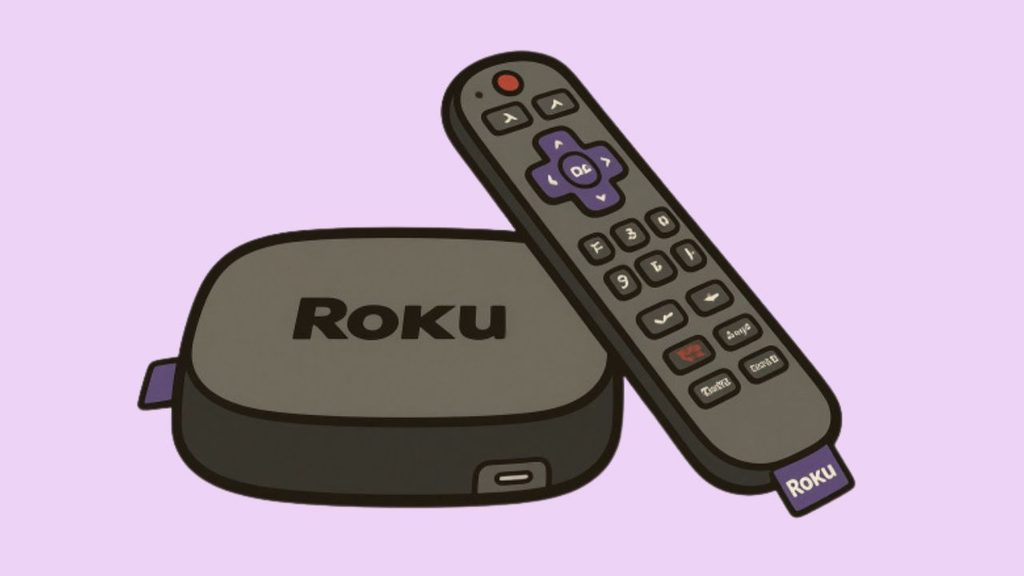
To change the wallpaper on a Roku TV, press the Home button on your Roku remote, open Settings, and look for Theme or Wallpaper. Select an available background or theme and apply it. If your Roku software doesn’t offer a direct option to upload a personal wallpaper, you can explore supported photo screensaver options instead.
The exact menu names can vary by Roku device and software version.
Follow the methods below to find the option that works on your TV.
Step 1: Turn On Your Roku TV and Open the Home Screen
First, turn on your Roku TV and make sure you’re on the main home screen. If you’re watching Netflix, YouTube, or another streaming service, press the Home button on your Roku remote to return to the Roku interface.
The home screen is where you’ll find your streaming apps, settings, and customization options. Look at the menu on the left side of the screen.
Before changing anything, make sure your Roku TV is connected to the internet. Some themes and screensavers need an internet connection to download or display correctly.
If your remote isn’t responding, check its batteries or reconnect it if necessary. Once you can navigate the home screen, continue to the next step.
Step 2: Open the Theme or Wallpaper Settings
From the Roku home screen, use the arrow buttons on your remote to navigate to Settings. Press OK to open it.
Look for Theme in the Settings menu. On supported Roku devices, the Theme menu may include options for wallpapers, screensavers, and other appearance settings.
Select the available theme or wallpaper option. If you see a collection of backgrounds, you can browse through the choices and preview the ones you like.
Keep in mind that Roku doesn’t provide the same customization options on every model. If you don’t see a Wallpaper option, don’t assume something is wrong with your TV. Your device may use a different menu layout or offer wallpaper customization through themes instead.
Step 3: Choose and Apply a Wallpaper or Theme
Once you open the Theme settings, browse the available options. Roku periodically offers different themes, including seasonal backgrounds, colorful designs, and other visual styles.
Use the arrow buttons on your remote to highlight a theme. Press OK to preview or select it, depending on the options shown on your screen.
If you like the design, choose the option to apply it. Your Roku home screen should update to reflect the selected theme. Some themes may change additional interface elements, such as the overall color scheme, rather than changing only the background.
Give the TV a few seconds to apply the changes. If the theme needs to download, keep your Roku connected to the internet.
If you want to return to your previous appearance, reopen the Theme settings and select another available theme.
Step 4: Download More Roku Themes
If the default themes don’t match your style, check whether your Roku device offers additional themes.
Return to the Roku home screen and open Settings > Theme. Depending on your software version, look for a theme store, additional themes, or a browsing option.
Explore the available designs and select one that catches your eye. Follow the on-screen instructions to download or apply it.
Some Roku devices and software versions may no longer offer a theme store or may provide fewer customization choices. If you don’t see an option to browse more themes, use the available selections instead.
Only download themes through Roku’s official interface. This helps you avoid unofficial downloads that may not work with your device.
Step 5: Use Your Personal Photos as a Roku Screensaver
What if you want to display your own photos instead of a Roku-provided background? One option is to use a supported photo screensaver feature.
Roku’s Photo Streams feature has allowed users to upload personal pictures and display them on compatible Roku devices. Availability and setup options can change, so check whether Photo Streams is currently offered for your device and account.
If the feature is available, follow its setup instructions to upload your pictures and make them accessible to your Roku device. You may need to use a compatible Roku app or the service’s supported website to add your photos.
Once your pictures are available, return to the Roku home screen and open the screensaver settings. Select the photo-based screensaver if it appears in your available options.
Remember that a photo screensaver does not necessarily replace your Roku home screen wallpaper. It typically appears after your TV has been idle for a period of time.
If Photo Streams isn’t available on your device, check Roku’s current support information for other supported photo screensaver options.
Step 6: Change Your Roku Screensaver Settings
You can also personalize what appears on the TV when nobody is using it.
From the Roku home screen, navigate to Settings > Theme > Screensavers, if that option is available on your device. On some software versions, the screensaver settings may appear under a different menu.
Browse the available screensavers and select the one you want. Depending on the options provided, you may find animated scenes, artwork, clocks, or other visual designs.
Choose your preferred screensaver and apply it. If your Roku offers a preview option, use it to see how the design looks before making your selection.
Some devices also let you adjust how long the TV must remain idle before the screensaver starts. If that setting is available, choose a delay that works for you.
This method is useful if your main goal is to display a personalized or attractive background while the TV is not actively playing content.
Step 7: Check Whether Your Roku Supports Custom Wallpaper Uploads
If you specifically want to upload a picture directly from your computer or phone and make it the permanent Roku home screen wallpaper, check your device’s available features first.
Open the Settings menu and review the Theme options. If there is no upload or custom wallpaper option, your Roku model or software version may not support that function.
Unlike some computers and smartphones, Roku generally relies on its supported themes and interface customization features. You shouldn’t expect to find a universal option for selecting any image stored on a USB drive or phone as the home screen background.
You can still use a supported photo screensaver if one is available, or select a theme that closely matches the look you want.
If you’re using a Roku streaming player connected to a TV from another manufacturer, remember that the Roku interface controls its own home screen. Your television’s separate picture or ambient display settings may not change the Roku interface.
Fix Wallpaper or Theme Changes That Don’t Work
Sometimes a selected theme or screensaver doesn’t appear immediately. Before trying anything complicated, restart your Roku device.
Open Settings > System > Power > System restart if those options are available. On some Roku devices, the restart option may appear under Settings > System > System restart.
Wait for the device to restart, then return to the Theme settings and check your selection.
Next, verify that your internet connection is working. A downloaded theme or online photo feature may not load properly if the connection is unstable.
If the theme still doesn’t appear, check for a software update under Settings > System > Software update > Check now, where available. Install any offered update and restart the device if prompted.
Avoid performing a factory reset just to change wallpaper. A factory reset removes your Roku device’s settings and may require you to sign in to your streaming accounts again.
FAQs
1. Can I set my own picture as wallpaper on Roku TV?
It depends on the features supported by your Roku device. Roku generally offers themes and screensavers rather than a universal option to upload any personal image as permanent home screen wallpaper. Check whether a compatible photo screensaver feature is available.
2. Why can’t I find the Wallpaper option on my Roku TV?
Your Roku model or software version may use a different menu layout or may not offer a separate wallpaper setting. Open Settings > Theme and review the available customization options.
3. Can I use a USB drive to set custom wallpaper on Roku?
A USB drive is not a universal way to set a custom Roku home screen wallpaper. Even if your device supports viewing USB photos through a compatible feature or channel, that doesn’t mean you can use those photos as permanent wallpaper.
4. How do I restore the original Roku wallpaper?
Open Settings > Theme and select the default theme or another original design if it’s available. The exact name may vary depending on your device and software version.
5. Does changing the Roku theme affect my installed apps?
Changing a theme generally changes the interface’s appearance rather than removing installed apps. Your streaming channels and account settings should remain unchanged.
Summary
Setting a custom wallpaper on Roku TV depends on the customization features available on your device. Start by opening Settings > Theme and choosing an available wallpaper or theme.
If you’d like to display personal photos, check whether a supported photo screensaver feature is available. You can also customize the screensaver, explore additional themes, and restart your Roku if changes don’t appear.
Most importantly, remember that home screen wallpaper and screensavers serve different purposes.
If your Roku doesn’t support direct wallpaper uploads, choosing a theme or using a compatible photo screensaver is the most practical alternative.