
Taskbar Flickering After Windows 11 Update [Guide to Fix It]
The Windows 11 taskbar flickering issue can occur because of an incompatible graphics driver, corrupted Windows Explorer processes, problematic updates, damaged system files, or third-party applications that interfere with the desktop interface.
Sometimes, only the taskbar flickers. In other cases, the Start menu, desktop icons, File Explorer, and even the entire screen may flash repeatedly.
There are several troubleshooting methods you can try to fix the problem.
Let’s go through them one at a time, starting with the easiest solutions.
Taskbar Flickering After Windows 11 Update [Complete Guide]
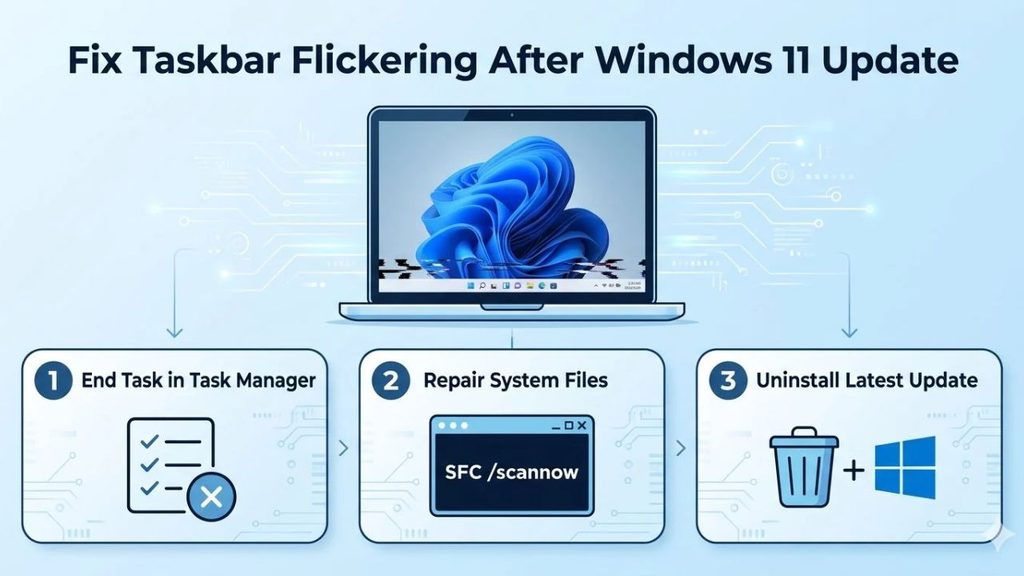
Taskbar flickering after a Windows 11 update can usually be caused by a graphics driver problem, a malfunctioning Windows Explorer process, corrupted system files, or an incompatible application. You can troubleshoot it by restarting Windows Explorer, resetting the graphics driver, rolling back a recent driver update, checking Windows system files, and removing problematic software.
Before trying advanced solutions, restart your computer and check whether the issue disappears.
If it continues, follow the steps below.
1: Restart Windows Explorer
Windows Explorer manages important parts of the Windows desktop interface, including the taskbar, Start menu, and File Explorer. If its process stops responding or encounters an error after an update, you may notice flickering or temporary disappearance of the taskbar.
Restarting Windows Explorer can refresh these components without requiring a complete system restart.
Press Ctrl + Shift + Esc to open Task Manager. If the window opens in a simplified view, select More details.
Under the Processes tab, locate Windows Explorer. Right-click it and select Restart.
Your taskbar and desktop may disappear briefly. Don’t worry, this is normal. Windows Explorer should start again automatically within a few seconds.
Check whether the taskbar is still flickering. If the problem continues, move to the next method.
2: Reset the Graphics Driver
Sometimes, a Windows update can introduce compatibility problems between your graphics driver and the desktop interface. This can cause screen flickering, black flashes, or unusual taskbar behavior.
Windows provides a keyboard shortcut that lets you quickly reset the graphics driver.
Press Windows + Ctrl + Shift + B simultaneously.
Your screen may go black for a moment, and you might hear a short beep. This indicates that Windows is attempting to reset the graphics driver.
Wait a few seconds and check whether the taskbar looks normal.
This shortcut doesn’t uninstall or remove your graphics driver. It simply asks Windows to reset the graphics subsystem.
If the flickering returns, continue with the following methods.
3: Roll Back the Graphics Driver
If the taskbar started flickering immediately after installing a Windows update, your graphics driver may have been updated or become incompatible with the new Windows version.
In this situation, rolling back the display driver can help restore the previous working version.
Press Windows + X and select Device Manager.
Expand the Display adapters section. You’ll see your graphics hardware, such as NVIDIA, AMD, or Intel.
Right-click your graphics adapter and select Properties. Open the Driver tab and look for the Roll Back Driver option.
If the option is available, select it and follow the on-screen instructions. Windows may ask why you’re returning to an earlier driver version. Choose an appropriate reason and continue.
Restart your computer after completing the process.
Check whether the taskbar flickering has stopped.
Note: If the Roll Back Driver option is unavailable or grayed out, Windows doesn’t have an earlier driver available through this option. In that case, check the manufacturer’s website for a compatible driver.
4: Update the Display Driver
An outdated or incompatible graphics driver can cause problems with the Windows desktop, including taskbar flickering.
If rolling back the driver doesn’t help, try installing a newer compatible version.
Open Device Manager and expand Display adapters. Right-click your graphics adapter and select Update driver.
Choose Search automatically for drivers and let Windows check for available drivers.
If Windows doesn’t find a suitable update, visit the official website of your graphics card manufacturer. Download the appropriate driver for your graphics hardware and Windows version.
For example, NVIDIA users can check NVIDIA’s official driver downloads, while AMD and Intel users can use their respective driver support pages.
Install the driver and restart your computer.
After restarting, use Windows normally for a few minutes and see whether the taskbar still flickers.
5: Install Pending Windows Updates
Sometimes, the taskbar flickering issue is caused by a bug in a particular Windows update. Microsoft may release a subsequent cumulative update that addresses the problem.
Open Settings by pressing Windows + I.
Select Windows Update from the left panel and click Check for updates.
Allow Windows to search for available updates. If a newer cumulative update is available, download and install it.
Restart your computer if Windows requests it.
You can also check your installed updates by navigating to Settings > Windows Update > Update history.
Review the recent quality updates and note the installation dates. This can help you identify whether the problem started immediately after a particular update.
If no newer update is available, don’t repeatedly install the same update package. Continue with the next troubleshooting method.
6: Uninstall the Problematic Windows Update
If the flickering started immediately after installing a specific Windows update and other fixes haven’t helped, consider uninstalling that update.
Open Settings > Windows Update > Update history.
Scroll down and select Uninstall updates. Windows will display recently installed updates that can be removed.
Find the update installed just before the flickering began. Check its KB number and installation date before proceeding.
Click Uninstall next to the suspected update, if Windows allows it.
Follow the on-screen instructions and restart your computer.
After restarting, check whether the taskbar works normally.
Keep in mind that not every update can be uninstalled. Some security updates and servicing components have restrictions. Avoid removing unrelated updates simply because they appear in the list.
If uninstalling the update resolves the issue, temporarily pause updates while you investigate whether Microsoft has released a replacement fix. Don’t leave security updates paused longer than necessary.
7: Disable Third-Party Taskbar Customization Applications
Do you use applications that change the appearance or behavior of the Windows 11 taskbar? These programs can sometimes conflict with Windows updates.
Examples include ExplorerPatcher, StartAllBack, and other desktop customization utilities.
If you have installed any of these applications, temporarily disable them and check whether the flickering stops.
You can also uninstall a recently installed customization tool by opening Settings > Apps > Installed apps.
Find the application, select its three-dot menu, and choose Uninstall.
Restart your computer and check the taskbar again.
If the problem disappears, the application may not be compatible with your current Windows version. Check its official website for an updated version before reinstalling it.
8: Run SFC and DISM Commands
Corrupted or missing Windows system files can cause unexpected desktop behavior. To repair these files, you can use two Windows utilities: System File Checker (SFC) and Deployment Image Servicing and Management (DISM).
Press the Start button and search for Command Prompt.
Right-click it and select Run as administrator. Approve the User Account Control prompt if requested.
First, enter the following command:
sfc /scannow
Press Enter and wait until the scan reaches 100%. Windows will check protected system files and attempt to repair any corrupted files it finds.
After the scan finishes, enter the following command:
DISM /Online /Cleanup-Image /RestoreHealth
Press Enter and allow the process to complete. It may take several minutes, so don’t close the Command Prompt window.
Once both operations finish, restart your computer.
Check whether the taskbar flickering has disappeared.
9: Perform a Clean Boot
A third-party application or background service may be interfering with Windows Explorer or the desktop interface.
A clean boot starts Windows with essential Microsoft services while temporarily disabling most third-party startup services. This helps you identify whether another application is responsible for the flickering.
Press Windows + R, type msconfig, and press Enter.
In the System Configuration window, open the Services tab.
Select Hide all Microsoft services first. This is important because disabling essential Microsoft services can cause additional problems.
Click Disable all, then open the Startup tab and select Open Task Manager.
Disable unnecessary startup applications that are currently enabled. Close Task Manager and select OK in the System Configuration window.
Restart your computer.
If the flickering disappears, a third-party service or startup application is likely responsible. Re-enable services and startup applications gradually to identify the one causing the issue.
After troubleshooting, return to System Configuration and restore your normal startup settings.
10: Check for Problems in Safe Mode
If the taskbar continues flickering, try starting Windows in Safe Mode.
Safe Mode loads Windows with a limited set of drivers and services. It can help you determine whether the problem is related to a third-party application or graphics driver.
Open Settings > System > Recovery.
Under Advanced startup, select Restart now. Windows will restart and display the recovery options.
Select Troubleshoot > Advanced options > Startup Settings > Restart.
After your computer restarts, press 4 or F4 to enter Safe Mode.
Check whether the taskbar flickers in this environment.
If the problem disappears in Safe Mode, a third-party application, service, or nonessential driver may be responsible. If it continues, investigate the graphics driver and Windows system components.
Restart your computer normally when you’re finished.
FAQs
1. Why does my Windows 11 taskbar keep flickering after an update?
This can happen because of an incompatible graphics driver, a Windows Explorer problem, corrupted system files, or a third-party application that conflicts with the updated Windows interface.
2. Can restarting Windows Explorer fix taskbar flickering?
Yes. Restarting Windows Explorer can resolve temporary problems with the taskbar and desktop interface. Open Task Manager, locate Windows Explorer, right-click it, and select Restart.
3. Does taskbar flickering mean my graphics card is damaged?
Not necessarily. Software and driver compatibility problems are common causes of flickering. If the problem also occurs outside Windows or appears on multiple displays, consider checking the monitor, cable, and graphics hardware.
4. Should I uninstall the latest Windows 11 update?
Only consider uninstalling an update if the flickering started immediately afterward and other troubleshooting methods haven’t helped. Check the update’s KB number and make sure you’re removing the correct package.
5. How do I stop Windows 11 taskbar flickering permanently?
Identify the underlying cause first. Update or roll back your graphics driver, repair corrupted system files, remove incompatible customization applications, and install a suitable Windows update. The correct fix depends on what’s triggering the flickering.
Summary
The taskbar flickering after a Windows 11 update problem can make everyday computer use frustrating, but it doesn’t necessarily indicate a serious hardware issue.
Start by restarting Windows Explorer and resetting the graphics driver. If that doesn’t help, roll back or update your display driver, install pending Windows updates, and check for incompatible third-party applications.
You can also use SFC and DISM to repair damaged system files or perform a clean boot to identify software conflicts.
If the issue started immediately after a particular Windows update, consider uninstalling that update as a last troubleshooting option.