
The Active Directory Domain Services Is Currently Unavailable: How to Fix It
Have you ever tried to print a document from your Windows computer, only to receive an error message saying “The Active Directory Domain Services Is Currently Unavailable”? This error can be frustrating, especially when you need to print an important document and Windows cannot find or communicate with your printer.
This problem commonly appears when printing through Microsoft Word, Excel, Adobe Acrobat, or other applications. Sometimes, the printer is connected correctly, but Windows cannot recognize it. In other situations, the issue is related to printer permissions, Windows services, outdated drivers, or network connectivity.
In this guide, I’ll explain what this error means and walk you through several methods to resolve it in Windows 11 and Windows 10.
The Active Directory Domain Services Is Currently Unavailable
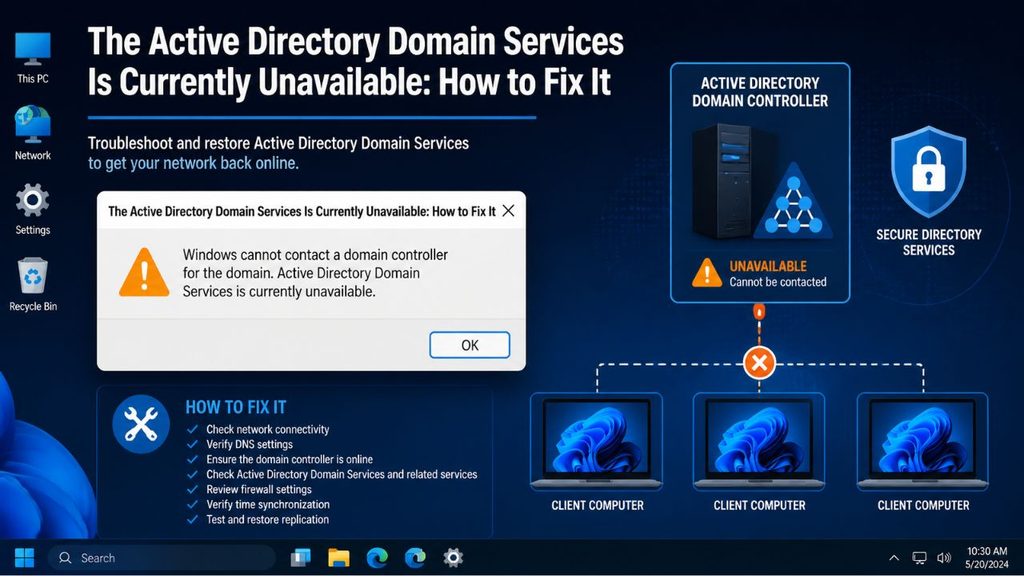
The Active Directory Domain Services Is Currently Unavailable error means Windows cannot access the directory service information it needs to locate or communicate with a printer.
Although the error mentions Active Directory, it doesn’t necessarily mean your computer has a problem with a business domain. It can also occur on a regular home computer when the printer spooler service, printer permissions, driver installation, or Windows printer configuration isn’t working correctly.
For example, you might see this message when selecting a printer from Microsoft Word’s Print menu, even though the printer is switched on and connected to your computer.
To fix “The Active Directory Domain Services Is Currently Unavailable” error, restart the Print Spooler service, check printer permissions, set your printer as the default device, update or reinstall its driver, and run the Windows printer troubleshooter. Also, verify your printer connection and Windows system files if the problem continues.
Let’s go through each solution step by step.
1: Restart the Print Spooler Service
The Print Spooler is a Windows service responsible for managing printing tasks. It temporarily stores print jobs and sends them to your printer.
If this service stops responding, Windows may fail to recognize your printer or display the Active Directory error.
Restarting it is one of the easiest ways to resolve the problem.
- Press Windows + R on your keyboard to open the Run dialog box.
- Type services.msc and press Enter.
- The Windows Services window will appear.
- Scroll down and locate Print Spooler.
- Right-click it and select Restart.
- Wait a few seconds for Windows to restart the service.
If the Restart option is unavailable, select Start instead.
Once finished, reopen the application where you encountered the error and try printing again.
2: Set Your Printer as the Default Printer
Windows sometimes tries to send documents to an incorrect or unavailable printer. Setting your preferred printer as the default can help prevent this issue.
Here’s how to do it in Windows 11:
- Press Windows + I to open Settings.
- Select Bluetooth & devices from the left sidebar.
- Click Printers & scanners.
- Find your preferred printer and select it.
- If the Let Windows manage my default printer option is enabled, turn it off.
- Return to your printer and click Set as default if the option is available.
In Windows 10, open Settings > Devices > Printers & scanners, select your printer, and choose Set as default.
Now try printing a test document. If the error still appears, continue to the next method.
3: Check Printer Permissions
Incorrect printer permissions can prevent Windows from accessing a connected printer. This is particularly common on shared office computers or systems connected to a workplace network.
To check the permissions, follow these instructions:
- Open the Control Panel from the Windows Search box.
- Change the View by option to Large icons.
- Select Devices and Printers.
- Right-click your printer and choose Printer properties.
- Open the Security tab.
- Select your Windows user account or the appropriate user group.
- Check whether the Print permission is allowed.
If the Print permission is denied, contact your system administrator or use an authorized administrator account to correct it.
Avoid changing permissions for system or network groups unless you understand their purpose.
4: Run the Windows Printer Troubleshooter
Windows includes a troubleshooting feature that can identify common printer-related problems.
It can check printing services, printer configuration, and other issues that might prevent your computer from communicating with the device.
For Windows 11:
- Press Windows + I to open Settings.
- Select System.
- Click Troubleshoot.
- Select Other troubleshooters.
- Find Printer and click Run.
- Follow the instructions displayed on your screen.
For Windows 10:
- Open Settings.
- Select Update & Security.
- Click Troubleshoot.
- Select Additional troubleshooters.
- Choose Printer and click Run the troubleshooter.
Allow Windows to complete the diagnosis. If it identifies a problem, follow the recommended instructions to apply the suggested fix.
5: Check the Printer Connection
Sometimes the error appears because Windows cannot communicate with the printer properly.
Before changing any advanced settings, check whether your printer is connected correctly.
- Make sure your printer is powered on.
- If you’re using a USB printer, disconnect its USB cable and reconnect it.
- Try connecting the printer to another USB port on your computer.
- If you’re using a wireless printer, make sure both devices are connected to the same Wi-Fi network.
- Check the printer’s display panel for connection warnings or error messages.
- Restart your printer and computer.
After restarting both devices, open Settings > Bluetooth & devices > Printers & scanners and check whether Windows recognizes your printer.
If the printer still isn’t detected, try removing and adding it again.
6: Update or Reinstall the Printer Driver
An outdated, corrupted, or incompatible printer driver can prevent Windows from communicating with your printer.
A printer driver is software that allows Windows and your printer to communicate with each other.
Follow these steps to update it:
- Right-click the Start button.
- Select Device Manager.
- Expand the Printers or Print queues section.
- Right-click your printer.
- Select Update driver.
- Choose Search automatically for drivers.
- Follow the instructions if Windows finds an available update.
If updating doesn’t resolve the issue, you can reinstall the driver.
Right-click your printer in Device Manager, select Uninstall device, and confirm the action. Restart your computer afterward.
Windows may reinstall the driver automatically. If it doesn’t, download the correct driver from your printer manufacturer’s official website. Make sure you select the driver that matches your printer model and Windows version.
7: Remove and Reinstall Your Printer
If Windows still displays the Active Directory error, your existing printer configuration might be corrupted.
Removing and reinstalling the printer gives Windows an opportunity to create a fresh connection.
- Press Windows + I to open Settings.
- Select Bluetooth & devices.
- Click Printers & scanners.
- Select the printer that’s causing the problem.
- Click Remove.
- Confirm that you want to remove the device.
- Restart your computer.
- Return to Printers & scanners.
- Click Add device next to Add a printer or scanner.
- Wait for Windows to detect your printer and follow the installation instructions.
Once the installation is complete, print a test page to check whether the problem has been resolved.
8: Clear the Print Queue
Sometimes, an incomplete or corrupted print job prevents Windows from processing new documents.
Clearing the print queue can help restore normal printing.
- Open Settings.
- Navigate to Bluetooth & devices > Printers & scanners.
- Select your printer.
- Click Open print queue.
- Right-click each pending document and select Cancel.
- Close the window and try printing again.
If the documents refuse to disappear, you can manually clear the spool folder.
Press Windows + R, enter services.msc, and press Enter. Find Print Spooler, right-click it, and select Stop.
Next, open File Explorer and navigate to:
C:\Windows\System32\spool\PRINTERS
Delete the files inside this folder, but do not delete the folder itself.
Return to Services, right-click Print Spooler, and select Start.
Important: You may need administrator permission to access or clear this folder. Clearing it removes pending print jobs.
9: Restart Your Computer and Check for Windows Updates
Temporary Windows glitches can sometimes interfere with printer communication.
Restarting your computer can refresh the printing services and reload the connected printer.
If the issue continues, check for available Windows updates.
- Press Windows + I.
- Select Windows Update.
- Click Check for updates.
- Allow Windows to search for available updates.
- Install applicable updates and restart your computer.
After restarting, open your printer settings and try printing again.
Keep in mind that Windows updates don’t always contain printer driver updates. If the problem started immediately after a driver or Windows update, check the printer manufacturer’s support page for a compatible driver.
10: Check Shared Printer and Network Settings
If you’re using a printer shared by another computer or connected to an office network, the problem might be related to network access.
First, make sure the computer sharing the printer is turned on and connected to the network.
Next, verify that your computer and the shared printer are using the correct network.
If your organization uses an Active Directory domain, contact your IT administrator to check domain connectivity, printer permissions, and applicable Group Policy settings.
Don’t change domain security policies or network permissions without authorization. These settings can affect other users and connected devices.
Frequently Asked Questions
1. What does Active Directory Domain Services is currently unavailable mean?
It means Windows cannot access the printer or the directory information required to locate it. The issue may be related to printer drivers, Windows services, permissions, or network connectivity.
2. How do I fix Active Directory Domain Services is currently unavailable in Windows 11?
Start by restarting the Print Spooler service. Then set your printer as the default device, check its connection, update the printer driver, and run the Windows printer troubleshooter.
3. Why does my printer work in Windows but not in Microsoft Word?
This can happen when Word selects an incorrect printer, uses incompatible print settings, or encounters an application-related problem. Open Word’s Print menu and verify that your correct printer is selected. You can also try printing from Notepad to determine whether the problem is limited to Word.
4. Can I fix this error without reinstalling my printer?
Yes. In many cases, restarting the Print Spooler service, checking printer permissions, and setting the correct default printer can resolve the issue without reinstalling anything.
5. Does this error mean my Active Directory server is down?
Not necessarily. On a regular home computer, this message can appear because of local printer configuration or Windows printing problems. However, if you’re using a workplace domain network, an unavailable domain controller or network-related issue could be responsible.
6. Why does Windows keep showing this printer error?
Repeated errors can indicate a damaged printer driver, stuck print jobs, incorrect permissions, or a Print Spooler service that keeps stopping. Check these components individually to identify the underlying cause.
Summary
The Active Directory Domain Services Is Currently Unavailable error can prevent Windows 11 and Windows 10 users from accessing their printers or printing documents.
Fortunately, you can resolve many printer-related issues without reinstalling Windows or replacing your printer.
I recommend starting with the Print Spooler service, checking your default printer settings, and verifying printer permissions. If those solutions don’t work, update the printer driver, clear the print queue, or remove and reinstall the printer.
If you’re using a shared office printer, also check your network connection and contact your IT administrator if domain permissions are involved.
Hopefully, one of these methods helps you get your printer working again!