
Transfer Disk Space from D Drive to C Drive in Windows
Transferring disk space from the D drive to the C drive is an effective way to solve low storage problems without replacing your hard drive. The process involves checking your partition layout, shrinking the D drive, creating unallocated space, and extending the C drive.
If the built-in Disk Management tool cannot complete the task because of partition limitations, a trusted partition management application can help move partitions and finish the process safely.
This guide explains every step in a beginner-friendly way so you can increase the size of your C drive without losing your important files.
Transfer Disk Space from D Drive to C Drive in Windows
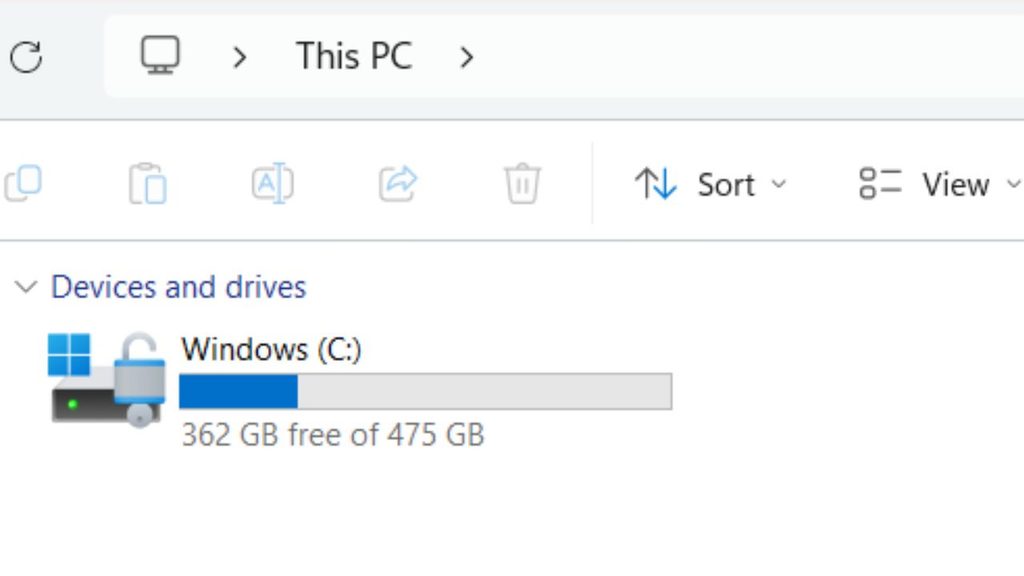
Transferring disk space from the D drive to the C drive means shrinking the D partition to create unallocated space and then extending the C partition into that newly available space. Before making any changes, it is important to understand how your partitions are arranged because Windows can only extend the C drive under certain conditions. The following steps explain the entire process from preparation to verification.
Step 1: Check the Current Partition Layout
Before changing any partition sizes, you should first examine how your hard drive is organized. This helps you determine whether the built-in Windows tools can complete the task or whether you will need third-party software.
Open Disk Management by pressing Windows + X and selecting Disk Management. You can also search for Create and format hard disk partitions from the Start menu.
After Disk Management opens, look for your primary disk. You will usually see the C drive, D drive, and possibly one or more Recovery or EFI System Partitions. Pay close attention to the order of these partitions because it determines whether Windows can extend the C drive after shrinking the D drive.
If the D drive is located immediately next to the C drive without another partition between them, the process is usually easier. If another partition exists between the two, Windows may not allow the C drive to be extended using Disk Management.
Taking a minute to understand your partition layout can prevent confusion later in the process.
Step 2: Back Up Important Files
Although resizing partitions is generally safe, any operation involving disk partitions carries a small risk. A power failure, unexpected shutdown, or hardware problem could result in data loss.
Copy your important documents, family photos, work files, videos, and other valuable data to an external hard drive, USB drive, or a trusted cloud storage service. Make sure the backup has completed successfully before proceeding.
You should also close all running programs before modifying partitions. This reduces the chance of file access conflicts during the resizing process.
Having a backup provides peace of mind and ensures that your important files remain protected even if something unexpected happens.
Step 3: Shrink the D Drive
The next step is to reduce the size of the D drive. This creates unallocated space, which can later be assigned to the C drive.
In Disk Management, right click the D drive and choose Shrink Volume.
Windows will calculate how much space can safely be removed from the partition. After the calculation finishes, enter the amount of space you want to transfer to the C drive. For example, if you want to move 50 GB, enter approximately 51200 MB because Disk Management measures storage in megabytes.
Click Shrink to begin the process.
After a few moments, you should see a section labeled Unallocated beside the D partition. This means the selected storage is no longer assigned to any drive and is ready for use.
Do not create a new partition from this unallocated space because it needs to remain unallocated if you plan to extend the C drive.
Step 4: Extend the C Drive Using Disk Management
If the newly created unallocated space is located immediately after the C drive, you can extend the C partition using Windows.
Right click the C drive and select Extend Volume.
The Extend Volume Wizard will open. Continue through the wizard and select all available unallocated space unless you want to add only part of it to the C drive.
Complete the wizard and wait for Windows to finish the process.
Once completed, the size of the C drive will increase, and the available storage shown in File Explorer will reflect the new capacity.
If the Extend Volume option is unavailable or appears in gray, do not worry. This usually happens because another partition exists between the C drive and the unallocated space.
Step 5: Use a Partition Manager if Extend Volume Is Unavailable
Many Windows users discover that the Extend Volume option is disabled. This is one of the most common issues when transferring disk space between partitions.
Windows requires the unallocated space to be directly next to the C drive. If a Recovery Partition or another partition sits between them, Disk Management cannot move partitions.
In this situation, you can use a trusted partition management software such as MiniTool Partition Wizard, AOMEI Partition Assistant, or EaseUS Partition Master.
These applications allow you to move partitions before extending the C drive. The general process involves moving the partition that blocks the unallocated space, placing the free space directly beside the C drive, and then extending the C partition.
Most partition managers provide a visual interface, making the process easier for beginners. They also preview the changes before applying them, allowing you to review everything carefully.
During this process, avoid turning off your computer. Some operations may require a restart, and Windows will complete the partition changes before the operating system loads.
Step 6: Confirm That the C Drive Has Increased
After the partition changes are complete, you should verify that the operation succeeded.
Open File Explorer and select This PC.
Locate the Local Disk (C:) and check its total capacity and available free space.
You can also return to Disk Management to confirm that the C partition now occupies more storage than before.
If the new size appears correctly, the transfer has been completed successfully.
You can now install additional applications, download files, and perform Windows updates without worrying about low storage space.
Step 7: Clean Up the C Drive for Even Better Performance
After increasing the size of the C drive, it is a good idea to remove unnecessary files.
Open Storage Settings by going to Settings, System, and Storage.
Run Storage Sense or Disk Cleanup to remove temporary files, Windows update files, cached data, and items in the Recycle Bin.
You should also uninstall programs you no longer use and move large personal files such as videos, music, and photos to the D drive whenever possible.
Keeping the C drive clean helps Windows maintain good performance and reduces the chances of running into storage problems again.
Common Situations Where You Cannot Transfer Space
Many beginners expect the process to work immediately, but there are situations where Windows cannot transfer storage directly.
If the Extend Volume option is unavailable, another partition is probably blocking the unallocated space.
If the D drive does not have enough free storage, you will not be able to shrink it by the amount you want.
If important files are stored near the end of the D partition, Windows may limit how much space can be shrunk.
If your drive uses unusual partition configurations, professional partition software may be required to rearrange the partitions safely.
Understanding these limitations helps you choose the correct solution instead of repeatedly trying the same method.
FAQs
Can I transfer space from the D drive to the C drive without deleting files?
Yes. In most cases, shrinking the D partition does not delete your files. However, creating a backup before resizing partitions is always recommended.
Does Windows have a built in tool for transferring disk space?
Yes. Disk Management allows you to shrink and extend partitions. However, it cannot move partitions, so it has certain limitations.
Why is the Extend Volume option grayed out?
This usually happens because the unallocated space is not directly next to the C drive. Windows cannot extend a partition unless the free space is adjacent to it.
Will transferring disk space make my computer faster?
Increasing the size of the C drive can improve system performance if low storage was causing Windows to slow down. It also helps Windows install updates more smoothly.
Is it safe to use partition management software?
Yes. Reputable partition management tools are widely used and generally safe when used correctly. Always back up your important data before making partition changes.
Can I move space back from the C drive to the D drive later?
Yes. You can shrink the C partition and extend the D partition later using the same principles, provided the partition layout allows it.