
Turn on the LED Light on Your Laptop
Have you ever wondered how to turn on the LED light on your laptop? Maybe your laptop has a backlit keyboard, a small indicator light, or a camera light that you want to activate. The process depends on which LED light you’re talking about and the laptop brand you use.
Some laptops have keyboard backlighting that makes it easier to type in a dark room. Others have indicator lights that show whether the laptop is charging, powered on, or using certain hardware features. Gaming laptops may also include customizable RGB lighting that you can control through dedicated software.
In most cases, you can turn on the light using a keyboard shortcut, Windows settings, or your laptop manufacturer’s software. However, not every laptop includes a backlit keyboard or customizable lighting.
In this guide, you’ll learn how to turn on different laptop LED lights step by step, along with what to do if the light doesn’t work.
Turn On LED Light on Laptop [Complete Guide]
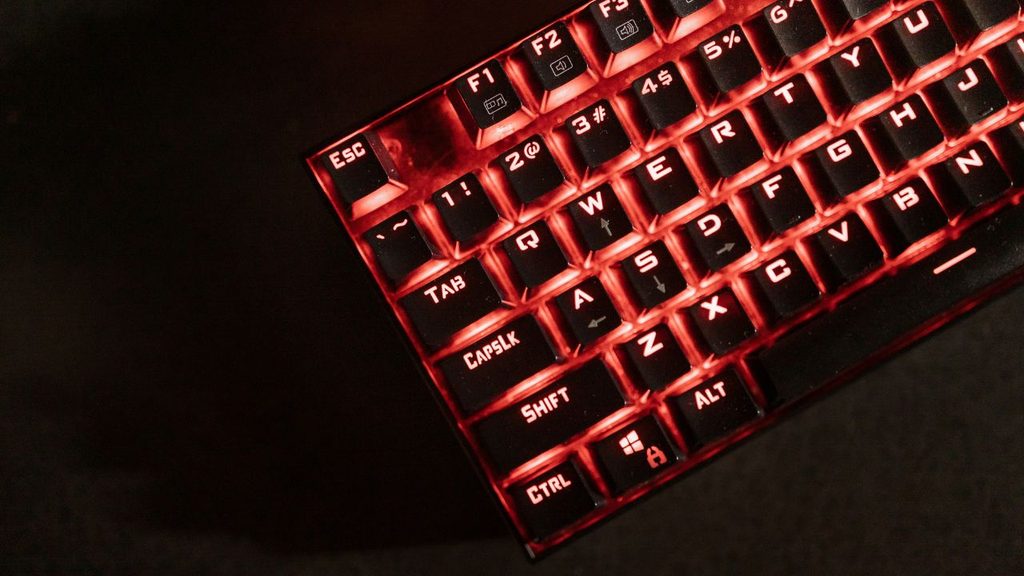
To turn on the LED light on your laptop, first identify the type of light you want to activate. For a backlit keyboard, look for a keyboard key with a backlight symbol and press it, sometimes together with the Fn key. For RGB lighting, check your laptop manufacturer’s control software. If the light doesn’t turn on, check the keyboard settings, drivers, and hardware specifications.
Follow the steps below to find the right method for your laptop.
Step 1: Check Whether Your Laptop Supports LED Lighting
Before changing any settings, confirm that your laptop actually supports the type of LED lighting you want to use. Not every laptop has a backlit keyboard, and a standard keyboard cannot be made to light up through software alone.
Start by checking your keyboard. Look for a key with a small keyboard, light rays, or illumination symbol. Depending on the manufacturer, this key may be located among the function keys at the top of your keyboard.
You can also check your laptop’s product specifications on the manufacturer’s official website. Search for your exact laptop model and look for terms such as backlit keyboard, RGB keyboard, or keyboard illumination.
If your laptop doesn’t support keyboard backlighting, the shortcut methods in this guide won’t turn on the keys. However, you can still use an external USB keyboard with backlighting if you need to type in a dark environment.
Step 2: Turn On the Keyboard LED Using a Shortcut Key
The quickest way to turn on your laptop’s keyboard light is usually through a dedicated keyboard shortcut.
Look across the function keys, typically labeled F1 through F12. Check for a symbol resembling a glowing keyboard or a keyboard with rays of light. The exact key varies by laptop brand and model.
If you find the symbol, press that key once. On some laptops, you may need to hold down Fn while pressing the corresponding function key. For example, if the backlight symbol appears on F5, try Fn + F5.
Press the shortcut again if necessary to cycle through the available brightness levels. Some laptops offer multiple settings, such as low brightness, high brightness, and off.
If nothing happens, try the alternative combination specified in your laptop’s user manual. Avoid assuming that the same shortcut works on every laptop, even when two models come from the same manufacturer.
Step 3: Turn On the Keyboard Light on a Dell Laptop
If you’re using a Dell laptop, the keyboard backlight shortcut depends on the model.
Look for a backlight symbol on one of the function keys. On some Dell models, the shortcut is F5, F6, F10, or another key. Certain models use Fn together with the relevant function key.
Press the identified shortcut and check whether the keyboard lights up. If the keyboard has multiple brightness levels, press the shortcut repeatedly to switch between them.
If the shortcut doesn’t work, check your model’s documentation or visit Dell’s official support website. Enter your laptop’s service tag or model information to find the correct instructions.
Some Dell laptops also offer keyboard illumination options through the BIOS or UEFI settings. If your model supports these settings, restart the laptop and enter the BIOS using the key shown during startup or in the manufacturer’s instructions.
Look for a setting related to Keyboard Illumination and check whether the backlight is enabled. The available options vary by model, so avoid changing unrelated BIOS settings.
Step 4: Turn On the Keyboard Light on an HP Laptop
HP laptops use different keyboard shortcuts depending on the model. Commonly used keys include F4, F5, or another function key marked with a keyboard illumination symbol.
Find the key with the backlight symbol and press it. If necessary, hold Fn while pressing the key. Check whether the keyboard lighting turns on or changes brightness.
If the shortcut doesn’t work, consult your laptop’s user guide or search for your exact model on HP’s official support website.
Some HP models provide additional keyboard settings through the BIOS. If your laptop includes a keyboard backlight timeout option, you may be able to adjust how long the light stays on when you’re not typing.
Keep in mind that not every HP laptop has a backlit keyboard. If your model doesn’t include the required hardware, changing Windows settings won’t add this feature.
Step 5: Turn On the Keyboard Light on a Lenovo Laptop
Lenovo laptops, including many ThinkPad and IdeaPad models, may use Fn + Spacebar to control keyboard backlighting.
First, check whether your Spacebar or another key has a keyboard illumination symbol. If it does, press Fn + Spacebar and see whether the light turns on.
On supported models, pressing the shortcut repeatedly may cycle through different lighting levels or switch the backlight off. The available modes depend on your specific laptop.
If this shortcut doesn’t work, look up your model’s keyboard shortcut in the Lenovo user guide. You can also check Lenovo’s official support software for relevant device settings.
Remember that not all Lenovo laptops include keyboard backlighting. Confirm the feature is listed in your laptop’s specifications before spending time troubleshooting it.
Step 6: Use Your Laptop Manufacturer’s Software
Some laptops let you control keyboard lighting through dedicated software rather than a keyboard shortcut alone.
For example, compatible ASUS laptops may use Armoury Crate or MyASUS, while supported Lenovo gaming laptops may use Lenovo Vantage. Certain HP and Dell models also offer manufacturer-specific settings.
Open the Start menu and search for your laptop manufacturer’s installed control application. Launch it and look for a section related to Keyboard, Lighting, Device Settings, or RGB.
If your laptop supports adjustable lighting, you may be able to turn the light on, change its brightness, or select a color effect.
For gaming laptops, the software may also allow you to customize individual lighting zones or synchronize the keyboard with other compatible devices.
If the application is missing, check your manufacturer’s official website for software compatible with your exact model. Don’t install random lighting utilities from unfamiliar websites.
Step 7: Enable Keyboard Lighting in BIOS or UEFI
If your laptop supports a keyboard backlight but the shortcut doesn’t work, check whether the feature is disabled in the BIOS or UEFI settings.
Save your work and restart your laptop. During startup, press the BIOS access key specified by your manufacturer. Common keys include F2, F10, or Delete, although the correct key varies.
Once inside the BIOS or UEFI interface, look for settings named Keyboard Backlight, Keyboard Illumination, or something similar. These options may appear under Advanced, Configuration, or another menu.
If you find a relevant setting, enable it or select the desired illumination level. Follow the on-screen instructions to save your changes and exit.
Be careful not to change unrelated settings. If you cannot find a keyboard lighting option, your laptop may not offer one through the BIOS, or the feature may be controlled elsewhere.
Step 8: Update or Reinstall the Relevant Drivers and Software
A missing or outdated driver, firmware component, or manufacturer control application can sometimes prevent keyboard lighting shortcuts from working correctly.
Open Settings > Windows Update and check for available updates. Install relevant updates and restart your laptop.
Next, visit the official support website for your laptop manufacturer. Search using your exact model number and check whether a keyboard hotkey utility, system interface driver, or firmware update is recommended.
Install only software intended for your model and operating system. Follow the manufacturer’s instructions, especially when installing firmware updates.
If the keyboard light still doesn’t work, open Device Manager by right-clicking the Start button and selecting it. Check for warning symbols beside relevant devices, such as keyboard or system interface entries.
Don’t uninstall random devices or download third-party driver packages without a clear reason. If the laptop previously had working keyboard lighting and it stopped after an update, the manufacturer’s support instructions are a better place to start.
Step 9: Turn On Other Laptop LED Indicators
If you’re referring to a power, charging, or camera LED rather than keyboard lighting, the process is different.
A charging LED usually turns on automatically when the laptop is connected to a compatible charger. Its color or blinking pattern can indicate charging status, low battery, or another hardware condition. Check your manufacturer’s documentation to understand the meaning of the light.
A power indicator LED generally turns on when the laptop is powered on or in a particular power state. You normally don’t need to enable it manually.
A webcam indicator light on many laptops turns on when the camera is active. This light is often designed as a privacy indicator and cannot be controlled independently. Don’t try to force it on if the camera isn’t in use.
If a particular indicator remains off or blinks unexpectedly, consult the laptop’s manual before assuming the light is faulty. Different manufacturers use different indicator patterns.
FAQs
1. How do I know whether my laptop has a backlit keyboard?
Look for a keyboard illumination symbol on the function keys and check your laptop’s specifications on the manufacturer’s official website. The specifications should confirm whether keyboard backlighting is included.
2. Why won’t my laptop keyboard light turn on?
The laptop may not support a backlit keyboard, the wrong shortcut may be in use, or the lighting feature may be disabled. Check the correct keyboard shortcut, manufacturer software, BIOS settings, and official driver updates.
3. Can I turn on my laptop keyboard light through Windows settings?
Some laptop models provide lighting controls through manufacturer software or device settings. However, Windows does not offer one universal keyboard backlight switch that works on every laptop.
4. Can I change the color of my laptop keyboard LED?
Only if your laptop supports adjustable RGB lighting or multiple keyboard colors. Some models offer brightness control only, while others allow color changes through dedicated software.
5. How do I keep my laptop keyboard light on?
Check whether your laptop’s manufacturer software or BIOS includes a keyboard backlight timeout setting. Some models automatically turn off the light after a period of inactivity, and others don’t allow the timeout to be changed.
6. Can I add an LED backlight to a laptop without one?
You generally cannot enable an internal keyboard backlight through software if the necessary hardware is missing. A backlit external USB keyboard is a practical alternative.
Summary
Turning on an LED light on your laptop depends on the type of light and the features your device supports. For a backlit keyboard, start by checking the function keys and trying the correct keyboard shortcut. If that doesn’t work, look at your manufacturer’s software, BIOS settings, and official support resources.
If you want to control RGB lighting, use compatible manufacturer software. For charging, power, and webcam indicators, remember that these lights usually operate automatically according to the laptop’s current state.
The most important step is to identify your exact laptop model and confirm which lighting features it supports.