
Update to Windows 11 Version 26H2 Manually [Guide]
Want to upgrade your PC to Windows 11 version 26H2 without waiting for Windows Update to offer it automatically? Microsoft provides several ways to install Windows feature updates manually, including the Windows 11 Installation Assistant, official installation media, and Windows Update settings.
However, before starting, it’s important to check whether version 26H2 is officially available for your device. Windows feature updates are rolled out gradually, and Microsoft may temporarily hold an update on certain PCs because of driver, hardware, or software compatibility issues.
In this guide, you’ll learn how to check your current Windows version, prepare your PC, download the official installation files, and install Windows 11 version 26H2 manually.
I’ll also explain what to do if the update fails or doesn’t appear.
So let’s learn in detail!
Update to Windows 11 Version 26H2 Manually [Complete Guide]
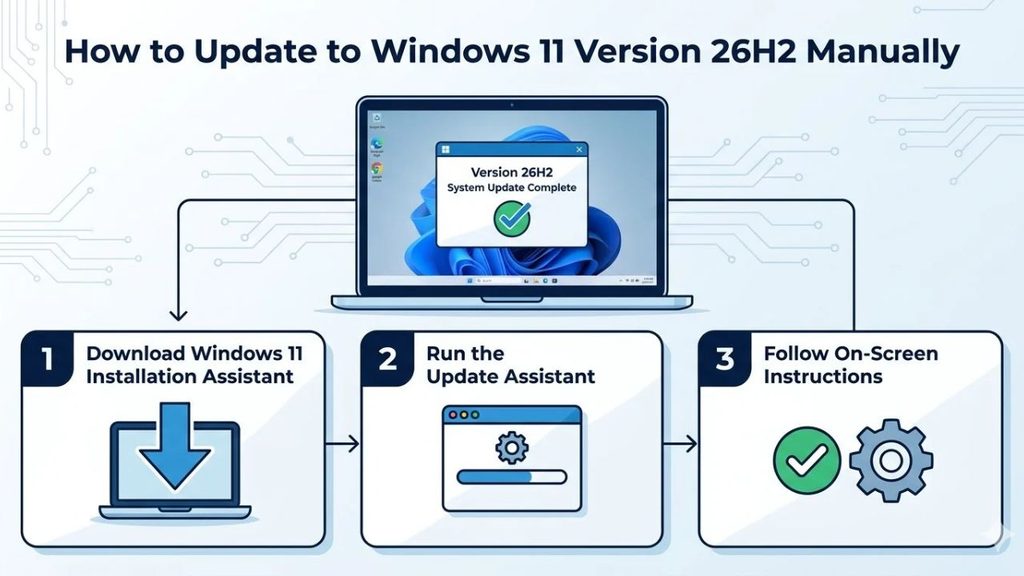
To manually update to Windows 11 version 26H2, open Microsoft’s official Windows 11 Download page, download the Windows 11 Installation Assistant or installation media, and follow the on-screen instructions.
If you’re already running Windows 11 version 24H2 or 25H2, you can also install the 26H2 enablement package through Windows Update or the Microsoft Update Catalog.
1: Check Your Current Windows Version
Before downloading Windows 11 version 26H2, check which Windows version is currently installed on your PC. This is important because the installation method and requirements can vary depending on your existing version.
Press Windows + R to open the Run dialog box. Type winver and press Enter.
A small About Windows window will appear. Look for the Version and OS Build information.
If you’re running Windows 11 version 24H2 or 25H2, you can generally upgrade through the smaller enablement package.
If you’re using an older Windows 11 release or Windows 10, you may need the Installation Assistant or full installation media.
Microsoft confirms that version 26H2 is generally available for eligible devices.
2: Check Whether Your PC Supports Windows 11 Version 26H2
Before starting the upgrade, make sure your computer meets Windows 11’s hardware requirements.
Microsoft requires a compatible 64-bit processor, at least 4 GB of RAM, 64 GB of storage, UEFI firmware with Secure Boot capability, and TPM 2.0. A compatible graphics adapter and a display supporting at least 720p resolution are also required.
To check your TPM status, press Windows + R, type tpm.msc, and press Enter.
Look for The TPM is ready for use and check whether the Specification Version is 2.0.
Next, open Settings > System > About to check your processor and installed RAM.
You can also use Microsoft’s PC Health Check application to check whether your computer meets the Windows 11 requirements.
If your PC is incompatible, don’t immediately try registry modifications or unofficial installation tools.
These workarounds can create compatibility, stability, and update problems.
3: Back Up Your Important Files
Before installing a major Windows update, create a backup of your important files. Although the upgrade process is designed to preserve your personal files and applications when you choose the appropriate option, unexpected installation problems can still occur.
Open File Explorer and locate important folders such as Documents, Pictures, Desktop, and Downloads.
Copy important files to an external hard drive, USB drive, or another secure storage location.
You can also use OneDrive if you have enough available cloud storage.
Make sure your backup is complete before continuing. If you use specialized applications, keep their installation files and license information handy.
It’s also a good idea to connect your laptop to its charger and ensure your desktop PC has a reliable power supply throughout the installation.
4: Download Windows 11 Version 26H2 Using the Installation Assistant
Recommended for a direct upgrade
The Windows 11 Installation Assistant is one of the easiest ways to upgrade your existing computer to the latest Windows release.
Open Microsoft’s official Download Windows 11 page.
Find the Windows 11 Installation Assistant section and click Download Now.
Once the download finishes, open the downloaded installation assistant file. If Windows displays a User Account Control prompt, select Yes.
The application will check your computer’s compatibility and guide you through the upgrade process.
If your computer is eligible, follow the instructions to download and install Windows 11 version 26H2.
The installation assistant may ask you to restart your PC. Save your work and allow the computer to complete the installation.
One important detail: Microsoft’s Installation Assistant supports x64 processors, not ARM-based PCs.
If you have an ARM-based device, use the appropriate Windows installation method instead.
5: Download the Windows 11 26H2 ISO File
If you prefer using an ISO file, Microsoft also provides official Windows 11 installation media.
Visit the same Microsoft Windows 11 Download page.
Scroll down to the Download Windows 11 Disk Image (ISO) for x64 devices section.
Select Windows 11 from the available download options and click Download Now.
Choose your preferred language and confirm the selection. Click the download button to save the ISO file.
Make sure you have enough free storage space before downloading the installation image.
Once downloaded, locate the ISO file in File Explorer. Right-click it and select Mount.
Windows will create a virtual DVD drive containing the installation files.
Open that drive and double-click setup.exe to start the Windows installation process.
Follow the on-screen instructions and carefully review the option to keep your personal files and apps.
Do not format your Windows drive or delete existing partitions when your goal is an in-place upgrade.
6: Install Windows 11 Version 26H2 Using the Enablement Package
If you’re already running Windows 11 version 24H2 or 25H2, there’s another convenient option.
Microsoft delivers version 26H2 through an Enablement Package (eKB) for eligible systems. This package activates features that are already delivered through the shared servicing foundation, making the upgrade relatively quick.
First, make sure your Windows installation has the required prerequisite update, KB5124010, or a later cumulative update.
Open Settings > Windows Update and install all available updates.
You can also download the relevant enablement package through the official Microsoft Update Catalog.
Search for KB5121794, the feature update package for Windows 11 version 26H2.
Check the package details carefully and select the version that matches your device.
Download the package and open the downloaded update file. Follow the installation instructions.
Restart your computer when prompted.
After restarting, Windows should activate version 26H2 if your device meets the requirements and the package applies to your installation.
7: Install Windows 11 Version 26H2 Using a Bootable USB Drive
If you want to install Windows 11 version 26H2 on another computer or perform a clean installation, you can create a bootable USB drive.
You’ll need a USB drive with at least 8 GB of storage. Keep in mind that creating installation media will erase its existing contents.
Visit Microsoft’s official Windows 11 Download page and find the Create Windows 11 Installation Media section.
Download the Media Creation Tool and run it.
Accept the license terms, choose the recommended language and edition, and select USB flash drive when asked which media you want to use.
Choose your USB drive and allow the tool to download Windows installation files and prepare the bootable media.
Once the process finishes, connect the USB drive to the computer where you want to install Windows.
Restart the computer and open its boot menu. The required key varies by manufacturer, but common options include F12, F9, F11, and Esc.
Select your USB drive to start Windows Setup.
Choose your language and keyboard preferences, then follow the installation instructions.
Be careful when selecting installation partitions. A clean installation can erase existing files, applications, and settings. Back up everything important before proceeding.
Verify That Windows 11 Version 26H2 Is Installed
Once the installation finishes, check whether your computer successfully upgraded to version 26H2.
Press Windows + R, type winver, and press Enter.
The About Windows window should display:
Version: 26H2
You can also open Settings > System > About to review your Windows specifications.
Check the Windows edition, version, and OS build.
Next, open Settings > Windows Update and select Check for updates.
Install any available cumulative security updates and driver updates that are appropriate for your device.
Microsoft’s release information lists version 26H2 under OS build 26300. The exact build number may increase as Microsoft releases monthly updates.
Windows 11 Version 26H2 Installation Issue
Sometimes the upgrade may fail, remain stuck, or display an error message. Don’t immediately repeat the entire installation process.
First, check your available storage space and internet connection. Make sure your computer has enough room to download and install the update.
If Windows Update doesn’t offer version 26H2, check whether your current Windows version is eligible and whether Microsoft has placed a compatibility hold on your device.
You can review Microsoft’s Windows 11 26H2 release health page to check known problems and compatibility restrictions.
If the installation fails, note the displayed error code. You can also open Settings > Windows Update > Update history to identify the failed update.
Run the Windows Update troubleshooter if you’re installing through Windows Update.
If necessary, repair system files using the following commands in an administrator Command Prompt:
sfc /scannow
DISM /Online /Cleanup-Image /RestoreHealth
Restart your PC and try again.
If Microsoft has placed a safeguard hold on your device, wait until the compatibility issue is resolved rather than forcing the upgrade with unofficial tools.
FAQs
1. Is Windows 11 version 26H2 available?
Yes. Microsoft announced the general availability of Windows 11 version 26H2 on September 29, 2026. It is also known as the Windows 11 2026 Update.
2. Can I upgrade to Windows 11 version 26H2 manually?
Yes. You can use Microsoft’s Installation Assistant, official ISO installation media, a bootable USB drive, or the enablement package if you’re running an eligible Windows 11 version.
3. Is Windows 11 version 26H2 a free upgrade?
Yes. Eligible Windows 11 devices with a valid Windows license can receive the feature update without purchasing another Windows license. Your device must meet the applicable requirements.
4. How long does it take to install Windows 11 version 26H2?
The installation time depends on your current Windows version, internet speed, storage device, and computer hardware. Devices running Windows 11 24H2 or 25H2 may receive a relatively quick enablement-package installation, while a full upgrade can take considerably longer.
5. Can I upgrade from Windows 10 directly to Windows 11 version 26H2?
Yes, if your computer meets Windows 11 hardware requirements. You can use Microsoft’s Installation Assistant or compatible installation media. Make sure you back up your files before upgrading.
6. Can I go back to my previous Windows version after installing 26H2?
Windows generally provides a limited rollback period, commonly 10 days, after a feature upgrade. Open Settings > System > Recovery and check whether the Go back option is available. The option may disappear after the rollback files are removed.
Summary
Updating to Windows 11 version 26H2 manually is straightforward when you use Microsoft’s official installation methods.
If you’re already running Windows 11 version 24H2 or 25H2, the enablement package is a convenient option. If you’re using an older Windows version, consider the Installation Assistant or official ISO installation media.
Before upgrading, check hardware compatibility, back up your important files, and review Microsoft’s release health information.
Once the installation finishes, verify version 26H2 using the winver command and install the latest available updates.