
USB Audio Interface Error Code 10 in Windows 11/10
If your USB audio interface is showing Error Code 10 in Windows 11 or Windows 10, try these quick fixes:
- Disconnect and reconnect your USB audio interface.
- Restart your computer and reconnect the device.
- Update or reinstall the audio interface driver.
- Install the latest driver from the manufacturer’s website.
- Try a different USB port or USB cable.
- Disable USB power-saving settings.
- Update Windows and check for optional driver updates.
- Test the audio interface on another computer.
USB Audio Interface Error Code 10 [Deatiled Fixes]
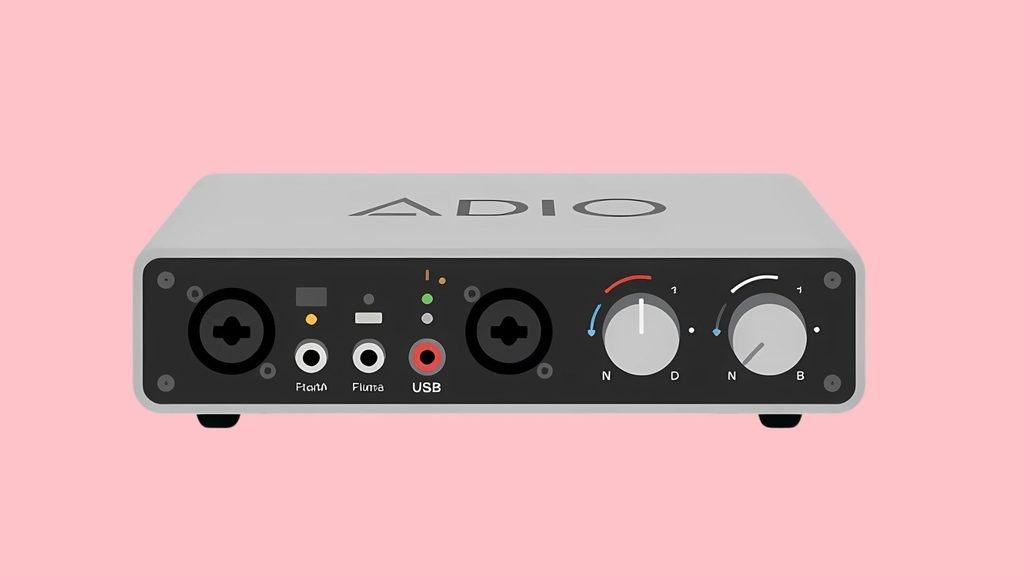
If Device Manager displays This device cannot start (Code 10), Windows has detected the connected hardware but cannot start it properly.
This error commonly appears because of an outdated, corrupted, incompatible, or incorrectly installed driver. It can also happen when Windows has trouble communicating with the USB device, particularly after a system update.
Audio interfaces from manufacturers such as Focusrite, PreSonus, Behringer, and Steinberg can experience similar problems.
Let’s go through the solutions one at a time.
Step 1: Disconnect and Reconnect Your USB Audio Interface
Before changing any drivers or Windows settings, start with the USB connection. A loose cable, unstable USB port, or temporary communication problem can prevent Windows from starting your audio interface.
First, close any recording or audio-editing applications, such as Audacity, FL Studio, Ableton Live, or Adobe Audition.
Now, disconnect the USB cable from your computer and turn off your audio interface if it has a power switch. Wait approximately 30 seconds before reconnecting it.
Connect the interface directly to your computer rather than using a USB hub or docking station. If possible, use the original USB cable that came with your device.
Turn on the interface and check whether Windows recognizes it.
If Error Code 10 still appears, move on to the next solution.
Step 2: Restart Your Computer
Sometimes, Windows cannot properly initialize a USB audio device because of a temporary driver or system-related issue.
A restart can clear these temporary problems and allow Windows to load the audio interface driver again.
Save your open files and close any running applications. Click the Start button, select Power, and choose Restart.
Once Windows loads, connect your USB audio interface and give it a few seconds to initialize.
Open Device Manager and check whether the yellow warning symbol has disappeared.
If the device starts normally, open your recording software and test the microphone or audio output.
Step 3: Update the USB Audio Interface Driver
An outdated or incompatible driver is one of the most common reasons behind Code 10.
Windows needs the correct driver to communicate with your audio interface. Updating it can resolve compatibility problems and restore normal operation.
Here’s how to do it.
Step 1: Press Windows + X on your keyboard and select Device Manager.
Step 2: Expand the Sound, video and game controllers section.
Step 3: Find your USB audio interface in the device list.
Step 4: Right-click its name and select Update driver.
Step 5: Choose Search automatically for drivers.
Allow Windows to check for an available driver. If it finds one, follow the on-screen instructions to install it.
Restart your computer after the installation and check whether the error is resolved.
If Windows reports that the best driver is already installed, don’t assume that you have the manufacturer’s latest driver. Try the next solution.
Step 4: Download and Install the Latest Manufacturer Driver
Windows Update doesn’t always provide the latest software for professional audio equipment.
Many USB audio interfaces require manufacturer-specific drivers to support features such as ASIO audio, low-latency recording, and advanced input and output controls.
Visit your audio interface manufacturer’s official website and locate its driver download section.
For example, if you’re using a Focusrite Scarlett, visit the official Focusrite download page. Similarly, PreSonus, Behringer, and Steinberg provide their own software and driver downloads.
Select your exact audio interface model and download the driver compatible with your Windows version.
Before installing the new driver, close your recording applications and follow the manufacturer’s installation instructions. Some manufacturers require you to disconnect the interface during installation.
Once installation is complete, restart your computer, reconnect the device, and check Device Manager.
Important: Avoid downloading audio drivers from third-party driver updater websites. Always use the manufacturer’s official download page.
Step 5: Uninstall and Reinstall the Audio Interface Driver
If updating the driver doesn’t work, its existing installation may be corrupted or incorrectly configured.
In this situation, removing the problematic driver and installing a fresh copy can help.
Open Device Manager and expand Sound, video and game controllers. Right-click your USB audio interface and select Uninstall device.
If Windows displays an option to remove the driver software, use it only when you have already downloaded the correct replacement driver and the manufacturer’s instructions recommend a clean removal.
Click Uninstall to continue. Now, restart your computer. Once Windows loads, install the manufacturer’s latest driver again.
Reconnect your audio interface and check its status.
If the driver installation was causing Code 10, Windows should now be able to initialize the device correctly.
Step 6: Try a Different USB Port and Cable
Not every USB port provides the same connection quality. A damaged port, faulty cable, or USB controller problem can prevent your audio interface from communicating properly with Windows.
Disconnect your audio interface and connect it to another USB port.
If you’re using a desktop computer, try a USB port directly on the motherboard at the back of the PC.
Avoid connecting your audio interface through an unpowered USB hub, extension cable, or unnecessary adapter.
You should also test another compatible USB cable. Make sure it supports data transfer, not just charging.
After changing the connection, open Device Manager and check whether Code 10 has disappeared.
If the interface works with another USB port, the original port or its connection may be responsible.
Step 7: Disable USB Selective Suspend
Windows uses USB power-management features to reduce power consumption. However, certain USB devices may experience connection problems when Windows attempts to manage their power.
You can test whether this setting is contributing to your audio interface problem.
Press Windows + R, type control, and press Enter. Open Hardware and Sound, then select Power Options.
Click Change plan settings next to your active power plan. Choose Change advanced power settings. Expand USB settings, followed by USB selective suspend setting.
Change the setting to Disabled. If separate options appear for plugged-in and battery operation, disable the relevant setting.
Click Apply, followed by OK. Restart your computer and reconnect the audio interface.
If the option isn’t available on your system, skip this solution rather than changing unrelated power settings.
Step 8: Check Windows Update
An outdated Windows installation can sometimes cause compatibility problems with USB devices and their drivers.
Microsoft regularly releases updates that address hardware compatibility, system stability, and driver-related issues.
To check for updates, press Windows + I to open Settings.
In Windows 11, select Windows Update from the left panel.
In Windows 10, navigate to Update & Security, then select Windows Update.
Click Check for updates and install any available updates.
Also check Advanced options and Optional updates for relevant driver updates.
Restart your computer after installing the updates.
Reconnect your USB audio interface and see whether Windows can start it without displaying Error Code 10.
Step 9: Run the Hardware and Devices Troubleshooter
Windows troubleshooting tools can help identify certain hardware and configuration problems.
Although the traditional Hardware and Devices troubleshooter isn’t available through the normal Settings interface on every Windows 11 or Windows 10 installation, you can try launching it manually.
Press Windows + R, enter the following command, and press Enter:
msdt.exe -id DeviceDiagnostic
If the troubleshooter opens, click Next and allow Windows to scan for hardware-related problems.
Follow any recommended instructions.
If Windows cannot find the troubleshooter or reports that it is unavailable, skip this step. You can continue checking the device manually through Device Manager.
Step 10: Test the Audio Interface on Another Computer
If none of the previous solutions work, test your USB audio interface on another Windows computer.
Install the correct manufacturer driver if required, connect the interface, and check whether Windows recognizes it.
If it works properly on another computer, the problem is more likely related to your original PC’s Windows installation, USB controller, or driver configuration.
However, if the same Code 10 error appears on multiple computers, your audio interface or its USB connection may have a hardware problem.
In that situation, contact the manufacturer’s support team for further troubleshooting or warranty assistance.
FAQs
1. What does USB audio interface Error Code 10 mean?
Error Code 10 means Windows has detected your USB audio interface but cannot start it properly. This usually happens because of driver problems, hardware communication issues, or compatibility conflicts.
2. Why is my USB audio interface not recognized in Windows 11?
Your USB audio interface might not be recognized because of an outdated driver, faulty USB cable, incompatible software, or USB port problem. Try reinstalling the manufacturer’s driver and connecting the device directly to another USB port.
3. Can a Windows update cause USB audio interface Error Code 10?
Yes. A Windows update can sometimes introduce driver compatibility problems or replace an existing device driver. Installing the latest compatible driver from the audio interface manufacturer may resolve the issue.
4. Should I uninstall my USB audio interface driver?
Yes, if updating the driver doesn’t work. Uninstalling the problematic driver and installing a fresh manufacturer-provided version can resolve corrupted driver installations.
5. Does Error Code 10 mean my audio interface is damaged?
Not necessarily. Code 10 is often related to software or driver problems. However, if the device displays the same error on multiple computers with the correct drivers installed, hardware failure is possible.