
Website Icons Not Showing in Edge
Sometimes you may notice that website icons are missing, replaced with generic globe icons, or displayed incorrectly in Microsoft Edge. This can make it harder to find the right tab or bookmark, especially when you have several websites open.
The problem can happen because of a corrupted browser cache, outdated website data, incorrect browser settings, a temporary glitch, or an issue with the website itself. An Edge update or a browser extension can also contribute to the problem.
In this guide, you’ll learn how to troubleshoot missing website icons in Edge, step by step, even if you’re new to Windows.
Website Icons Not Showing in Edge
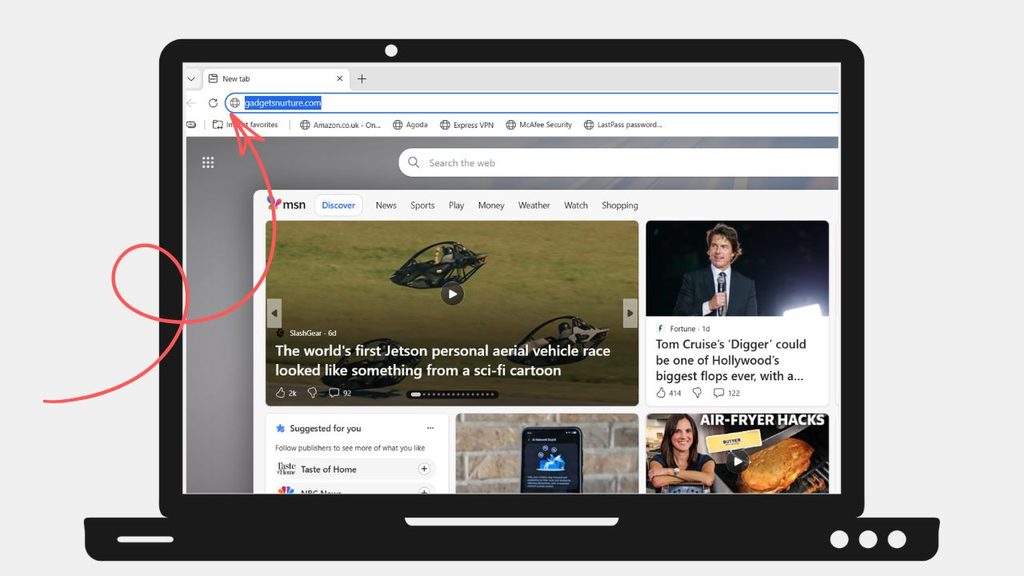
If website icons are not showing in Microsoft Edge, restart the browser, clear its cached images and files, check your Favorites settings, update Edge, and test the affected websites in an InPrivate window. These steps can help resolve common favicon display problems without deleting your bookmarks or saved passwords.
Before trying advanced fixes, check whether the problem affects every website or only a few. If icons are missing from just one website, the issue may be related to that site’s favicon or its server.
If icons are missing everywhere, the problem is more likely related to Edge or its stored browser data.
Step 1: Restart Microsoft Edge
A temporary browser glitch can prevent website icons from loading correctly. Restarting Edge is the easiest fix to try because it doesn’t change your browser settings or delete any data.
First, save your work in any open tabs. Click the X in the upper-right corner to close Microsoft Edge.
Wait a few seconds, then open Edge again from the Start menu or taskbar. Visit a website where the icon was missing and check whether it appears.
If the icons are still missing, try a full browser restart. Type edge://restart into the Edge address bar and press Enter. Edge will restart automatically and reopen your previous tabs when possible.
Check your tabs and Favorites again. If the icons still don’t appear, continue to the next step.
Step 2: Clear Cached Images and Files
Microsoft Edge stores temporary website files to help pages load faster. Sometimes, cached data becomes outdated or corrupted, which can cause website icons and other images to display incorrectly.
To clear the cache, open Microsoft Edge and press Ctrl + Shift + Delete. This opens the Clear browsing data window.
Find the Time range menu and select All time if you want to clear cached files from the entire period.
Select Cached images and files. Make sure you understand the other options before selecting them. You generally don’t need to delete your browsing history, saved passwords, or cookies just to troubleshoot missing icons.
Click Clear now and wait for Edge to finish removing the selected files.
Close the settings window, revisit the affected websites, and give them a moment to load. Edge may need to download fresh website images and icon files.
If the icons remain missing, move on to the next method.
Step 3: Check Whether the Problem Affects Every Website
Before changing more settings, determine whether the issue affects one website or all websites.
Open a few familiar websites in separate tabs. Check whether their icons appear in the tabs and whether the same problem occurs in your Favorites bar.
If only one website has a missing icon, open that website in another browser, such as Google Chrome, if available. If the icon is missing there, too, the website may not be providing its favicon correctly.
If the icon appears in another browser but not in Edge, the issue may be related to Edge’s cached data or browser configuration.
You can also try opening the affected website in a new tab and refreshing it by pressing Ctrl + R.
This simple test helps you avoid changing browser settings unnecessarily. If several websites are affected, continue with the following steps.
Step 4: Update Microsoft Edge
An outdated version of Microsoft Edge may contain bugs that affect how websites and their icons are displayed. Installing the latest available browser update can help resolve these issues.
Open Edge and click the three-dot menu in the upper-right corner. Select Help and feedback, then click About Microsoft Edge.
Alternatively, enter edge://settings/help in the address bar and press Enter.
Edge will automatically check for available updates. If an update is available, allow it to download and install.
You may see a Restart button after the installation finishes. Click it to relaunch the browser.
Once Edge opens again, visit the affected websites and check whether their icons appear correctly.
If Edge reports that it’s up to date, or the problem continues after updating, proceed to the next step.
Step 5: Check Your Favorites Bar Settings
If website icons are missing only from your Favorites bar, check how Edge displays your saved favorites.
Open Edge and press Ctrl + Shift + B to show or hide the Favorites bar. This shortcut helps determine whether the bar is simply hidden, although it won’t repair corrupted icons.
Next, click the three-dot menu and open Settings. Select Appearance and look for the Favorites bar settings.
Depending on your Edge version, you may see options for displaying the Favorites bar and how favorites are shown. Choose a suitable display option, such as showing names and icons, if available.
Now open the Favorites menu and check whether the saved websites display their icons there.
If the icons are missing from both the Favorites bar and the tabs, the problem probably isn’t just a display setting. Continue with the next method.
Step 6: Test Edge in InPrivate Mode
Browser extensions, cookies, or other site-specific settings can sometimes interfere with website behavior. Testing the affected website in an InPrivate window helps narrow down the cause.
Open Edge and press Ctrl + Shift + N to open a new InPrivate window.
Type the address of the affected website into the address bar and press Enter. Check whether its icon appears in the browser tab.
If the icon works in InPrivate mode but not in your regular window, an extension or stored site data may be contributing to the problem. Keep in mind that some extensions may still be allowed in InPrivate mode, so this test isn’t conclusive on its own.
To investigate further, return to your regular Edge window and enter edge://extensions in the address bar.
Turn off extensions one at a time, starting with recently installed extensions or those that modify website content. After disabling each extension, revisit the affected website.
If the icons return, you may have found the cause. Leave the problematic extension disabled or check whether an updated version is available.
Step 7: Reset Site Permissions and Check Website Data
Incorrect site-specific settings can sometimes interfere with how a website loads its content. Although favicon problems aren’t usually caused by permissions, checking the affected site’s settings can help rule out a local browser issue.
Open the website in Edge and click the site information icon to the left of the address bar. Depending on the site and Edge version, this may appear as a padlock or another site information symbol.
Open the site’s permissions or settings if that option is available. Review whether any content-related permissions have been blocked unintentionally.
You can also open edge://settings/content to review Edge’s site content settings.
Avoid changing permissions you don’t understand. In particular, don’t enable potentially unsafe content simply to make a website icon appear.
If the problem seems limited to one website, you can clear that site’s stored data through Edge’s cookie and site data settings. Be aware that doing so may sign you out of the website.
Reopen the affected website and check whether its icon loads correctly.
Step 8: Repair Microsoft Edge
If website icons are still missing across multiple websites, Microsoft Edge itself may need repair.
In Windows 11, open Settings > Apps > Installed apps. In Windows 10, open Settings > Apps > Apps & features.
Find Microsoft Edge in the installed applications list. Select the three-dot menu beside it in Windows 11, or click the application entry in Windows 10, and look for Modify.
If Windows asks for permission, select Yes. In the repair window, click Repair and follow the on-screen instructions.
Your computer may need an internet connection to download the necessary browser files. Keep your connection active until the repair finishes.
Repairing Edge is designed to fix browser installation problems without removing your browser data, but backing up important information is still a good precaution.
After the repair completes, open Edge and test the affected websites again.
FAQs
1. Why are website icons missing in Microsoft Edge?
Website icons may disappear because of corrupted cached files, browser glitches, outdated Edge versions, extension conflicts, or problems with the website’s favicon.
2. Will clearing the Edge cache delete my bookmarks?
No. Clearing only cached images and files does not normally delete your bookmarks or saved passwords. Be careful not to select additional data categories you want to keep.
3. Why are icons missing only from the Favorites bar?
The Favorites bar may be hidden, its display settings may have changed, or the saved website icons may not be loading correctly. Check the Favorites bar settings and clear the browser cache if necessary.
4. Can a browser extension cause missing website icons?
Yes, certain extensions that block content, modify pages, or change browser behavior may contribute to display problems. Test Edge with extensions disabled to see whether the issue improves.
5. What if website icons still don’t appear after trying everything?
Check whether the affected websites display their icons in another browser. If they do, consider repairing Microsoft Edge. If the problem affects only one website across multiple browsers, the website itself may need to fix its favicon.