
Windows 11 White Screen Issue
The Windows 11 white screen issue can occur for several reasons, including corrupted system files, faulty graphics drivers, problematic Windows updates, startup application conflicts, and display configuration problems.
Sometimes, the issue appears immediately after signing in, while in other cases, the screen turns white during startup or when opening a particular application.
In this guide, we’ll walk through practical solutions to fix the white screen problem in Windows 11.
Windows 11 White Screen Issue [Complete Guide]
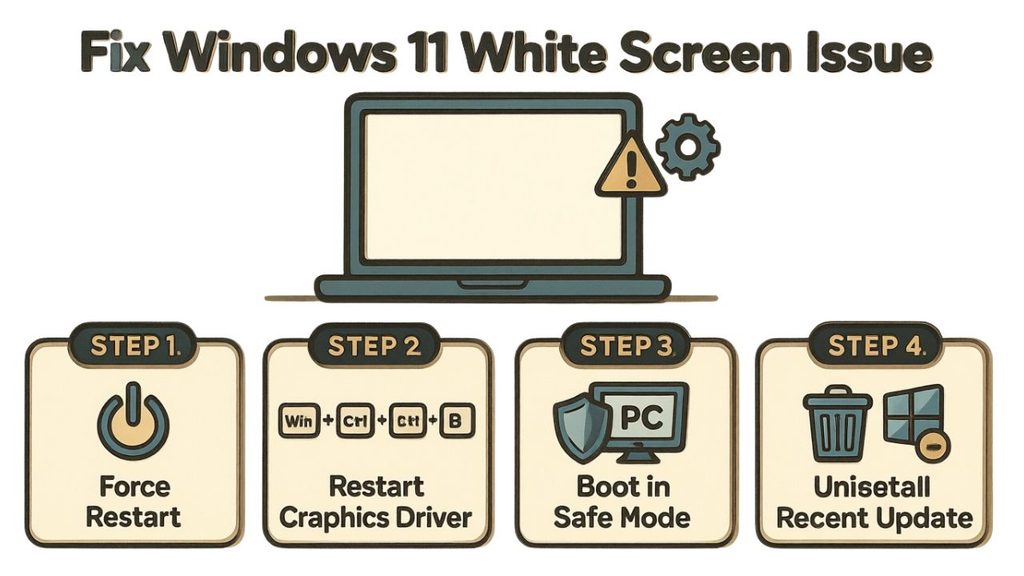
The Windows 11 white screen issue occurs when the display shows a blank or completely white background instead of the normal Windows interface. It may be caused by a graphics driver problem, an unresponsive Windows Explorer process, damaged system files, an incompatible application, or a failed update.
Before trying advanced fixes, determine when the white screen appears. If it happens after signing in, Windows Explorer or a startup application could be responsible.
If it appears before the login screen, investigate the graphics driver, display connection, or Windows startup process.
1: Force Restart Your Computer
Start with a simple restart. Sometimes Windows becomes temporarily unresponsive because of a background process, incomplete startup operation, or graphics-related glitch.
If your computer still responds, press Ctrl + Alt + Delete and check whether the security screen appears. If it does, select the Power icon and choose Restart.
If the screen remains completely white and nothing responds, press and hold your computer’s Power button until it shuts down. Wait around 20 to 30 seconds, then turn it back on.
Keep in mind that a forced shutdown can cause you to lose unsaved work. Use it only when Windows is unresponsive.
Once your computer starts again, check whether the desktop appears normally. If the white screen returns, move on to the next method.
2: Check Your Monitor and Display Connections
If you’re using a desktop computer or an external monitor with a laptop, check the display connection before changing Windows settings.
Make sure the monitor’s power cable is connected properly and that the display cable is firmly attached to both the computer and monitor.
If possible, disconnect and reconnect the HDMI or DisplayPort cable. You can also try another compatible cable or monitor input to rule out a connection problem.
For laptop users, connect an external monitor if one is available. If the external display works normally while the laptop screen remains white, the problem may involve the laptop’s internal display, display cable, or hardware.
You can also press Windows + P to open the projection menu. Select PC screen only or Duplicate to check whether Windows is sending the display output to the wrong screen.
If the monitor and connections appear fine, continue with the software troubleshooting methods.
3: Restart Windows Explorer
If the white screen appears after signing in, Windows Explorer may have stopped responding. Explorer manages important parts of the Windows interface, including the desktop, taskbar, and File Explorer windows.
You can restart it through Task Manager.
Press Ctrl + Shift + Esc to open Task Manager. If the simplified window appears, select More details.
Under the Processes tab, look for Windows Explorer. Right-click it and select Restart.
Your taskbar and desktop may disappear briefly. This is normal while Windows restarts the process.
If Windows Explorer isn’t listed, select Run new task from Task Manager. Type explorer.exe and press Enter.
Wait a few seconds to see whether your desktop returns. If the screen remains white, try the next solution.
4: Restart the Graphics Driver
A temporary graphics driver problem can cause display abnormalities, including a blank or white screen.
Windows has a keyboard shortcut that can restart the graphics driver without requiring a complete system restart.
Press Windows + Ctrl + Shift + B together.
Your screen may briefly flicker or turn black, and you might hear a short beep. This is normal. Windows is attempting to reset the graphics driver.
Wait a few seconds and check whether the desktop returns.
This shortcut is particularly useful when Windows is running, but the display isn’t refreshing correctly. However, it won’t repair a permanently damaged driver or a hardware problem.
If the white screen continues, move to the next method.
5: Boot Windows 11 into Safe Mode
If a faulty driver, startup application, or recently installed program is causing the problem, Safe Mode can help you troubleshoot it.
If you can reach the Windows sign-in screen, hold down Shift and select Power > Restart.
Windows will open the recovery environment. Select Troubleshoot > Advanced options > Startup Settings > Restart.
After your computer restarts, press 4 or F4 to start Safe Mode. If you need internet access to download a driver, choose 5 or F5 for Safe Mode with Networking.
If you cannot reach the sign-in screen, you may need to enter the Windows Recovery Environment through the manufacturer’s recovery option or by interrupting startup. Avoid repeatedly forcing shutdowns, and use the recovery menu only when normal startup is unavailable.
Once Safe Mode loads, check whether the white screen disappears. If the display works normally, a third-party driver, service, or startup application may be responsible.
6: Update or Roll Back Your Display Driver
If Safe Mode works without the white screen, your graphics driver could be causing the problem. This is particularly likely if the issue started after installing a new driver or Windows update.
While in Safe Mode, press Windows + X and select Device Manager.
Expand Display adapters to see your graphics hardware. Right-click your graphics adapter and select Properties.
Open the Driver tab. If the Roll Back Driver option is available, select it if the white screen started after a recent driver update. Follow the instructions and restart your computer.
If the rollback option isn’t available, you can try updating the driver instead. Right-click the graphics adapter, select Update driver, and follow the instructions.
You can also download a compatible driver directly from your computer or graphics card manufacturer’s website.
Once the driver installation finishes, restart Windows normally and check whether the white screen has disappeared.
7: Disable Unnecessary Startup Applications
Sometimes, a third-party application starts automatically with Windows and causes a conflict. This can result in a white screen, an unresponsive desktop, or other startup problems.
To check this, press Ctrl + Shift + Esc to open Task Manager.
Select Startup apps from the left panel. Review the applications listed there and identify any recently installed or unnecessary programs.
Right-click an application you don’t need during startup and select Disable.
Be careful not to disable essential security software or hardware-related services. Focus on unfamiliar third-party applications, especially those installed shortly before the problem started.
Restart your computer and see whether Windows loads normally.
If the white screen disappears, re-enable the disabled applications one at a time to identify which program was responsible.
8: Repair Corrupted Windows System Files
Damaged Windows system files can prevent the operating system from loading the desktop correctly. Fortunately, Windows provides two useful repair tools: DISM and System File Checker (SFC).
If you can access your desktop or Task Manager, open Command Prompt with administrator privileges.
Search for Command Prompt in the Start menu, right-click it, and select Run as administrator.
First, enter this command:
DISM /Online /Cleanup-Image /RestoreHealth
Press Enter and wait for the repair process to finish. Keep your internet connection active because DISM may need to download replacement files.
Next, run:
sfc /scannow
Wait until the verification reaches 100%. Windows will report whether it found and repaired corrupted system files.
Restart your computer after both operations finish.
If the desktop still displays a white screen, continue troubleshooting.
9: Uninstall a Recent Windows Update
Did the white screen start immediately after installing a Windows update? If so, a problematic update could be responsible.
You can try removing the most recent update through the Windows Recovery Environment.
Press Shift while selecting Restart from the Windows sign-in screen. Navigate to Troubleshoot > Advanced options > Uninstall Updates.
You’ll usually see two options: Uninstall latest quality update and Uninstall latest feature update.
Start with the latest quality update if the problem appeared after a regular monthly update. Follow the instructions to remove it.
If you cannot access the sign-in screen, enter the Windows Recovery Environment using the available recovery options.
Once the update is removed, restart your computer and check whether Windows loads normally.
Keep in mind that removing updates can temporarily leave your computer without certain security or reliability fixes. Check for a corrected update once the underlying issue is resolved.
Step 10: Perform a System Restore
If the white screen started recently and none of the previous methods worked, System Restore may help.
This feature allows you to return Windows system files, drivers, installed programs, and settings to an earlier restore point.
Open Windows Recovery Environment and select Troubleshoot > Advanced options > System Restore.
Choose your Windows account and enter its password if requested.
A list of available restore points will appear. Select one created before the white screen problem started.
If available, click Scan for affected programs to review which applications or drivers may be removed or restored.
Follow the on-screen instructions and allow Windows to complete the restoration process.
System Restore does not normally delete personal documents, but applications, drivers, and settings installed after the selected restore point may be affected. Back up important data whenever possible.
11: Reset Windows 11 as a Last Resort
If your computer continues displaying a white screen after trying the previous methods, consider resetting Windows 11.
Open Windows Recovery Environment and select Troubleshoot > Reset this PC.
You’ll see two options: Keep my files and Remove everything.
Choose Keep my files if you want Windows to reinstall while retaining your personal files. However, this option removes installed applications and resets many settings.
You may also be offered Cloud download or Local reinstall. Cloud download obtains a fresh Windows installation from Microsoft, while Local reinstall uses files already available on your computer.
Before proceeding, back up important files if possible and make sure you understand the selected recovery option.
Follow the on-screen instructions and allow the reset to finish. Do not turn off your computer during the process.
After Windows reinstalls, complete the initial setup and check whether the white screen issue has been resolved.
FAQs
1. Why does my Windows 11 screen turn completely white?
A white screen can result from a graphics driver problem, corrupted Windows files, an unresponsive Windows Explorer process, a faulty update, or a hardware issue. The timing of the problem can help identify its cause.
2. How do I fix a white screen after logging into Windows 11?
Press Ctrl + Shift + Esc to open Task Manager. Find Windows Explorer and select Restart. If it isn’t listed, choose Run new task, type explorer.exe, and press Enter.
3. Can a graphics driver cause a white screen?
Yes. An incompatible, outdated, or corrupted graphics driver can cause display problems. Try restarting the graphics driver using Windows + Ctrl + Shift + B or updating or rolling back the driver through Device Manager.
4. How do I access Safe Mode when Windows 11 shows a white screen?
If you can reach the sign-in screen, hold Shift while selecting Restart. Navigate to Troubleshoot > Advanced options > Startup Settings > Restart. Press F4 to enter Safe Mode.
5. Will resetting Windows 11 fix the white screen problem?
Resetting Windows can resolve software-related problems, including corrupted system components and problematic configurations. However, it won’t fix physical display damage or faulty graphics hardware.
6. Can a white screen indicate a hardware problem?
Yes. If the white screen appears before Windows starts, remains visible in the BIOS or UEFI screen, or also appears when using another operating system, hardware could be responsible.
A damaged display panel, loose display cable, or graphics hardware problem may require professional inspection.