
Windows Error Code 0x80070035: Meaning & Fixes
Windows error code 0x80070035 is a common network-related error that usually appears when you try to access a shared folder, shared drive, or another computer on your local network. Windows may display a message such as “The network path was not found”, even though the other computer is turned on and connected to the same network.
This problem can be confusing, especially if you are new to Windows networking. The error does not necessarily mean that your internet connection is broken.
In many cases, it is caused by network discovery settings, file-sharing configuration, Windows services, firewall rules, incorrect network credentials, or SMB-related settings.
But you can usually fix error 0x80070035 without reinstalling Windows.
Let’s learn how!
Windows Error Code 0x80070035: Meaning & Fixes
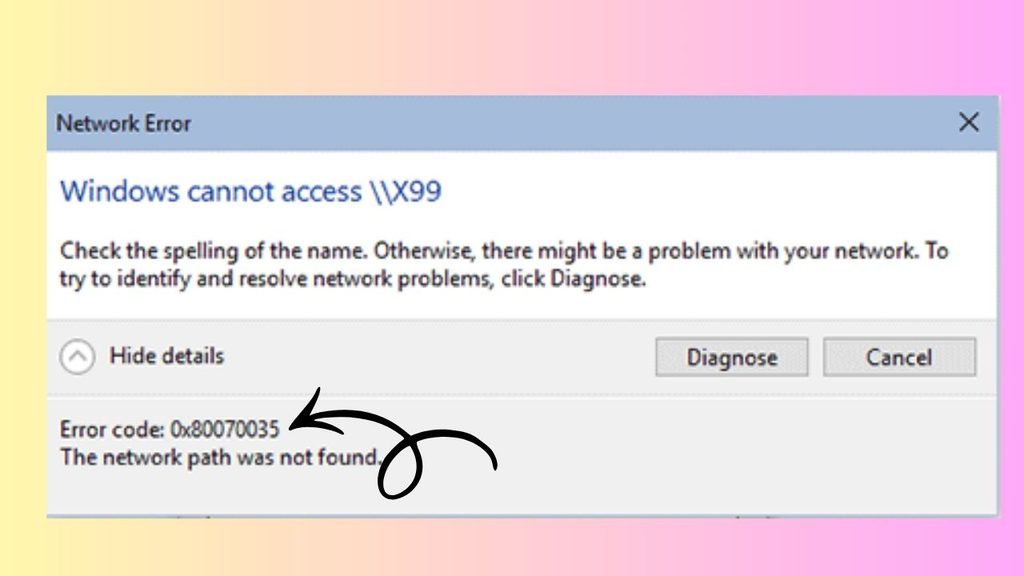
Error 0x80070035 means that Windows cannot find or establish a connection to the network path you are trying to open. For example, you might enter \\ComputerName\SharedFolder in File Explorer and receive the error.
Try the following methods one at a time.
1. Check That Both Computers Are Connected to the Same Network
Before changing any Windows settings, make sure the computers you are trying to connect are actually connected to the same local network.
For example, if you are trying to access files from your desktop computer on your laptop, both devices should normally be connected to the same router or local network. They can be connected through Wi-Fi, Ethernet, or a combination of both.
On each computer, open Settings and select Network & internet. Check whether the device is connected to the expected Wi-Fi network or Ethernet connection.
Also, make sure the computer containing the shared folder is turned on and awake. If it is sleeping, disconnected, or no longer connected to the network, Windows may report error 0x80070035.
If both computers are connected correctly, continue to the next method.
2. Turn On Network Discovery and File Sharing
One of the most common reasons for error 0x80070035 is that Windows has disabled Network Discovery or File and Printer Sharing.
Open Settings and go to Network & internet. Select Advanced network settings, then choose Advanced sharing settings.
Under the profile for your current network, turn on Network discovery and File and printer sharing.
Network discovery allows your PC to find other computers and network devices. File and printer sharing allows computers on the network to communicate with shared resources.
After enabling these options, close Settings and restart your computer. Then try opening the shared folder again.
3. Make Sure Your Network Is Set to Private
Windows handles Private and Public networks differently. A Public network has stricter sharing restrictions because Windows assumes you may be connected to an unfamiliar network.
If you are using a trusted home or office network, check whether Windows has classified it as a Private network.
Open Settings > Network & internet and select your active Wi-Fi or Ethernet connection. Look for the Network profile type option.
Select Private if appropriate.
After changing the network profile, try accessing the shared folder again. This simple change can restore network discovery and sharing functionality when Windows has been blocking local network communication.
4. Check the Shared Folder Permissions
If you can see the computer but cannot open a particular shared folder, the problem may be related to sharing permissions.
Go to the computer where the folder is stored. Right-click the folder you want to share and select Properties.
Open the Sharing tab and select Advanced Sharing. Make sure Share this folder is enabled.
Then select Permissions and check whether the appropriate user account has permission to access the folder.
You should also check the Security tab in the folder’s Properties window. Sharing permissions and NTFS security permissions can both affect access.
For a basic home network, make sure your account has the required Read or Read/Write permissions depending on what you need to do.
5. Restart Important Windows Network Services
Several Windows services are responsible for network discovery and file sharing. If one of these services has stopped, error 0x80070035 may appear.
Press Windows + R, type services.msc, and press Enter.
Find services related to network discovery and file sharing, such as Function Discovery Provider Host, Function Discovery Resource Publication, Server, and Workstation.
Double-click a service and check its Service status. If it is stopped, select Start.
You should also check the Startup type. Services required for normal network sharing should not be unnecessarily disabled.
After checking the relevant services, restart your PC and test the network connection again.
6. Temporarily Check Windows Firewall Settings
Your firewall can sometimes prevent network sharing from working correctly. You should not permanently disable your firewall, but you can check whether its network-sharing rules are causing the problem.
Open Windows Security and select Firewall & network protection.
Select your active network and make sure Windows Firewall is enabled. Instead of turning the firewall off permanently, check whether Windows allows File and Printer Sharing through the firewall.
If you use a third-party security application, check its network or firewall settings as well.
After making the appropriate exception, restart File Explorer and try connecting to the shared folder.
7. Connect Using the IP Address
If Windows cannot find the computer by its name, try connecting directly using its IP address.
On the computer hosting the shared folder, open Command Prompt and run:
ipconfig
Look for the IPv4 Address of the active network connection.
On the other computer, open File Explorer and enter the network path using the IP address, such as:
\\192.168.1.10\SharedFolder
Replace the example IP address and folder name with the correct information for your network.
If the IP address works but the computer name does not, the problem may involve name resolution or network discovery rather than the shared folder itself.
8. Clear Stored Network Credentials
Incorrect or outdated credentials can sometimes prevent Windows from accessing a network resource.
Open Control Panel and select Credential Manager. Choose Windows Credentials and look for saved credentials associated with the computer or network share you are trying to access.
If you find an outdated entry, you can remove it and then try connecting again.
Windows should prompt you for the appropriate username and password when you reconnect. Enter the credentials belonging to an account that has permission to access the shared folder.
Be careful when removing credentials because they may also be used by other network resources.
9. Check SMB Settings
Windows uses Server Message Block (SMB) technology for many network file-sharing operations. If you are connecting to an older computer, NAS device, or legacy network device, compatibility with SMB can become an issue.
Open Control Panel, select Programs, and then choose Turn Windows features on or off.
Look for SMB-related Windows features. Modern Windows versions generally use newer SMB versions, while SMB 1.0/CIFS is an older protocol that should not be enabled unless you specifically need it for an older device or application.
If your problem involves an old NAS device or legacy computer, research the device’s supported SMB version before changing this setting.
Do not enable outdated SMB components simply because they appear in the list. Older protocols can introduce security risks.
10. Reset Windows Network Settings
If the previous solutions have not worked, resetting Windows network settings can help repair a damaged or incorrectly configured network stack.
Open Settings > Network & internet > Advanced network settings > Network reset.
Select Reset now and confirm the operation.
Windows will restart your computer and remove and reinstall network adapters and reset certain networking components.
Keep in mind that this can remove saved network information and may require you to reconnect to Wi-Fi afterward.
Once Windows restarts, reconnect to your network and try accessing the shared folder again.
11. Run Windows Network Troubleshooting
Windows also provides troubleshooting tools that can identify common networking problems.
Open Settings > System > Troubleshoot > Other troubleshooters.
Look for available network-related troubleshooters and run the appropriate tool.
Follow the instructions displayed by Windows. The troubleshooter may identify problems involving network adapters, connectivity, or configuration.
Although automated troubleshooting does not fix every instance of error 0x80070035, it is worth trying because it requires very little technical knowledge.
FAQs
What does Windows error 0x80070035 mean?
Windows error 0x80070035 generally means that Windows cannot find or reach the requested network path. It commonly occurs when accessing shared folders, computers, drives, or other network resources.
Why does error 0x80070035 occur?
The error can occur because of disabled network discovery, incorrect sharing permissions, firewall restrictions, stopped Windows services, incorrect credentials, network configuration problems, or compatibility issues with SMB.
Can I fix error 0x80070035 without reinstalling Windows?
Yes. In most cases, reinstalling Windows is unnecessary. Checking network discovery, file sharing, permissions, Windows services, firewall rules, and network settings can resolve the problem.
Does error 0x80070035 mean my internet is not working?
Not necessarily. Your internet connection can work normally while Windows is unable to access a local network share. The error is usually related to communication between devices on the local network.
Should I enable SMB 1.0 to fix the error?
Not automatically. SMB 1.0 is an older protocol and has security limitations. Only consider it when you have a specific legacy device or application that requires it, and you understand the security implications.
Summary
Windows error 0x80070035 usually appears when Windows cannot locate or connect to a network path. The problem is commonly associated with network discovery, file sharing, permissions, Windows services, firewall configuration, or network settings.
Start by confirming that both computers are on the same network, then enable Network Discovery and File and Printer Sharing. If that does not work, check the network profile, folder permissions, Windows services, firewall settings, and saved credentials. You can also try connecting through the computer’s IP address.
For more stubborn cases, checking SMB compatibility or performing a network reset can help. Work through the methods in order, and test the shared folder after each major change.