
Windows Stuck on Updates Are Underway [Guide to Fix It]
Windows updates are important because they bring security improvements, bug fixes, driver updates, and new features to your computer. However, sometimes an update does not complete normally. Instead, your screen may remain on a message such as “Updates are underway”, “Working on updates”, or “Please keep your computer on” for an unusually long time.
This can be worrying, especially if you are a new Windows user and do not know whether you should wait, restart the computer, or turn it off. In many cases, Windows is still processing files in the background, so interrupting the process too quickly is not recommended. However, if the screen remains stuck for an extended period and there is no sign of progress, you can try several troubleshooting methods.
In this guide, I will explain how to fix Windows stuck on Updates are underway in Windows 11 and Windows 10.
Windows Stuck on Updates Are Underway [Complete Guide]
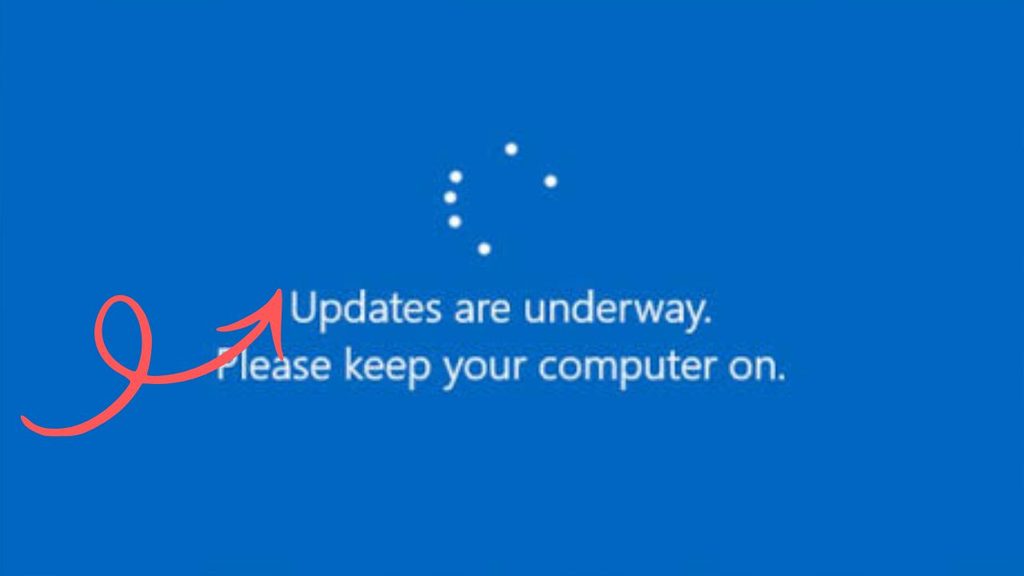
If Windows is stuck on “Updates are underway”, first give the update enough time to finish and make sure the computer is connected to power. If the screen remains unchanged for an unusually long time, restart the computer only when necessary and then troubleshoot Windows Update, temporary update files, system files, and recovery settings.
Let’s explore the steps in detail!
Step 1: Wait and Check Whether Windows Is Actually Working
The first thing you should do is wait. An update can sometimes take considerably longer than expected, particularly when Windows is installing a major feature update.
Do not immediately press the power button just because the message has remained on the screen for several minutes. Windows may be installing files, configuring system components, or restarting internal services.
If your computer has a hard drive, large updates can take longer than they would on an SSD. The amount of data being installed and the speed of your computer can also affect the process.
If the screen has remained completely unchanged for a very long time and there is no indication that the update is progressing, you can move to the next step.
Step 2: Keep Your Computer Connected to Power
If you are using a laptop, connect its AC power adapter before doing anything else.
A Windows update should not be interrupted because the battery runs out during installation. Losing power at the wrong moment can potentially cause additional startup or system problems.
If you are using a desktop computer, make sure its power connection is secure. If possible, avoid switching off the power supply while Windows is installing an update.
Once the computer has enough power, allow Windows additional time to complete the update.
Step 3: Disconnect Unnecessary External Devices
Sometimes external hardware can interfere with the startup or update process.
If the computer remains stuck, disconnect unnecessary devices such as USB flash drives, external hard drives, printers, card readers, and other USB accessories.
Keep essential devices connected, particularly your keyboard and mouse if you are using a desktop computer.
After disconnecting unnecessary hardware, wait and see whether Windows continues the update process.
Do not disconnect storage devices if Windows is clearly using them for an update or recovery operation. When in doubt, leave the computer alone and give it more time.
Step 4: Restart the Computer When the Update Is Clearly Stuck
If Windows has been displaying “Updates are underway” for an unusually long period and there is no visible progress, a restart may be necessary.
First, try the normal Restart option if Windows responds. If the computer is completely frozen and you cannot access the desktop or Start menu, you may need to press and hold the physical Power button until the computer turns off.
Wait several seconds and turn the computer back on.
Windows may display a message indicating that it is undoing changes or continuing the update. If you see such a message, allow Windows to complete the process.
Do not repeatedly force the computer to shut down. Multiple interruptions during system updates can make recovery more difficult.
Step 5: Run Windows Update Troubleshooter
Once you can access Windows normally, use the Windows Update troubleshooter.
In Windows 11, open Settings > System > Troubleshoot > Other troubleshooters. Find Windows Update and select Run.
In Windows 10, open Settings > Update & Security > Troubleshoot > Additional troubleshooters. Select Windows Update and run the troubleshooter.
Windows will check for common problems that can prevent updates from downloading or installing correctly.
Follow any instructions displayed on the screen. After the troubleshooting process finishes, restart your computer and check for updates again.
Step 6: Check Windows Update Again
After restarting Windows, manually check whether the update can complete.
In Windows 11, open Settings > Windows Update. In Windows 10, go to Settings > Update & Security > Windows Update.
Select Check for updates.
If Windows finds an available update, allow it to download and install. Keep your computer connected to power and avoid turning it off while the update is being installed.
If the same update becomes stuck again, continue with the next step.
Step 7: Clear Temporary Windows Update Files
Corrupted or incomplete update files can sometimes cause Windows Update to repeatedly get stuck.
Before clearing update files, make sure Windows is not currently installing an update.
Press Windows + R to open the Run dialog box. Type services.msc and press Enter.
Find Windows Update in the Services window. Right-click it and select Stop.
Next, open File Explorer and navigate to the Windows Update download cache located at:
C:\Windows\SoftwareDistribution
You should not delete the entire Windows system folder. The SoftwareDistribution folder contains temporary update-related files that Windows can recreate when needed.
After stopping the Windows Update service, remove the contents of the Download folder inside SoftwareDistribution.
Return to the Services window, right-click Windows Update, and select Start.
Restart the computer and try Windows Update again.
Step 8: Repair Corrupted System Files
Windows Update problems can sometimes occur because important system files have become damaged.
To check them, open Command Prompt as administrator.
Click Start, search for Command Prompt, right-click it, and select Run as administrator.
When the User Account Control message appears, select Yes.
Type the following command and press Enter:
sfc /scannow
Windows will scan protected system files and attempt to repair corrupted files.
Allow the scan to finish completely. Do not close the Command Prompt window while the process is running.
When it finishes, restart your computer and try Windows Update again.
Step 9: Use the DISM Tool to Repair the Windows Image
If the SFC scan does not solve the problem, you can use the Deployment Image Servicing and Management tool, commonly called DISM.
Open Command Prompt as administrator again.
Type the following command and press Enter:
DISM /Online /Cleanup-Image /RestoreHealth
The process may take some time. The percentage displayed in Command Prompt may appear to pause temporarily. This does not necessarily mean that the tool has stopped working.
Wait until the command finishes.
Afterward, run SFC /scannow again and restart the computer.
Then open Windows Update and check whether the update installs normally.
Step 10: Check Available Storage Space
Windows needs enough free storage space to download and install updates.
Open Settings and select System > Storage in Windows 11. In Windows 10, open Settings > System > Storage.
Check how much free space is available on the drive where Windows is installed.
If the drive is nearly full, remove unnecessary temporary files, old downloads, or other files that you no longer need.
Be careful when deleting files. Do not remove Windows system folders simply to create more storage space.
After freeing sufficient space, restart your computer and check for Windows updates again.
Step 11: Start Windows in Safe Mode
If Windows repeatedly gets stuck during normal startup after an update, Safe Mode can help you determine whether a third-party program or driver is causing the problem.
Open Settings > System > Recovery in Windows 11. Under Advanced startup, select Restart now.
In Windows 10, open Settings > Update & Security > Recovery and select Restart now under Advanced startup.
After Windows enters the recovery environment, select Troubleshoot > Advanced options > Startup Settings > Restart.
When the Startup Settings screen appears, select the option for Safe Mode.
Once Windows starts in Safe Mode, you can troubleshoot drivers, recently installed software, or update-related problems without loading many unnecessary startup components.
Step 12: Use System Restore if the Problem Started After an Update
If Windows worked normally before a recent update and started having problems immediately afterward, System Restore may help when restore points are available.
Open the Windows recovery environment and select Troubleshoot > Advanced options > System Restore.
Choose your Windows account if requested and select an available restore point created before the problem occurred.
System Restore does not normally remove your personal documents, but it can reverse system files, drivers, installed applications, and settings that were changed after the selected restore point.
Read the information displayed by Windows carefully before confirming the restoration.
Step 13: Reset Windows as a Last Resort
If Windows repeatedly becomes stuck on updates and none of the previous solutions work, you can consider Reset this PC.
Open Settings > System > Recovery in Windows 11. In Windows 10, go to Settings > Update & Security > Recovery.
Select Reset this PC and review the available options.
Windows may allow you to keep my files or remove everything. If you choose to reset Windows, back up important documents, photos, and other personal data first.
A reset should not be your first solution because it can require reinstalling applications and changing settings again. Use it only after less disruptive troubleshooting methods have failed.
FAQs
How long should Windows stay on “Updates are underway”?
There is no single fixed time because update duration depends on the update size, computer hardware, available storage, and system condition. If the screen has remained unchanged for an unusually long period, troubleshooting may be appropriate.
Can I turn off my computer when it says “Updates are underway”?
You should avoid turning off the computer while Windows is actively installing updates. If the system is completely frozen for an extended period and does not respond, a forced restart may eventually be necessary, but it should not be repeated unnecessarily.
Why does Windows keep getting stuck on updates?
Common causes include corrupted update files, insufficient storage space, damaged system files, problematic drivers, software conflicts, or Windows Update service problems.
Will restarting my computer delete my files?
A normal restart does not delete your personal files. However, if Windows is in the middle of an update, avoid unnecessary forced shutdowns because interrupting system changes can create additional problems.
Does Windows Update Troubleshooter really help?
It can identify and resolve some common Windows Update problems. It may not fix every update issue, but it is a useful first troubleshooting method for beginners.
What should I do if Windows keeps showing the same update?
Restart Windows, run the Windows Update troubleshooter, clear temporary update files, repair system files with SFC and DISM, and then check for updates again.
Summary
The “Updates are underway” message usually means Windows is installing or configuring an update. The safest approach is to give the process enough time, keep the computer connected to power, and avoid unnecessary shutdowns.
If Windows genuinely becomes stuck, restart the computer when necessary and then work through the troubleshooting methods in order. Start with the Windows Update troubleshooter, check available storage, clear temporary update files, and repair damaged system files using SFC and DISM.
For more serious problems, Safe Mode, System Restore, or Reset this PC can provide additional recovery options.