
Your Network May Be Monitored Message on Chromebook: How to Fix It
Have you ever connected your Chromebook to Wi-Fi and noticed a warning that says “Your network may be monitored”? If so, you might be wondering whether someone is spying on your internet activity or whether your Chromebook has a security problem.
This warning can look alarming, especially if you’re using your personal Chromebook at home. However, it doesn’t automatically mean your device has been hacked.
The message usually appears when ChromeOS detects a certificate authority that can inspect or modify secure connections. This can happen on a school or work Chromebook, when using certain security software, or when an unfamiliar certificate has been installed.
In this guide, you’ll learn what the warning means, how to identify its cause, and how to remove it safely if you don’t recognize the certificate.
“Your Network May Be Monitored” Message on Chromebook
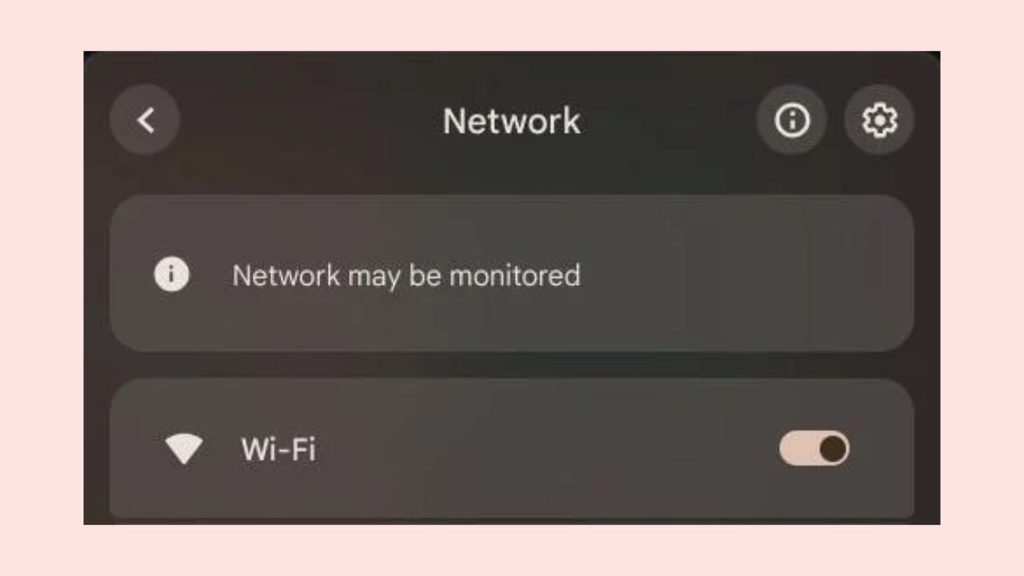
The “Your network may be monitored” warning on a Chromebook usually means a certificate authority has been installed that could allow someone to inspect secure internet traffic. It may be part of legitimate school or workplace network management, antivirus software, or a network filtering system.
The warning doesn’t prove that anyone is actively monitoring your browsing. However, if you don’t recognize the certificate or the software that installed it, it’s worth investigating.
Before making changes, determine whether your Chromebook is managed by a school or workplace. Removing a certificate from a managed device could interfere with your internet connection or violate your organization’s policies.
Step 1: Check Whether Your Chromebook Is Managed
Before changing any security settings, check whether your Chromebook belongs to a school, workplace, or other organization.
Open Chrome and type chrome://management in the address bar. Press Enter.
If you see a message saying your browser is managed by your organization, an administrator may have configured certificates, network settings, or other security policies.
You can also check the bottom of Chrome’s three-dot menu for a Managed by your organization message.
If this is a school or work Chromebook, contact your administrator before removing any certificates. They may be required for secure network access.
If you own the Chromebook and don’t recognize the organization managing it, continue with the next step.
Step 2: Check Whether You Recently Installed a VPN or Security App
A VPN, antivirus program, or web filtering application may install a certificate to help protect your internet connection or inspect network traffic.
Think about whether the warning appeared after installing a VPN, connecting to a new Wi-Fi network, or changing your security settings.
Open your Chromebook’s Settings and check the apps or extensions you recently installed. If you recognize a VPN or security app, review its settings to understand whether it uses a certificate.
If the app is legitimate and you trust the provider, the warning may be expected. However, if you don’t recognize the app or remember installing it, investigate further before trusting the certificate.
Do not uninstall security software simply because you see the warning. First, confirm that the software is unwanted or no longer needed.
Step 3: Check the Installed Certificates
A certificate authority, or CA, is an entity that issues digital certificates used to establish trust between devices and websites.
On a Chromebook, an installed CA may be used by a school, workplace, VPN, or network security service. Google provides a certificate management section where you can review certificates installed on your device.
Open Chrome and enter:
chrome://settings
Select Privacy and security, then open Security.
Scroll down to the advanced security options and select Manage certificates, if available.
Review the certificate list. Look for certificates with names that you recognize, such as your school, employer, VPN provider, or security software.
If you find a certificate you don’t recognize, don’t immediately assume it was installed by a hacker. It may have been added by an app, network administrator, or another legitimate service.
Take note of the certificate name and issuer before making any changes.
Step 4: Remove an Unwanted Certificate
If you own the Chromebook and have identified a certificate that you no longer need, you may be able to remove it through the certificate management settings.
Open Settings > Privacy and security > Security > Manage certificates.
Find the certificate you want to remove and select it. If ChromeOS provides a delete or remove option, use it to remove the certificate.
Be careful not to remove certificates that are required for your Wi-Fi connection, school account, workplace network, or security software.
If the certificate is managed by an organization, the removal option may be unavailable. In that case, contact the administrator rather than trying to bypass the management policy.
After removing an unwanted certificate, restart your Chromebook and check whether the warning disappears.
Step 5: Review Chrome Extensions and Browser Policies
Sometimes the warning is associated with an extension or browser policy that you don’t recognize.
Open Chrome and enter:
chrome://policy
Press Enter.
This page displays policies that may control how Chrome behaves. If your Chromebook is managed, some policies may have been configured by your school or workplace.
Next, open:
chrome://extensions
Review the installed extensions and remove any that you don’t recognize or no longer use, provided your Chromebook isn’t managed by an organization.
If you find an unfamiliar extension that cannot be removed, check whether your browser is managed. Google recommends reviewing policies and extensions when investigating unexpected browser management.
Removing an extension may not remove a certificate that was installed separately, so check the certificate list again if the warning remains.
Step 6: Restart Your Chromebook and Check the Warning
After reviewing certificates, extensions, and management settings, restart your Chromebook.
Click the time in the bottom-right corner of the screen, select the Power option, and choose Shut down. Turn the Chromebook back on and sign in.
Reconnect to your Wi-Fi network and check whether the warning appears again.
If the warning disappears, the issue may have been related to a certificate or configuration that you removed.
If it remains, don’t keep deleting certificates at random. Return to the certificate list and check whether the certificate is still present or whether another app or management policy is reinstalling it.
Step 7: Reset Chrome Settings if the Warning Persists
If the warning remains and you suspect an unwanted browser extension or configuration, you can reset Chrome’s settings.
Open Chrome and enter:
chrome://settings/reset
Select Restore settings to their original defaults, then confirm the reset.
This can help restore browser settings that were changed by unwanted software or extensions. However, it does not necessarily remove certificates installed at the ChromeOS level or remove organization management.
After the reset, restart Chrome and check whether the warning appears.
If your Chromebook is managed, contact your administrator before attempting further changes.
Step 8: Consider a Chromebook Powerwash Only as a Last Resort
If you own the Chromebook and the warning persists after checking certificates, apps, and browser settings, you may consider a Powerwash, which resets the device to factory settings.
Before proceeding, back up important local files. A Powerwash removes local data from the Chromebook, although files synced to your Google account or stored in Google Drive may remain available.
Open Settings > Advanced > Reset settings and select Powerwash if the option is available.
Follow the on-screen instructions to reset the Chromebook.
A Powerwash may not remove organization enrollment or management. If the device belongs to a school or workplace, the administrator may need to release it from management.
If the warning returns after a reset, contact the Chromebook manufacturer or Google support for help identifying the certificate or management policy.
FAQs
1. Does “Your network may be monitored” mean my Chromebook has been hacked?
No. The warning does not prove that your Chromebook has been hacked. It usually indicates that a certificate authority is installed that could allow secure network traffic to be inspected.
2. Can someone monitor my internet activity because of this warning?
A certificate authority can potentially allow a network administrator or security service to inspect certain secure connections. However, the warning alone does not tell you whether anyone is actively monitoring your activity.
3. Should I remove every certificate on my Chromebook?
No. Removing trusted certificates can interfere with secure connections, Wi-Fi access, and other services. Only remove certificates that you have identified as unnecessary or untrusted.
4. Why does the warning appear on my school Chromebook?
Schools and workplaces may install certificates to manage network access, protect devices, or filter internet traffic. If the Chromebook is managed, the warning may be expected.
5. Will a Powerwash remove the warning?
A Powerwash may remove locally installed settings or certificates, but it does not necessarily remove organization management. If a managed device is reset, its administrator may reapply the same settings.