
Your PC Ran Into a Problem and Needs a Restart: Complete Guide to Resolve
Seeing the “Your PC ran into a problem and needs to restart” message can be frustrating, especially if you were working on an important file or simply browsing the internet. This error is commonly known as the Blue Screen of Death (BSOD) because Windows displays a blue screen before automatically restarting your computer.
Although this message may look alarming, it does not always mean your computer has a serious hardware problem. In many cases, the issue is caused by outdated drivers, corrupted system files, faulty Windows updates, damaged storage, memory errors, or incompatible software.
This guide explains the causes of the “Your PC ran into a problem and needs to restart” error and walks you through several solutions. Follow each step in the order presented until your computer starts working normally again.
Your PC Ran Into a Problem and Needs to Restart
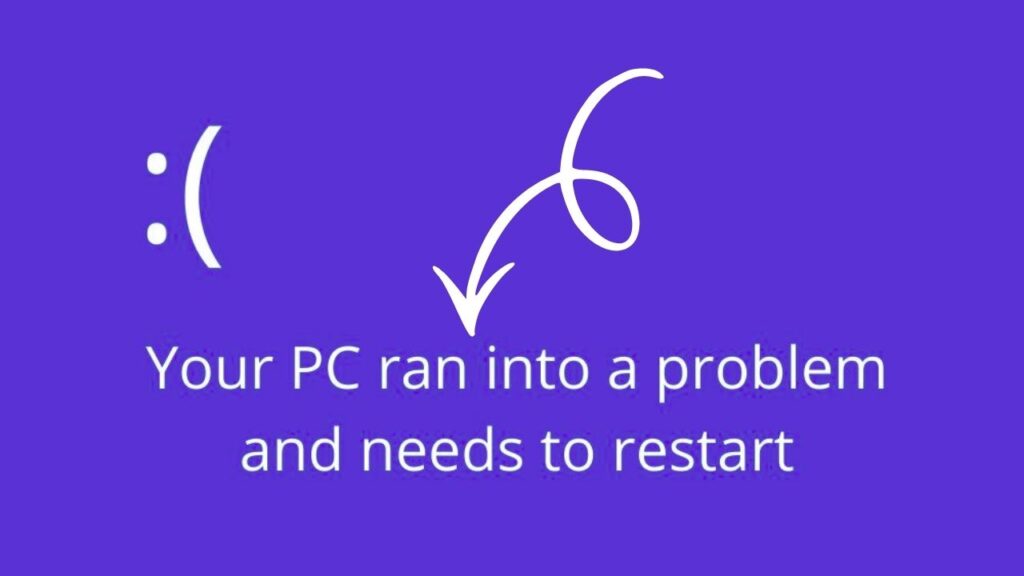
The “Your PC ran into a problem and needs to restart” error appears when Windows detects a critical issue that prevents the operating system from running safely. To protect your files and hardware, Windows immediately stops all processes and restarts the computer.
You may notice additional information on the blue screen, such as a Stop Code. Examples include CRITICAL_PROCESS_DIED, MEMORY_MANAGEMENT, SYSTEM_SERVICE_EXCEPTION, or IRQL_NOT_LESS_OR_EQUAL. These stop codes can help identify the underlying problem, but you do not need to understand them to begin troubleshooting.
The most common causes include corrupted system files, outdated or damaged drivers, faulty RAM, failing storage devices, incompatible applications, malware infections, overheating, and incomplete Windows updates.
The following steps cover the most effective ways to resolve this error.
Step 1: Restart Your Computer and Disconnect External Devices
The first thing you should do is perform a simple restart. Temporary software glitches sometimes trigger a blue screen only once, and a normal restart may solve the issue.
Before restarting, disconnect any unnecessary external devices connected to your computer. This includes USB flash drives, external hard drives, printers, webcams, docking stations, memory card readers, gaming controllers, and other accessories.
Once everything is disconnected, restart your PC. If Windows starts normally, reconnect one device at a time. If the blue screen appears after reconnecting a specific device, that device or its driver may be causing the problem.
If the error continues even after disconnecting all accessories, move on to the next step.
Step 2: Start Windows in Safe Mode
If your computer repeatedly displays the blue screen before reaching the desktop, you should start Windows in Safe Mode.
Safe Mode loads Windows using only the essential drivers and services. This makes it much easier to identify whether a third-party driver or application is causing the problem.
To enter Safe Mode, turn your PC on and interrupt the startup process by holding the power button when the Windows logo appears. Repeat this process two or three times until Windows displays Preparing Automatic Repair.
Select Advanced options, then choose Troubleshoot, followed by Advanced options, and then Startup Settings. Click Restart.
After your computer restarts, press 4 to enter Safe Mode or 5 to enter Safe Mode with Networking.
If your PC works normally in Safe Mode, the problem is likely caused by recently installed software, drivers, or startup programs.
Step 3: Check for Windows Updates
Microsoft regularly releases updates that fix bugs, improve stability, and resolve known system crashes.
Open Settings, select Windows Update, and click Check for updates.
Allow Windows to download and install every available update. Some updates may require several restarts.
If the blue screen started immediately after installing a recent update, you may need to uninstall that update instead.
Go to Settings, select Windows Update, choose Update history, click Uninstall updates, and remove the most recently installed update if you believe it caused the issue.
Restart your computer and check whether the error is gone.
Step 4: Update or Reinstall Device Drivers
One of the leading causes of blue screen errors is an outdated or corrupted device driver.
Open Device Manager by right-clicking the Start button and selecting Device Manager.
Look for any device showing a yellow warning icon. This indicates Windows has detected a problem with the hardware or driver.
Right-click the device and choose Update driver.
Select Search automatically for drivers and allow Windows to install the latest version.
If the issue started after updating a driver, right-click the device, choose Properties, open the Driver tab, and select Roll Back Driver if the option is available.
You can also uninstall the driver and restart your computer. Windows will usually reinstall the correct driver automatically during startup.
Step 5: Scan and Repair Corrupted System Files
Corrupted Windows system files frequently cause unexpected crashes and restart errors.
Open Command Prompt as an administrator.
Type the following command and press Enter.
sfc /scannow
The System File Checker will examine protected Windows files and automatically replace damaged ones.
Wait for the scan to finish completely before closing the Command Prompt.
Next, run the following command.
DISM /Online /Cleanup-Image /RestoreHealth
This command repairs the Windows system image used by the System File Checker.
Restart your computer after both scans are complete.
Step 6: Check Your Hard Drive for Errors
Storage problems can also trigger repeated blue screen errors.
Open Command Prompt as an administrator.
Type the following command. chkdsk C: /f /r
Press Enter.
If Windows asks to schedule the scan during the next restart, type Y and press Enter.
Restart your computer.
Windows will check the drive for damaged sectors and file system errors. Depending on the size of your drive, the process may take some time.
Allow the scan to finish without turning off your computer.
Step 7: Test Your Computer’s Memory
Faulty memory modules are another common cause of system crashes.
Open the Start menu and search for Windows Memory Diagnostic.
Open the tool and choose Restart now and check for problems.
Your computer will restart and begin testing the installed memory.
After Windows loads again, you can review the test results.
If memory problems are detected, you may need to replace the faulty RAM module.
Step 8: Remove Recently Installed Software
If the problem started after installing a new application, antivirus program, hardware utility, or game, that software could be incompatible with your version of Windows.
Open Settings, choose Apps, then select Installed apps.
Locate the application you recently installed.
Select it and choose Uninstall.
Restart your computer afterward.
If the blue screen no longer appears, you have likely identified the cause.
Step 9: Perform a System Restore
If your computer worked correctly a few days ago, System Restore can return Windows to an earlier working condition.
Search for Create a restore point in the Start menu.
Open System Protection and click System Restore.
Select a restore point created before the problem began.
Follow the instructions displayed on the screen.
Windows will restore important system settings without deleting your personal files.
After the process finishes, verify whether the restart error has been resolved.
Step 10: Reset Windows as a Last Resort
If none of the previous solutions work, resetting Windows may be the best option.
Open Settings, select System, choose Recovery, and click Reset PC.
Windows lets you choose between Keep my files and Remove everything.
For most users, Keep my files is the better choice because it reinstalls Windows while preserving personal documents, pictures, and other files.
After the reset completes, reinstall your applications and check whether the problem has disappeared.
FAQs
Why does my PC say “Your PC ran into a problem and needs to restart”?
This message appears when Windows detects a critical system error that prevents it from operating safely. The problem may be caused by damaged system files, outdated drivers, hardware issues, faulty memory, storage errors, or incompatible software.
Can I fix this error without reinstalling Windows?
Yes. Most users can resolve the problem by updating drivers, repairing system files, checking the hard drive, testing memory, uninstalling problematic software, or performing a System Restore.
Is the Blue Screen of Death dangerous?
The blue screen itself is a protective feature. It helps prevent additional damage by stopping Windows when a serious error occurs. However, frequent blue screens should be investigated because they may indicate hardware or software issues.
Can faulty RAM cause this restart error?
Yes. Defective RAM is one of the most common causes of blue screen errors. Running Windows Memory Diagnostic can help determine whether your memory is functioning properly.
Will resetting Windows delete my personal files?
If you choose Keep my files during the reset process, Windows preserves your personal files while reinstalling the operating system. Installed applications and customized settings will still need to be restored afterward.
How do I know which driver is causing the blue screen?
Sometimes the blue screen displays a stop code or driver name. You can also use Device Manager to identify problematic devices or review recent driver updates if the issue started after installing new hardware.
Should I replace my hard drive if I keep getting this error?
Not immediately. First, run Check Disk and inspect your drive for errors. If Windows reports repeated bad sectors or the drive continues failing, replacing the storage device may be necessary.
Can overheating cause the “Your PC ran into a problem and needs to restart” error?
Yes. Excessive heat can cause Windows to shut down unexpectedly to protect internal components. Ensure your computer has proper airflow and clean any dust from cooling fans if necessary.
Summary
The “Your PC ran into a problem and needs to restart” error is one of the most common Windows problems, but it is often fixable without replacing your computer. In many cases, the issue is linked to outdated drivers, corrupted system files, storage errors, faulty memory, or incompatible software rather than permanent hardware failure.
Start with the simplest solutions, such as restarting your PC, disconnecting external devices, and checking for Windows updates. If the problem continues, boot into Safe Mode, repair system files using SFC and DISM, scan your storage drive, test your RAM, and remove recently installed software. System Restore can also return your computer to a stable state if the issue started recently. If every other solution fails, resetting Windows provides a clean operating system while allowing you to keep your personal files.